Tag: sql server

  • Basic SQLCMD–#SQLNewBlogger

    Another post for me that is simple and hopefully serves as an example for people trying to get blogging as #SQLNewBloggers.

    I had the need to connect from the command line recently, and decided to make a quick post on using SQLCMD, as I had an issue.

    SQLCMD is a command line utility that comes with SQL Server. I know many people don’t use command lines, but they are handy at times. I recently opened a command prompt.

    2016-04-06 12_47_33-Photos

    I then typed SQLCMD. After a delay, I got this:

    2016-04-06 12_51_23-Photos

    The issue here is that I don’t have a default instance on this machine. All of mine are named. I need to provide a –S parameter, with a server name (and possibly instance name).

    2016-04-06 13_01_33-Photos

    I do that and I’m connected. By default, SQLCMD (and osql) try to use Windows Auth. The 1> indicates that the utility is ready for T-SQL queries. You need to know your language here as there’s no help.

    I can enter code, and check my user name. I do this, and get a 2>. The end of a batch is indicated with “GO” and this will execute the batch. You can see how this works below:

    2016-04-06 13_01_47-Photos

    I can use this to make my code easier to read. I can format code as I would in an editor, though be aware you can’t go back and edit previous lines.

    2016-04-06 13_07_03-Photos

    If I enter go, I’ll get this:

    2016-04-06 13_07_15-Photos

    Not so easy to read. I have to scroll up to even figure out what the display is:

    2016-04-06 13_07_26-Photos

    As you can see, using SELECT *, or retrieving too many columns make results hard to read. You would to wise to pick only those columns you need to return.

    To leave SQLCMD, you can type exit, which will return you to the command prompt.

    2016-04-06 14_00_07-Start

    This is a short look at SQLCMD. The older, osql, utility functions the same way, and both are good, lightweight ways to connect to your SQL Server instance.
  • Changing the sa Password with SSMS–#SQLNewBlogger

    Another post for me that is simple and hopefully serves as an example for people trying to get blogging as #SQLNewBloggers.

    I wanted to make a quick note on changing the sa password, as this is a sensitive account, and the password should be changed if you ever suspect it is compromised. I’d also recommend you change this if anyone that knows the password leaves your group.

    Changing sa with SSMS is really simple. Follow these steps:

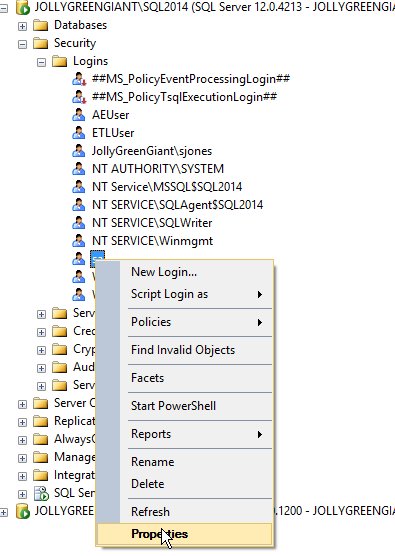
    Connect to SSMS as a sysadmin. You can check this for your login. Then expand the Security folder and the Logins folder. Right click the “sa” account and choose properties.

    2016-04-06 12_40_31-Photos

    Once you do this, you’ll get the login properties dialog, and see the Password text field at the top in the General tab.

    2016-04-06 12_42_22-Photos

    You can type a new password in the Password box, and confirm this in the Confirm Password box. Password policies checks are up to you, though I’d recommend you use them.

    Click OK and the password is changed. You can then connect a new query window as “sa” and verify your password.

    SQLNewBlogger

    Make sure you know how to do this. It’s a basic skill, so learn it, blog about it, and use it where appropriate. Maybe write about why you’d do this in your own post.

  • MDF File Password Confusion

    I had never seen this, but I ran across a blog that mentioned an MDF File password here. The post really looks at ways to reset the administrator password for the “sa” account in SQL Server. However it has some mistakes and issues. I tried leaving a comment, but comments are disabled.

    With that in mind, I decided to respond to a few things and clear up confusions.

    With regards to the post, I think it’s confusing in that the text notes an MDF file password, but all the instructions are really about resetting the “sa” account password. sa is the built in sysadmin account in SQL Server, which isn’t related to the MDF file. The MDF file is the extension of the main data file for a database. You can change this, but there isn’t a good reason to do so. Note, the .ndf files are the same format, though by convention, these are the 2nd, 3rd, and other files added to a database.

    There also isn’t a password on these files. I can open them in notepad (not recommended) or xvi32, and there isn’t any requirement if I have read access in NTFS to the file. It doesn’t matter if this is the master database or any user database. If you have NTFS permissions, you can read the file.

    Now interpreting is different. SQL Server interprets this, and it requires permissions itself to access the server process, either sysadmin, or normal login. However, you can use ORCAMDF or MDF Viewer, or some other tool to read the files. The information contained in an mdf/ndf file is just formatted in a certain way. If you spend a lot of time, you will understand how to interpret the format.

    Changing the sa password requires that the SQL Server service be running and you connect in some way. The post gets the methods right, but says that you must stop the service, which is only needed if you access the file some other way (ORCAMDF, xvi32, etc.). If you want to change the sa password, there are a few choices:

    1. USE SSMS
    2. Use SQLCMD
    3. Use osql
    4. Use one of the above methods with SQL Server restarted in single user mode
    5. Use a third party utility.

    Any of these first four will work, and feel free to use whichever fits your situation. The last one is one I do not recommend as I can’t be sure any third party products will work correctly here.

    Ultimately I’m a little embarrassed by this post, as it appeared through our syndication process on SQLServerCentral. We don’t review these posts, so there is no quality control. Most of the posts on this blog are good ones, but this one appears to be by a guest author and it’s one I’d ignore.

  • Quick Encryption with Always Encrypted

    What do you need to do in order to access data in a SQL Server that’s encrypted with Always Encrypted? It’s not much, and it’s really simple.

    1. The certificate used for encryption
    2. A parameter in the connection string

    That’s it. It’s a small list of things.

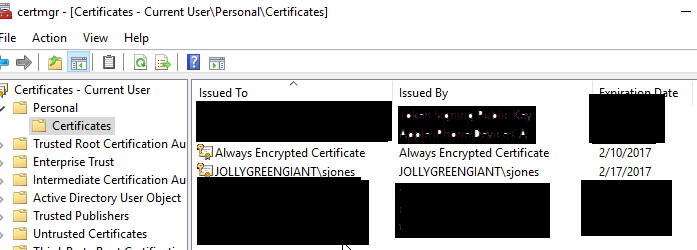
    I was experimenting with this, and I set up encryption on a VM, then copied the certificate backup to another VM and installed it in the Certificate Store.

    2016-03-28 17_56_00-Settings

    This is all I changed on my C# application to enable encryption.

    strConnstring += “; Column Encryption Setting = Enabled”

    I had a connection string built, and I added this one little option to the end and when I queried my encrypted table, I could read the data.

    There are certainly more caveats and more to learn about encryption, but this shows how easy it can be to change your application. Just alter the connection string.