I wrote a PowerShell script recently to actually accomplish a task I that I needed. What’s more, this was the first time I thought that Powershell might prove more useful than other methods. This series looks at my script, and this part examines the first part that I wrote.
In the last post, I had a script that matched up databases with the mdf files in a folder. That’s good, but that’s actually the opposite if what I want to return. I want to return the files that aren’t matched up.
To do this, I add a few variable to my script, re-setting it for each loop of a file in my folder. I do this inside my test for the extension (shown), so I’m not executing this if I don’t need to.
if ($file.Extension -eq ‘.mdf’)
{
if ($debug -eq 1)
{
write-host “MDF Files: ” $file.name
#end debug
}
# Reset our flag for each file
$found = 0
The last two lines are what I added. We set this to 0, or false, because we assume we haven’t found a database that matches this file by default. That way when we do find a file, we can trip the flag.
The next step is to set that tripwire. Inside the loop, where we check for the file matching a database file, we add a reset of this flag.
if ($file.FullName -eq $dbfile.FileName)
{
$found = 1
Since we will check this file against every database, this logic allows the flag to be set, and it doesn’t get reset for this physical file. Any databases we check that don’t match this file won’t reach this point.
The last step is the other end of the file loop. After we’ve left the database loop, we check to see if our file was found. If it’s not ($found is still 0), then we can do work. I’ve included the end of the foreach and the end of the mdf test for reference.
# end foreach
}
if ($found -eq 0)
{
# attach this file
if ($debug = 7)
{
Write-Host $file.Name “not found”
#end if debug
}
#end if found = 0
}
There’s a comment placeholder in there to show the action we need to take, and there’s a debug to print things. Let’s set debug to 7 and run this.
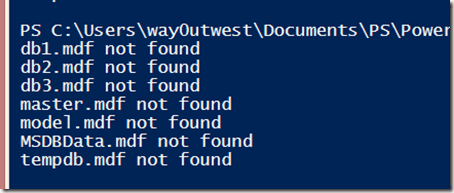
That’s bad. Certainly I noted that my test databases (db1, db2, db3) were detected. These I detached manually to play in a test environment. However why are my system objects there?
I looked through the code and realized it’s because I had this line:
| Where-Object {$_.ISSystemObject -eq $false}
I’m ignoring system objects in my scan, but I don’t want to do that. I actually have these databases, so I removed that Where-Object call. Then I get this:
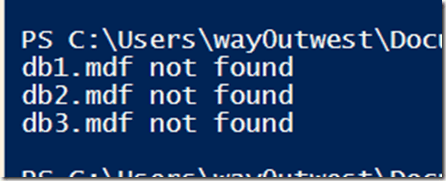
That’s what I want to see. Now I have a list of files to attach, let’s work inside SQL Server.
Attaching Database Files
I have my .mdf files, but I also want my ldf files. I know these fit a pattern from looking at the files. Since I haven’t changed anything from the defaults, I can exploit that pattern. If you change things on your systems, make sure you keep a pattern.
I did some googling, and found that the AttachDatabase method takes a few parameters. However one of them is a StringCollection so I need to create that.
$dbfiles = New-Object System.Collections.Specialized.StringCollection
Once I have this variable, I can then add my mdf file. The FullName property includes the path, and I call the Add() method.
$dbfiles.Add($file.FullName) | Out-Null
Now, I need a few more things. I need the log file and the database name. The database name is first, mostly because I thought of it first. The BaseName is just the name of the file. I found that out by using my debug clause and writing out the various properties until I got the one I wanted.
#get database name
$dbname = $file.BaseName
The next step is to get my log file. I can use the basename, along with my folder path, and include my log pattern. Once I build this file, I add it to the collection.
# get log file, assuming same basename as mdf
$logfile = $folder + “\” + $file.BaseName + “_log.ldf”
$dbfiles.Add($logfile) | Out-Null
I added a logging item, which will always run, to my script as this is output I’d want to see.
“Attaching as database (” + $dbname + “) from mdf (” + $file.FullName + “) and ldf (” + $logfile + “)”
Now we attach the database. I’ve seen some code that had other parameters, but this worked well for me. I captured this in a try..catch block, mostly because it failed early on and this allowed me to see the whole exception. Some of what was shown from PoSh was truncated, so this helped me to realize I needed to add the “_log” to my filename.
try
{
$server.AttachDatabase($dbname, $dbfiles)
#end try
}
catch
{
Write-Host $_.exception;
#end catch
}
That’s it. I run it and get some output.

A slight issue in my debug code. I had $debug = 7 and needed $debug –eq 7. Still, it records each database as being attached, with the catch block not executing. If I check SSMS.

My databases are back.
It’s not a perfect script, and there are probably improvements, but it does get me my databases back easily.