Tag: sql server

  • A Little Learning with Pluralsight

    I’ve been working on a new presentation on testing using the tSQLt framework and was curious how other people are using the framework. I read through the documentation and various articles on Simple Talk. I also went through the Google Group and StackOverflow tags for tSQLt, gathering lots of viewpoints on how the framework is used.

    However I wanted more. I’ve tested T-SQL code before, but usually in the simplistic way that I see most SQL Server developers running tests. Contriving a bit of data, building a query that checks things, and moving on. I’ve never written formal SQL tests, and wanted to learn something.

    I turned to my friend, Google, and was surprised to see a course on Pluralsight pop up. I didn’t think tSQLt was popular enough to build a course, but apparently it was, so I signed on and went through the course. It was interesting, and I got a nice set of hints on how Dave Green uses tSQLt and some ideas on how I could enhance my presentation.

    Then I went looking for a few more courses. Since I was a bit laid up with my knee surgery, I was stuck in bed and rather than watch TV, I wandered around the Pluralsight site a bit. I was surprised to find a course on SQL Prompt and went through that, getting a few tips and tricks that I hadn’t used before. I also started a course on CTEs from Joe Sack, and I’ve learned a couple tricks in there.

    Overall, I’m impressed with Pluralsight. I’ve had a subscription for some time as an MVP, but hadn’t accessed it. However I’ll be spending a few minutes here and there working my way through the offerings, trying to learn a bit more about SQL Server, as well as tackle some C# and security.

  • Attaching All Databases with PowerShell – The Overview

    TL;DR Script is here: Git Hub Powershell Scripts. It’s the attachdbs.ps1 and will attach all databases in a folder to a SQL Server instance, if they don’t exist.

    I wrote a PowerShell script recently to actually accomplish a task I that I needed. What’s more, this was the first time I thought that Powershell might prove more useful than other methods. This series looks at my script, and this part examines the first part that I wrote.

    After my problems with Windows 8.1 and my reinstallation of SQL Server, I had a problem. I had no databases.

    I had the files. I had backup files. However the instance didn’t have any databases registered. I started down this path.

    attach_a

    However that seemed inefficient. I actually had a pattern of things that I knew needed to be done, I had a bunch of repeatable work, this sounded like it should be a PowerShell type task. I could have done it in T-SQL, or grabbed a script from SQLServerCentral, but it made more sense to load databases with PowerShell.

    The Start

    Of course I started Googling, but didn’t see any posts that shower someone with mdf/ldf files and needing to attach them to an instance without knowing what you had. What I had was an instance, with no backup/restore/detach history.

    attach_b

    I also had a bunch of mdf/ldf files in a folder. As well as some folders for Filestream/Filetable information.

    attach_c

    What did I do? I’ve got the script on GitHub, and you can grab the latest version at: Powershell Scripts (choose the attachdbs.ps1 file)

    This post will give an overview of what I needed to do and I’ll post more details about how I built the script in pieces. The overview of the process is:

    • Get all MDF Files in a folder
    • Connect to a SQL Server instance and loop through all databases
    • If a file name (less the .mdf) does not exist as a database, track this.
    • Get the log file associated with an mdf
    • Attach the mdf and ldf files to the SQL Server.

    That’s what I needed to do and development went in those stages. Certainly there were issues, but I got it working as of this post. When I ran my script, I saw these results:

    attach_f

    In SSMS, I had my databases.

    attach_d

    I even had my Filestream stuff in place. SQL Server handled that for me.

    attach_e

    I’ll include other posts that talk about the details of how I build this, which took about 3 hours one day, and an hour the next.

    References

    Here are a few posts where I picked up bits and pieces of what I needed to do.

  • The Development Backup

    Have you ever had a development server crash? Have you lost work because of this? Had delays or had to recreate code? You shouldn’t, or at least you shouldn’t lose much work or time..

    There was a time when I offered to manage backups on all development servers. This was in a large environment with hundreds of instances.  I wasn’t worried. I had scripts to do the work of setting up, running, and reporting on backups for instances. I knew how to deploy these scripts to hundreds of servers.

    My reasoning was the our development servers were really our manufacturing environment for software. Wouldn’t you ensure your machinery was well maintained and kept in top condition if you had a factory? I know I would.

    The developers passed and once in awhile they’d call and ask of we could recover a server. 

    “Do you have backups?,” I’d ask. “No” was the usual reply. I’d appligize and reiterate my offer to manage the system. They were always resistent and that was fine. They were responsible, and these were their systems. However they had a backup system already. They just didn’t use it.

    Almost all of these people were using a version control system (VCS) for their code, but not for database code. Do me a favor; put your database object code in source control. Add all your DDL for tables, views, functions, stored procedures, and anything else you use.

    As long as it’s on a different physical machine than the development server, you’ll thank me one day.

    Just as long as you also run backups of that VCS database.

    Steve Jones

    The Voice of the DBA Podcast

    Listen to the MP3 Audio ( 1.7MB) podcast or subscribe to the feed at iTunes and LibSyn. feed

    The Voice of the DBA podcast features music by Everyday Jones. No relation, but I stumbled on to them and really like the music. Support this great duo at www.everydayjones.com.


  • Filetable–Nesting folders and files

    In previous posts I showed how to create a folder in a Filetable and also how to the create (and move) files into the subfolder. However I didn’t repeat that and wanted to test the ability to actually nest things further. With that in mind, I’m going to take this to the next step.

    The Scenario

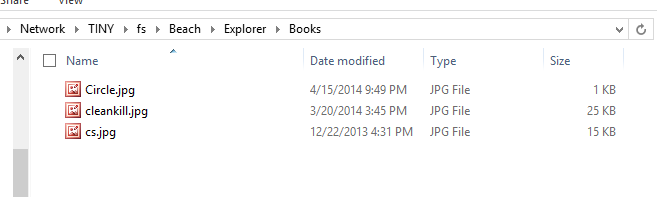
    What I’ve got is a subfolder in my Filetable called Books. This is the first level below the root of my Filetable share. This folder has three files in it.
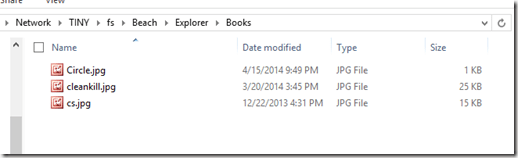
    filetable_j

    One of these is the image of a circle, and the other two are images of book covers. I’d like to create a folder called “Covers” and then move the two jpgs into that folder together. Let’s see how this goes.

    The Solution

    The first set of code I want to run will create a folder, but it will have to be nested under the Books folder. As we can see from the table, the Books folder already exists and needs to be the parent_path_locator for my new folder.
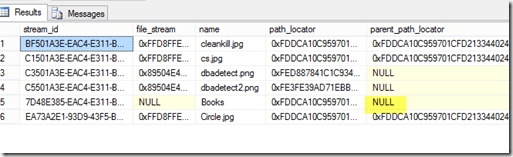
    filetable_k

    The highlight shows that “Books” is in the root of my Filetable.

    Here’s the code, which calculates the new path_locator using the path_locator of “Books” as a base and then inserts a new folder.

    DECLARE @path HIERARCHYID
    DECLARE @new_path VARCHAR(675)
     
    SELECT  @path = path_locator
    FROM    dbo.Explorer
    WHERE   name = 'Books'
    
    SELECT  @new_path = @path.ToString()
            + CONVERT(VARCHAR(20), CONVERT(BIGINT, SUBSTRING(CONVERT(BINARY(16), NEWID()),
                                                             1, 6))) + '.'
            + CONVERT(VARCHAR(20), CONVERT(BIGINT, SUBSTRING(CONVERT(BINARY(16), NEWID()),
                                                             7, 6))) + '.'
            + CONVERT(VARCHAR(20), CONVERT(BIGINT, SUBSTRING(CONVERT(BINARY(16), NEWID()),
                                                             13, 4))) + '/'
    ;
    
    
    INSERT  INTO dbo.Explorer
            ( name, path_locator ,is_directory )
    VALUES  ( 'Covers', @new_path, 1 );

    .csharpcode, .csharpcode pre
    {
    font-size: small;
    color: black;
    font-family: consolas, “Courier New”, courier, monospace;
    background-color: #ffffff;
    /*white-space: pre;*/
    }
    .csharpcode pre { margin: 0em; }
    .csharpcode .rem { color: #008000; }
    .csharpcode .kwrd { color: #0000ff; }
    .csharpcode .str { color: #006080; }
    .csharpcode .op { color: #0000c0; }
    .csharpcode .preproc { color: #cc6633; }
    .csharpcode .asp { background-color: #ffff00; }
    .csharpcode .html { color: #800000; }
    .csharpcode .attr { color: #ff0000; }
    .csharpcode .alt
    {
    background-color: #f4f4f4;
    width: 100%;
    margin: 0em;
    }
    .csharpcode .lnum { color: #606060; }Once that’s run, I see this in the table:
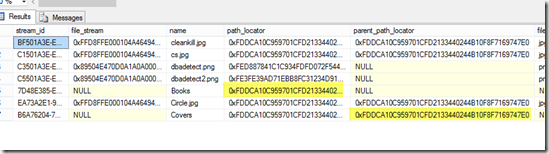
    filetable_l

    The two highlights are the same values, with the parent of the Covers folder matching the path of the Books folder. In the Books folder we see:
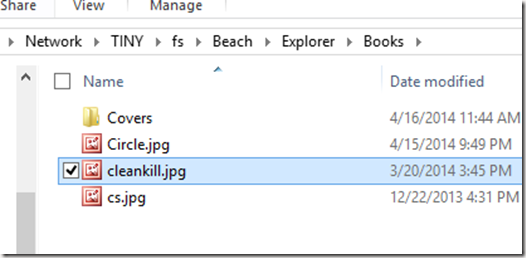
    filetable_m

    Things look good so far. I can programmatically nest folders. Now I need to move the two jpgs into the proper folder. Let’s do that in one (hopefully) statement.

    We use the same code as we did to move a file, but this time instead of a variable for the new path, we embed this in the update statement. In this case I actually moved all three files.

    DECLARE @path HIERARCHYID
     
    SELECT  @path = path_locator
    FROM    dbo.Explorer
    WHERE   name = 'Covers'
    
    Update dbo.Explorer
          SET path_locator = @path.ToString()
            + CONVERT(VARCHAR(20), CONVERT(BIGINT, SUBSTRING(CONVERT(BINARY(16), NEWID()),
                                                             1, 6))) + '.'
            + CONVERT(VARCHAR(20), CONVERT(BIGINT, SUBSTRING(CONVERT(BINARY(16), NEWID()),
                                                             7, 6))) + '.'
            + CONVERT(VARCHAR(20), CONVERT(BIGINT, SUBSTRING(CONVERT(BINARY(16), NEWID()),
                                                             13, 4))) + '/'
    
          WHERE RIGHT(name, 3) = 'jpg'

    .csharpcode, .csharpcode pre
    {
    font-size: small;
    color: black;
    font-family: consolas, “Courier New”, courier, monospace;
    background-color: #ffffff;
    /*white-space: pre;*/
    }
    .csharpcode pre { margin: 0em; }
    .csharpcode .rem { color: #008000; }
    .csharpcode .kwrd { color: #0000ff; }
    .csharpcode .str { color: #006080; }
    .csharpcode .op { color: #0000c0; }
    .csharpcode .preproc { color: #cc6633; }
    .csharpcode .asp { background-color: #ffff00; }
    .csharpcode .html { color: #800000; }
    .csharpcode .attr { color: #ff0000; }
    .csharpcode .alt
    {
    background-color: #f4f4f4;
    width: 100%;
    margin: 0em;
    }
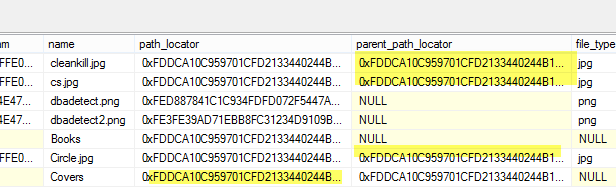
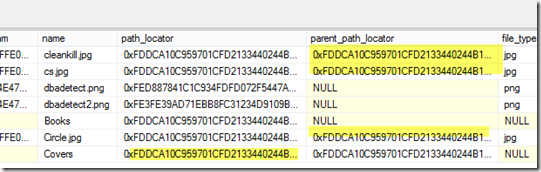
    .csharpcode .lnum { color: #606060; }The table now shows:
    filetable_n

    The shaded values, while very long now and truncated in the image, are in fact the same.

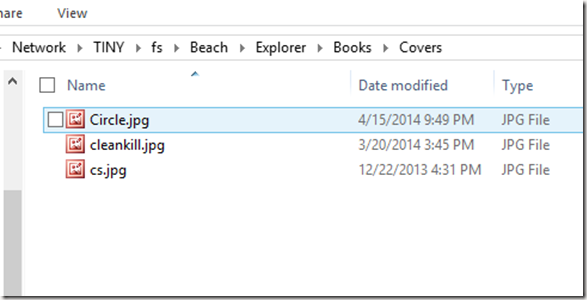
    The share shows:
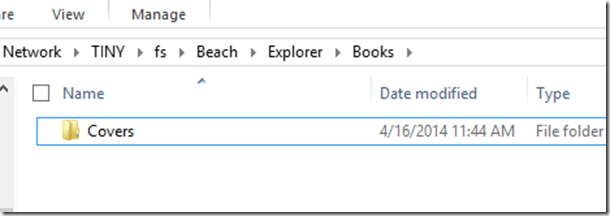
    filetable_o

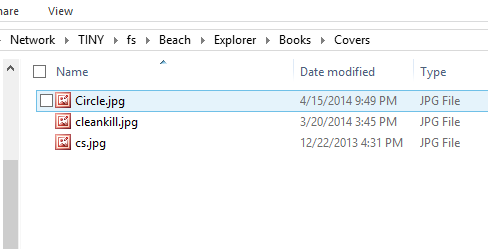
    and

    filetable_p

    I could certainly have accomplished this in other ways, but being able to do this in T-SQL is a nice way of managing your files in a simple way that might be easier than changing an application. It’s certainly a good way to fix incorrect data if the application can’t do it and this can be much faster than having a user move lots of files manually.