Tag: SQLNewBlogger

  • Quick Filtering in SSMS–#SQLNewBlogger

    I saw someone limit the databases they see in SSMS, which isn’t something I often do, but I thought this was great.

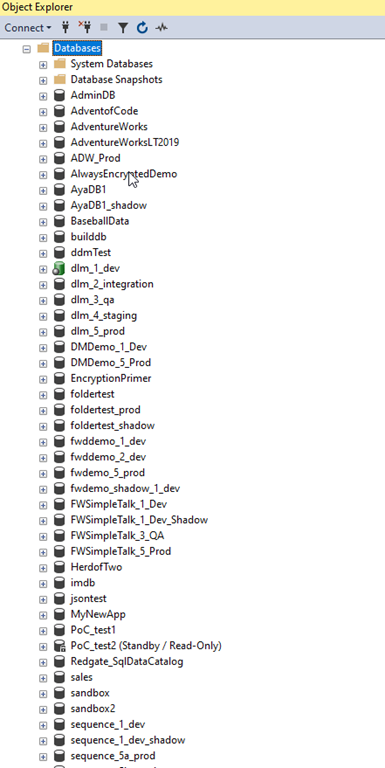
    A Long List

    This is the list of databases on a demo instance I have. While it’s a lot since I do a lot of testing with customers and colleagues, I see plenty of people will lists of databases longer than this.

    2023-09-18 09_39_38-Window

    I also watch them scroll like I do when trying to find an object in a database.

    However, for demos, this is a lot, so I like to slim things down. I used to have a script to detach all the databases and then attach the ones I need, but that’s time consuming and once in awhile, I need a different database, so that’s an issue.

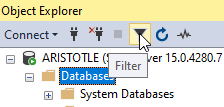
    I saw the someone filter their list by clicking the filter button in the Object Explorer. This is the funnel button shown here:

    2023-09-18 13_57_35-Window

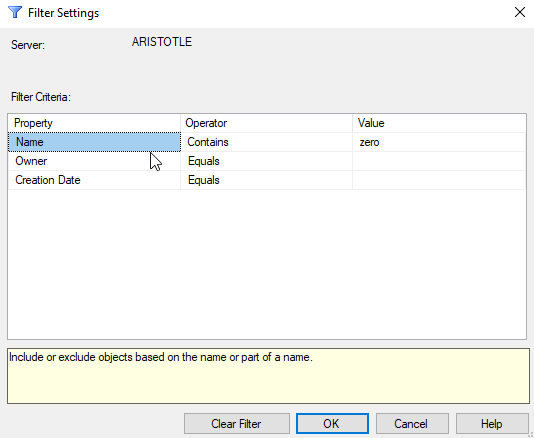
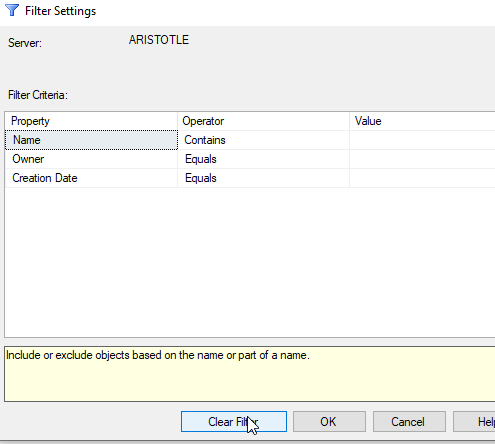
    Once you click this, a dialog appears that let’s you enter your filter criteria. I’ll use a simple filter of “zero” to limit to those databases in my zerodowntime demo.

    2023-09-18 09_39_25-Window

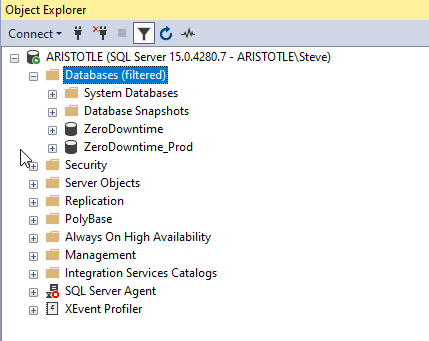
    Once I click “OK”, I see only those databases listed.

    2023-09-18 09_39_18-Window

    If I want to get everything back, I can click filter again and then delete my criteria, or click “Clear” filter. That gets me the entire list back.

    2023-09-18 09_39_32-Window

    Easy.

    SQLNewBlogger

    This post was something I jotted a note about when I saw someone do this. The note was literally “write about filtering in SSMS object explorer”. I took that and wrote this post in 10 minutes, including time to grab screen shots.

    You could do this as well, showcasing the knowledge that you’re learning to use tools better, which make you more productive. Employers love that.

    Write your own post with more advanced filtering.

  • Creating an Empty Repo in GitHub–#SQLNewBlogger

    I saw someone struggling with getting started with a Visual Studio project and Azure DevOps. They got a conflict, which I’ll show and then get you started with an empty repo.

    Another post for me that is simple and hopefully serves as an example for people trying to get blogging as #SQLNewBloggers.

    The Problem with Initialized Repos

    I wrote about this recently with Azure DevOps and empty repos.. If I initialize a repo in GitHub, or any online provider, and try to push up a local repo, it returns an error that I have conflicts.

    I’ve learned that when I want to start a new project, either I create the repo locally and then make an empty one online, or I create it online, clone it, and then start working.

    I try to do the second (create online first), but I don’t always remember.

    Creating an Empty Repo

    In GitHub, if you go to your repositories page, you can see a “New” button on the right.

    2023-08-25 16_56_06-Your Repositories — Mozilla Firefox

    Click this and enter a name, as I’ve done below. BTW, I love the suggested name.

    2023-08-25 16_56_30-New repository — Mozilla Firefox

    If you look at the image above, near the bottom, you can see my mouse pointer.

    DO NOT check this box if you want an empty repo. Don’t add a .gitignore either. You’ll be adding code from your own project, which likely has a gitignore file and might have a repo. If not, just create a readme.md file in your local git repo.

    Don’t add a license file either.

    Pushing My Project

    Now when you create this, you get the details of how to push your repository. If you have never used git, just open a command prompt and paste these lines in one by one and run them.

    2023-08-25 17_00_57-way0utwest_myemtyrepotest — Mozilla Firefox

    That’s it and now you can work and commit in either repo and deal with merges.

    SQLNewBlogger

    This post was easy for me, but I’ve been in the situation where I’ve made this mistake. In this case, I’d written the other post, so I knew what to do here. I spent another 10 minutes getting GitHub set, taking images, and writing this.

    Easy to do, 2 posts from one idea, and showcasing knowledge on another platform. I could do another one with BitBucket or somewhere else, and maybe I will. I have customers that use other platforms.

    Maybe you should do this and showcase your versatility to the next person that wants to interview you. If you want to work with software and Git, show them you know the basics. Or even more.

  • Creating Empty Repos in Azure DevOps–#SQLNewBlogger

    I saw someone struggling with getting started with a Visual Studio project and Azure DevOps. They got a conflict, which I’ll show and then get you started with an empty repo.

    Another post for me that is simple and hopefully serves as an example for people trying to get blogging as #SQLNewBloggers.

    The Problem with Initialized Repos

    First, I’ll open VS 2019 and create a new database project. I won’ t walk through that, but once I do, then I can add my project to source control. In the lower right corner, this is an option:

    2023-08-09 12_58_07-Zoomit Zoom Window

    I’ll choose a local repository here. I see plenty of people do this if they don’t want to use GitHub.

    2023-08-09 12_58_34-

    Now, I go to Azure DevOps and create a project. I initialize that project with a Readme, which seems like a good idea. You can see my online repo below:

    2023-08-09 12_56_01-VS DB Project Test - Repos

    When I create this, I get the options to link an existing repo or push up.

    2023-08-09 12_59_54-Database2 - Microsoft Visual Studio

    However, if I try to link my existing local repo, I get an error.

    2023-08-09 13_00_19-Database2 - Microsoft Visual Studio

    Why? I have a commit in the report (initialized with a readme) and commits locally. That’s a conflict.

    Creating an Empty Repo

    The way to avoid this is make an empty repo in Azure DevOps without anything in it. When you see this screen, un check the “add a README”. No matter how much you want to have one, don’t do this.

    2023-08-25 16_35_11-VS DB Project Test - Repos

    Now, you have an empty repo for the remote. You should see this online, with the first line noting this is empty. From here, you can use the second box to push your repo from the command line.

    2023-08-25 16_36_17-Files - Repos

    SQLNewBlogger

    This post was easy for me, but I’ve been in the situation where I’ve made this mistake. It’s annoying, but it’s also confusing as you should be able to make changes in both repos. That’s why we use git.

    You can, but not when both are initialized. You need to clone one from the other.

    This post took me about 15 minutes to create, with a good portion of time spent creating the scenario twice (two repos) and the db project in VS, which is slow. You could do this same thing and show how (and why) you set up a project linked to source control. If you use a couple systems (one at work and one at home) make two posts!

  • Restore with Standby–#SQLNewBlogger

    A customer had a question about restoring with standby, so I wrote a quick post to explain how this works.

    Another post for me that is simple and hopefully serves as an example for people trying to get blogging as #SQLNewBloggers.

    The Scenario

    Sometimes you want to restore part of your data, but you still want the option to continue restores. A classic example of this is when you are restoring a number of transaction logs and want to check the data to find a place where certain values haven’t been changed.

    Suppose someone deletes a bunch of data between 10am and 11am from the supplier table. You know that they added “Acme” to this table before the delete. You might restore up to 10am and check the supplier table for the old data and look for Acme. If it’s not there, maybe you restore the 10:05am log backup and check again. If it’s not there, then the 10:10am log, etc.

    SQL Server lets you query a restored, but not recovered database with the STANDBY option. If you use NORECOERY, you can’t query the data. I won’t delve into the technical process in this blog, but for now, this is what we want to do: query a restored db, but not prevent future restores.

    Setup

    First, create a database and then take a backup. I created the “sandbox” database in my system and backed it up. I won’t cover that. Now, let’s set up a restore. I’ll choose a new name, since I’m looking for data. Here’s the statement I picked:

    USE [master]
    RESTORE DATABASE [sandbox4] FROM  DISK = N'D:\SQLBackup\New folder\sandbox_20210308.bak' WITH  FILE = 1,
       MOVE N'Sandbox' TO N'D:\SQLServerData\SQL2017\Sandbox4.mdf',
       MOVE N'Sandbox_log' TO N'D:\SQLServerData\SQL2017\Sandbox4_log.ldf',
       STANDBY = N'D:\SQLBackup\New folder\sandbox_RollbackUndo_2023-08-07_11-51-39.bak',  NOUNLOAD,  STATS = 5
    GO

    This is complex, and I haven’t memorized this syntax. Plus I don’t want to type all those paths. Instead, I use SSMS. I’ll set up the restore there. Here are the three screens. Note in the first, one I’ve pointed to the “Script button”, which is what I pushed to get this command.

    I’ve picked the device here and changed the restore to database name.

    2023-08-07 12_56_32-Zoomit Zoom Window

    File options. Make sure the filenames don’t conflict with existing ones.

    2023-08-07 12_56_53-Restore Database - sandbox4

    Set the standby option and remove the tail log backup if this is the same instance as the original database.

    2023-08-07 12_56_47-Restore Database - sandbox4

    Restoring and Querying

    When I run this command, I’ll get this type of output. I like getting stats, in case something sticks.

    2023-08-07 12_59_24-SQLQuery10.sql - ARISTOTLE_SQL2017.master (ARISTOTLE_Steve (63))_ - Microsoft SQ

    In the object explorer, I’ll also see the database as standby/read-only.

    2023-08-07 12_59_47-Zoomit Zoom Window

    If I open a query window, I can get data from this database.

    2023-08-07 13_01_07-SQLQuery10.sql - ARISTOTLE_SQL2017.sandbox4 (ARISTOTLE_Steve (63))_ - Microsoft

    However, I can’t update tables.

    2023-08-07 13_01_34-SQLQuery10.sql - ARISTOTLE_SQL2017.sandbox4 (ARISTOTLE_Steve (63))_ - Microsoft

    Summary

    This is a quick look at how to get a database in standby. I covered one use case above, but not all the ways in which you use standby or what’s happening behind the scenes. If you need to query a database in the middle of the restoring state, use the standby option.

    SQLNewBlogger

    This post took me about 15 minutes to assemble. I set this up and tested it for a client, then I had to redo the work with screen shots and add the text. It’s not too long, but this is a good example of how I set up a post that leads to others. I need to create these posts:

    • what happens with the standby option
    • restoring more backups to this database with standby
    • restoring more backups to this database without standby
    • coming out of standby mode
    • automating this to look for a data change

    You could do this and showcase your knowledge of this feature and how you might use it