Tag: SQLNewBlogger

  • Basic JSON Queries–#SQLNewBlogger

    Another post for me that is simple and hopefully serves as an example for people trying to get blogging as #SQLNewBloggers.

    Recently I saw Jason Horner do a presentation on JSON at a user group meeting. I’ve lightly looked at JSON in some detail, and I decided to experiment with this.

    Basic Querying of a Document

    A JSON document is text that contains key-value pairs, with colons used to separate them, and grouped with curly braces. Arrays are supported with brackets, values separated by commas, and everything that is text is quoted with double quotes.

    There are a few other rules, but that’s the basic structure. Things can next, and in SQL Server, we store the data a character data. So let’s create a document:

    DECLARE @json NVARCHAR(1000) = N'
    {
      "player": {
                 "name" : "Sarah",
                 "position" : "setter"
                }
      "team" : "varsity"
    }
    '

    This is a basic document, with two key values (player and team) and one set of additional keys (name and position) inside the first key.

    I can query this with the code:

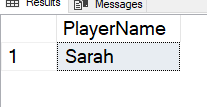
    SELECT JSON_VALUE(@json, '$.player.name') AS PlayerName;

    This returns the scalar value from the document. In this case, I get “Sarah”, as shown here:

    2020-11-21 14_58_17-SQLQuery3.sql - ARISTOTLE_SQL2017.Compare2 (ARISTOTLE_Steve (58))_ - Microsoft S

    I need to get the path correct here for the value. Note that I start with a dot (.) as the root and then traverse the tree. A few other examples are shown in the image.

    2020-11-24 14_49_16-

    These show the paths to get to data in the document.

    In a future post, I’ll look in more detail how this works.

    SQLNewBlogger

    After watching the presentation, I decided to do a little research and experiment. I spent about 10 minutes playing with JSON and querying it, and then another 10 writing this post.

    This is a great example of picking up the beginnings of a new skill, and the start of a blog series that shows how I can work with this data.

  • PowerShell Arrays and Hash Tables–#SQLNewblogger

    Another post for me that is simple and hopefully serves as an example for people trying to get blogging as #SQLNewBloggers.

    I was watching the GroupBy talk the other day and noticed that Cláudio Silva was using arrays, or what appeared to be arrays, in his talk. That was an interesting technique, one that I haven’t used very much.

    A day later, I ran into an explanation on dbatools.io, that showed this code:

    PS C:\> $columns = @{
    >> Text = 'FirstName'
    >> Number = 'PhoneNumber' 
    >> }

    That didn’t quite seem like what I wanted, so I decided to investigate more.

    I looked up PowerShell Arrays, and that wasn’t what I wanted. These are a list of values, as in

    $a = 1, 2,3

    Which gives me this:

    >>$a
     
    1 
    2 
    3

    Useful, but not for my purposes. I need to map things together, which means a hash table.

    Hash Tables

    It turns out I need a hash table. This is a key value pair that lets me pick a name and value and store them together. The way I construct these are with the @{} structure. Inside here, I set semi-colon separated pairs, with the name=value syntax.

    Here’s an example I used:

    $ColList = @{Date="EventDate"; Event="Event"}

    In here I map two keys (Date and Event) to two values (EventDate and Event). For the cmdlet I am using, this allows me to map these two columns together. When I need a value, I can use the $variable.key to get the value back.

    2020-10-28 13_37_45-C__Users_Steve

    I assume this is what the SqlBulkCopy cmdlet uses, which is what dbatools wraps. I ended up passing this $ColList hash table in for the –ColumnMap parameter.

    SQLNewBlogger

    A quick writeup that I used to solve a problem. I had some issues figuring this out, and some searching and experimenting got me a little better understanding of what was happening.

    After about 30 minutes of some work, I took 10 minutes to type this up and explain it to myself. A good example of what you could add to your blog, showing how you use this in your work.

  • Adding a Check Constraint to a Table–#SQLNewBlogger

    Another post for me that is simple and hopefully serves as an example for people trying to get blogging as #SQLNewBloggers.

    I had to do this the other day, and while I guessed at the syntax, I wasn’t sure of it, so I thought this would be a good post.

    The Check Constraint docs are good, and a quick search got me over there.

    I was trying to add a column to a table that has a domain of values. In my case, I was aiming for something like this:

    CREATE TABLE MyTable (somekey int, result tinyint)

    The result value can be 0-4, and while front end validation can handle this, it’s easy to get lazy and assume they will. It’s easy for someone to forget, or use an application like SSMS or Access to edit data, or more.

    Add a constraint. It will help with data quality.

    My thought was to do this:

    CREATE TABLE MyTable (somekey int,
    result tinyint check result <= 4)

    That actually is fine, and it’s almost what the docs show. After my column, I include the CHECK keyword, and then I can give the expression. The problem with this code is that I need to parenthesis added, like this:

    CREATE TABLE MyTable (somekey int,
    result tinyint (check result <= 4)
    )


    SQLNewBlogger

    This was a 5 minute post, showing something I thought I knew, had to check, and then corrected. A good case of how I am improving skills.

    Write a post like this for something you did in your job.

  • Running Express Edition in a Container–#SQLNewBlogger

    Another post for me that is simple and hopefully serves as an example for people trying to get blogging as #SQLNewBloggers.

    Recently I was looking through the forums and someone had a question on JSON and the Express edition of SQL Server 2019. I was sure JSON worked, but I also didn’t have Express set up on my machine. I decided a container would be a quick way to test this.

    I’ve started lots of containers, but I rarely do anything other than the Developer edition. I know you can set the edition, but didn’t know how, so I had to look it up. This post covers the quick way to do this.

    Environment Variables

    There are a lot of environment variables that we can use to configure containers, and SQL Server in particular. There are two that are required:

    • ACCEPT_EULA
    • SA_PASSWORD (or MSSQL_SA_PASSWORD)

    These two need to be supplied to start the container. Beyond that, you can add others that are useful for you.

    To run as Express, you will want to MSSQL_PID variable, which can be set to any of these:

    • Evaluation
    • Developer
    • Express
    • Web
    • Standard
    • Enterprise
    • A product key

    For my situation, this means I run Express like this:

    docker run -e "ACCEPT_EULA=Y" -e "SA_PASSWORD=password" -e "MSSQL_PID=Express" -p 51433:1433 --name express2019 -h express2019 -d mcr.microsoft.com/mssql/server:2019-CU7-ubuntu-16.04

    This starts up a new container, and I can connect, where I’ll see the correct version.

    2020-09-14 11_15_49-SQLQuery2.sql - .,51433.master (sa (55))_ - Microsoft SQL Server Management Stud

    SQLNewBlogger

    It took me about 5 minutes to get this working, and then it was a question of writing this post and capturing an image. I had the code, because I’d just used it.

    Overall, a good way to show a few things about containers and SQL Server, and a skill that an interviewer might ask about.