Tag: SQLNewBlogger

  • Updating Extended Properties on a Table

    I’m writing this post as a way to help motivate the #SQLNewBloggers out there. Read the bottom for a few notes on structuring a post.

    I wrote recently about adding an extended property to a table. As part of what I was testing, I also needed to update properties, changing values back and forth. It’s fairly easy to do so, and I wanted to document this for my own reference.

    The sp_updateexteendedproperty is analogous to the sp_addextendedproperty procedure. Here’s the code I used to change my property value on the table from the last post.

    EXEC sp_updateextendedproperty 
    @name = N'PKException', 
    @value = '1',
    @level0type = N'Schema', @level0name = 'dbo',
    @level1type = N'Table',  @level1name = 'SalesTax3'
    ;


    As you can see, I pass in the same parameters. The procedure then changes the parameter in the table. A quick check in SSMS will show you the values changed. In my case, I was changing the value from 0 to 1 to test a query.

    The property does need to exist. If I execute this:

    EXEC sp_updateextendedproperty 
    @name = N'PKcheck', 
    @value = '1',
    @level0type = N'Schema', @level0name = 'dbo',
    @level1type = N'Table',  @level1name = 'SalesTax3'
    ;


    I get an error thrown from the database engine.

    Msg 15217, Level 16, State 2, Procedure sp_updateextendedproperty, Line 112

    Property cannot be updated or deleted. Property ‘PKcheck’ does not exist for ‘dbo.SalesTax3’.


    This is a good way to handle this, as a TRY..CATCH can trap the error and do an insert instead of something else.

    SQLNewBlogger

    This was another side post from my testing of a solution. As I used this code to solve a problem, I kept a copy and made a few screenshots. This one was about 10 minutes in total.

    References

    sp_updateextendedproperty – https://msdn.microsoft.com/en-us/library/ms186885.aspx

    sys.extendedproperties – https://msdn.microsoft.com/en-us/library/ms177541(v=sql.90).aspx

  • Adding Extended Properties to a Table

    Another post for me that is simple and hopefully serves as an example for people trying to get blogging as #SQLNewBloggers.

    I had the need recently to get put an extended property on a table in a database. I could easily have done this in SSMS, and have used the GUI before, but since I wanted to make a number of changes for testing, I wanted this done programmatically.

    I knew there had to be an easy way to do this, and was hoping for an ALTER TABLE statement, but that’s not the way it works right now. There’s an sp_addextendedproperty procedure that you can use.

    This procedure is somewhat of a generic procedure that takes a number of parameters, which are used to specify where the extended property applies. There is a name and value of the property, essentially a key-value pair, and then there are 3 levels of properties you can specify.

    Each of the levels has a name and type as well, so this is almost like a hierarchical EAV table. It’s a bit of a mess, IMHO, but that’s OK. It’s nice to have the ability to use Extended Properties for objects, though I wish this were better implemented at different levels and embedded as a core part of your database. The levels are

    • Level0 – Should be used for database scope items. For our purposes, we will use SCHEMA as the type here.
    • Level1 – The next level and should be the type of object getting the property (table, view, procedure, etc.)
    • Level2 – The level that gives the part of the Level1 object, i.e. COLUMN, TRIGGER, etc.

    These will change, and there are some notes on BOL, so be careful and read this before you do much.

    This post looks only at adding a property to a table, so let’s do that.

    I want to add a property to note that a particular table doesn’t need a Primary Key (PK). To do that, I’m going to call my type [PKException] and use a value of 1 to indicate that no PK is expected on this table.

    My call for the procedure will be:

    EXEC sp_updateextendedproperty 
    @name = N'PKException', 
    @value = '1',
    @level0type = N'Schema', @level0name = 'dbo',
    @level1type = N'Table',  @level1name = 'SalesTax3'
    ;


    In this case, I have a table called “SalesTax3” and it’s in the dbo schema. Those are my values for the Level0 and Level1 parameters. I can ignore the Level2 parameter since I am specifying this as a table level property.

    When I do this, I can then see the property in a few ways, but the easiest for most people is in the table properties, the Extended Properties tab,

    2015-05-26 09_55_09-Table Properties - SalesTax3

    That’s about it. If I want more properties, I can add them by changing the name and value of the property in the code above. I can also change the schema and table if I want this property added to other tables.

    SQLNewBlogger

    This was another side post from a separate post I was writing. I was working on solving a problem and needed an extended property. As I looked up the data to solve my issue and wrote code, I copied the Extended Property code and took a screenshot, leading to this side post.

    Once I had that, this was about 15 minutes to write. I’ll publish this one first, and refer to it in the post that solved my original problem.

    References

    sp_addextendedproperty – https://msdn.microsoft.com/en-us/library/ms180047.aspx

    sys.extendedproperties – https://msdn.microsoft.com/en-us/library/ms177541(v=sql.90).aspx

  • See Two Queries at Once in SSMS

    I’m writing this post as a way to help motivate the #SQLNewBloggers out there. Read the bottom for a few notes on structuring a post.

    One of the things that I’ve struggled with a bit in SSMS is sometimes comparing the results of two batches. I’m sure many of you have executed a query, then make a change, and execute it again, losing your results. Or you are testing something in two query windows and need to switch back and forth. Sometimes doing this, and only seeing one set of results (or checking if a query is finished) is cumbersome.

    A few years ago I was watching Brent Ozar tune queries at an event and one of the things he wanted to do was compare two queries and their execution plans. He used vertical tab groups, which is a great way of seeing two things at once.

    Here’s how my screen ended up during the comparison I was actually doing of three queries. I was checking credentials using a before, after, and with the DAC.

    verticalwindows

    Things are a bit shrunk down as I wanted the image to be viewable. I actually had this full screen on a 30" wide monitor, and I could more easily see the queries and results from each window.

    The easiest way to do this is to start with a query:

    verticalwindows_b

    I want to change something, add a login, and test again, but I don’t want to lose my results. I’d also like to do an easy comparison. What I can do is go to the Window menu and get a new Vertical Tab Group. I could also do a Horizontal one, but comparing results is easier for me with vertical ones.

    verticalwindows_c

    Once I select this, my selected window will move to a new tab group, and I’ll see two places where I can run code and visualize the queries and results at once.

    verticalwindows_d

    I selected the left hand query, then clicked "New Query" to get a blank window. I then cut and pasted my code from the right to the left. This is exactly what you might want to do when tuning queries, keeping the original on the right while you work on the left.

    verticalwindows_e

    Now I have two places to work on code. In my case, I wanted the before and after view of Server_principals as I checked some admin changes. I could do things and keep re-running the query in one of these windows, but keep the results from the other one visible.

    verticalwindows_f

    SQLNewBlogger

    Once again I was doing something else and realized the vertical window trick was handy. I killed the three windows I had, set up a new query, shot the screen, ran through the process with more screen shots.

    Less than 10 minutes.

    References

    Watch Brent Tune Queries – http://www.brentozar.com/sql/watch-brent-tune-queries/

  • Using the DAC with SSMS

    I’m writing this post as a way to help motivate the #SQLNewBloggers out there. Read the bottom for a few notes on structuring a post.

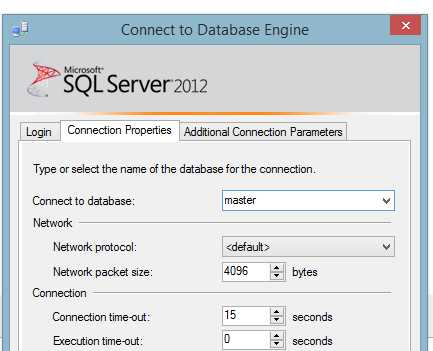
    While troubleshooting another issue, I needed to connect to SQL Server with the DAC. I couldn’t remember the syntax, so I looked it up quickly and ran into this link: Diagnostic Connection for Database Administrators. I added the ADMIN: to my connection in SSMS for a query window and clicked Connect.

    dac_g

    This took entirely too long and then I got this:

    dac_a

    That error resulted in a rabbit trail for me to debug this, but it worked out and I’ve learned a few things. The main one is to be sure that I’ve read the documentation and errors correctly.

    As I tried a few things, including SQLCMD, I realized I had issues. I searched and found that the DAC gets set to a specific port. I checked the error log to get the number.

    dac_b

    With that, I added it to my connection dialog, sure that this would work, but of course, it didn’t.

    dac_c

    Eventually I stumbled on the post about errors and realized I should have checked the SQL Browser earlier. I thought about it, but discarded that thought because I could connect in other ways. Mistake. Check networking first, and networking is where the browser comes in. Sure enough, it was stopped.

    dac_d

    The properties were set to DISABLED, so I had to change that before I could start it. I assume you can do that, if not, poke around the properties until you find that setting. With that changed, I started the service.

    dac_e

    Then I could connect. Here’s the SQLCMD version.

    dac_f

    With this working, the first command dialog at the top of this piece worked from an SSMS query window.

    SQLNewBlogger

    This was longer. What I thought was a quick lookup turned into a troubleshooting exercise that lasted about 20 minutes as I searched, read, experimented, etc. At least I made a bunch of screenshots as I was experimenting, so I had lots of data and didn’t duplicate anything.

    The actual writing was only about 10 minutes, most of that looking through screenshots and trying to organize my thoughts.

    References