Tag: syndicated

  • A New Word: Nementia

    nementia – n. the post-distraction effort to recall the reason you’re feeling particularly anxious or angry or excited, trying to retrace your sequence of thoughts like a kid gathering the string of a downed kite.

    I’m pretty level headed, but sometimes I over-react to something and may get angry, upset, etc. Sometimes I have to go through the process, but often my wife might interrupt the thoughts, asking me to go through some nementia and figure out why I reacted this way.

    Like the rest of us, I’m human, I do silly things, and I sometimes can’t figure out why I reacted that way.

    From the Dictionary of Obscure Sorrows

  • Clearing Intellisense in SQL Prompt

    I got this question from an account rep: if a customer is using SQL Prompt and a snippet, for example AT, that was also used as an alias, is there a way to avoid it triggering the snippet or do they just avoid hitting the tab key?

    It’s a good question. Let’s see how to deal with this.

    This is part of a series of posts on SQL Prompt. You can see all my posts on SQL Prompt under that tag.

    The Scenario

    Say I have this code:

    2023-12-01 16_36_26-SQLQuery1.sql - ARISTOTLE_SQL2022.sandbox (ARISTOTLE_Steve (80))_ - Microsoft SQ

    Notice I have an alias that is the same as a snippet, in this case AT. Seeing this pop up is annoying, but there are ways to avoid getting concerned about this.

    First, the Esc key will get rid of the intellisense popup. Pressing escape at this point brings me back to this:

    2023-12-01 16_36_18-SQLQuery1.sql - ARISTOTLE_SQL2022.sandbox (ARISTOTLE_Steve (80))_ - Microsoft SQ

    My other option is to type a ., essentially keep typing. If I do that, I get this:

    2023-12-01 16_39_10-SQLQuery1.sql - ARISTOTLE_SQL2022.sandbox (ARISTOTLE_Steve (80))_ - Microsoft SQ

    The same thing if I had a longer alias. Here I’ve added 2 characters, but if I type the 3rd, the snippet goes away and I get the table. I could hit tab here to fill this in or type the s.

    2023-12-01 16_39_32-ObjectDefinitionBox

    The other thing to do is raise the time for intellisense if it’s popping up too quickly and annoying you. I don’t know the default (nor do I want to reset lots of stuff), but here I’d set it to 100ms, which is a nice delay for me. I find 500 too long. Of course, you can CTRL+space to pop it open.

    2023-12-01 16_41_10-SQL Prompt – Options

    If you haven’t tried SQL Prompt, download the eval and give it a try. I think you’ll find this is one of the best tools to increase your productivity writing SQL.

    Video Walkthrough

    I made a video of getting rid of intellisense. You can also see all my SQL Prompt Tips.


  • Executing One Line in VSCode–#SQLNewBlogger

    I wrote about arrays in PowerShell last week, but I realized one of the things I did while experimenting was look up how to run code a line at a time. I’m sure you can Google for that, but I decided to write a post to help me remember this in the future.

    Another post for me that is simple and hopefully serves as an example for people trying to get blogging as #SQLNewBloggers.

    Running One Line

    Years ago I saw someone demonstrating either PoSh or Python in Visual Studio and they were walking through code a line at a time. I thought that was cool, like a debugger, but not being in the debugger.

    To do this in VS Code, we use F8. Here’s how it works. Create a new PoSh file in VS Code. You should see something like this:

    2023-12-01 14_01_11-● oneline.ps1 - Visual Studio Code_thumb[1]

    Now put the cursor on line 1, anywhere. I’ll put it after the = sign. If I press F8, I see this:

    2023-12-01 14_02_03-● oneline.ps1 - Visual Studio Code_thumb[1]

    Pretty cool. I just ran that line.

    One Hassle

    The one hassle is the focus is now in the terminal. However CTRL+Tab gets me back to the editor, though it would go to the Welcome tab here. However, supposedly CTRL+1 or 2 would work.

    My problem is those are mapped to ZoomIt, which is always running Sad smile

    I hit CTRL+Tab twice, however, and I was back in my editor. I could go down one line and hit F8 to run the second code.

    2023-12-01 14_02_52-● oneline.ps1 - Visual Studio Code_thumb[1]

    Try it for yourself.

    If you have a better method, let me know.

    SQL New Blogger

    After the last post, I spent less than 10 minutes setting up a new file and then capturing some code. A couple google searches helped me figure out the terminal/editor switching.

    This was fun, but it also showcased some learning and something that will help me in my work. You could easily do the same thing, with any tool you use at work. Show how you experiment and learn.

  • Friday Flyway Tips–Comparison Options

    Recently a customer asked how they could get index changes to be captured in Flyway Desktop. In their case, they wanted a different fill factor, but I decided to investigate a bit more how things work.

    This post looks at how to control the comparison options in Flyway Desktop (FWD).

    I’ve been working with Flyway Desktop for work more and more as we transition from older SSMS plugins to the standalone tool. This series looks at some tips I’ve gotten along the way.

    The Setup

    I’ve got a table and an index, which I created with this script.

    CREATE TABLE [dbo].[Customer]
    (
    [CustomerID] [int] NULL,
    [CustomerName] [varchar] (75) NULL,
    [PrimaryContact] [int] NULL,
    [PrimaryAddress] [int] NULL,
    [PurchaseLimit] [numeric] (10, 2) NULL,
    [Status] [tinyint] NULL
    )
    GO
    CREATE NONCLUSTERED INDEX [nci_customer_custname] ON [dbo].[Customer] ([CustomerName], [Status])
    GO

    I saved this in Flyway Desktop, which we can see here in the filesystem:

    2023-11-28 09_48_55-Window

    and here in VS Code.

    2023-11-28 09_52_32-Window

    If I refresh the schema model tab in FWD, there are no changes.

    Making Index Changes

    I’m going to alter this index. Specifically, I’m changing the pad index, fill factor, and statistics options. Here’s the script I’ll run.

    ALTER INDEX [nci_customer_custname] ON [dbo].[Customer] 
    REBUILD PARTITION = ALL 
    WITH (PAD_INDEX = ON, STATISTICS_NORECOMPUTE = ON, SORT_IN_TEMPDB = ON, ONLINE = OFF, 
           ALLOW_ROW_LOCKS = ON, ALLOW_PAGE_LOCKS = ON, FILLFACTOR = 80)
    

    Once this runs, I’ll refresh FWD and I see this. Note that I see an index change, but only one option is captured: STATISTICS_NORECOMPUTE.

    2023-11-28 09_54_21-Window

    What’s happening is that FWD is using the SQL Compare engine and the default options set in the engine. Among these are to ignore fill factor and pad index. However, I can change this.

    Changing Configuration

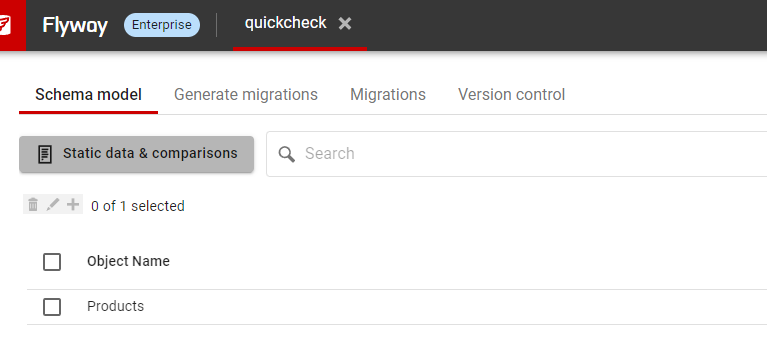
    In the past, I would need to edit a config file to make this change, but the team has enhanced FWD to add new options. In this case, notice the button near the top of the Schema model tab: Static data & comparisons. Not a great name, but it’s there:

    2023-11-28 09_56_31-Window

    Once I click that, I get a new dialog. This starts with static data, but I’ll click the second tab, which is Configure comparisons. This shows all the options available in the Compare engine

    2023-11-28 09_56_37-Window

    Rather than scroll, I’ll type in the search box, and I see fill gets me the “Ignore fill factor and index padding” option.

    2023-11-28 09_56_42-Window

    I’ll uncheck this and click OK.

    Once I do that, I’ll refresh the comparison, and now I see my options.

    2023-11-28 09_58_46-Window

    Try it out today. If you haven’t worked with Flyway Desktop, download it today. There is a free version that organizes migrations and paid versions with many more features.

    Video Walkthrough

    I made a quick video showing this as well. You can watch it below, or check out all the Flyway videos I’ve added: