SQL Prompt has an EAP using an AI model to help write code. I’ve been lightly experimenting with it, since I think AI is an interesting tech and it’s going to change our jobs. Maybe for the better, maybe for the worse, but I want to know if this will help me get work done sooner.
This post looks at one experiment.
This is part of a series of experiments with AI systems.
Building a New Table
I’ve written a lot of SQL code in my career. I know how to structure things and I can often whip something up quickly in response to requests from users or customers. Recently I was trying to mock up a change for a scenario and I decided to use the SQL Prompt AI beta.
In this case, I wanted a create a history table, similar to a temporal table. I started writing some code, but decided to use the AI to see if things were easier. I tried two experiments here, one using temporal tables, one using just normal T-SQL. Here’s what happened.
Create a Temporal Table
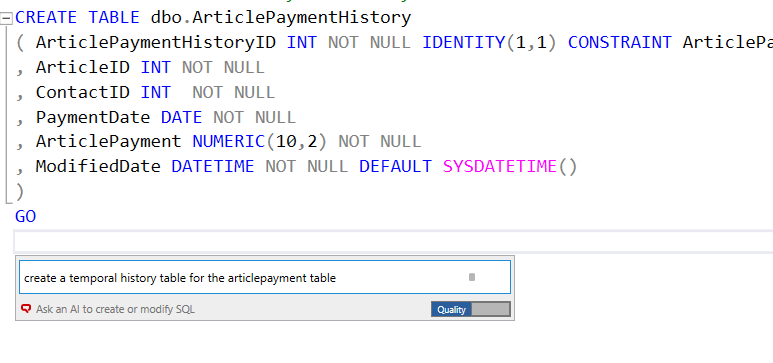
As I started documenting this, I decided to ask for a temporal table. You can see my basic code I sketched, but stopped before I created the table. Then I asked SQL Prompt to create the temporal able.
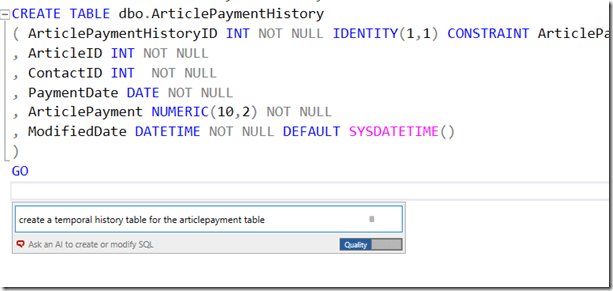
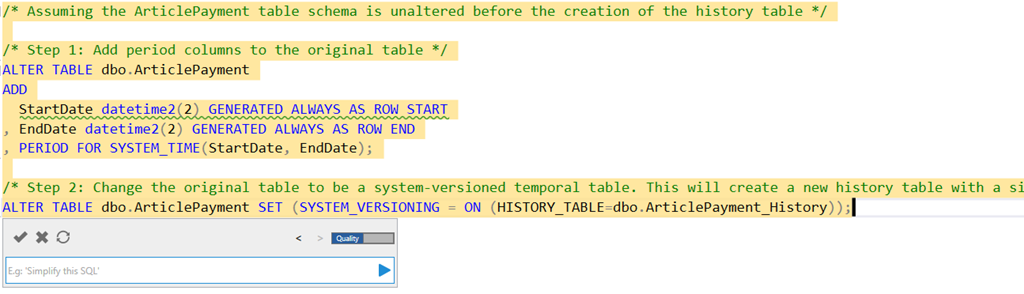
Here’s what I got:
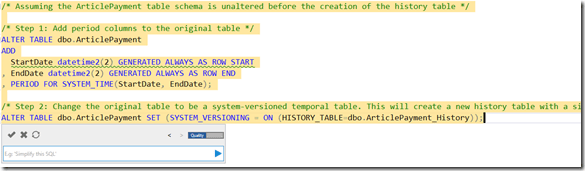
The actual code is:
/* Assuming the ArticlePayment table schema is unaltered before the creation of the history table */
/* Step 1: Add period columns to the original table */

ALTER TABLE dbo.ArticlePayment

ADD
   StartDate datetime2(2) GENERATED ALWAYS AS ROW START

, EndDate datetime2(2) GENERATED ALWAYS AS ROW END

, PERIOD FOR SYSTEM_TIME(StartDate, EndDate);
/* Step 2: Change the original table to be a system-versioned temporal table. This will create a new history table with a similar structure as the original table. */

ALTER TABLE dbo.ArticlePayment SET (SYSTEM_VERSIONING = ON (HISTORY_TABLE=dbo.ArticlePayment_History));
That’s pretty good. I don’t usually remember what to do and often end up scanning an article like this one. An AI that provides this code might be a nice time saver, especially if I needed to do a few tables.
Building an Audit Copy
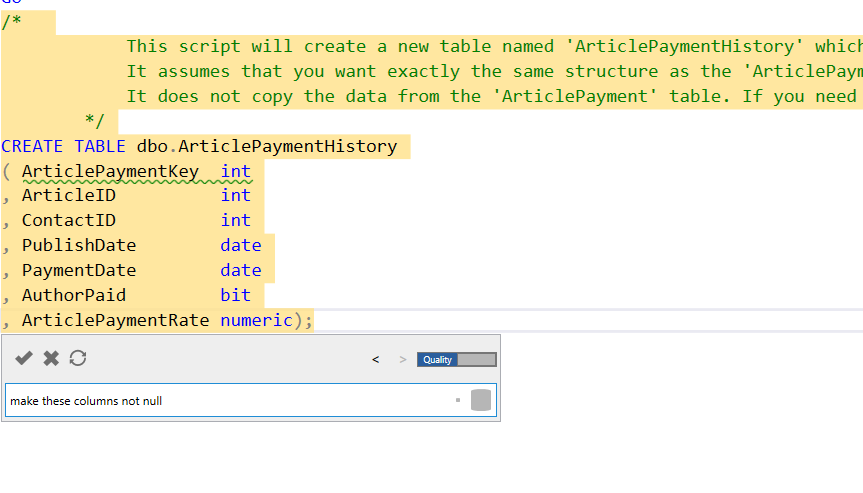
The way I’ve often tracked history in the past is essentially copying a table and adding some date columns.

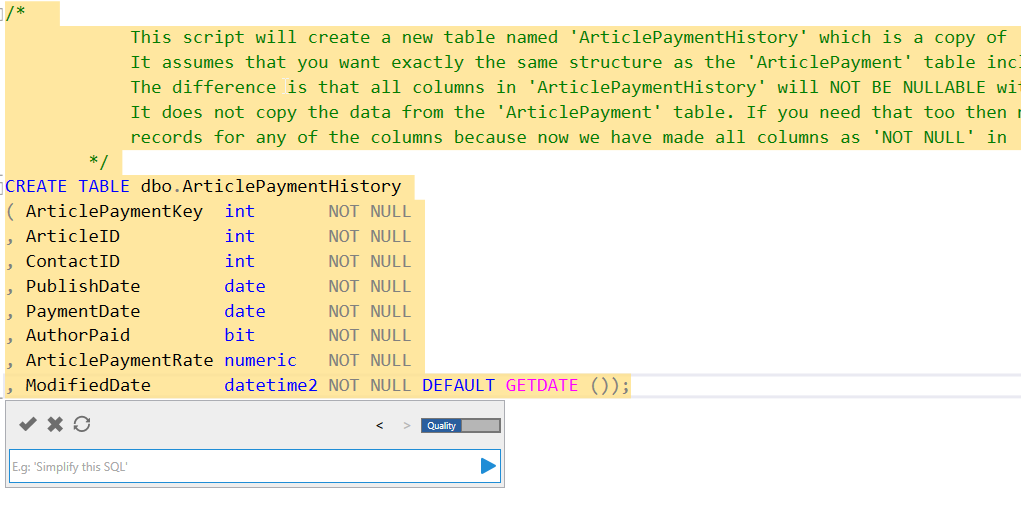
This is helpful and quick. It gets the datatypes and names, and replicates what’s in the original dbo.ArticlePayment table.

I want to add nullability, so I asked above. You can see the results below.
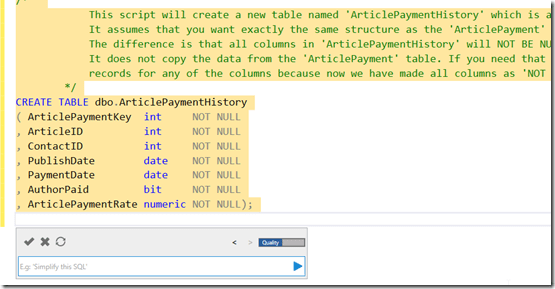
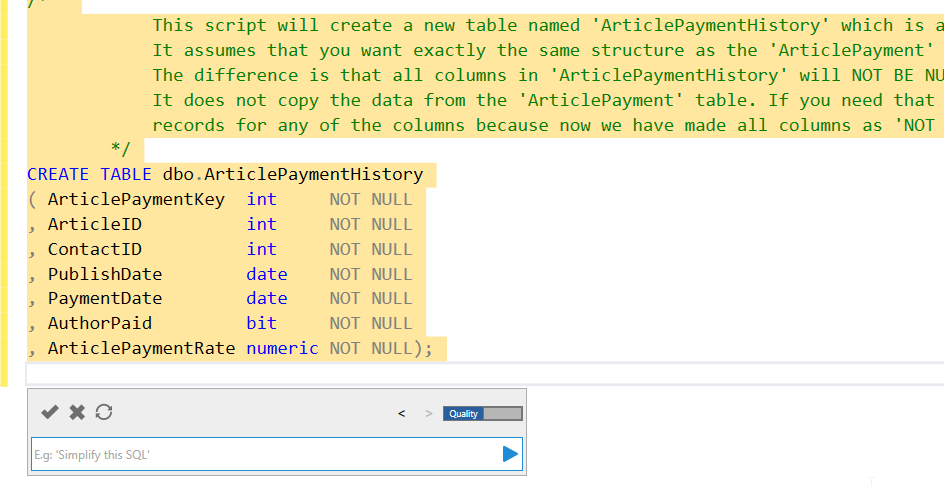
One more prompt:
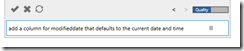
The result includes a new column with a default, which I like.
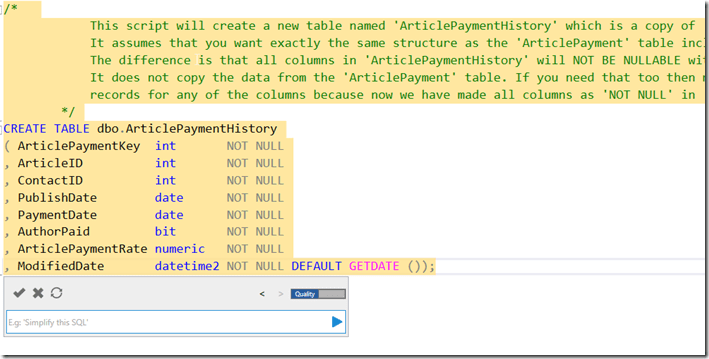
I can click the check in the upper left of the Prompt dialog to get this code accepted in my query window. From there, I can run this and then check the code into my VCS with Flyway 
Comparison with ADS
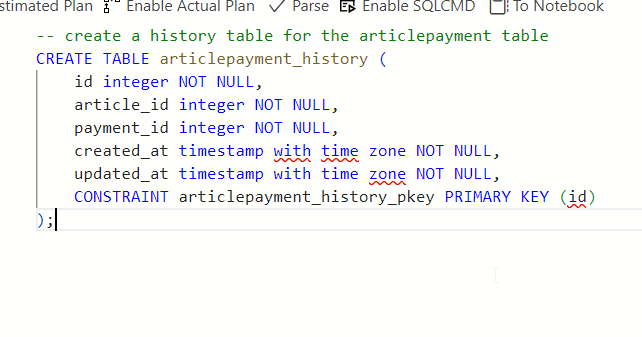
In many cases, I struggle to use an AI well. The public ones don’t see my schema, so if I were to prompt this in Copilot or some equivalent, I’d have to include my schema. If I don’t, I get something like this:
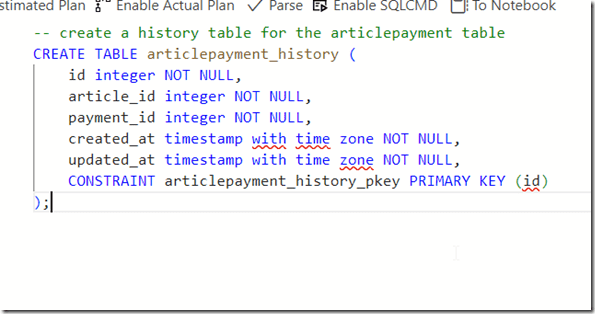
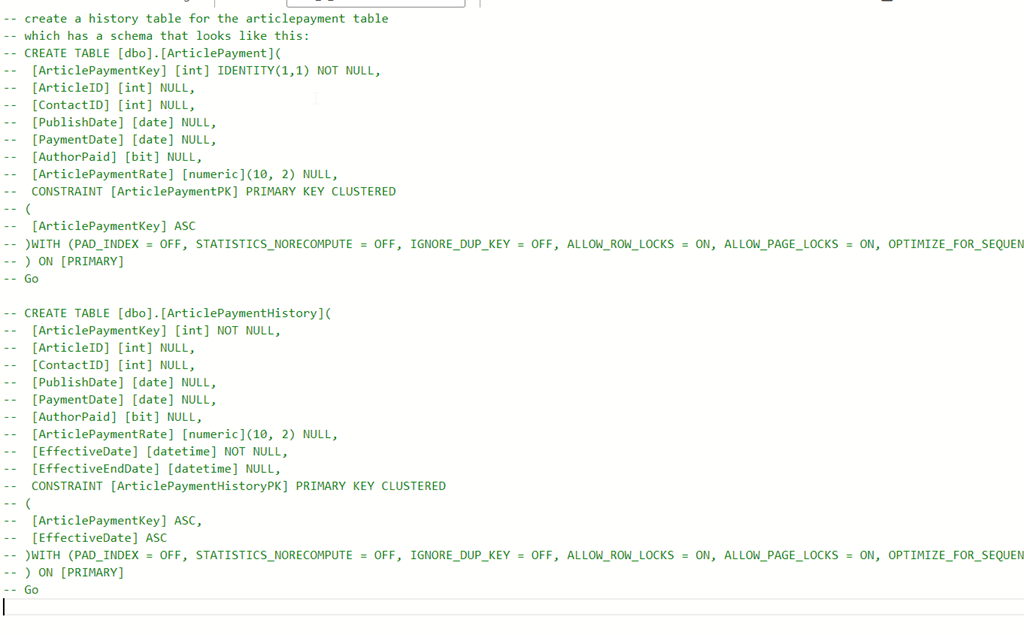
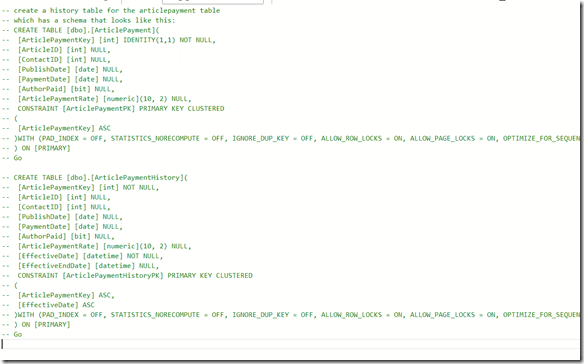
If I include the schema (annoying, pasted from SSMS scripting and then commented out and edited, I get something that works, but I get a line at a time and have to accept each line.
Thoughts on the Prompt EAP AI
The EAP AI version of SQL Prompt is reading my schema, as SQL Prompt does, and then running my prompt through an AI LLM with the schema to decide what I mean. In this case, it knows temporal tables are system versioned ones. It produces good code there. Really, this has done the search engine lookup of how to convert a table to temporal, copied the code, and then edited it for my situation.
If I ignore the temporal aspect and ask for a history table, it creates what I’d do, which is a copy of the table. If I need this altered, it does a good job if doing the edits. Using a little English here, instead of manually editing, actually worked pretty efficiently for me. I’d know what prompts to use now, and I can go back in my prompts copy them, and alter them for other tables.
Even better, I asked: “create history tables for all article tables”
I got the code below, which is pretty cool. This is a subset of related tables to articles, not all the tables in my database. Comments from Prompt at the top and then the code.
/*              These scripts will create new tables named 'ArticlePaymentHistory', 'ArticlesHistory', 'ArticleAuthorHistory', 'RatingsHistory', 'UserRatingHistory' which are copies of 'ArticlePayment', 'Articles', 'ArticleAuthor', 'Ratings', 'UserRating'.
            It assume that you want exactly the same structure as the respective tables including all the columns and their types.
            The difference is that all columns in these history tables will NOT BE NULLABLE with an additional column 'ModifiedDate' that defaults to the current date and time.
            It does not copy the data from the original tables. If you need that too then make sure first none of your records from these tables have null
            records for any of the columns because now we have made all columns as 'NOT NULL' in the history tables.
        */
CREATE TABLE dbo.ArticlePaymentHistory

( ArticlePaymentKey  int       NOT NULL

, ArticleID          int       NOT NULL

, ContactID          int       NOT NULL

, PublishDate        date      NOT NULL

, PaymentDate        date      NOT NULL

, AuthorPaid         bit       NOT NULL

, ArticlePaymentRate numeric   NOT NULL

, ModifiedDate       datetime2 NOT NULL DEFAULT GETDATE ());

CREATE TABLE dbo.ArticlesHistory

( ArticlesID          int       NOT NULL

, AuthorID            int       NOT NULL

, Title               char      NOT NULL

, Description         varchar   NOT NULL

, Article             varchar   NOT NULL

, PublishDate         datetime  NOT NULL

, ModifiedDate        datetime  NOT NULL

, URL                 char      NOT NULL

, Comments            int       NOT NULL

, ReadingTimeEstimate time

, CreatedDate         datetime2 NOT NULL

, ModifiedBy          nvarchar  NOT NULL

, HistoryModifiedDate datetime2 NOT NULL DEFAULT GETDATE ());

CREATE TABLE dbo.ArticleAuthorHistory

( ArticleAuthorKey int       NOT NULL

, ArticleID        int       NOT NULL

, ContactID        int       NOT NULL

, AuthorOrder      tinyint   NOT NULL

, ModifiedDate     datetime2 NOT NULL DEFAULT GETDATE ());

CREATE TABLE dbo.RatingsHistory

( RatingKey    int       NOT NULL

, ArticlesID   int       NOT NULL

, RatingDate   datetime2

, Rating       tinyint   NOT NULL

, UserKey      int       NOT NULL

, ModifiedDate datetime2 NOT NULL DEFAULT GETDATE ());

CREATE TABLE dbo.UserRatingHistory

( UserRatingKey int       NOT NULL

, UserID        int       NOT NULL

, ArticleID     int       NOT NULL

, Rating        numeric   NOT NULL

, ModifiedDate  datetime2 NOT NULL DEFAULT GETDATE ());