Tag: syndicated

  • My Stats from 2023

    I’m a data guy, so I decided to drop some numbers in a post. I did this last year, so this one includes a few comparison points.

    Music

    From Spotify Wrapped with the 2022 numbers in parens:

    • 36952 minutes (30135, up 23%)
    • 1668 artists
      (1440, up 16%)

    • 75 genres
      (68 in 2022, up about 10%)

    • 3809 songs
      (2946, up 29%)

    • Top Songs: Something in the Orange, 3×5, Sun to Me, Look At Us Now, Joy of My Life
    • Top Artists: John Mayer,  Zach Bryan, Chris Stapleton, U2, The Beatles
    • Top day, 491 minutes on Sept 2, I was working in Cambridge before the DevOps Tour

    Music is something I like, and I listen often. Travel had me upping the listening this year. I also listened to a lot more country, and learned some songs on the guitar.

    Writing and Speaking

    It’s my job. A few stats, 2022 in parens:

    • Editorials written – 141 (151)
    • Coping Tips – 61 (257)
    • Speaking sessions delivered: 30 (34)
    • Events: 24 (19)
    • Blog views – 61,000 (74,000+
      )

    • Blog Posts: 393
    • Visitors: 44,000 (55,000+)

    Workouts

    Taking care of my health is important to me. I’ve always exercised regularly, and at one point I ran every day of the year for a few years. I’ve relaxed a bit, and settled into more of a routine. I miss a few days and I don’t stress about it, but I make my best effort to work by body a bit most days.

    Stats from 2022. I might have missed some, but these are the gross totals. This adds up to more than 365 since I do two things some days. A lot of weight days have cycling or walking or something as a warm-up

    • Yoga: 79 (92)
    • Cycling 71 (indoor and outdoor): (84
      )

    • Weights 52 (63)
    • Walking 21 (20)
    • Elliptical: 14 (22)
    • Swimming: 7 (7
      )

    • Cardio classes: 1 (2)
    • Rowing: 27 (2)

    Total workout days: 272

    The total days is still low for me. My aim is 75% of the days, but I spent way too much time on the road with travel and missed working out some of those days.

    Driving

    I don’t know exactly how much I drove, but the Tesla give me some stats and I’ve been tracking a few. For the Tesla,  show about 17k miles this year, which is mostly me. For all the times my wife might drive (or the kids), likely I put miles on the X5 or Suburban (or a few in the Ram 3500), so this is not a bad set of mileage for me.

    I also got to drive in two countries and a few states. Rough stats:

    • Miles driven 17,000
    • Countries: 2 (US and Portugal)
    • States: 5 (Colorado, New York, California, Florida, Nevada)
    • Top driving locations from the Tesla: Lifetime Fitness (135), Safeway (98), and a local gas station (89). Yes, I have a diet soda addiction.

    Reading

    I spend a lot of time reading books. They are an escape for me from life, and a way to improve myself. In 2022, I finished

    • 104 books
    • 35000+ pages
    • Avg. screen time on Kindle app for Dec: 10 hours/week
  • Friday Flyway Tips–Linking Commits to an Azure DevOps Work Item

    Recently I was doing a demo and a customer asked how I had linked my commit in Azure DevOps to the work item that existed. It’s easy, and tldr; it’s with the commit comment. This post shows how that works.

    I’ve been working with Flyway Desktop for work more and more as we transition from older SSMS plugins to the standalone tool. This series looks at some tips I’ve gotten along the way.

    Creating a Work Item

    In Azure DevOps, there is a board menu. Under here, one of the subitems is Work Items. You can see these below:

    2023-12-13 17_52_28-Work items - Boards

    I tend to work from the “Boards” item, which looks like this:

    2023-12-13 17_52_22-Westwind Team Features Board - Boards

    Let’s assume we have a new item, so I’ll click the “New Item” at the top of the left column. This gives me an edit box, which I’ll type in a name.

    2023-12-13 17_54_25-Westwind Team Features Board - Boards

    When I hit enter, this gives me a new work item, which you see below, as 250 create products entitty.

    2023-12-13 17_55_19-Westwind Team Features Board - Boards

    Since I don’t want to leave a spelling error, I’ll edit the title to look better.  Now I have a work item.

    Linking A Commit in FWD

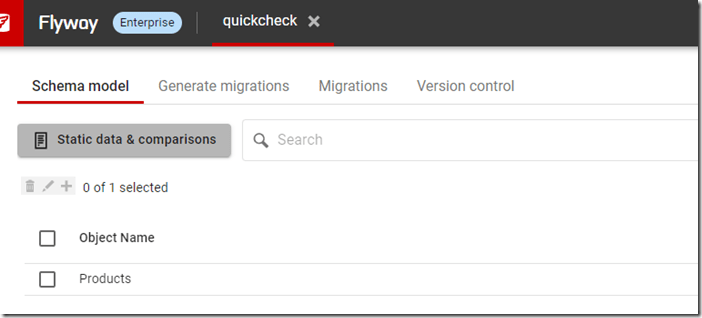
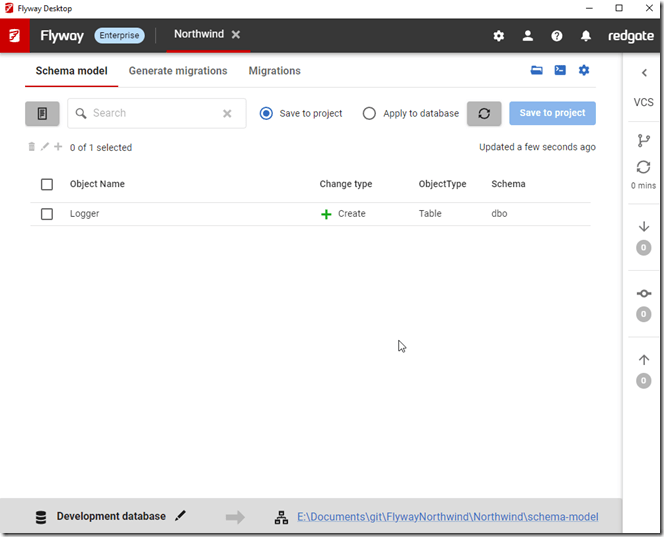
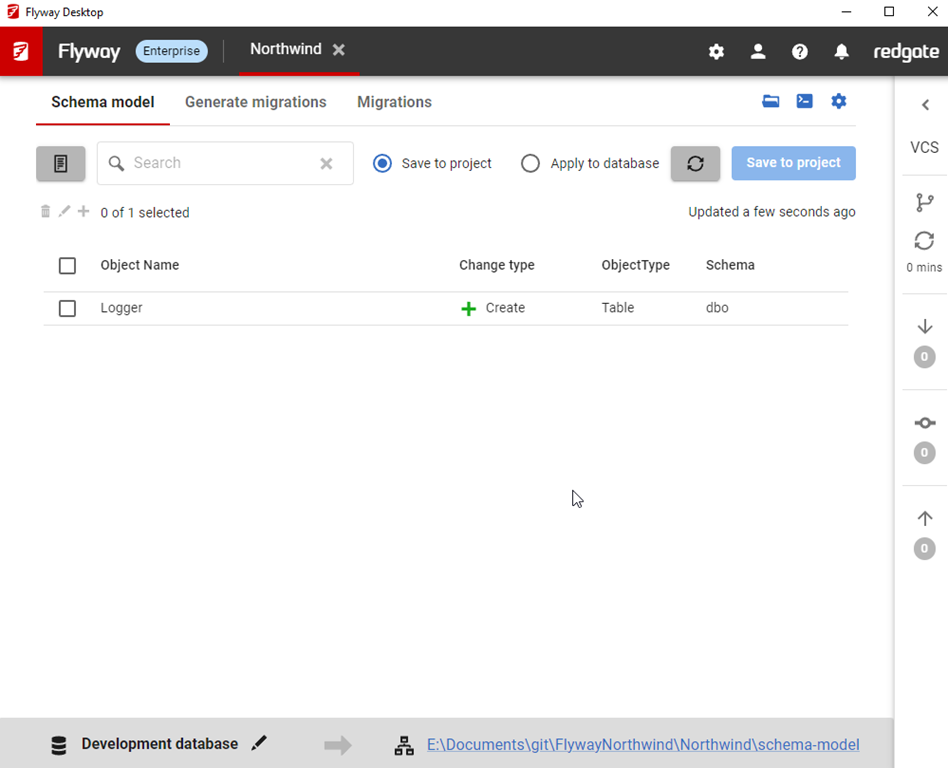
    In SSMS, I’ll create the products table. Once I do this, I’ll go to Flyway Desktop and refresh the schema model. When I do this, I see my change. I’ll select this and save to the file system.

    2023-12-13 18_01_48-Flyway Desktop

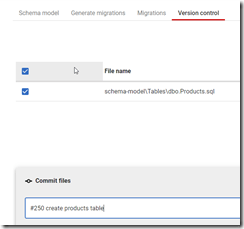
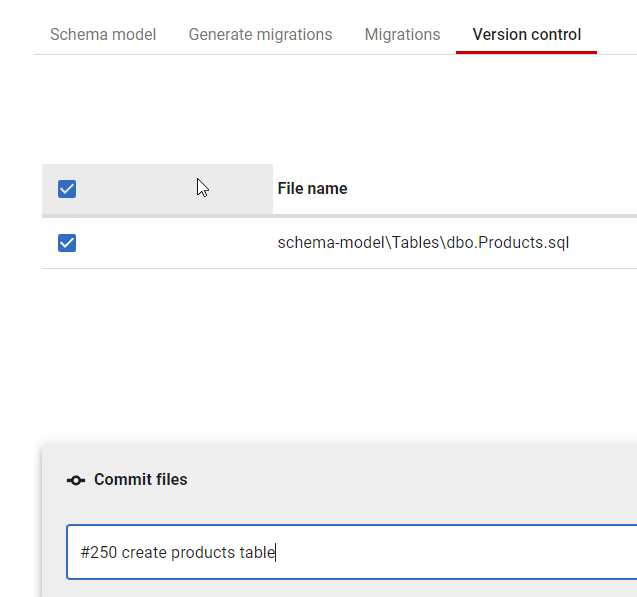
    Once this is done, I’ll go to the Version Control tab, and I again see my file changed. Here my file is selected, and I’ll enter a commit message, but I’ll include the work item number after a #. This creates a link.

    2023-12-13 18_02_45-Flyway Desktop

    I now click commit and push. In Azure DevOps, in the Repos –> Commit item, I see my commit.

    2023-12-13 18_04_15-Commit 1421f994_ #250 create products table - Repos
    Note the details item under my cursor. If I click that, I see commit details and near the bottom, a link to the work item.

    2023-12-13 18_04_21-Commit 1421f994_ #250 create products table - Repos

    If I click through to the work item, or I access the work item from Boards, I will see my commit linked on the far right of the work item.

    2023-12-13 18_04_32-Westwind Team Features Board - Boards

    This is very handy to have your actual code linked to the work that it relates to. If I have PRs or multiple commits, as long as you use the #nnn, where nnn is the work item, you’ll have everything linked together.

    This is less a Flyway Desktop feature than an Azure DevOps one, but you can access this from Flyway Desktop by writing good commit messages with work item numbers.

    Try Flyway Desktop out today. If you haven’t worked with Flyway Desktop, download it today. There is a free version that organizes migrations and paid versions with many more features.

    Video Walkthrough

    I made a quick video showing this as well. You can watch it below, or check out all the Flyway videos I’ve added:

     

  • A New Word: Koiniphobia

    koinophobia – n. the fear that you’ve lived an ordinary life.

    The last one of the year. I’ve enjoyed reading through this dictionary, learning new (made up) words, and thinking about life. Hope you have as well.

    What’s an ordinary life? I think that’s what life is for many of us, though we have lots of little ups and downs, joys and sorrows, important events to us.

    When I was younger, like many, I think I wanted to be a professional athlete or a rock star or a movie star or someone famous. Later, as I went through school and the tech booms, I wanted to be a rich tech person.

    None of those happened, but I’ve had an amazing life. I think in many ways, it’s very pedestrian, and I walk through my days doing ordinary and simple things. I work at a desk, I shop for groceries, I go to the gym, I fix things around the house, I feed horses on the ranch.

    I am also blessed to travel for work and stand on stage in front of many people. However, lots of my friends do the same thing.

    I know I’m famous in a very narrow, weird way, but I also very much enjoy my anonymity in most of my life. I appreciate the time I have with others in my family, friend group, and community, as someone just participating in life with them.

    I have no koiniphobia, not because of my life, but because everyone I know has their own interesting, unique, exciting things in their life. We don’t need to be on stage or in the media to live a very unordinary life. That’s what life is.

    From the Dictionary of Obscure Sorrows

  • Friday Flyway Tips–Above Target Migrations

    Recently I was working with Flyway Desktop (FWD) and practicing deploying certain migrations and not others. I don’t recommend this, but a customer was doing this and I wanted to reproduce some things they were trying to help them.

    In doing this I discovered a bunch of scripts marked as “Above Target” in the GUI, but not in the database. I learned a few things from our support team.

    I’ve been working with Flyway Desktop for work more and more as we transition from older SSMS plugins to the standalone tool. This series looks at some tips I’ve gotten along the way.

    Setting a Target

    I’ve got a FWD project here, and you can see the migrations below. In this case, I’ve selected a target of my QA machine and we can see that I have migrations applied up to 3.1 and there are pending migrations from 4-8 (ignore the undo).

    2023-12-05 14_07_37-Flyway Desktop

    Now, I want to migrate QA, but only to version 5. When I do this, from “Advanced Settings” on the right, I’ll see the target is listed as a parameter, and if I’ve highlighted the parameter on in the script.

    2023-12-05 14_10_13-Flyway Desktop

    I’ll run migrate, which works.

    2023-12-05 14_12_58-Flyway Desktop

    When I close this, I now see a different view. I see success next to migrations 4 and 5, but I also now see “above target” listed for the other migrations.

    2023-12-05 14_13_14-Flyway Desktop

    That’s not great, for this reason. If I check the “only show pending migrations”, I lose all my migrations. In large, complex projects, this isn’t good.

    2023-12-05 14_14_55-Flyway Desktop

    Getting Pending Migrations Back

    The easy solution to this is to remove the target. If I click the “x” on the target parameters…

    2023-12-05 14_15_50-Flyway Desktop

    And then click Refresh at the top, I now see my migrations as pending.

    2023-12-05 14_16_00-Flyway Desktop

    Seems obvious, but I’d forgotten about the target as I was focused on testing the code I’d released and then wanted to release other code. Peter in support educated me on what I was missing.

    Try it out today. If you haven’t worked with Flyway Desktop, download it today. There is a free version that organizes migrations and paid versions with many more features.

    Video Walkthrough

    I made a quick video showing this as well. You can watch it below, or check out all the Flyway videos I’ve added: