Tag: syndicated

  • Pro SQL Server Linux–Connecting and Building an App

    As part of my learning goals for 2018, I wanted to work through various books. This is part of my series on Pro SQL Server on Linux from Bob Ward.

    I set up my Red Hat server as a command line only instance, so installing VSCode or Azure Data Studio aren’t options. I could add a graphical manager, but I decided not to for now. Instead, I want to use some of the tools from my local Windows machine.

    If you’ve tried some networking with VMs recently, you’ll realize that this isn’t always simple. First, you need to figure out where your VM is. On Linux, ifconfig will do this.
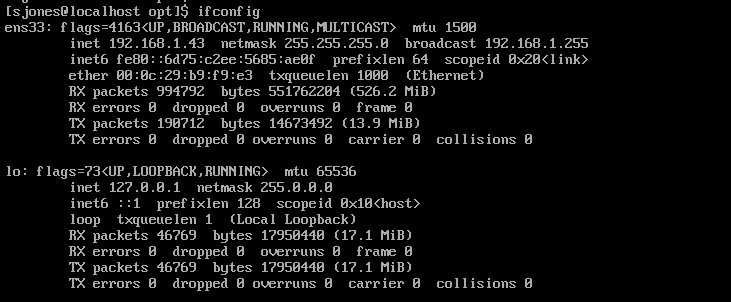
    2019-01-16 18_30_32-RHEL74 Bob - VMware Workstation

    However, when I go to SSMS and try to connect to 192.168.1.43, I get the network error that the SQL Server isn’t found. I know this is because of the firewall because my SQL Server is running locally on Linux and sqlcmd.exe works.

    To open the firewall, on Red Hat you use the firewall-cmd command. This wasn’t in the book, so I had to search for the process. Once I did, this is a simple thing to do.

    2019-01-16 18_29_17-RHEL74 Bob - VMware Workstation

    Now that this is open, let’s connect from SSMS. I can see that worked.

    2019-01-16 18_32_59-SQLQuery3.sql - 192.168.1.43.master (sa (52)) - Microsoft SQL Server Management

    My first step is to create a database. The standard CREATE DATABASE works, but I can see when I query metadata that this isn’t Windows anymore.
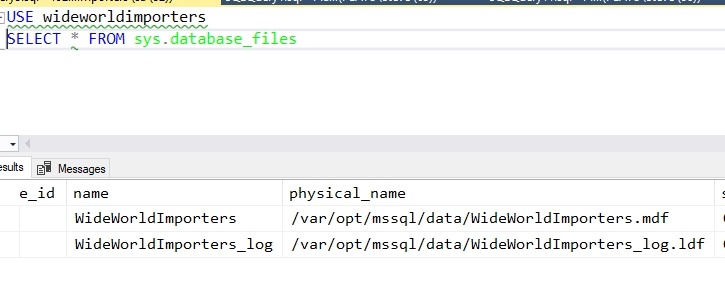
    2019-01-16 18_35_22-SQLQuery3.sql - 192.168.1.43.WideWorldImporters (sa (52))_ - Microsoft SQL Serve

    From here I used scripts to create the objects in the sample database. That’s a first step to getting an application working.  To get the scripts, I used:

    git clone https://github.com/Apress/pro-sql-server-on-linux.git

    This is the repo where Bob has his scripts. If you don’t know how to use git, start learning. I’ve got some posts, but there are lots of tutorials out there.

    Once the database is created, with some tables and data, I can now work on an application. Bob is using a node app, which I’ve never written, so this is a chance to learn a little something new.

    I tried the npm installs, but had issues. I kept getting errors from installing tedious. I had to change to use http: instead of https, and I was able to instally async, but I kept getting errors.  I know this because:
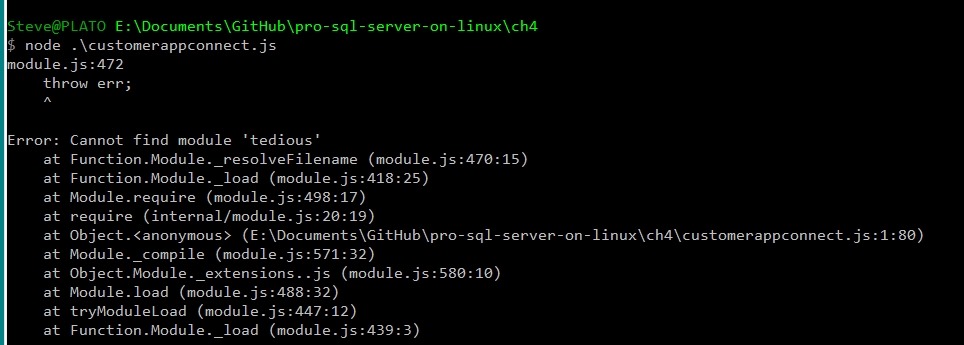
    2019-01-24 17_40_59-cmd (Admin)

    Let’s try something else. I want to just connect, to see if my system is working. I could use SQLCMD, but let’s be creative.

    2019-01-24 17_46_48-cmd - python (Admin)

    I’m more comfortable in Python and this works. SQL Server 2019 here.

    There is a good tutorial with some sample code at https://www.microsoft.com/en-us/sql-server/developer-get-started/python/windows/. I took some of the code from there to get this working.

    In chapter 4, Bob shows how to use T-SQL and an application to read and write data. This is essentially sending SQL batches to the server, like I did with SELECT @@version above. I can do this stuff, and I know how to send batches. Executing code, including stored procedures, isn’t something I want to do here.

    A number of the parts of chapters 3, 4, 5, 6, 7 are normal stuff that really are a part of working with any SQL Server version. There was little I saw in here that I hadn’t learned as a part of my work on Windows with SQL Server 2012/2014/2016/2017. Not that it’s not good content, but it’s more basic.

    I read it anyway to get an idea of how Bob presents these things and there were good reminders of how things like Temporal tables or how bcp work. It’s worth reading if you aren’t familiar with the various concepts of working with SQL Server, getting performance information, and what tools are available. It certainly was a nice refresher for me.

    From here, it’s moving on to more features, hoping that I see more Linux specific things.

  • Careful with Session_Context()–#SQLNewBlogger

    Another post for me that is simple and hopefully serves as an example for people trying to get blogging as #SQLNewBloggers.

    A quick note, which is more of a reminder to myself. I find writing things down helps me remember, and I need to remember this.

    I was working with session context, specifically the SESSION_CONTEXT() function. When using this function, you give it a key that contains a value, like this:

    2019-01-15 13_45_34-RLS_Testing.sql - Plato_SQL2016.WideWorldImporters (PLATO_Steve (61))_ - Microso

    I get a value back that I can use. Everything is great.  I was using this to allow one process to set a value and another to get it, and I was happy.

    Until things stopped working. While trying to debug this, I ran this code:

    2019-01-15 13_46_46-RLS_Testing.sql - Plato_SQL2016.WideWorldImporters (PLATO_Steve (61))_ - Microso

    Notice a difference? In the first query, I have SupplierID, but the second is SupplierId, with a lower case “d”. These keys are determined when you use sp_set_session_context, which takes a sysname value for the key. These are going to be case sensitive, as each one is a different identifier.

    It’s not likely that this will cause lots of problems, but when you are setting keys, be careful and ensure you use the same value for writing and reading.

    SQLNewBlogger

    This was a quick mistake I made and it took me 5 minutes to write up. It’s helpful to get me to remember to avoid this, but this also shows I can fix my mistakes.

    What’s a simple thing you learned that makes you write better code? Write your own SQLNewBlogger post today.

  • The Heart of DevOps Webinar

    One of the things that I think about DevOps is that it’s really hard to focus on the hard things that create friction in your process. Most of us want to move faster, and tackle the easy things to automate, the easy things to fix. We want to trust developers to move quickly and pick those items that get in their way.

    They do, but they often stop before the database. Or they start to try and find ways to use a different database (ugh). Or they just start putting strange data into existing columns to get things done.

    The database matters, and I’ll be talking about why.

    Webinar social_Heart of DevOps

    I’m doing a webinar on Feb 6 for 30 minutes to talk about the database in DevOps. You can register here: https://attendee.gotowebinar.com/register/3005019550714731265?source=KB

  • Starting a Proof of Concept with SQL Change Automation

    One of the ways that you can more easily perform database development tasks is with SQL Change Automation (SCA). This is a plug-in from Redgate that works with Visual Studio, and while there are tutorials on Setting up SCA and starting in VS, I wanted to add my own take that might make this a little easier for some people.

    This is a short Proof of Concept (PoC) that gets you started, and I’ll add in more features over time in future articles. I’ll use the idea of a database of builds for SQL Server, which is a project that you might find useful in your organization.

    Starting in Visual Studio

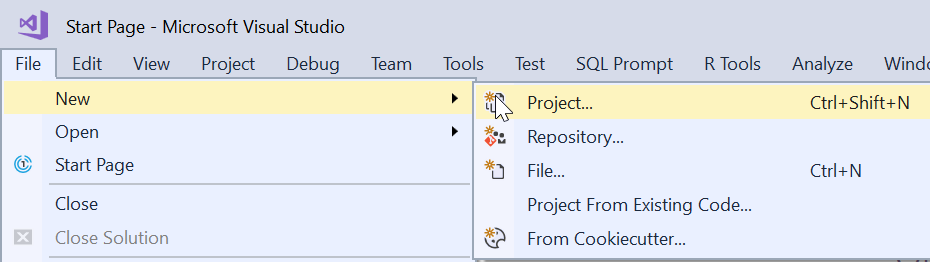
    If you’re an application developer, you are familiar with building new projects. If you’re not, you can probably figure this out, but I’ll just describe and explain the process. In the File Menu, we start our PoC with a File New.

    2018-09-18 20_17_49-

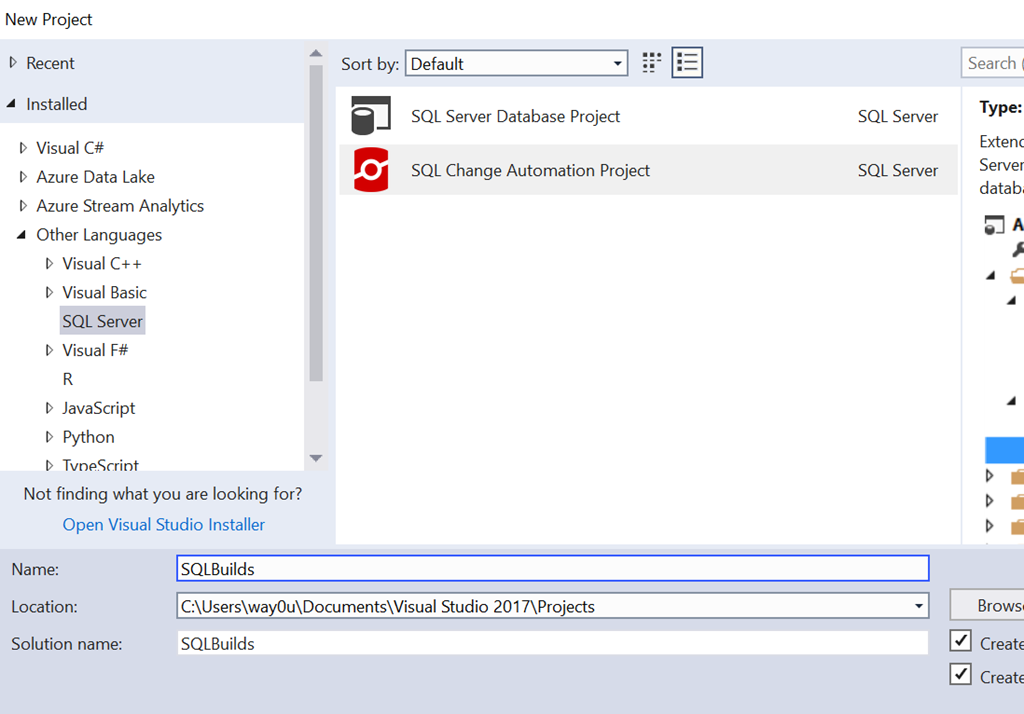
    Once you do this, you’ll see a large list of project templates or types. You can see the recent, installed, or even online types. These are broken into a weird mix of languages and target platforms, but in any case, SQL Server is relegated to the “Other”. Along with SSDT projects, if SCA (or ReadyRoll) is installed, you can choose this type.

    2018-09-18 20_19_14-New Project

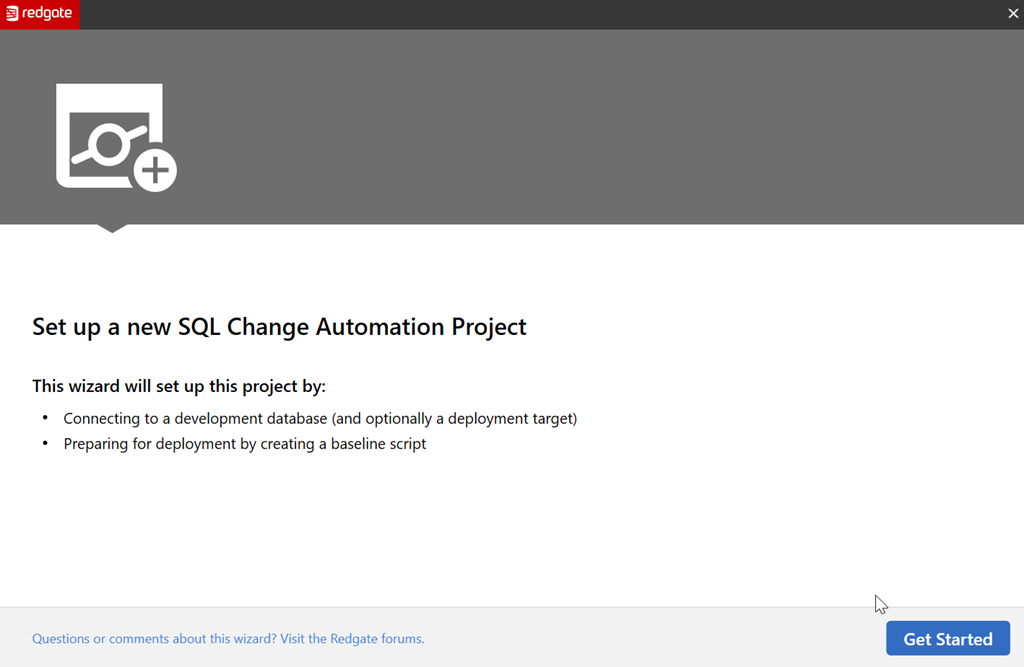
    Once we do this, the project is created, and an outline appears in the Solution Explorer. Before you can go there, SCA pops up a Getting Started dialog. This is designed to help you get moving since the project doesn’t necessarily lend itself to an intuitive flow.

    2018-09-18 20_19_30-

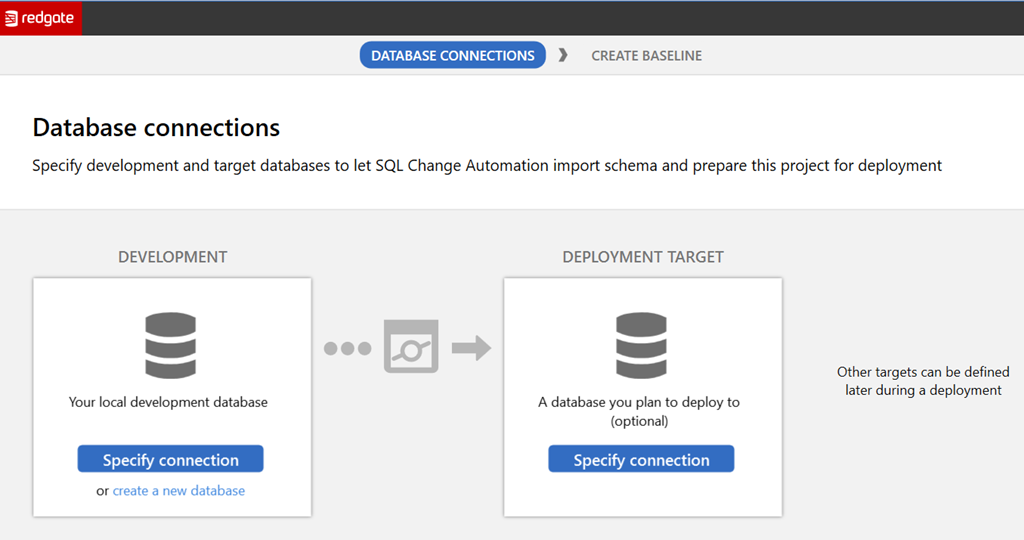
    Let’s get started, as it says. The next screen you see is the database connection. This is a slightly confusing dialog to some, but it makes sense once you understand the purpose. We have two connections with buttons and some links, as shown here.

    2018-09-18 20_19_40-

    The left side is the development database. The instance chosen is also going to be the place where your shadow database is created. You can pick an existing database here by picking the instance and database in the connection dialog. Alternatively you can create a new database, where you’ll specify the details.

    The right side is the target database, which is the downstream target you’ll use for deploying code. This could be production, or it could be a QA database. Either way, this is a default target, and this can be overridden with parameters in the SCA PowerShell cmdlets.

    For now, let’s ignore the left and leave it blank. For the right, let’s create a new database. Once we click the link, we get this.

    2018-09-18 20_20_04-

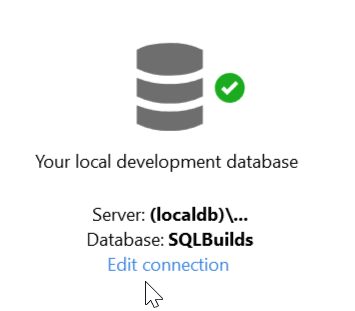
    The default database is the name of the project. The default instance is a LocalDB instance, which is an in process SQL Server. This is named (loadldb)\Projectsv13 in the  current (Aug 2018) versions of SCA. I’ll leave this alone, but the Edit Connection link would allow you to pick a new instance and database.

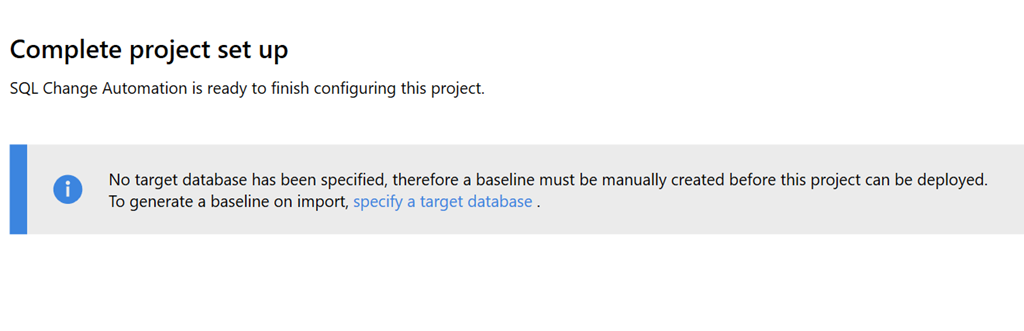
    Once this is created, we return to the dialog, seeing the dev database and the target, which we left blank. When we move forward, we see this dialog.

    2018-09-18 20_20_16-

    This is a reminder that we didn’t create a target, but that’s OK. We can do that later, especially since this is a new project. There is no baseline, which would be an initial script to rebuild the database to its current state. Right now our baseline is nothing.

    I’ll create the project and go back to VS. Once I go that, I can see the database on the LocaDB instance in the Object Explorer. I also see the Shadow database here.

    2018-09-18 20_27_51-SQLBuilds - Microsoft Visual Studio

    If I click Refresh in the SCA pane, I’ll get no results since there are no objects in the database.

    2018-09-18 20_27_35-SQLBuilds - Microsoft Visual Studio

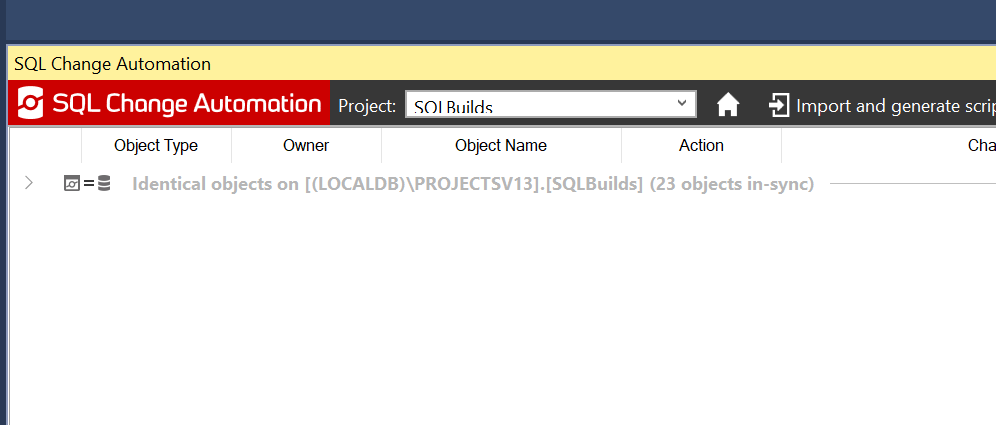
    Once this runs, I see that all objects are identical. This means the dev database and the shadow database have verified each other.

    2018-09-19 00_43_59-SQLBuilds - Microsoft Visual Studio

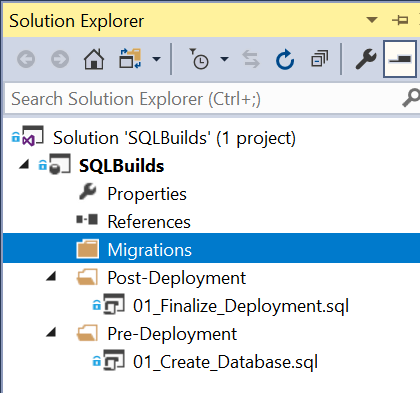
    My project is similarly blank. In solution explorer, I see the outline of the project.

    2018-09-19 00_46_24-SQLBuilds - Microsoft Visual Studio

    At this point, I can begin development. Migrations scripts I create will appear under the Migrations folder and if necessary, I can edit the pre and post scripts. Or add more scripts here. The default scripts are in place already, but I can change them as needed.

    In the next post, we’ll start development.