Tag: syndicated

  • Powershell in a Month – Day 6 The Pipeline

    This is part of my Powershell Challenge, to learn more about PowerShell (PoSh) using the Learn Windows Powershell 3 in a Month of Lunches book by Don Jones.

    Day 6. This is where I found the idea of Powershell getting interested. I used pipes extensively back in my Unix and DOS days, and have heard that these are important in powershell.

    The pipeline (|) essentially takes the output of the left command and sends it to the right. The first examples are with exporting data, such as:

    Get-Service | Export-CSV services.csv

    This command would run the Get-Service command to get a list of services, then send that output to the Export-CSV command, which would create a file, format the data in CSV format, and send all the data from the Get-Service command into the file. Simple, easy and it makes sense. There are also Export-CliXML, -FormatData, etc. commands. On my system I even have an Export-VM  command for Hyper-V. I can start to see possibilities.

    This is different from the redirector (>), which is essentially running the pipe to Out-File, a command to create a file. There are other Out-* commands that send data other places, like printers, the screen, etc. Why does it matter that you have these commands? Well, mainly because you might want to alter some parameters, like display width, encoding, etc. Having a real command build allows for parameters, and control, and thus, customization.

    Powershell is all about customization, and being able to repeat that process. This chapter gives the basics of controlling your flow out output, including to other commands. For example, one of the things the chapter has you do is

    Get-Process -name Notepad | Stop-Process

    A fancy way to kill a process. It does warn you not to forget the -name parameter, as that would be bad. I was tempted to try it on a VM, but I know what will happen, so I didn’t bother. For commands that might cause problems, the chapter goes over the -confirm and -whatif parameters, which, respectively, ask you questions to confirm your actions, and show you the action without performing it. The lab for the chapter has you dig into other parameters, like appending to files (noclobber) using the default regional settings (useculture) and changing the delimiter for export. I actually found these lab exercises to be slightly challenging, but also handy. I got to use the help system and proved to myself a bit that I’m learning how to use PoSh.

    Overall, no great leaps in knowledge here, but I find myself gaining some confidence that I understand how PoSh works, how to manipulate the environment a bit, and I can see the possibilities of using the pipeline to string commands together and manage more than a simple stream of output data.

    The next chapter looks at more involved strings of commands, and I’m looking forward to that one.

  • Traveling in 2013

    It was a busy year for me. As I look back at my speaking CV for 2013, here’s what I see:

    What a year. I also had two trips for Red Gate in here that didn’t involve any speaking.

    For the year, this gives me totals of

    • 30 events
    • 20 trips (2 non-speaking)
    • 58 talks

    Wow. The busiest year by far for me. Almost 60k miles in the air, which is the most I’ve ever flown. I know some people do a lot more, but this was quite a bit for me.

    The upsides of the year were meeting lots of neat people, getting to 6 or 7 new cities I’ve never seen, and not traveling in January, and only a short, business trip in August.

    I don’t know what next year will bring. In the first quarter of 2014, I’ve already got 3 or 4 trips tentatively planned along with a couple local events. I suspect I may end up with more trips next year, but likely no more events or days gone from home as I aim for shorter trips whenever possible.

  • Powershell in a Month– Day 4 and 5 – Providers

    This is part of my Powershell Challenge, to learn more about PowerShell (PoSh) using the Learn Windows Powershell 3 in a Month of Lunches book by Don Jones.

    Day 4, and 5. This wasn’t a long chapter, but it came right around travel and vacation, and as a result, I ended up taking about 2 hours across multiple days. Mostly because I had to re-read things and re-type them. As a result, I’m marking this as two days. Plus, this will now line up the chapters.

    Providers are the “drivers”, I guess for Powershell. They allow you to interact with various systems through the Powershell commands. Another way of putting it is that they take some item and make it look like a file system. This means you can navigate the registry (with the registry provider) like your disk with CD, DIR, etc. It’s also why you can move through SQL Server in a folder-like hierarchy.

    This was a short chapter, and I’m not sure why it took so long, but I moved slow going through the exercises to creates files and folders, learning to use the New-Item or Set-Location commands instead of the mkdir or cd ones.  I did find this interesting.

    The lab exercises were easy, and once I could focus, I got through them quickly.

    The next chapter is pipelines, which is where I think the power of PowerShell starts to come through.

  • Symmetric Keys

    One of the encryption options in SQL Server is symmetric key encryption. This is the type of encryption most people think about when they consider encrypting data. In symmetric key encryption, we use a key to encrypt data, and then also use a key to decrypt data.

    The key used for encryption and decryption is the same in Symmetric Key Encryption. This is why we call this symmetric. Just like with a house lock,

    image

    the key that locks (encrypts) also unlocks (decrypts). This is a picture of my front door and the lock uses a single key.

    In SQL Server, we create a symmetric key and use that to encrypt data and also decrypt it. Here’s a simple example:

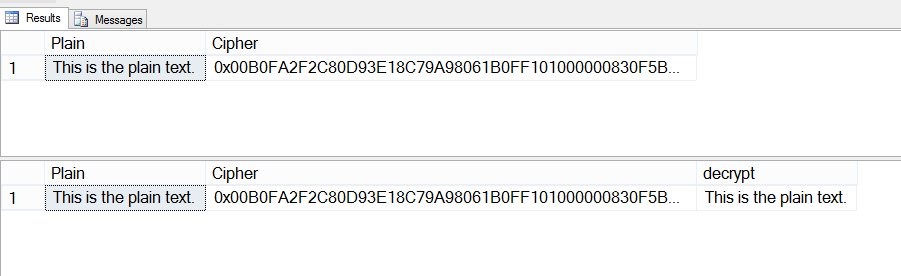
    DECLARE @plain VARCHAR(200), @cipher VARBINARY(5000), @decrypt VARCHAR(200) SELECT @plain = 'This is the plain text.' -- encrypt SELECT @cipher = ENCRYPTBYKEY(key_guid('MyFirstSymKey'),cast(@plain as NVARCHAR(200))); SELECT 'Plain' = @plain , 'Cipher' = @cipher -- decrypt SELECT @decrypt = CAST( DECRYPTBYKEY(@cipher) AS nVARCHAR(200)) SELECT 'Plain' = @plain , 'Cipher' = @cipher , 'decrypt' = @decrypt


    That’s it. If you run it, you see the original text, the encrypted text, and the decrypted text.


    symkey1


    In another post, I’ll go into more options that are available for symmetric key encryption.