Tag: tools

  • Comparing Two Scripts with kdiff3

    I had a customer recently ask if SQL Compare could show them the differences in two scripts they’ve written. They weren’t using version control (tsk, tsk, shame), but saw SQL Compare and the “Scripts folder” option. This isn’t used for random scripts, but I do have a better solution: KDiff3.

    KDiff is an old project that is used to analyze multiple files and merge the differences. There is an archived SoundForge location, but the more modern version is here. That’s the current code location, and you can see the readme for details. To get started, download and install it.

    Using KDiff3

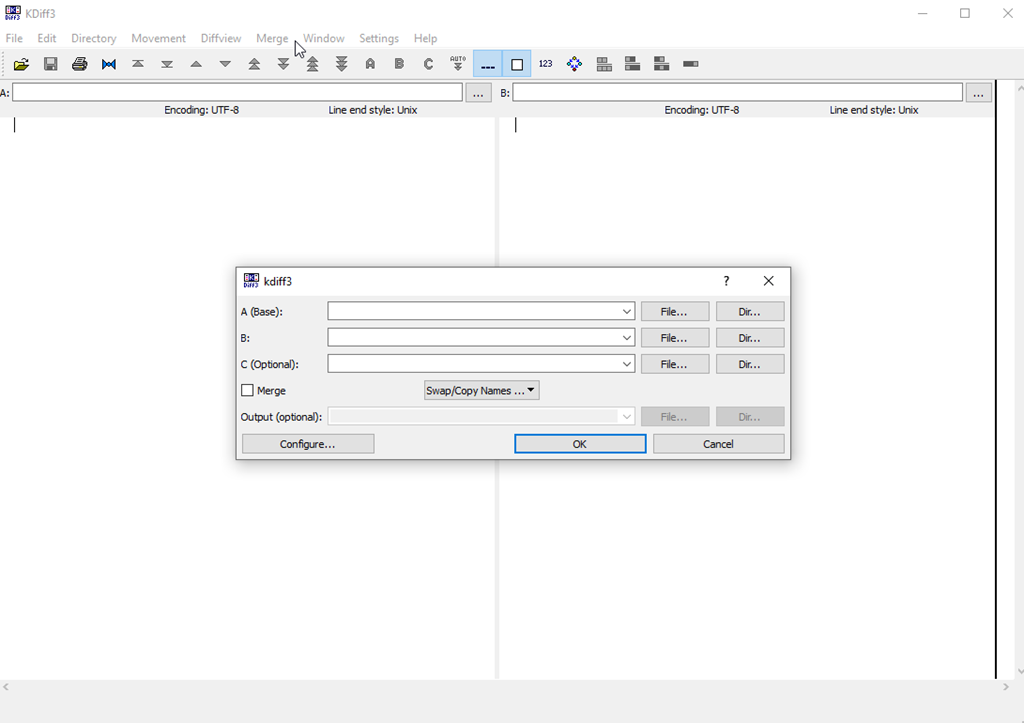
    I’ve used this in a few VCS tools in the past, and it can be very handy. However, I’ve rarely run it on it’s own. When I start it, I see the A, B, and (optional) C files to pick.

    2023-11-20 14_06_25-KDiff3

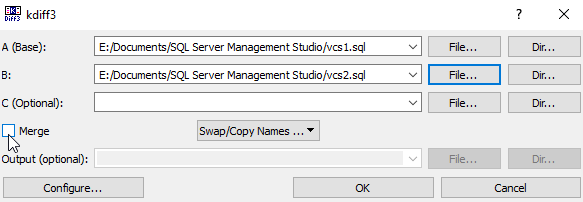
    If I click the “File” selector next to A or B, I can pick files. In my case, I’ll pick two files I’ve used to demonstrate where a VCS is helpful. You can see below I’ve selected files. I didn’t select the merge button, but I could. In this case, I just want to see the differences.

    2023-11-20 14_08_00-kdiff3

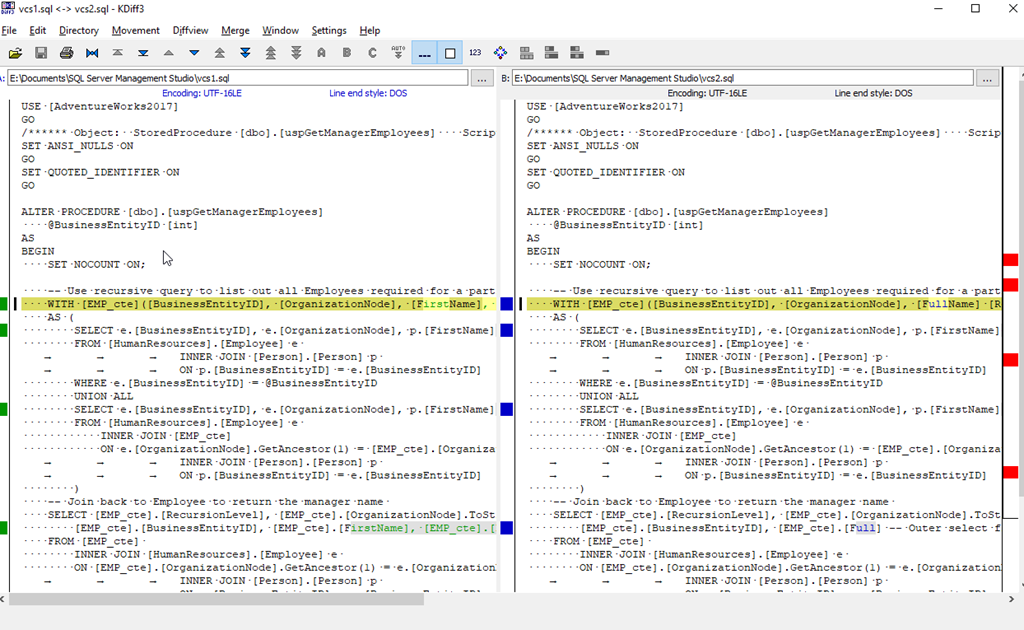
    Wen I click OK, both files are opened, and I see a VCS-like difference listing of the files. You can see there are a few differences highlighted with the lines marked and then the changes highlighted.

    2023-11-20 14_09_12-vcs1.sql _-_ vcs2.sql - KDiff3

    I can now see what’s changed. In a proper VCS environment, I would then choose which changes I need to pull from each file to reconcile the differences.

    If I pick two disparate files, KDiff3 tries to match them up as easily as possible. In my case, I had a few different demo files that happen to share some code. A pretty good analysis of the files shows me what’s different

    2023-11-20 14_11_27-sequence_a.sql _-_ sequence_3.sql - KDiff3

    There are navigation items in the toolbar that let you jump among the various differences in files if you want to. This is primarily a tool for reconciling files, not just finding differences, but it can be useful to see what’s changed.

    If you’ve never tried it, give it a go and see if it’s helpful.

  • Quick Filtering in SSMS–#SQLNewBlogger

    I saw someone limit the databases they see in SSMS, which isn’t something I often do, but I thought this was great.

    A Long List

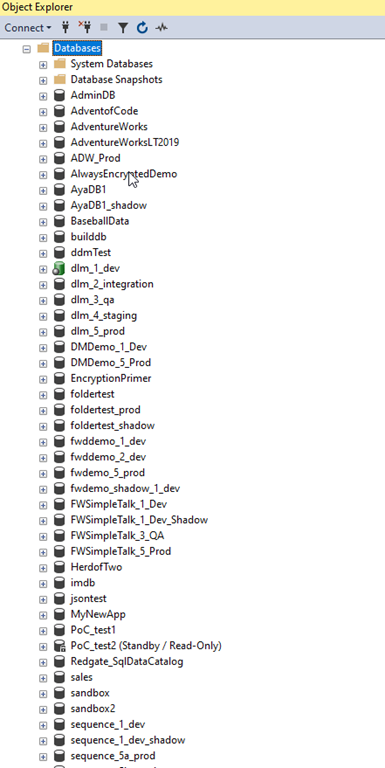
    This is the list of databases on a demo instance I have. While it’s a lot since I do a lot of testing with customers and colleagues, I see plenty of people will lists of databases longer than this.

    2023-09-18 09_39_38-Window

    I also watch them scroll like I do when trying to find an object in a database.

    However, for demos, this is a lot, so I like to slim things down. I used to have a script to detach all the databases and then attach the ones I need, but that’s time consuming and once in awhile, I need a different database, so that’s an issue.

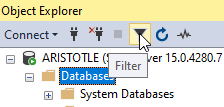
    I saw the someone filter their list by clicking the filter button in the Object Explorer. This is the funnel button shown here:

    2023-09-18 13_57_35-Window

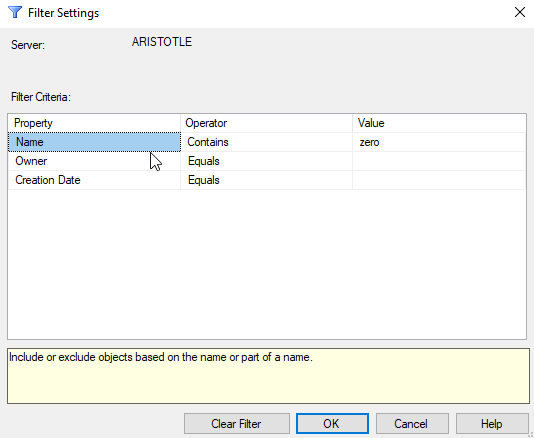
    Once you click this, a dialog appears that let’s you enter your filter criteria. I’ll use a simple filter of “zero” to limit to those databases in my zerodowntime demo.

    2023-09-18 09_39_25-Window

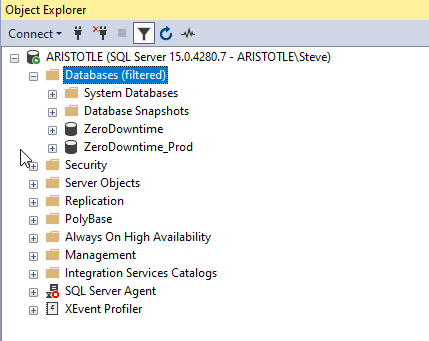
    Once I click “OK”, I see only those databases listed.

    2023-09-18 09_39_18-Window

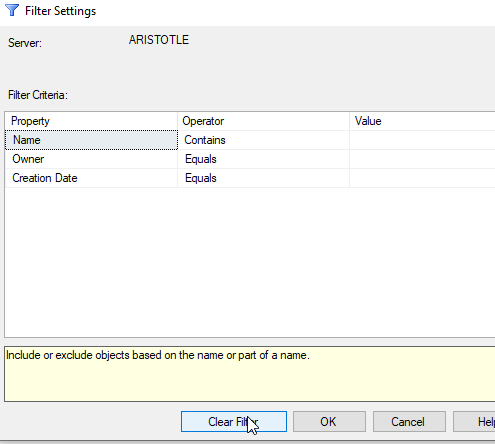
    If I want to get everything back, I can click filter again and then delete my criteria, or click “Clear” filter. That gets me the entire list back.

    2023-09-18 09_39_32-Window

    Easy.

    SQLNewBlogger

    This post was something I jotted a note about when I saw someone do this. The note was literally “write about filtering in SSMS object explorer”. I took that and wrote this post in 10 minutes, including time to grab screen shots.

    You could do this as well, showcasing the knowledge that you’re learning to use tools better, which make you more productive. Employers love that.

    Write your own post with more advanced filtering.

  • The Importance of Thick Clients

    I’ve used a number of clients with SQL Server across the last 30 years. I worked early on with the command line and isql (now SQLCMD and soon Go-SQLCMD). That was handy with DOS and Windows 3.1. However, I soon moved to GUI tools and spent years in ISQL/W,  which was how I ran Query Analyzer. Enterprise Manager was the next evolution, though I used Rapid SQL for awhile to get offline query work while on a plane. This was handy for me in documenting and commenting code without a server. Amazing to think I used to work without a SQL instance on my laptop.

    SSMS (Management Studio) has become the de facto way I’ve written queries for over a decade. Microsoft has tried to push people to Azure Data Studio (ADS), but I don’t see a lot of people moving to it. It’s fast, but also, not attractive, at least not to me.

    I saw a post recently from Chris Webb, asking if it was possible to do all one’s development in the Power BI Web interface. He asks the question since lots of BI people have Macs and you can’t run Power BI Desktop on MacOS. That’s one reason why ADS was created, to provide a cross-platform tool. Chris says the web isn’t quite up to snuff, though it’s been improving. So for now, you need Windows.

    I feel the same way. I do wish SSMS was available cross-platform. When I had a MacBook, I constantly had a Windows VM running to get to SSMS and SQL Server. These days I could run a Linux version of SQL Server on MacOS (or a container), but not SSMS. I could run ADS, but I don’t love it.

    I’m not completely sure why ADS bothers me, but I think a big reason is the familiarity of a thick client and Windows GUI controls. I always felt many of the Linux GUI elements feel like cheap imitations of their Windows counterparts. The smoothness of the Win32 applications, the way that grid results come across, the rendering of text, smooth menus, etc. run is just better. Even when it’s not great, it’s better.

    I like the thick Windows clients.

    I do think there are some nice Electron-based apps that look and work well in Windows and Linux. In fact, Redgate’s own direction has been Flyway Desktop rather than continuing to insist on SSMS, precisely because we find more and more customers aren’t standardized on Windows. This is especially true for RDBMSs other than SQL Server. That UI looks pretty good, though admittedly, I’m not writing queries.

    Especially in SSMS, the way a thick client works is much better than ADS. Especially with SQL Prompt. Intellisense in ADS leaves a lot to be desired and the constant need for me to use the command palette for things is annoying. Give me menu items and better shortcuts. I’m not sure why I don’t think it works as well, but it doesn’t. Not for me.

    I wonder how many of you feel the same way. I know some people love DataGrip, but that is often because they work cross-platform or they are full-stack people that like Rider for their other work.

    I do like VS Code, but I’m almost always just writing code, not looking at results or managing a server instance. When I look at other platform tools, MySQL WorkbenchpgAdmin, SQL Developer, I see why SQL Server and SSMS are preferred by many. Those tools are just poorly built compared to SSMS.

    What do you think? I know many of us dislike things about SSMS, but still find it indispensable for daily work. Do you love/hate SSMS or have you found another tool that works well for you?

    Steve Jones

    Listen to the podcast at Libsyn, Spotify, or iTunes.
  • Talking about the New Open-Source SQLCMD on Data Exposed

    I was on the Data Exposed: MVP Edition show recently, talking about SQLCMD. I’ve written a few articles on the topics as well, and a blog post about setting up a node HTTP server, which I show in the demo.

    Check out the show below:

    Read these articles for more info: