Tag: tools

  • Quick SSMS Tip: Map Mode for Code–#SQLNewBlogger

    Another post for me that is simple and hopefully serves as an example for people trying to get blogging as #SQLNewBloggers.

    In recent versions of SSMS, there’s been an addition to the query windows that I find helpful and useful. This is the map mode for code, and it means that when you have a large script, you can get a quick view of where you are in the file, and where you code is located.

    First, turning this on. In the Options for SSMS, select the Text Editor section on the left, then expand the All Languages item. There is a Scroll Bars section to select. When you pick this, on the right you will see the Behavior section near the bottom. The default is bar mode, but you can switch this to map mode.

    2020-07-23 16_44_26-Window

    When you do that, if you open a script that is bigger than your query window, you will see a map of the code, along with a light colored bar that shows where you are in the code.

    In the image below, Glenn Berry’s diagnostic script is open, and  I have actual code near the middle of my screen, and on the right, you can see the pink just at the bottom of the oval that’s lighter in color than the map.

    2020-07-24 10_24_27-Window

    This is a little hard to describe, but if you turn this on and experiment, you’ll get an idea of what happens.

    Let me add some blank links to this script. When I do that, I can see the map expand with some gray spaces near the top.

    2020-07-24 10_46_23-Window

    You can also get a preview of code by putting the cursor on the map to the right. Below I’ve put the cursor on the right side, above the current location in the query window. I see a preview of the code, while I see the locator bar below the preview, showing me where I am in the code file.

    2020-07-24 10_47_33-Window

    Map mode is an interesting way to manage large code files, which sometimes occur in stored procedures and complex queries. While I would hope that most people don’t have hundreds of lines of code in any one file, I do know some do. Map mode can help.

    SQLNewBlogger

    This was a question someone asked me in a presentation. It took me almost as long to type an explanation as it did to take a few screenshots. Adding a little text made this a 10 minute effort.

    This is the type of thing that you can do, showing how this might help you with some code that is complex and harder to navigate. In addition, this is a nice way to show you are honing your craft and learning to use your tools.

  • Other IDEs

    Most of us use SSMS (SQL Server Management Studio) to manage our SQL Server instances or to write database code. However, Microsoft does give us database options with Visual Studio, VS Code, and Azure Data Studio. It does seem as though Microsoft would prefer more of us move to ADS, but I’m not sure I’m ready, and I wonder if you are.

    I saw a list recently of some other tools, and I wonder if anyone uses these in their work. Most of these are cross platform, and support a number of different database platforms. Datagrip might be the most popular, but there are others. SQL Manager, Adminer, DBVis, SQLPro, and Flyspeed are ones I’ve heard of in the past. I’ve used DBArtisan at one company, and loved it as I could work disconnected. At the time, Query Analyzer didn’t support offline work.

    Having an IDE that you are comfortable using is important to working efficiently. Many of us become quite used to the flow of our tool, we develop habits, muscle memory, and shortcuts that work for us. We get used to where things appear on the screen and what icons to click. Changing IDEs can be very disruptive and frustrating while you get used to a new interface. I still remember going from Enterprise Manager to SSMS and it was an annoying period of a few months as I got used to SSMS.

    These days I find myself trying ADS often, but usually falling back to SSMS. I think that visually the basic HTML-like display is annoying. I have much preferred the thick client look at SSMS. It doesn’t help that some of the tools I often use don’t quite work the same in ADS. If we get a bit more of SQL Prompt in there, I might change my mind, but using the Command Palette rather than keyboard shortcuts is somewhat unfamiliar to me. What’s strange is that I like VS Code overall, and use it for PoSh, but for some reason it’s not the same with databases.

    I am glad we have choice in tooling, though I don’t know that any large set of users actually use anything more than what is installed with SQL Server. I don’t know if other tools will allow anyone to produce more, or better, code, but I do know that I have found that some tools do help. It can be worth spending a bit of time experimenting with some other IDE to see if your work improves.

    Steve Jones

    Listen to the podcast at Libsyn, Stitcher or iTunes.

  • VSCode Tips–Remove the Highlighted Line

    VSCode was making me crazy as I was writing a script. I like a light theme, and every time I went to type, I saw this:

    2019-08-13 11_17_00-CreateMaskedImage.ps1 - SitC 2018 - CreateProtectManageDB - Visual Studio Code

    The highlight was distracting for me. I could see why people might like it, but I don’t. I tried the command palatte, but couldn’t find a setting that was helpful. After scrolling back and forth a few times, I decided to search.

    This SO post was helpful, and here are the steps I followed to change the setting.

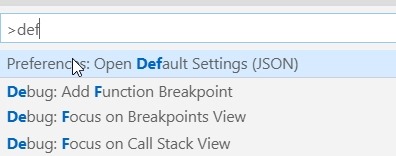
    First, I opened up the Default settings from the command palette, like this:

    2019-08-13 11_21_36-CreateMaskedImage.ps1 - SitC 2018 - CreateProtectManageDB - Visual Studio Code

    Next, I searched for the “editor.renderLineHighLight” setting. I copied this line into the clipboard.

    2019-08-13 11_22_36-defaultSettings.json - SitC 2018 - CreateProtectManageDB - Visual Studio Code

    Now, go back and open the User Settings.

    2019-08-13 11_23_13-CreateMaskedImage.ps1 - SitC 2018 - CreateProtectManageDB - Visual Studio Code

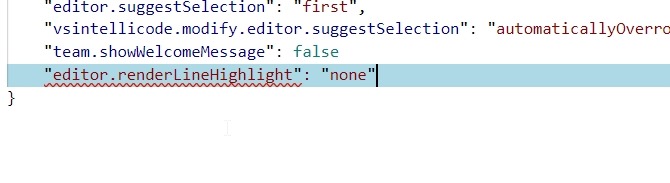
    Paste in the line and change “line” in the value to “none”.

    2019-08-13 11_23_48-● settings.json - SitC 2018 - CreateProtectManageDB - Visual Studio Code

    Save this, and annoyance removed.

    2019-08-13 11_24_25-CreateMaskedImage.ps1 - SitC 2018 - CreateProtectManageDB - Visual Studio Code

  • Parameter Fun

    Recently I was editing a document about SQL Server on Linux and the author noted that if you type “sqlcmd” without any parameters, you get the list of possible parameters back. I tried that on my Windows laptop and immediately got an error that no credentials were supplied. Apparently sqlcmd on Windows attempts to connect to the default instance.

    I thought the author had made an error, but sure enough, when I connected to Linux and ran just “sqlcmd”, I got a list of parameters. What was more fascinating to me was that if I ran “sqlcmd -?” on either platform, I got the parameter list, as I would expect. However, if I ran “sqlcmd /?”, this worked on Windows, but returned an error on Linux.

    A long time ago I wrote some command line utilities to help our network team manage a Netware 3.x environment. I was proud of my work and knew that the team would appreciate a few of my tools. When I first showed me boss and started to explain what it did, he stopped me and ran the name of the utility with a /? at the end. Nothing returned, and he told me to redo the work and ensure that /? always returned help for the tool.

    I’ve kept that habit for years and I’ve often tried that with new programs. Most have worked, including bcp and sqlcmd. Somehow, that hasn’t continued to this day. For sqlcmd.exe on Linux, only -? works. If you run Docker, you need a –help, though -help works. Other programs might be more strict, but it’s surprising to me how many different ways we’ve implemented help and parameters.

    PowerShell has Get-Help, but then uses single dashes for parameters. A number of newer cli tools, especially for Linux, seem to want two dashes for parameters, though a single dash often works. I’ve seen a few tools that mix single and double dashes, depending on which parameter. I did find this note that on Unix a few single dash parameters can be combined, so the double dash indicates we are using one parameter, not multiple ones. That makes sense, though I would argue that -abc meaning -a -b -c is a fundamental design problem in and of itself.

    The evolution of help and parameters seems funny to me. It’s likely caused by someone implementing the parameter short cutting in Unix at some point that now requires double dashes for multi-character parameters, which is really a case of a short-sighted design in Unix. In any case, understanding the behavior of parameters and help is a useful skill, especially in the current environment that tends to implement more scripts with command line utilities.

    Steve Jones

    The Voice of the DBA Podcast

    Listen to the MP3 Audio ( 4.1MB) podcast or subscribe to the feed at iTunes and Libsyn.