Tag: tools

  • Installing Azure Data Studio

    Azure Data Studio is the newest tool from Microsoft for working on the data platform. Last year we saw the preview release of this, called SQL Operations Studio. No one liked the name, and as the tools team at Microsoft worked to update the tool, they changed the name this year. At Ignite the rename and release was announced, and this is now a 1.x tool, available on Widows, OSX, and Linux.

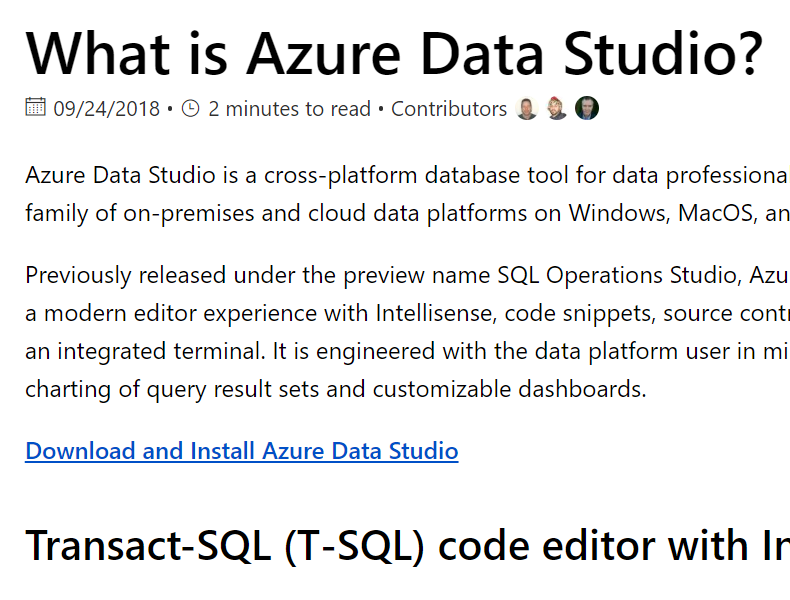
    If you search for Azure Data Studio, you should end up at this link:

    2018-10-19 16_24_03-What is Azure Data Studio_ _ Microsoft Docs

    The download link has a series of installed. You can choose installers for all the platforms, in a series of formats. I picked the Windows installer.

    2018-10-19 16_24_13-Download and install Azure Data Studio _ Microsoft Docs

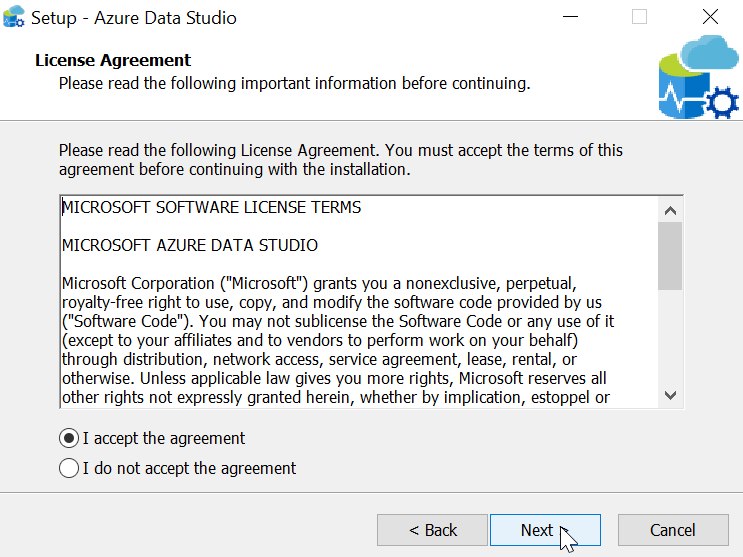
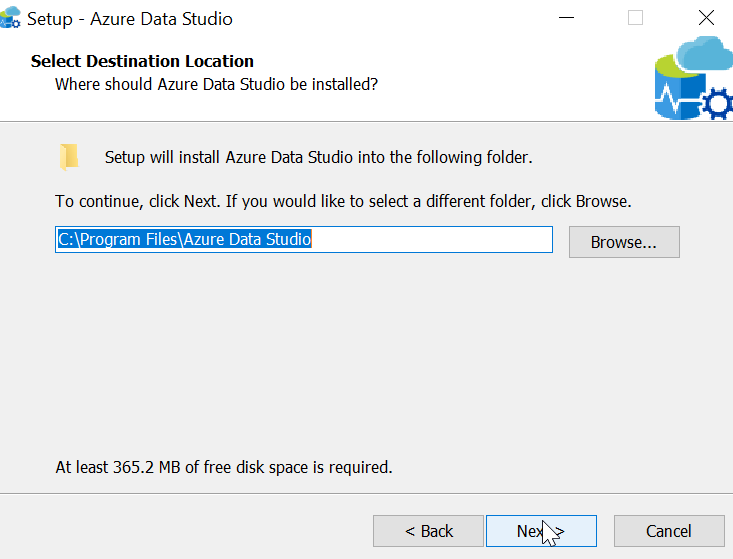
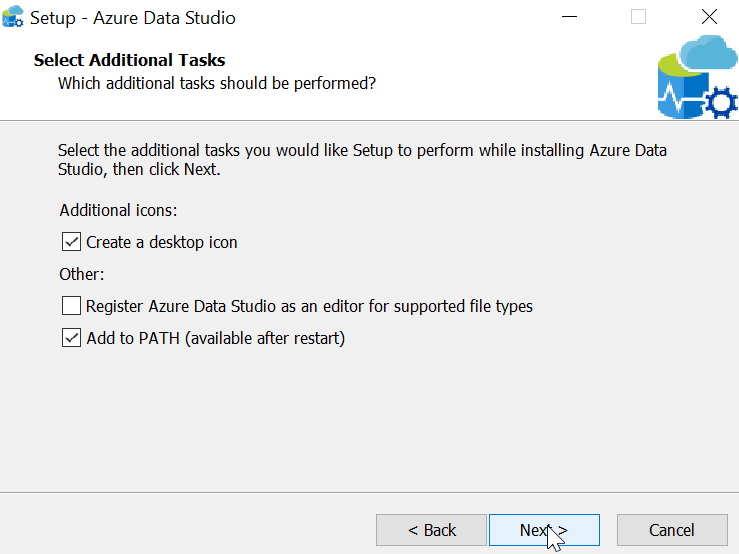
    When you start the installer, you get a standard setup wizard. Here’s what you see, but these are all really next, next, next dialogs.

    2018-10-19 16_27_17-Setup - Azure Data Studio

    2018-10-19 16_27_25-Setup - Azure Data Studio

    2018-10-19 16_27_38-Setup - Azure Data Studio

    2018-10-19 16_27_48-Setup - Azure Data Studio

    2018-10-19 16_28_00-Setup - Azure Data Studio

    2018-10-19 16_28_10-Setup - Azure Data Studio

    2018-10-19 16_29_00-Setup - Azure Data Studio

    Running the Program

    When you start Azure Data Studio, it opens with a large pane and a connection dialog. Before I can do anything, I need to connect.

    2018-10-19 16_40_57-Azure Data Studio

    I need to provide details, as expected, but I can optionally group my connections into a name. This is similar to the Registered Servers grouping I can do in SSMS. Here I’ve filled out some details, and given my connection a nickname for quick connections in the future.

    2018-10-19 16_42_22-Azure Data StudioOnce I click Connect, I get a dashboard when ADS makes a connection. At a glance, I can see a few things. This is the “Manage” widget that Microsoft provides. You can make your own if you like.

    2018-10-19 16_43_30-2017Sandbox_sandbox - Azure Data Studio

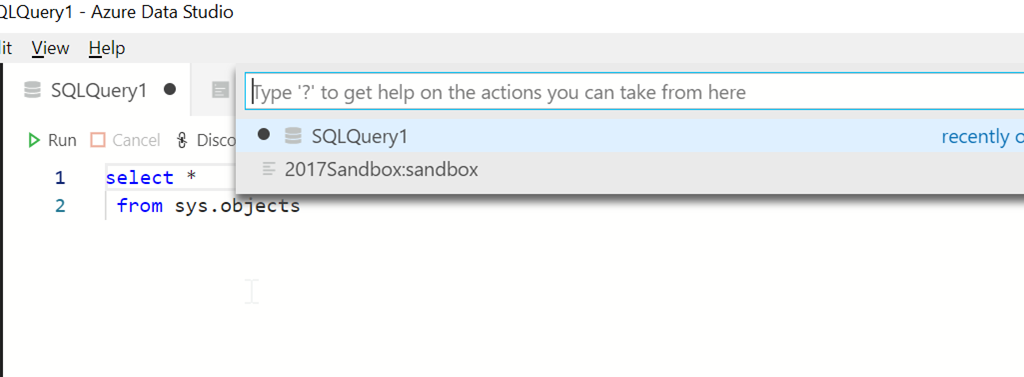
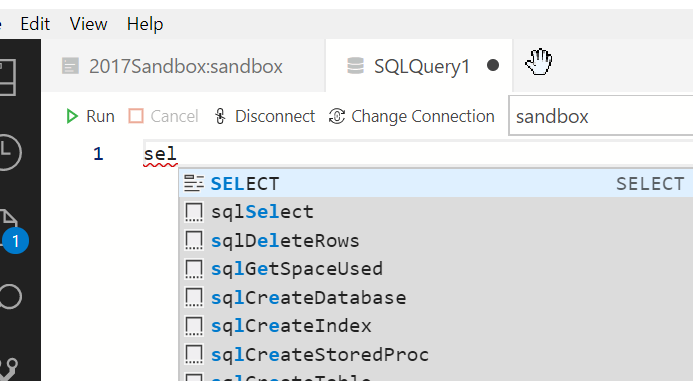
    There are some mappings for keyboards, and CTRL+N (of File | New Query) gets me a query window. Some basic intellisense is here.

    2018-10-19 16_55_26-● SQLQuery1 - Azure Data Studio

    It’s no SQL Prompt, which I miss when I use this tool.

    2018-10-19 16_55_34-● SQLQuery1 - Azure Data Studio

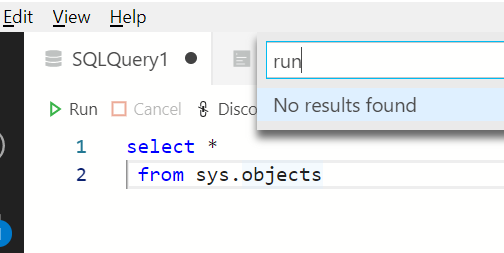
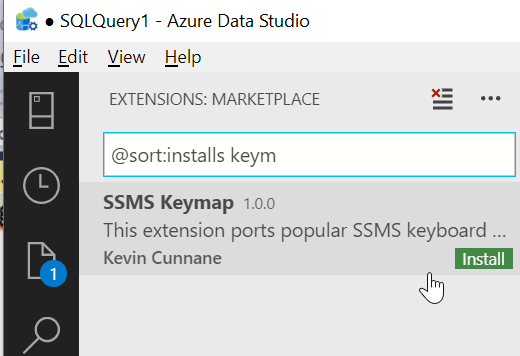
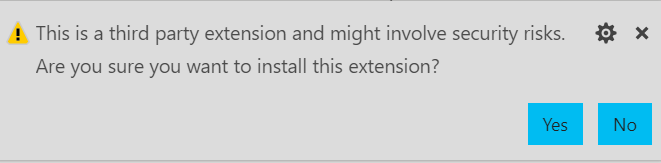
    CTRL+E doesn’t work, so I need to click the arrow to run the query. That’s OK, but it’s not ideal. Fortunately, there’s an extension to help here.

    The results are slightly odd for me, since I’ve used SSMS for so long, but they work fine.

    2018-10-19 17_02_15-● SQLQuery1 - Azure Data Studio

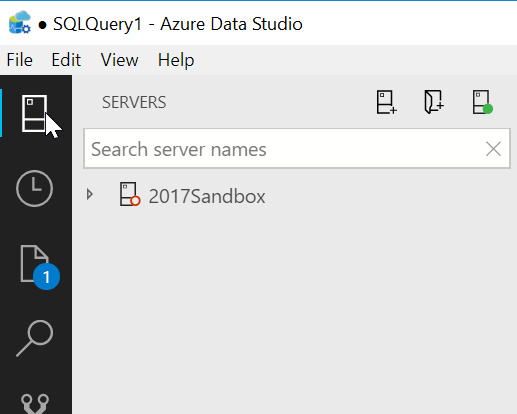
    There is a column of icons on the left, the top of which is my list of server connections. If I click this, I see the list on the left side.

    2018-10-19 16_58_21-● SQLQuery1 - Azure Data Studio

    There’s lots more to do here, and you should experiment with this if you want a lightweight query tool. I’ll do a bit more work here, and see what I think, but I’m not sold on this for now as any sort of replacement for SSMS. I don’t know if MS will go that way, but for now, this still feels fairly bare bones.

  • SOS to ADS

    When Microsoft announced SQL Operations Studio last year, I wasn’t thrilled. The move to a VS Code shell was less of a concern to me than having a better SSMS toolset. Actually, with VS moving to MacOS, I was hoping we’d get a slimmer, closer VS version of SSMS that allowed add-ins, extensions, and plugins.

    No such luck. We got SQL Operations Studio, which had the unfortunate acronym of SOS. To top it off, I felt this was more of a developer tool, but the name implies a DBA/sysadmin tool. To me this was a tool somewhat lost in its mission.

    Now we have Azure Data Studio, the renamed SOS, which is interesting. I know there are more features than SOS and some additional work coming, but I can’t get too excited. Other than people that want native connections to a server from OSX and Linux and write T-SQL, is this that useful?

    You can download it and see what you think.

  • The Ideal IDE

    When I started working with SQL Server, I spent a lot of time in Query Analyzer and isql.exe. Those were my two main tools, using those to query a database instance in a lightweight manner. At some point Microsoft released Enterprise Manager, which was more useful for some tasks, but overall, I preferred Query Analyzer. Eventually that died away, and we got stuck with Management Studio, which most of us now use. Along the way, I also used DBArtisan, RapidSQL, and a few other IDEs for writing code against a SQL Server.

    These days we have a few choices for doing development and administration on the Microsoft data platform. There is still SSMS, but Visual Studio has gotten quite a few upgrades and extensions to allow work with everything from a local SQL Server to a cloud database to data lakes and more. Microsoft built a lightweight IDE in Visual Studio Code, and released a SQL Server extension for that tool. In the last year, we also saw a preview release of SQL Operations Studio (SOS) from Microsoft, and perhaps this is the direction that Microsoft is moving in the future. There are also other IDEs, such as DataGrip, that some people are using.

    I’m still stuck in the the SSMS mode. Even when I use Visual Studio for SQL Server work, with something like SQL Change Automation, I often switch back to SSMS for lots of my work. I’ve done some work in SOS, but I don’t love the experience overall. Since I have SSMS running most of the time, the speed of SOS isn’t helpful. If I were shutting down and restarting SSMS often, I might feel differently.

    Today I’m curious. I’m sure you all have preferences, but if you could choose only one IDE, what would it be? Let’s imagine that we’re not looking at the current state of the tools, but for whatever functionality you need, whether that’s database development tools, AG management tools, scheduling tools, etc., all of the functionality would be added to VS, VSCode, SSMS, SOS, DataGrip, etc. In that case, what do you prefer?

    I think I’d lean towards keeping SSMS, though I wish it were more open and extensible. Since that’s not likely to happen, I think SOS might be my next choice as an IDE if it has lots of extensions, and I have the ability to enable or disable them for the functionality I need.

    Steve Jones

    The Voice of the DBA Podcast

    Listen to the MP3 Audio ( 3.7MB) podcast or subscribe to the feed at iTunes and Libsyn.

  • T-SQL Tuesday #101–Tools

    tsqltuesdayThis month’s T-SQL Tuesday is brought to you by Jens Vestergaard. The invitation for #101 is for essential SQL Server tools. Since I work for a tool vendor, you can guess that I’m going to be shaded that way.

    This is the monthly blog party on the second Tuesday of the month. You can participate by writing your blog, linking to the invite and leaving a comment there (or a pingback). This is the creation of Adam Machanic, and if you want to host, drop him a note.

    My Essential SQL Server Tools

    There are really three main tools I’d say that are needed for SQL Server work. At least, these are the ones I need.

    1. SSMS – It’s free, and it’s the main tool for connecting to SQL Server. You might like VS Code or some other editor, especially on other platforms, but really SSMS is required for most people.
    2. SQL Prompt – It’s expensive for some, but after using this for years, I think the the native intellisense hurts more than helps. Just formatting alone make this critical for me. I’m moving through quicksand, mixed with molasses, when I don’t have Prompt installed.
    3. Git – Another free one, but an important one. As we write code, SQL Server will only keep the latest version. Much of what we do means that we need to understand where we came from with code. We do have integrations at Redgate for SQL code, but no matter what, just having a record of work is important, especially with multiple people. I love git, but if you want SVN or something else, use that. Just use something.

    These are the main ones. Making these the main ones doesn’t mean that others aren’t important, but it just means these are the top of the list. After these, you can add in others. Here are the ones that I think are important for getting things done in a modern, multi-environment world.

    SQL Search – From Redgate, but useful for finding things in a large environment. Way better than browsing.

    Plan Explorer – I think SQL Monitor has a nice plan tool, but for those of you writing code and wanting to test it, this is way better than the native plan viewer.

    DLM Dashboard – Free, and let’s you see and track those changes in production. Find out when code is being released and you aren’t aware of it.

    Sublime Text – I tend to do some work in other languages, and in text, and having a quick, easy to use editor is nice. I think Sublime is great and worth the small fee.

    Password Safe – Having long, secure passwords is important. I don’t try to remember them anymore, and I do want separate ones for every site. I like this open source tool, and have ports on my mobile devices.

    Dropbox – Critical for me, since I use files on multiple machines. I keep copies of my presentations, password safe files, and more in sync across devices with Dropbox. Plus I can scan in docs from my phone if I need to send and share them.

    dbatools – This is an amazing project. I hated working with the sqlps module and really avoided PoSh for many things before dbatools. Give this module a try and you may learn to love PowerShell.

    SQLServerCentral – I’m biased, for sure. However, everyone could use a few things that we provide. A community, where you can get inspired and learn things (daily articles and editorial). A way to ask questions and get answers (our forums), and a place to keep scripts that are helpful for you (Scripts and Briefcase). These are important to rounding out your career, beyond just your current job.

    There are plenty more choices, and certainly lots of tools within SQL Server. You should know about Extended Events, or Query Store (or Open Query Store) and more. Learn to use the resources you have, practice and test with them, and if you need a paid tool, don’t be afraid of asking. If the tool provides an ROI, it’s worth it. If it doesn’t, tell the vendor why.