Tag: tools

  • Evolving Our Tools

    This week the next preview version of SSMS v18 was released. This is the sixth preview release, and I’m guessing that this will be one of the last. Six seems like a lot of releases, and I’d like to think that this is getting close to being ready to use by most people, but I’m not sure. I certainly have some some annoying and problematic bugs, so I can’t be sure there won’t be a seventh, eighth, or ninth preview, but it does seem to be fewer issues are being reported.

    With the release of SQL Server 2016, SSMS was decoupled from the database engine, and we saw some SSMS v16 releases. I didn’t use many of those before moving to SSMS v17, which came slightly after SQL Server 2017. I’m glad we’ll start to get the versions separate from the engine as this is confusing to many people. However, I do expect that plenty of people will call this SSMS 2019 or think there’s a SQL Server 2018, etc. If we could get more people to leave the older SSMS versions that came with 2008 R2, 2012, 2014, then I’ll take a little confusion in how we talk about SSMS.

    However, we don’t need to stick with SSMS these days. If you’ve been heads down and just focused on keeping your existing systems running, you might not realize that not only do we have different SSMS choices, but we also have other tools. I’m not talking about SQLCMD, bcp, and Visual Studio, but we have other ways of working with SQL Server. Visual Studio Code has an mssql extension if you write code in that IDE, which might be something you full stack developers need.

    For the SQL Server people, we have a fork of VS Code in Azure Data Studio. This is a lighterweight IDE built for SQL Server work. We also have the mssql-cli tool, giving us way more control over command line work than we have with SQLCMD. I haven’t worked with it much, but it’s on my list for January to play with a bit. I don’t know how well either of these will catch on, but let me know your thoughts. Are you doing more work with either of these tools?

    There are certainly plenty of other choices as well. My company (Redgate) and others make plugins for SSMS that improve how you work with SQL Server. There are even other IDEs, such as DataGrip, that you can use and abandon the Microsoft tools altogether. I’m not sure I would look to leave SSMS entirely, but perhaps I should give some of these a try at some point.

    Tools matter to many professionals. Mechanics treasure their sets of wrenches, chefs love their knives, and we ought to have tools that we know, use, and are comfortable with. This includes both the actual software and the various scripts, code, and helper applications that allow us to work efficiently. If you don’t love your tools, or have a collection, maybe now is the time to start the new year building some skills with the one you use, or try a new one. Wayne Sheffield has a nice series on SSMS and I’m hoping to get some other pieces written for other tools. If you want to tackle one for SQLServerCentral, let me know.

    If you’re looking for a new tool to try for SQL Server work, might I suggest some PoSh and dbatools. It’s an amazing combination for lots of tasks.

    Steve Jones

  • Creating a Quick Dashboard Widget

    I read Carlos Robles blog on creating an Azure Data Studio (ADS) insight widget and decided to try this for myself. I decided to try and get a list of object types and a count of each. Following instructions, here’s what I did.

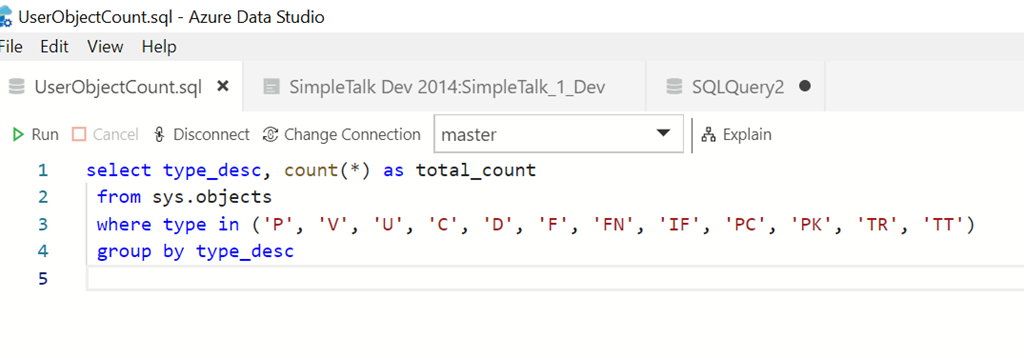
    First, I wrote a query that would gather the types of objects and counts from sys.objects.

    2018-10-20 16_41_15-UserObjectCount.sql - Azure Data Studio

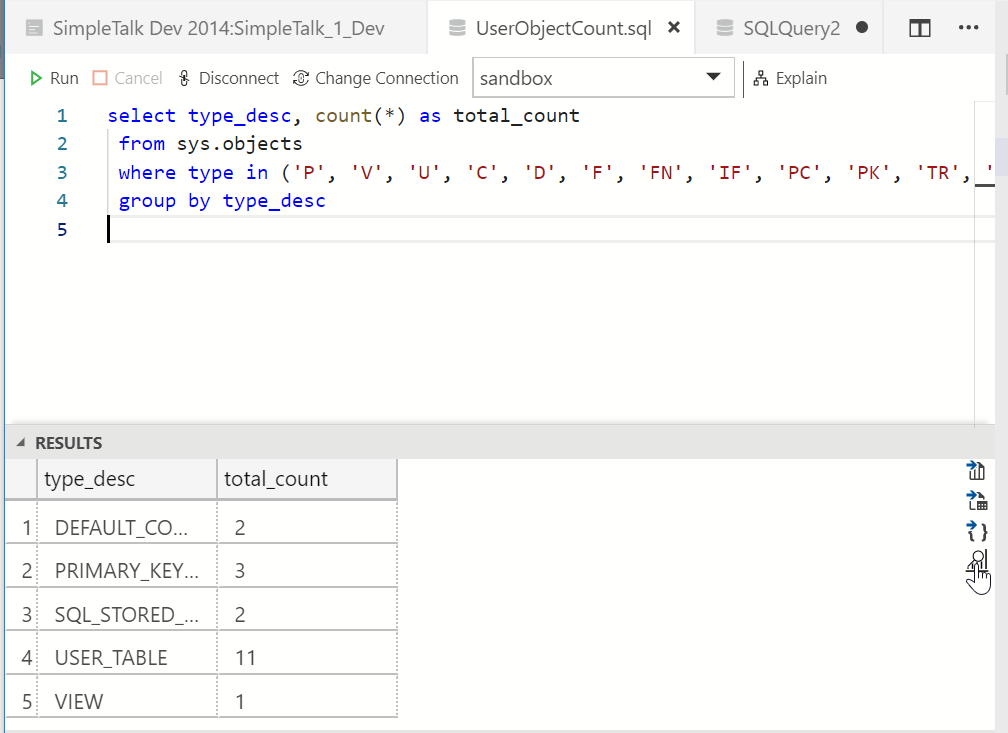
    I saved this as a file under my Documents folder. Once I had this, I ran the query and in the results, I clicked on the Chart item to the right of the results.

    2018-10-20 17_01_52-UserObjectCount.sql - Azure Data Studio

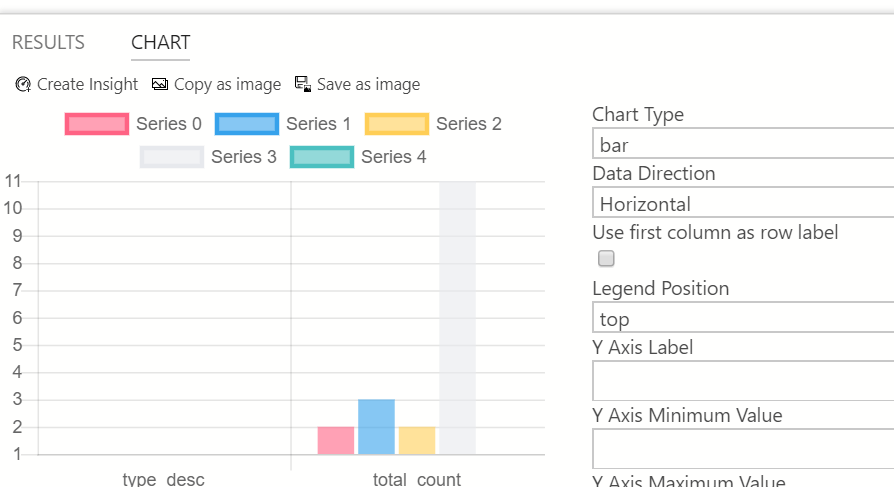
    This displays a bar chart, which is useful at times, but that’s not what I want.

    2018-10-20 17_02_02-UserObjectCount.sql - Azure Data Studio

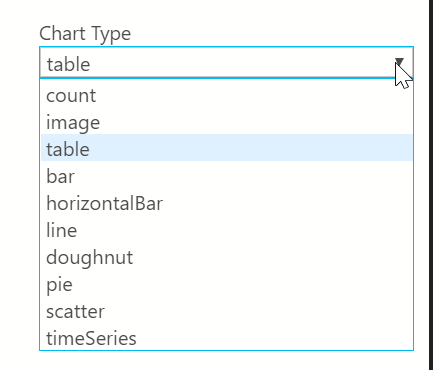
    Instead of this, I’ll expand the Chart Type drop down. This gives me a list of a number of items I can choose. For this insight, I’ll use the table type.

    2018-10-20 16_41_30-UserObjectCount.sql - Azure Data Studio

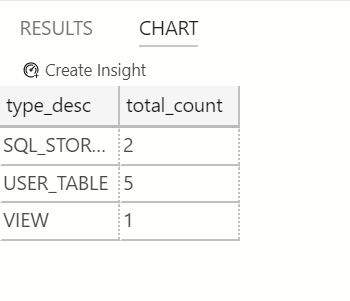
    Once this is done, I’ll see the results I want. There is a “Create Insight” button above the chart. I’ll click this to get the JSON code that creates this.

    2018-10-20 16_41_23-UserObjectCount.sql - Azure Data Studio

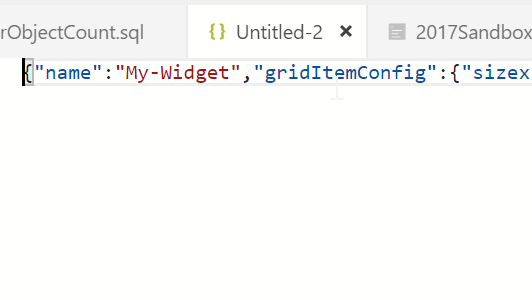
    A new editor tab opens with the JSON code in it. This is just one long line of code, which isn’t as helpful or easy to work with.

    2018-10-20 16_50_48-Untitled-2 - Azure Data Studio

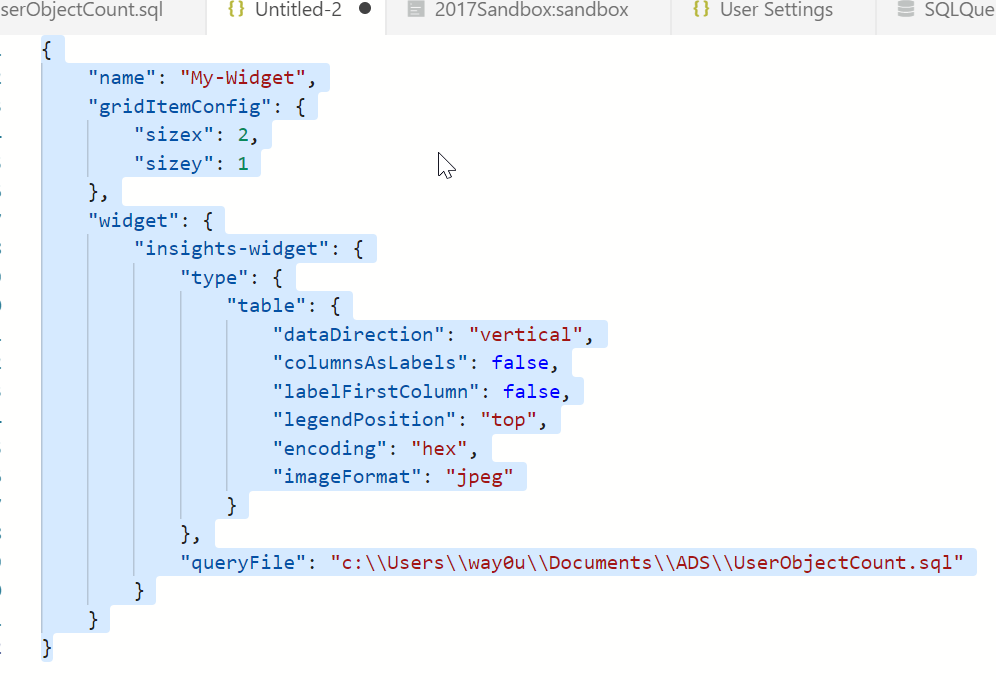
    CTRL+Shift+P opens the command palette. Type “format” and you’ll see the Format Document command. Once you format the code, it will be easier to read.

    2018-10-20 16_51_06-● Untitled-2 - Azure Data Studio

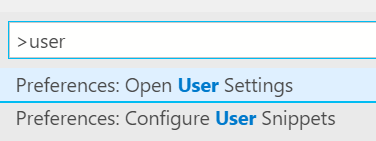
    The next step is to open the user settings. This is also in the command palette.

    2018-10-20 16_49_47-2017Sandbox_sandbox - Azure Data Studio

    In my ADS, I get the settings list. I can search for dashboard and I’ll find the one I want.

    2018-10-20 16_50_07-settings.json - Azure Data Studio

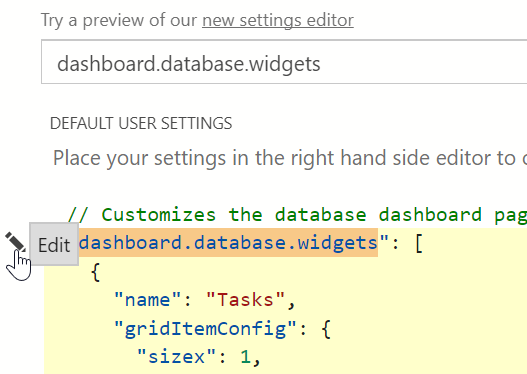
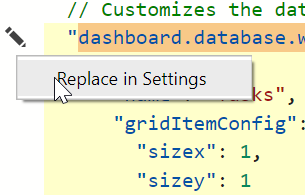
    If I put the cursor in the upper left, I’ll get an edit item. I can pick this and I’ll get one of two items. If I’ve never customized anything, I’ll get the “copy to user settings” option. If I have, I get the “Replace in settings” item.

    2018-10-20 16_50_15-settings.json - Azure Data Studio

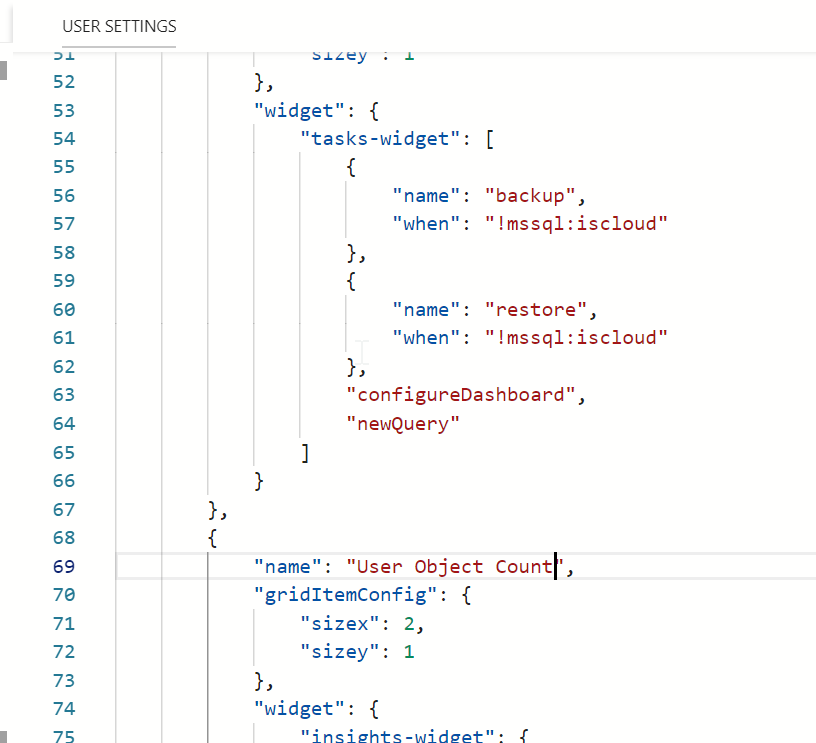
    Once I’ve done this, I want to modify some code. I don’t love the search box, so I’ll delete that json widget. Then I paste in my widget code. Be sure you put this in the right place, with a comma between the widgets braces. I changed the name from “my-widget” to “User Object Count”.

    2018-10-20 17_11_36-settings.json - Azure Data Studio

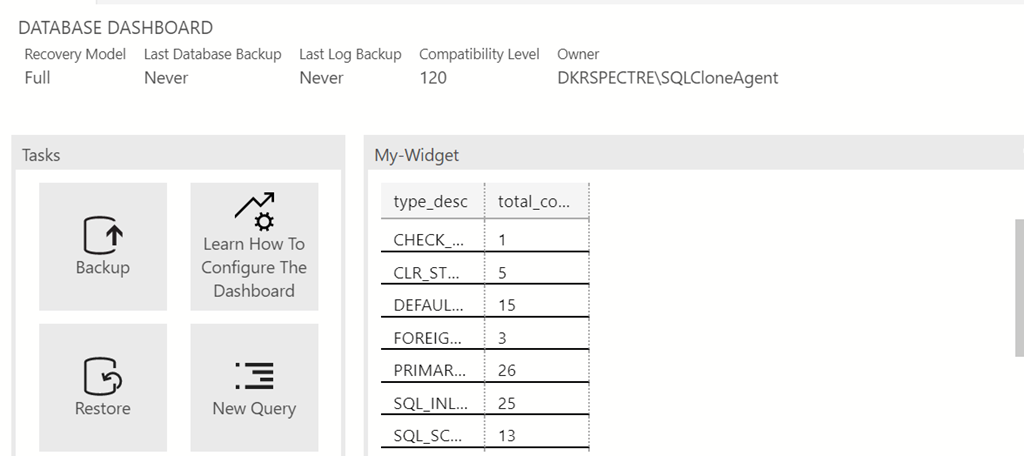
    Once I do this, I save it and close it. Then I double click one of my server connections and I see my widget on the dashboard.

    2018-10-20 16_57_11-SimpleTalk Dev 2014_SimpleTalk_1_Dev - Azure Data Studio

    Pretty easy to get a query to appear on your dashboard as a chart if you want to get some insights. Any query could be used, with the results returned when you open the server connection. You can also leave the dashboard open and refresh it when convenient.

  • Adding SQL Search to Azure Data Studio

    There are a limited number of extensions available for Azure Data Studio (ADS), but one that came out early is SQL Search. This is highlighted as a recommended extension from Microsoft. Redgate worked with them early on in the lifecycle of the product to get this extension working, including helping spec out the APIs for interaction with ADS.

    2018-10-19 17_53_21-Extension_ Redgate SQL Search - Azure Data Studio

    My extensions pane is on the right, so my details are on the left. There’s a description of SQL Search as well as a link to install the extension. As with most extensions, the link takes you to a download page. For SQL Search, this is a Redgate Foundry page with a few builds. I picked the public one.

    2018-10-19 17_53_45-Redgate Foundry Labs

    Installing extensions is basically using File | Install Extensions from VSIX and picking the downloaded file. You need to approve the extension and then reload once it’s installed. You can see it installed if you re-open the extensions pane.

    2018-10-19 18_01_40-● SQLQuery1 - Azure Data Studio

    Using SQL Search

    To use this extension, you can use the CTRL+Shift+P command to bring up the command palette. When you do this, you get a way to run commands at the top of the ADS window. This is a handy tool that you will use often.

    2018-10-20 15_51_23-SQLQuery2 - Azure Data Studio

    If we type “SQL S”, we’ll get the SQL Search commands. There is a reindex command and a search command. These are the two items implemented at this time.

    2018-10-20 15_51_33-SQLQuery2 - Azure Data Studio

    The re-index command will update the SQL Search index with information from the current database connection. If you cannot find an object you need, then you might run the reindex.

    The other command allows you to search the database. If we click this one, we get a new edit box at the top of the window. Focus will be in this window, so you can type a term. For me, I know there are a number of items in this database for blogs, so let’s enter that.

    2018-10-20 15_56_20-SQLQuery2 - Azure Data Studio

    The results will appear in a new tab alongside your currently open tabs.

    2018-10-20 15_56_42-SQL Search Results_ blog - Azure Data Studio

    The results show me that I have an object name along with the schema and database. We see the type of the object and then the way the object was matched. Next to the object name, there is a circle with an ellipsis. If we click this, we have a couple of choices for what to do with our results.

    2018-10-20 15_57_06-SQL Search Results_ blog - Azure Data Studio

    We can highlight this object in our object explorer, which will, well, do nothing for me. I suspect that the call from the extension to the servers Object Explorer is flaky. Even if I open the Servers pane and then click “Reveal in Object Explorer”, nothing happens. I see whatever I had opened in the Servers Pane.

    2018-10-20 16_04_14-SQL Search Results_ blog - Azure Data Studio

    If I close the server pane and instead click View Definition, I get a split pane on the right with the object definition. I can resize this as needed, but this is a view only pane. I can’t edit or execute this code. It’s for reference, which can be helpful when coding, but is of limited use.

    2018-10-20 16_05_16-SQL Search Object Definition_ BlogArchiveModDate - Azure Data Studio

    I can  copy this code for another window if I click the start and end places in the search results while holding the Shift key. Then I right click in the window and select Copy.

    2018-10-20 16_10_10-SQL Search Object Definition_ test Disallow Blank Titles - Azure Data Studio

    This is a limited use extension, but it does allow one to find code quicker than browsing through the Object Explorer. We can keep the search results up as a separate pane, so that we can use this as a pick list if we were looking for all the dependent objects for an object.

    One nice touch from ADS is that if you CTRL+Shift+P again, the SQL Search commands appear at the top as recently used items.

    2018-10-20 16_14_17-SQL Search Results_ blog - Azure Data Studio

    Give SQL Search a try and let us know what you think.

  • Better Keyboard Extensions in Azure Data Studio

    I used to use ALT+X to execute queries in SSMS. I spent years with this shortcut, but as I started to present more, CTRL+E felt more natural. I’ve now grown used to that, so when I typed CTRL+E in Azure Data Studio (ADS), I was less than pleased.

    2018-10-19 17_06_57-● SQLQuery1 - Azure Data Studio

    Even trying to get help here didn’t help.

    2018-10-19 17_07_18-● SQLQuery1 - Azure Data Studio

    I actually had a conversation with Kevin Cunnane when this was SOS and he pointed me to the keymap extension.  You can get this by clicking the extensions icon on the left side of ADS:

    2018-10-19 17_12_50-● SQLQuery1 - Azure Data Studio

    Once you do this, search for keymap, and you’ll see Kevin’s extension.

    2018-10-19 17_13_03-● SQLQuery1 - Azure Data Studio

    You can see details for the extension on the right.

    2018-10-19 17_18_34-Extension_ SSMS Keymap - Azure Data Studio

    When you click “Install”, you’ll go to Kevin’s repo on Github. Click the link to download the VSIS extension. This gets saved in your Downloads folder (or wherever you have downloads going).

    Go back to ADS and use the File menu to find the VSIS installer.

    2018-10-19 17_18_28-Extension_ SSMS Keymap - Azure Data Studio

    Browse and double click the VSIX file you downloaded. You’ll see a message in the lower right of ADS.

    2018-10-19 17_19_48-Extension_ SSMS Keymap - Azure Data Studio

    Click Yes, or no, but if you click No, this won’t install. In a few seconds, if you clicked Yes, you’ll see this:

    2018-10-19 17_19_57-Extension_ SSMS Keymap - Azure Data Studio

    Click Reload, and ADS will close and reopen. Your query window should still be there, and CTRL+E will pop the connection dialog, since the connection closed. Once you connect, the query will run with CTRL+E

    2018-10-19 17_20_10-● SQLQuery1 - Azure Data Studio

    The full list of key mappings is available on the repo or in the package.json file.