Tag: virtualization

  • How Virtualized?

    I went to a talk recently where I saw this statistic: “50% of all workloads were virtualized in 2009. That number is 72% today.”

    That’s a really big number, at least in my mind. That implies the vast majority of all servers, file, print, database, email, etc. are virtualized. Inside of companies that have their own data centers and machines, they must be heavily virtualized. I’m sure that all those instances in the “cloud” also count, but still, 72%? That’s big.

    However I’m sure that’s skewed towards those machines that don’t require a lot of resources, like file and print servers, DNS hosts, etc. This week, I thought I’d see what the percentage is inside of your organization.

    What percentage of your SQL Servers are virtualized?

    Give us numbers of physical v virtual if you can. I’d combine all instances, from development to test to production, not worrying about size or workload. If you have a single guest on a host, using almost all the resources, that’s a virtual server.

    My suspicion is that the percentage of SQL Servers is much lower than that of other workloads, but I’m curious. With the low overhead of modern hypervisors, and the free (or low) cost, it makes sense to virtualize servers. If for no other reason than to remove any weird hardware dependencies for DR purposes. However I’m sure that there are large workloads that require more resources than the current hypervisors can expose, at least for some database instances, and those need to remain on physical machines, but my guess is more often than not, it’s the human concerns or lack of confidence that prevents virtualization.

    Let us know this week how your organization is doing in the trend towards virtual servers.

    Steve Jones

    The Voice of the DBA Podcast

    Listen to the MP3 Audio ( 2.4MB) podcast or subscribe to the feed at iTunes and LibSyn.

  • VMware and DBAs

    Disclosure: I’m a VMware fan and run it on my laptop. I definitely prefer it to other hypervisors. This workshop and all travel expenses was also paid for entirely by VMware.

    I was fortunate and grateful to be invited out to VMware recently for a multi-day workshop for SQL Server on VMware. Michael Corey wrote about the workshop here, which was an interesting way for VMware to reach out to the SQL Community and both talk to us about what they’re doing as well as get feedback from us on how SQL Server performs and interacts with the VMware platform. They will do more in the future, so if you’re active in the community or a heavy user, read Michael’s post and see if you can get yourself nominated.

    The week was full of speakers from both VMware and Tintri, a storage vendor doing interesting things. We had quite a few executives talking about their plans to make SQL Server run better, and we (as a group) provided lots of feedback. Certainly I think we helped to ensure executives understand that a database server is fundamentally different from a file server, mail server, or other workload.

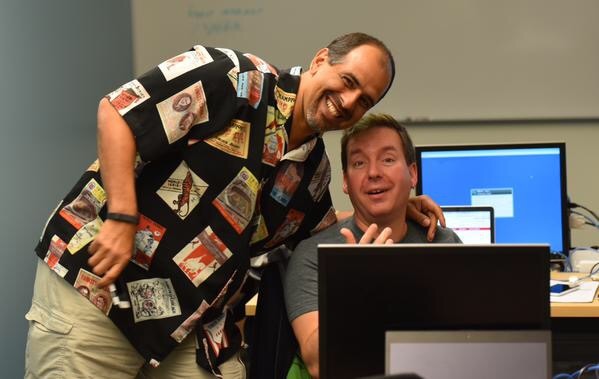
    Of course, it wasn’t all work.

    Mrdenney

    I can’t talk about lots of what we discussed, as much is under NDA, but I will say that you should keep an eye on how VMware is going to improve their interaction with SQL Server. Hopefully we’ll see more products, information, and help at some of the SQL Saturdays and other SQL Server specific events.

    We also got a night out at ATT Park in San Francisco where the various attendees and speakers could interact in a casual atmosphere. An exciting game, with two of the best pitchers in the game throwing that night (Kershaw and Bumgarner).
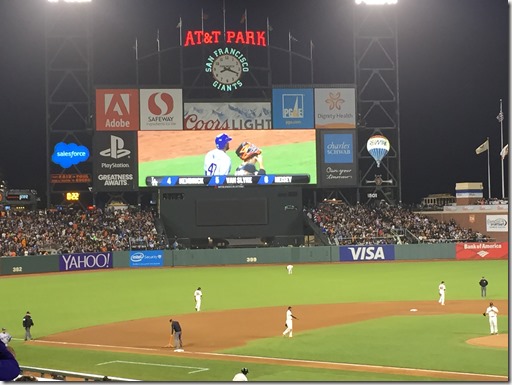
    Photo Apr 22, 8 19 09 PM

    I’d never been there, so it was a treat for me. I walked around and enjoyed the baseball game, the first one I’ve seen live in a couple years.

    Photo Apr 22, 8 26 19 PM

    Overall it was a very interesting time, with lots of points raised by everyone that I hadn’t considered or thought of. The more I hear about what the ESX platform does and handles, as well as hearing about how people have set up the platform. There are truly some powerful instances being run in a virtualized environment and I’m not sure there are many workloads that couldn’t be run successfully on VMware.

    I’m sure that there are hardware and budget restrictions for many people, but the issues aren’t VMware or virtualization, they’re the setup. In the labs we worked on, quite a few of the systems pressed a SQL Server instance hard, and the hypervisor and storage system kept up nicely.

    Photo Apr 22, 10 27 32 AM

    Not to disparage Hyper-V, but I haven’t had the experience there. I suspect both hypervisors could be tuned to a high level. Both also have some holes and places where the system might not run as smoothly as you’d like, but at least I think VMware is more aware of what we, as SQL Server professionals, see as problems.

    Tintri

    I have to admit that I have mostly though of storage as a utility. It needs to work and respond fast, but beyond that, I don’t care about it. It’s like a water faucet. I turn it on and it works.

    Tintri was the guest storage vendor that provided appliances for us to use. I didn’t’ think much of them on Tuesday morning, but by the time their founder had talked with us, I was very intrigued. I still don’t really care about storage other than needing it to work, but I was very intrigued by how this particular product works.

    Most storage is presented as a LUN to a host, which may or may not share that among guests running on a box. Tintri changes that, with what they call VM aware storage, with VM level QOS. Essentially, the storage box is aware of each guest connected as a VM. It manages the storage response and bandwidth on a VM basis, with separate FIFO queues for each drive in the VM. Essentially each VM is treated separately and the storage capabilities (min and max IOPS) can be managed separately.

    It seems as though VMs get better response from the appliance this way, with less dependency on heavy management by storage admins. They also use a lot of flash memory (SSDs) with disks to ensure fast responses. They do 100% write to flash for speed and tune the systems to aim for 99% reads from flash. Because the device is aware of VMs, it can move blocks around from flash to disk to ensure that the heavily used data is quickly available.

    If you have heavy needs, check them out. If you’re looking for a SAN, I’d look at them as well. Not sure what the pricing is, but I bet it’s competitive with other SAN devices.

    We also got a lecture about low level storage technologies from a VMware exec. The talk looked at the advances taking place in storage, which seem to be finally leaping forward. With the price of SSDs crashing, and the research into 3D flash, it seems that though more and more of us might move to flash based SAN storage quicker than we expect. Fascinating stuff, and I suspect that database systems will start to see better performance from hardware upgrades across the next 6-7 years.

    A Break

    It was nice to get away and learn something without any pressure to work on much else. This was a short workshop, close to home, and in an area that had me concentrating and paying attention in ways that sometimes don’t happen at SQL Server events. I enjoyed it, and I learned quite a few things.

    Photo Apr 22, 10 27 27 AM

    I’m not sure how much I’ll use this stuff moving forward, but I am thinking that I’d like to play around with an ESX server at home and use that to experiment with SQL Server features and especially setup. I’m looking forward to trying to get a system ready that can build a new SQL Server instance in minutes.

  • Virtual Lab – New Domain User

    This is part of my series on building a virtual lab for use with SQL Server and Windows. You can see the entire series here: Building a Virtual Lab with Hyper-V.

    After the domain was up, I needed to add users. Specifically, I didn’t want to use administrator for all actions, since that bothers me. It just seems like a poor practice. I also needed service accounts. The accounts I needed:

    • sjones
    • Broncos SQL – for this SQL Server
    • Nuggets SQL – for this SQL Server
    • Rockies SQL – for this SQL Server
    • Joe – my test SQL account, without sa rights.

    I’ll probably need more, but these are good for now.

    Domain Users

    I used the script in this post, in a variation, at the command line. I didn’t need all the fields, so this is what I used.

    New-AdUser -SamAccountName "BroncosSQL" -Name "Broncos SQL" -Enabled $true -ChangePasswordAtLogon $false -PasswordNeverExpires $true -AccountPassword (ConvertTo-SecureString "MyPassword" -AsPlainText -Force)

    Note: That wasn’t the password I used. I used a complex, 12 character, upper/lower case, numbers, etc. password.

    I repeated this for all the users.

    Domain Groups

    For the most part, I don’t need, or want, to assign extra rights for these accounts. The SQL Server setup will assign local rights, and I’ll modify if needed. However I do need to grant domain admin rights to my main account to log on and run the domain at times.

    I went back to basics, with TechNet documentation. I need the Add-ADGroupMember cmdlet to add someone. However, I also need the groups. I searched, and Spiceworks shows up again. I ran this:

    Get-ADGroup -filter * -properties GroupCategory | ft name,groupcategory

    and got this list:

    groups1

    I want to add sjones to the Domain Admins group. Using the Add-ADGroupMember, I ran this:

    Add-ADGroupMember "Domain Admins" sjones

    And it worked. I could easily log on and administer other machines with this account.

  • Virtual Lab – The Domain

    This is part of my series on building a virtual lab for use with SQL Server and Windows. You can see the entire series here: Building a Virtual Lab with Hyper-V.

    The big thing in setting up a domain is to enable you to connect multiple machines together, experiment with things like Powershell Remoting, AlwaysOn, etc.

    There are a couple things you need to do here. The first is to install a domain controller on one of the VMs, and then you need to join the remaining computers to the domain. This isn’t that hard, and I’ll show you two ways to do this: the GUI and PoSh.

    Create a Domain Controller

    I followed instructions to build a domain from TheSQLPro, since that was the first, and simplest instruction I had. I connected to my ServerCore installation named DenverDC and ran this:

    Install-windowsfeature -name AD-Domain-Services

    Then

    Install-ADDSForest –DomainName “SSCLAB.LOCAL” -DomainMode Win2012 -DomainNetbiosName “SSCLAB” -ForestMode Win2012

    I entered both of these from Powershell and restarted the VM.  I then ran a

    Get-ADDomain

    and as you can see, I have a domain set up on this machine.

    ad

    Joining the Domain from the GUI

    The first step is to be sure that you have connectivity between your machine and the DC. I had to ensure I could ping back and forth, both by IP and computer name. I also made sure to set my DNS to the domain controller. In my case, this was the DenverDC at 192.168.1.200.

    Once I was fairly sure I had networking down, I went to the control panel on one of the machines. I went to the computer properties and clicked the "Change Settings" link.

    virtlab_af

    From there, I had the basic properties. As you can see below, I was in a workgroup. The first thing to do is click the "change" button.

    virtlab_ag

    Once that’s done, you have the workgroup/domain set of radio buttons. I clicked the domain item and entered the name of my domain.

    virtlab_ah

    You get a credential box where you need to enter credentials. I believe these are the DC level credentials. For this lab, I have the domain and local administrators all using the same user/password (Administrator/mypassword) and entered that.

    virtlab_ai

    If networking is working, it should take a minute and then you’ll get this:

    virtlab_aj

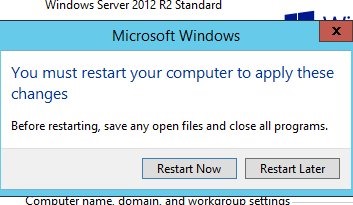
    As soon as you click OK, you’ll get told this requires a reboot. It does, so restart.

    virtlab_ak

    Once you restart, if you go back, you should see that you are in the domain in the computer properties.

    virtlab_al

    Joining from Powershell

    I found this cmdlet that worked for me.

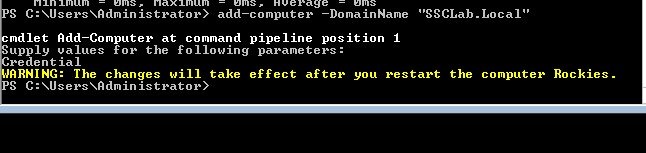
    Add-Computer -DomainName "SSCLab.Local"

    Once I typed this in, I got a dialog box asking me to enter the administrator credentials. I did that and it worked. I had to reboot with a restart-computer.

    virtlab_an

    And we’re working

    virtlab_ao

    Errors

    I did get an error on one of my VMs. It was error 0x21C4 on a Server Core installation. When I looked that up, I got a duplicate SID error. I had sysprep’d the machines, but perhaps I broke something. In any case, I re-ran sysprep, reset the network config, renamed the computer, and then joined the domain as noted above.