Tag: virtualization

  • Virtual Lab – Adapter Setup

    This is part of a series where I set up a virtual lab for testing and misc. work. The other parts in the series are here: Building a Virtual Lab with Hyper-V.

    Once I had the machine up and running, I knew I needed to get the networking setup. One of the things I’ll do is do some clustering tests, and for that, I need to have static IP addresses. I’m an older, IPv4 guy, so that’s what I’ll use here.

    I decided to put all my machines in the 192.168.1.x space. I’ll use these addresses:

    • DenverDC – 192.168.1.200
    • Broncos – 192.168.1.201
    • Nuggets – 192.168.1.202
    • Rockies – 192.168.1.203
    • Avalanche – 192.168.1.204

    I’ll deal with the client machine when I get there. For now this is what I need to worry about.

    The machines are set up and passwords changed. I now need to start them and get networking configured. I googled and found this TechNet article on using PowerShell to configure a NIC. There’s also the Configure a Core Server. I know you can use sconfig to do this easily, but I wanted to see how hard it is in PoSh. In the Standard edition, it’s easy to use the GUI as well.

    First I needed to know what adapters I have. I ran

    Get-NetAdapter

    This told me my main adapter was “Ethernet 2”. So I ran this:

    $netadapter = Get-NetAdapter -Name “Ethernet 2”

    The first step is to remove DHCP. You’d do this by changing a radio button on the adapter settings. In this case, we do it with PowerShell.

    $netadapter | Set-NetIPInterface -DHCP Disabled

    Next we want to set up our IP address. In my case, I’m going to use the 10.10.10 address space.

    $netadapter | New-NetIPAddress -AddressFamily IPv4 -IPAddress 192.168.1.200 -PrefixLength 24 -Type Unicast -DefaultGateway 192.168.1.1

    Once that is done, we can then look at DNS. In this case, I’m going to point it to my gateway, which doesn’t really resolve to anything (yet).

    Set-DnsClientServerAddress -InterfaceAlias “Ethernet 2” -ServerAddresses 192.168.1.200

    I repeat this for all my servers, getting them all set up with their proper IP addresses. Once I’m done, I have 5 servers running with the IPs above.

    However none of them can ping each other. That’s strange, but not unexpected. The mindset to increase security by default is likely to blame. I don’t know what the exploits that can come through ping (DOS I guess), but I know more and more companies avoid allowing ping responses.

    Turn off the firewall

    I decide that I need to turn off the firewall to check. Since I have 2 Standard installations and 4 Core installations, I go to the Standard ones first and use the GUI to kill the firewall for my networks. It was at this point that I realized that by default my connections saw the network as public connections, not private.

    I turn off the public connection firewall and pings work from one of the Core servers. Then I turn that on and disable the private firewall. Pings fail.

    Now I know what to do. First, I use a security change in the GUI to set my Server with the Local Security Policy app in Windows. Once this is done, I set things to private, disable that firewall and verify pings work. I know this works, and now I’m ready to change the other servers.

    I find a script on MSDN Blogs that shows me how to do this in PoSh. It’s a strange script, and it doesn’t give any results, but it seemed to work.

    $networkListManager = [Activator]::CreateInstance([Type]::GetTypeFromCLSID([Guid]”{DCB00C01-570F-4A9B-8D69-199FDBA5723B}”))
    $connections = $networkListManager.GetNetworkConnections()
    # Set network location to Private for all networks
    $connections | % {$_.GetNetwork().SetCategory(1)}

    Once I ran this, I then needed to turn off the firewall. I found this link and then ran this command.

    netsh advfirewall set private state off

    virtlab_ab

    That worked, and then you can see my ping worked.

    virtlab_ac

    The top image above is from the machine I was working on. The bottom one shows the ping failing from my SQL machine to the DC, and then working once I’d disabled the firewall for the private network.

    Update: I originally wanted to work in the 10.x.x.x space, but I kept confusing myself, so I moved all the machines to the 192.168.1.x network.

    Rinse, repeat for all machines. Eventually I have every machine pinging every other machine and able to connect.

    Networking working.

  • VMs for Development

    Here’s the scenario: you have gotten a few consulting jobs and have a couple clients. This could be your full time employment, or a side job that you perform away from another employer. You want to watch your budget, ensure you can work efficiently, and handle whatever requirements your clients may send your way. This week’s question is:

    How do you set up your virtual environment at home?

    I think the idea of using Virtual Machines (VM) is a given these days, but do you have one VM with all your tools in it? Do you use separate VMs for each client? What about licensing? Those can be complex questions for many people, especially if your employer does not provide you with multiple license keys.

    I hope that you are using VMs as having multiple computers isn’t practical these days, especially as the cost of power rises. A relatively small, inexpensive desktop computer can run 5, or even 10, VMs to simulate a variety of environments. I’ve seen some creative uses of hypervisors and other software to simulate clusters, SANs, and even multiple domains on one host.

    Let us know this week if you have some good tricks that can help someone get started with virtual machines, building a lab, choosing hardware, or easily configuring networking for their own learning efforts. Tell us what software you use, and if you don’t mind sharing cost data, I’m sure others would appreciate the information.

    Steve Jones

    The Voice of the DBA Podcast

    Listen to the MP3 Audio ( 1.9MB) podcast or subscribe to the feed at iTunes and Mevio . feed

    The Voice of the DBA podcast features music by Everyday Jones. No relation, but I stumbled on to them and really like the music. Support this great duo at www.everydayjones.com.

  • Virtual Benchmarks

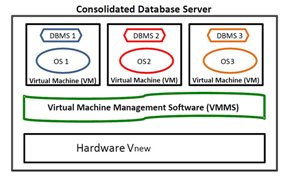
    The consolidated server setup for the TPC-VMS
    The consolidated server setup for the TPC-VMS

    I noticed this week that the Transaction Processing Council (TPC) is working on a new benchmark designed to measure workloads across virtual machines: TPC-VMS. This benchmark builds on the existing benchmarks out there (TPC-C, TPC-E, TPC-H and TPC-DS) with the idea that companies want some idea of how various hardware and software might compare in virtual environments. In this benchmark, there are three systems consolidated onto one host running some type of hypervisor. If you are interested, you can read about the current benchmark, v1.1 (1.9MB PDF).

    Companies choose virtualization for efficiency reasons, sacrificing some stable, known level of performance from their systems. In many cases that trade-off isn’t a problem as we have many, many systems that are using only a fraction of their power. However as data professionals, we are often very concerned about the possible complications from virtualization. It’s our phones that ring and each of us that gets the blame when systems are not as responsive as users would like.
    This seems to be an ambitious undertaking from the TPC, and I suspect that more than a few hardware and software vendors will be nervous about submitting their wares for evaluation. The very nature of virtualization would seem to imply that as the load increases, the performance from any particular VM might vary from test to test. I will be curious to see how they present these results and how we can interpret them.
    I don’t know if the benchmarks will have any relation to the real world. As it stands today, the TPC results don’t seem to relate to actual systems in the real world, though they do confer some bragging rights for platforms. I’ve enjoyed seeing SQL Server in the various rankings, if for no other reason than to show it can perform at the same level as other RDBMS’s.
  • Windows Server 2012 and Hyper-V

    hyper-v
    Hyper-V looks like a great candidate for almost any SQL Server with the enhancements in Windows Server 2012.

    I recently went to a Microsoft event in Denver on Windows Server 2012 and Hyper-V improvements. A bunch of the information was presented by Harold Wong (b | t) and there’s a number of demos and notes from the talks on his blog.

    I haven’t looked much at the Windows server OS’s in years and not much at Hyper-V. I have preferred VMWare for my demo/research environments, especially as I move between Windows and OSX regularly. However I’ve thought Hyper-V was rapidly improving and on the right track. I was surprised to find the new limits in Hyper-V under Windows Server 2012 to be quite high for both the host OS and the guests. You can have up to

    • 64 virtual processors
    • 1TB RAM
    • 64TB (vhdx format)
    • 4 virtual Fibre Channel adapters
    • much more

    With 320 logical processors and 4TB of ram on the host, it seems as though Hyper-V is on par with VmWare ESX 5. There’s a lot more to look at than software cost, but at this time, it appears all new virtualization projects using Windows ought to consider Hyper-V.

    There were interesting demos on replicas, live migration, improvements in file transfers and more. They were designed to make things look good, and there’s a good marketing presentation on the capabilities. I’m sure the actual implementation isn’t as easy or smooth as in the talks, but it did make me think there’s no reason virtualization shouldn’t be considered for SQL Servers, especially as you move to newer hardware.

    Steve Jones


    The Voice of the DBA Podcasts

    We publish three versions of the podcast each day for you to enjoy.