Tag: work

  • Across the Water Again

    I’m in the UK again, for my second trip this year. This time I have no commitments for speaking or presenting anything. I’m in town for a Marketing get-together and our internal Level Up conference. Nice to be here without being responsible for anything, which is rare.

    It’s a relatively quick trip for me. No Mrs. way0utwest Sad smile, but I was traveling last week and next week I take time away to head to Orlando and AAU Girls National Volleyball Championships, so this is slotted around those items.

    It’s a relatively busy week, so no sure there will be any blogging for now, but if I come up with something interesting and have some time, I might. I’m focusing on taking a physical paper notebook and pen and trying to do most of my thinking and learning that way.

  • ChatGpt Experiments–Getting Documentation

    I get asked questions by salespeople all the time. Usually this is because a customer is struggling and I try to educate the salesperson as well as give them something to send to the customer. Here’s a place I used ChatGPT to make this quicker, or at least try.

    This is part of a series of experiments with the ChatGPT and other AI systems.

    Asking a Question

    A customer asked about configuring SQL Backup Pro to use Amazon S3 for backup locations. Rather than search out the docs, find URLs, etc. I asked ChatGPT. Here’s what I got:

    Prompt: How do I configure SQL Backup Pro to send files to Amazon s3?

    Answer:

    To configure SQL Backup Pro to send backup files to Amazon S3, you need to set up an Amazon S3 storage account and configure SQL Backup Pro to use it as the destination for backup files. Here are the general steps to configure this integration:

    1. Create an Amazon S3 bucket: Log in to your Amazon Web Services (AWS) account and create an S3 bucket where you want to store the SQL Server backup files. Take note of the bucket name and the AWS access credentials.

    2. Install SQL Backup Pro: If you haven’t already, download and install SQL Backup Pro from Redgate Software. Ensure that it is properly installed and licensed.

    3. Open SQL Backup Pro: Launch SQL Backup Pro and open the SQL Server instance you want to configure for backups.

    4. Configure backup settings: In SQL Backup Pro, navigate to the Backup tab and configure the backup settings according to your requirements, such as database selection, compression level, and encryption settings.

    5. Configure backup destination: In the backup settings, choose the backup destination as “File (network or local drive)”.

    6. Set the backup path: Specify a local folder where SQL Backup Pro will temporarily store the backup files before transferring them to Amazon S3. This can be any local folder accessible by the SQL Server service account.

    7. Configure transfer settings: Under the “Backup files to the network or local folder” section, select the option “After the backup completes, copy files to another location or device”.

    8. Choose the transfer type: In the transfer settings, select the transfer type as “Amazon S3”.

    9. Enter Amazon S3 credentials: Provide the AWS access credentials (Access Key ID and Secret Access Key) associated with your Amazon S3 bucket. These credentials authenticate SQL Backup Pro to access and upload files to your S3 bucket.

    10. Specify the S3 bucket details: Enter the bucket name and the desired S3 region where the backup files should be uploaded.

    11. Set other transfer options: Configure additional transfer options, such as file naming, retention policies, and logging preferences.

    12. Save and test the configuration: Save the settings and perform a test backup to verify that SQL Backup Pro can successfully transfer the backup files to Amazon S3.

    Once the configuration is complete, SQL Backup Pro will automatically transfer the backup files to the specified Amazon S3 bucket after each backup operation.

    Note: The specific steps and options may vary slightly depending on the version of SQL Backup Pro you are using. It’s recommended to consult the product documentation or contact Redgate support for detailed instructions based on your specific version and environment.

    Did it Work?

    While this was generating, I actually looked for docs to evaluate whether this was good advice. I don’t completely trust the AIs yet. What I found was:

    The instructions from ChatGPT don’t reference specific URLs, which I think is something that I would hope for. If I were sending instructions to a client, they might figure things out from the ChatGPT answer, but they’d be annoyed.

    A good example of where domain knowledge is needed, and still some work. This might be helpful if I had links it the answer to quickly check things.

  • Migrating from EverNote to Joplin

    Recently I got a message that my Evernote subscription was going up. It’s been a $3 a month service, but moving to $4 for me. From USD$35 to USD$50 a year. Not a big change, but a little annoying to me. I have a few reasons, outlined below, but this post is mainly describing the process of moving my data.

    Setting up Joplin is easy. You download the app, install it, and then (optionally) connect it to Dropbox, where it adds itself as an app in the /apps folder.

    Export and Import

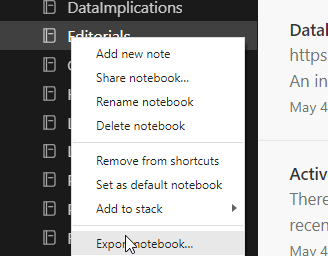
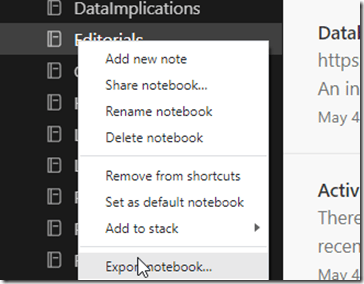
    I can easily export a notebook in Evernote to their ENEX format. I do this by right clicking a notebook and selecting Export notebook.
    2023-05-09 09_14_45-Editorials - Evernote

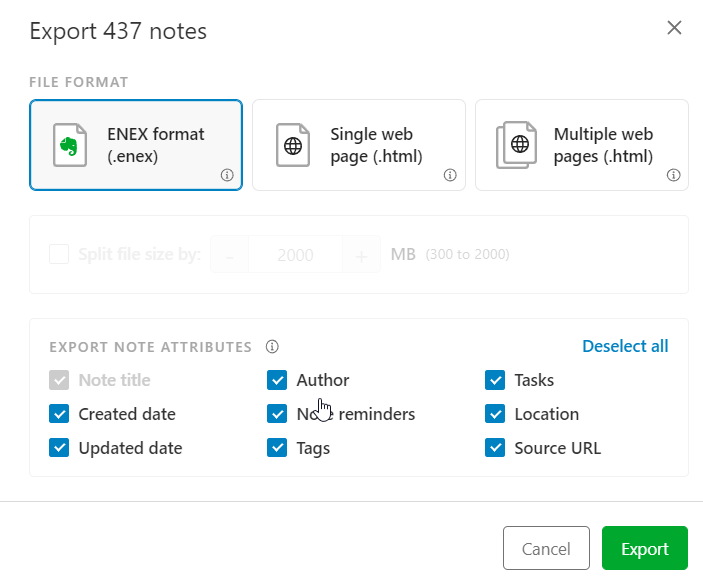
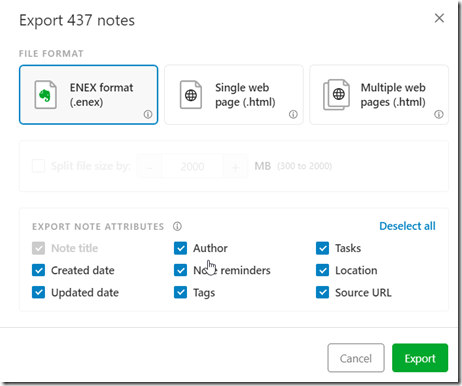
    This asks me how to store the output. I get a single file, pick a name/location and this creates a file.
    2023-05-09 09_15_09-Editorials - Evernote

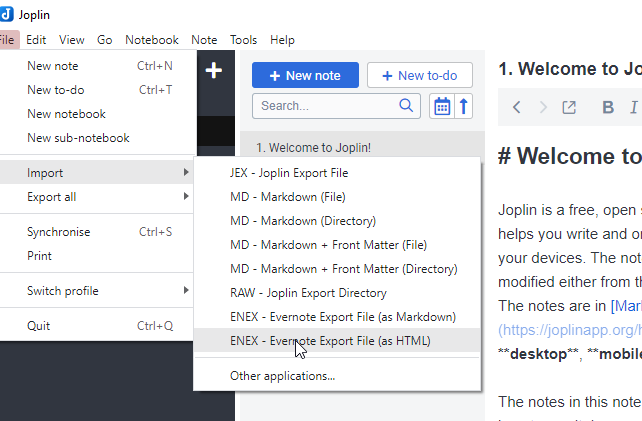
    Once this is done, in the Joplin desktop app, I have a few choices. I pick ENEX and then the type, select the file, and things import.
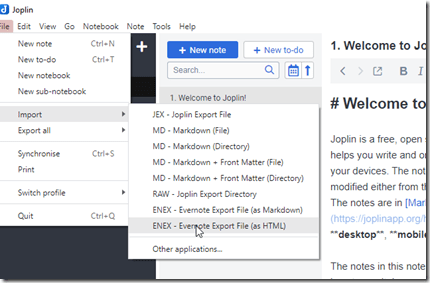
    2023-05-09 08_49_14-Joplin

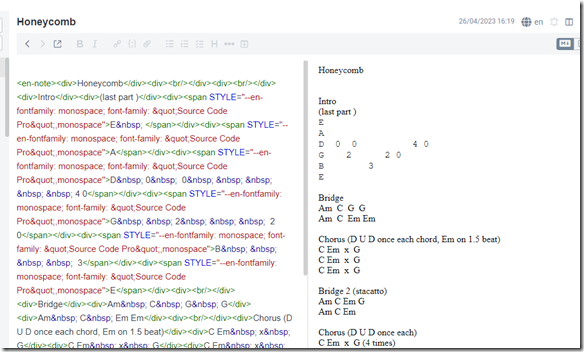
    I tried HTML, but got a mess.

    2023-05-09 08_49_51-Joplin

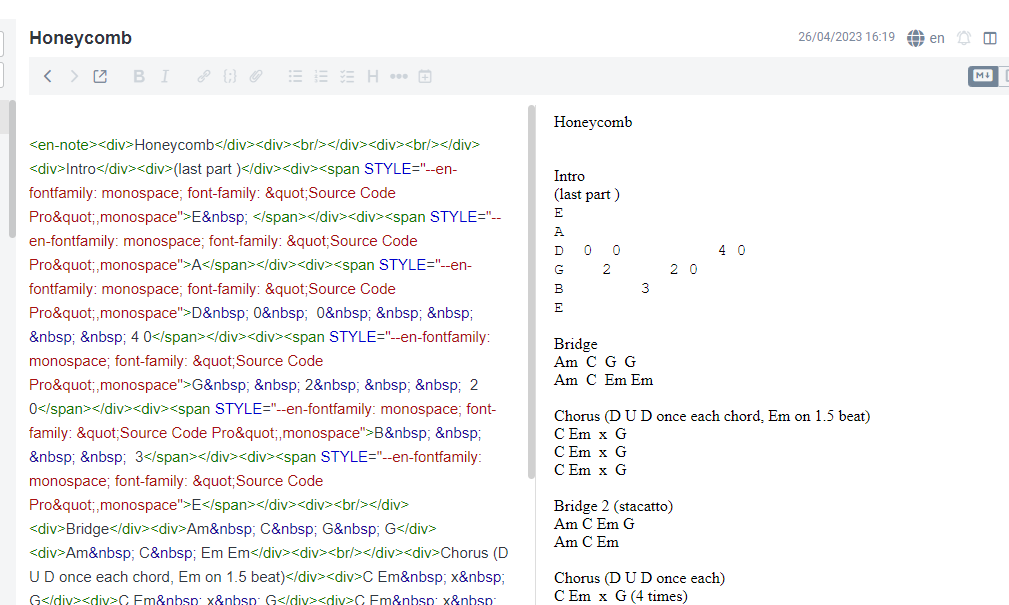
    If I could edit in the right pane, this would be OK, but I have to edit in the source pane, which is annoying. I know HTML, but don’t want to write in it.

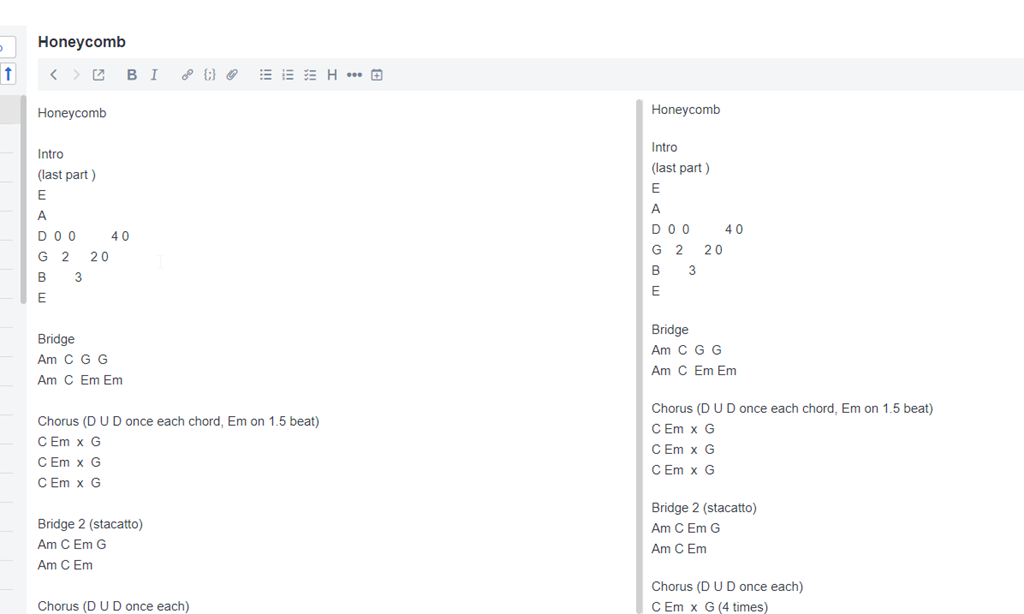
    Instead, I picked markdown, which gives me a better view.
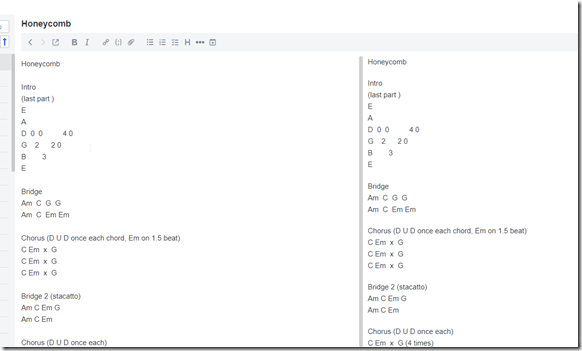
    2023-05-09 08_50_57-Joplin

    I have perhaps a few thousand notes, but really only about 12 notebooks. Since I can export 12 times and import 12 times, this is easy.

    I then have all my notes in a new app, where I can sync them between desktop, mobile, and the iPad in the kitchen.

    Note I’ll spend a couple weeks working in Joplin and see what I think.

    Why Leave Evernote?

    Evernote has continued to expand their capabilities, which I get. As a software service, they want to keep growing and attracting more customers and providing more features.

    However, for me, I want to simply take notes. I almost never include images, web clips, etc. Instead, I like simple text and quick software. I want to make notes and save them, syncing across devices. To me, I need a glorified way of capturing text files and moving them between machines.

    While Evernote has worked well, they’ve done some things that make this less ergonomic for me. Specifically:

    • They add a div tag that notes this item was clipboard’d, which is perpetually annoying. I also copy/paste often as this is my writing tool and they add some markup in HTML, which I then have to remove.
    • New notes mean I have to select if this is a note, a task, or something. One extra, very, very annoying click.
    • Their navigation options are clunky and slow on mobile/tablet.
    • Their UX has me constantly clicking from the top to the bottom to the top of the screen.
    • They’ve become more chatty, and single-threaded with more lags. Something I find annoying.

    They have also deprecated the Plus subscription, which is simple.

    I decided to try Joplin, which I found in this PC Mag article. Joplin is an open source app, and if I keep using it, I’ll donate some money to the developer. I don’t mind paying for software, but I need something simple.

    If this doesn’t work, I have other options. I might just create a private GH repo and use folders to organize text files. That’s about what I need.

    I can also renew Evernote for a year and kick the can and hope they don’t try to force me into the $12/mo subscription.

    I know lots of people love OneNote, but I find it overkill and too annoying.

  • A Second Job, a Trip, and a Change of Pace

    Some of you know that I work a second job as a volleyball coach for competitive clubs in the US. I started doing this as my youngest kid grew up, and I was looking for a hobby. I ended up coaching at the club where she competed and kept going when she left for university. Eight years later I still coach kids from Nov-May with my wife.

    This weekend I’m traveling with my team of 17-year-oldsto compete in Las Vegas on Fri-Sun. A couple days off from work, to do more work, but it’s fun. I love kids and working with them, seeing them grow and change, succeed and fail.

    I also like getting away from technology and watching the competitive nature of sports.

    I’ll be back late Sunday, with a morning flight Monday for work. Hopefully I won’t be too tired from the weekend.