Author: way0utwest

  • Setting Memory–#SQLNewBlogger

    Another post for me that is simple and hopefully serves as an example for people trying to get blogging as #SQLNewBloggers.

    I had a great time away, and upon my return, I found lots of emails and messages to review from work. One of these was a note that Kevin Hill had updated his article on misconfigured SQL Server instances. I’d worked with Kevin before I left and thought this was a great topic. As I reviewed his update, I started thinking about one thing: memory.

    I typically run 3-4 instances on a host. I usually do this to test different versions and their effect on Redgate products or to review questions from the SQL Server community. I don’t have unlimited memory, however, and need to be careful. At times I’ll set an older version of SQL Server to not start so that I don’t have too much memory pressure for my regular tasks.

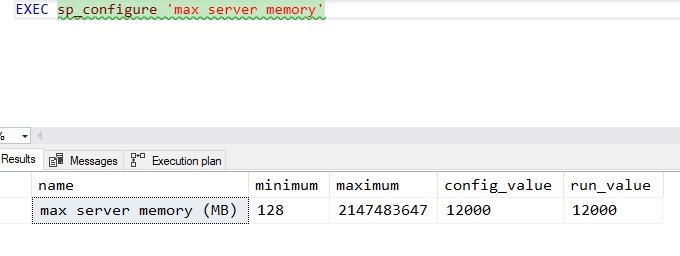
    I’d like to think I do a good job of setting up SQL Servers, and I did a double check on one of my machines. Sure enough, I had:
    2018-11-02 14_49_19-SQLQuery3.sql - Plato_SQL2016.sandbox (PLATO_Steve (62))_ - Microsoft SQL Server

    This was my SQL 2016 instance, which is the main one. For the 2014 and 2017 instances, I’d reduced this to 4096 as I use those less frequently. However, for SQL Server 2019, I got this:

    2018-11-02 14_51_00-SQLQuery3.sql - Plato_SQL2019.master (PLATO_Steve (57))_ - Microsoft SQL Server

    The error is expected, since I set this up quickly after it was released (and before vacation) and hadn’t done anything. In this case, I need to enable advanced options.

    I do that like this:

    EXEC dbo.sp_configure 'show advanced options', 1
    GO
    RECONFIGURE WITH OVERRIDE

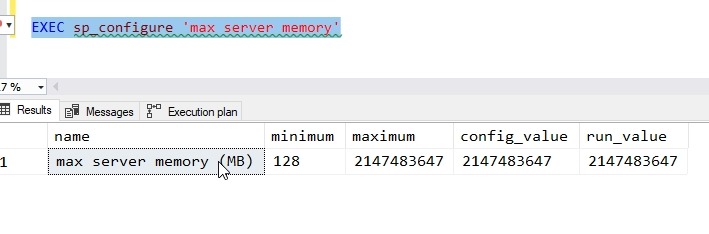
    That will turn on the option, so when I run the memory command it works.
    2018-11-02 14_52_55-SQLQuery3.sql - Plato_SQL2019.master (PLATO_Steve (57))_ - Microsoft SQL Server

    That’s not ideal, so let’s lower it to 4096. I can do that like this:

    EXEC sp_configure 'max server memory', 4096
    GO
    RECONFIGURE WITH OVERRIDE

    This will change the memory SQL Server uses. The doc pages describes this, and since I’ve done little on this instance, it hasn’t used much memory. My setting doesn’t do much, but it will prevent more pressure from activity in the future.

    SQLNewBlogger

    This was a quick post. Once I read the article and realized I ought to check things, I also realized this is a nice, short topic to write about and share with others. If you haven’t checked the settings on your dev machine, do so.

    And write about it.

  • The Short Summit

    This week is the 2018 PASS Summit, the largest conference devoted to SQL Server and the Microsoft Data Platform. This is the 20th Summit, and I’m sure there are a few people that have been to all of them. I think I’ve missed 3, though I was at the first one and I’ll be there later this week for a short trip.

    The annual Summit used to be an event that I looked forward to most of the year, a time when I’d see friends from all over the world that I only saw in person once a year. I might email, tweet, etc. with them many times, but the PASS Summit was one of the few times we’d be able to shake hands and really talk with each other.

    The world has changed a bit, with many more SQL events from SQL Bits, SQL Saturdays, Data Relay, and more that take place all over the world, and at every time of the year. If you want to talk data platform with colleagues, get inspired, learn something, or just share a beverage, you have many different opportunities each year. I get to more than my share, and I see many of my friends multiple times a year. I love that, but I also miss the excitement of there being just one event.

    That isn’t going to change and we’ll continue to have multiple events. I do think the PASS Summit is still the best place in the US to get excited about the data platform, talk with Microsoft developers, and share information with your peers. There are lots of social events, and if you get the chance to attend, it’s an action packed week. You should plan on being busy, being tired, and talking to lots of people. Attend parties, for the networking if for no other reason, and engage with others.

    Unfortunately I won’t do much of that this week. The timing this week is worse for me, personally, and I’m a little worn out from other events and travel this year. I’ll arrive Thursday and leave Friday, making this the shortest trip ever for me to a PASS Summit. I know I’ll be tired, but it’s always great to see friends and meet new people. Please, don’t hesitate to say hi, shake hands, or take a picture with me if you’re there.

    Steve Jones

    The Voice of the DBA Podcast

    Listen to the MP3 Audio ( 3.3MB) podcast or subscribe to the feed at iTunes and Libsyn.

  • The SQL Twilight Zone

    Imagine you’ve just returned from holiday and your data professional world is turned upside down. There’s not a single SQL Server left at work, or maybe there’s no job to work with SQL Server. Now, what do you do?

    I’m hoping that’s not the case for me, as I’m actually writing this a couple weeks ahead of time. When this publishes, I’ll have just returned from a holiday in Hong Kong, which I’m guessing is a completely different reality than the one I normally live and work in. I’m very excited as I’ve ever been, so I likely won’t be refreshed and recharged after a quick, 6 day trip to the other side of the world. Hopefully I slept very little and saw quite a bit.

    In any case, I thought about this recently as I chatted with a few fellow data professionals that had left the SQL Server world behind. They had moved on, some with regrets, some happy, but for all of these individuals, there was no more SQL Server. In today’s SQL twilight zone, imagine that you can’t work with SQL Server any longer, but you do need to keep working.

    On which platform would you want to work?

    Perhaps there’s another platform you work on now, or would like to work on. Maybe you’d want to move away from data and do something else? I’m also curious if some of you would be disappointed or just take a move in stride.

    For me, I am a little torn and I’ve have to think a bit more about what to do. I’ve worked on other platforms in the past, and would be comfortable changing if I had to. My first inclination is to say PostgreSQL, which I’ve always admired a bit. It felt immature back when we started SQLServerCentral, but I liked it better than MySQL. And much better than Oracle or DB/2, especially with the tooling.

    My other choice would be CosmosDB. I think what Microsoft is doing here is fantastic, and while there is work to be done, this is a great way to store some new data. The only concern I would have is are there enough jobs for people that work with CosmosDB? Adoption is growing,  but is it enough to build a career on? I’m not sure. Perhaps, but I’d have to make that decision after more research.

    Let us know today. What platform would you move to, or would you leave databases?

    Steve Jones

    The Voice of the DBA Podcast

    Listen to the MP3 Audio ( 3.3MB) podcast or subscribe to the feed at iTunes and Libsyn.

  • Adding SQL Search to Azure Data Studio

    There are a limited number of extensions available for Azure Data Studio (ADS), but one that came out early is SQL Search. This is highlighted as a recommended extension from Microsoft. Redgate worked with them early on in the lifecycle of the product to get this extension working, including helping spec out the APIs for interaction with ADS.

    2018-10-19 17_53_21-Extension_ Redgate SQL Search - Azure Data Studio

    My extensions pane is on the right, so my details are on the left. There’s a description of SQL Search as well as a link to install the extension. As with most extensions, the link takes you to a download page. For SQL Search, this is a Redgate Foundry page with a few builds. I picked the public one.

    2018-10-19 17_53_45-Redgate Foundry Labs

    Installing extensions is basically using File | Install Extensions from VSIX and picking the downloaded file. You need to approve the extension and then reload once it’s installed. You can see it installed if you re-open the extensions pane.

    2018-10-19 18_01_40-● SQLQuery1 - Azure Data Studio

    Using SQL Search

    To use this extension, you can use the CTRL+Shift+P command to bring up the command palette. When you do this, you get a way to run commands at the top of the ADS window. This is a handy tool that you will use often.

    2018-10-20 15_51_23-SQLQuery2 - Azure Data Studio

    If we type “SQL S”, we’ll get the SQL Search commands. There is a reindex command and a search command. These are the two items implemented at this time.

    2018-10-20 15_51_33-SQLQuery2 - Azure Data Studio

    The re-index command will update the SQL Search index with information from the current database connection. If you cannot find an object you need, then you might run the reindex.

    The other command allows you to search the database. If we click this one, we get a new edit box at the top of the window. Focus will be in this window, so you can type a term. For me, I know there are a number of items in this database for blogs, so let’s enter that.

    2018-10-20 15_56_20-SQLQuery2 - Azure Data Studio

    The results will appear in a new tab alongside your currently open tabs.

    2018-10-20 15_56_42-SQL Search Results_ blog - Azure Data Studio

    The results show me that I have an object name along with the schema and database. We see the type of the object and then the way the object was matched. Next to the object name, there is a circle with an ellipsis. If we click this, we have a couple of choices for what to do with our results.

    2018-10-20 15_57_06-SQL Search Results_ blog - Azure Data Studio

    We can highlight this object in our object explorer, which will, well, do nothing for me. I suspect that the call from the extension to the servers Object Explorer is flaky. Even if I open the Servers pane and then click “Reveal in Object Explorer”, nothing happens. I see whatever I had opened in the Servers Pane.

    2018-10-20 16_04_14-SQL Search Results_ blog - Azure Data Studio

    If I close the server pane and instead click View Definition, I get a split pane on the right with the object definition. I can resize this as needed, but this is a view only pane. I can’t edit or execute this code. It’s for reference, which can be helpful when coding, but is of limited use.

    2018-10-20 16_05_16-SQL Search Object Definition_ BlogArchiveModDate - Azure Data Studio

    I can  copy this code for another window if I click the start and end places in the search results while holding the Shift key. Then I right click in the window and select Copy.

    2018-10-20 16_10_10-SQL Search Object Definition_ test Disallow Blank Titles - Azure Data Studio

    This is a limited use extension, but it does allow one to find code quicker than browsing through the Object Explorer. We can keep the search results up as a separate pane, so that we can use this as a pick list if we were looking for all the dependent objects for an object.

    One nice touch from ADS is that if you CTRL+Shift+P again, the SQL Search commands appear at the top as recently used items.

    2018-10-20 16_14_17-SQL Search Results_ blog - Azure Data Studio

    Give SQL Search a try and let us know what you think.