 A great topic for T-SQL Tuesday this time from @sqlmal. It’s Setting Learning Goals for 2018, and it’s a topic I both loathe and love. I hate making commitments that I can’t keep, and I constantly find that a chaotic life will get in the way of learning over time.
As an example, I tried reading the Powershell in a Month of Lunches book. I managed to get to Day 19. It’s not that I don’t like PoSh or have given up (I still blog on the topic). It’s that the setup was more complex later in the book (really need a domain) and I became busy at work.
Goals do have a way of focusing a person on a task, and they’re good in that sense. With a year of less travel coming, this was a timely topic for me and forced me to stop and think a bit about the way I want to drive learning in 2018.
Goals for 2018
What do I want to learn next year? Here’s a short (ish) list, in no order:
- CosmosDB
- Python
- Pester
- Extended Events
- Entity Framework
I could try to tackle all of these, but that certainly won’t help me do well. This is too large a list to become strong at all of them, though I could spend time improving my skills a little bit in all these areas.
Of these items, I could relate many of these to my job, which can make it hard to choose. In addition to these items, I’ve got other things that I know will be a part of my learning next year. Product changes, new integrations between our products and others, plus who knows what will come about.
Picking Two
If I have to say that I’ll spend 100 hours on something next year and try to get better, I’ll say that the two areas I’ll focus on are Extended Events and Python. While I may dabble in the others, I think that these two areas will be more important to my career as well as my job over time.
I need a much better understanding of how XE works apart from trace, and I need a lot more comfort in gathering and analyzing the data.
I also think that Python, with its addition to SQL Server ML and the popularity of the language in new packages and modules means that this is an area that provides some variety, excitement, and a relation to my job. Plus, it’s in SQL Data Generator, so I should have lots more examples there.
My goals for these two are to spend 50 hours on each over the year, in a combination of course work (articles, videos, etc.) and practical work (building things and trying to use the technology to solve problems).
Caveats
There’s always something that comes up, and while I don’t want to start making excuses, I recognize that there are a few things that might derail my plan and make me change.
First, GDPR. I have no idea how this will impact Redgate and my, but I might need to spend a bunch of time early in the year on this. We are getting calls, questions, and requests from clients, and as some of our new integrations and products come out, this might eat up time.
Second, travel. I haven’t planned on much, but I’ve really only set the first 4 months of the year. After that, we’ll see. Who knows what might come up or what demands arise.
Third, life at home. I never know what will happen here and how things might change, so that could change how I focus. Plus, I have a sabbatical coming, so we’ll see how that affects me.
Getting Ready
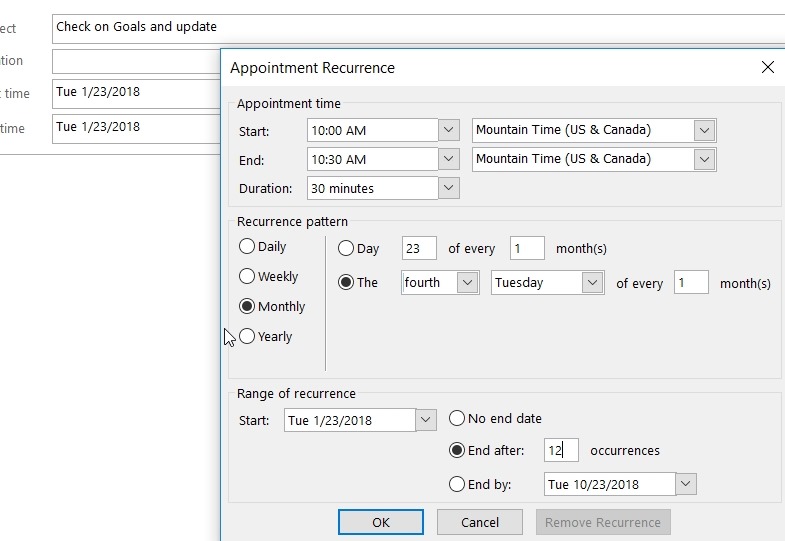
I’m doing a few things right now. First, I’m setting a monthly reminder to update my goal progress. I’ll try to write a post each month, for better or worse, on where I am.
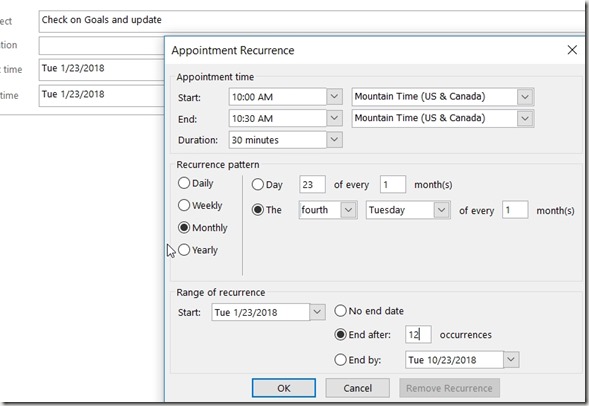
Second, I’m setting an appointment for myself to sit down and plan some things out the last week of December. That’s a good time to spend an hour or two and try to come up with a plan. It won’t be perfect, but it will give me a direction on which to start. I can amend this during my monthly review if needed.
That’s it, thanks to Mala for a great topic, and we’ll see how it goes.