Category: Blog

  • Watch the Manual DBA v Automated Deployment Challenge

    At last year’s SQL in the City, I played the part of a manual DBA making changes and deploying those from development to test, staging, and production environments. Actually, I don’t think we went to production because I didn’t have time.

    My co-worker, Tom Austin, showcased the automated process using SQL Source Control and other Redgate tools. As much as I believe in using tools, and despite the fact I regularly use them,  even I was impressed by how much less work the automated process took.

    Watch our session below.

  • Quick Prompt Tips–Custom Procedure Templates

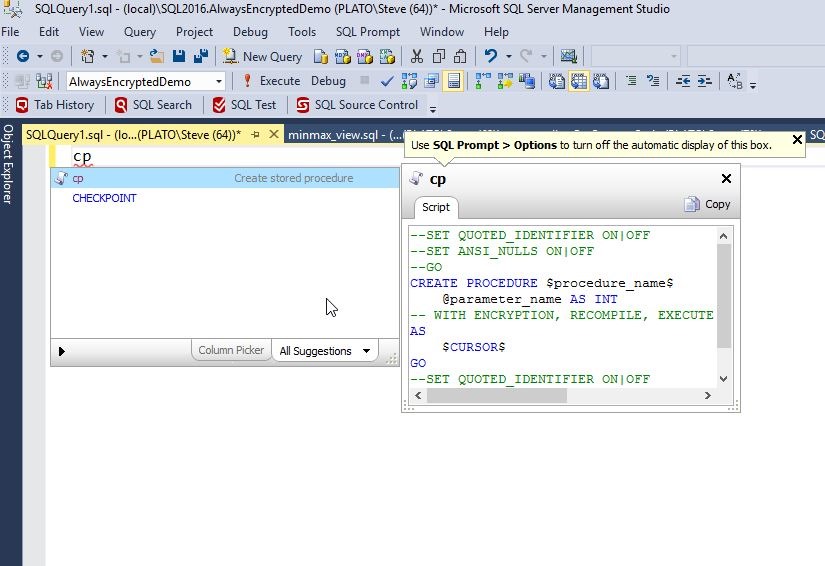
    One of the things that I often do is create stored procedures. The syntax for doing so is simple, but it has a number of items that need to be included. SQL Prompt makes this much quicker with the “cp” snippet. When I type “cp”, I get this:

    2016-09-13 13_01_43-SQLQuery1.sql - (local)_SQL2016.AlwaysEncryptedDemo (PLATO_Steve (64))_ - Micros

    I can hit Tab and I have a snippet, but it has a lot of things I don’t like in it. Plus, I want to save time coding, not have to remove some commented out items.

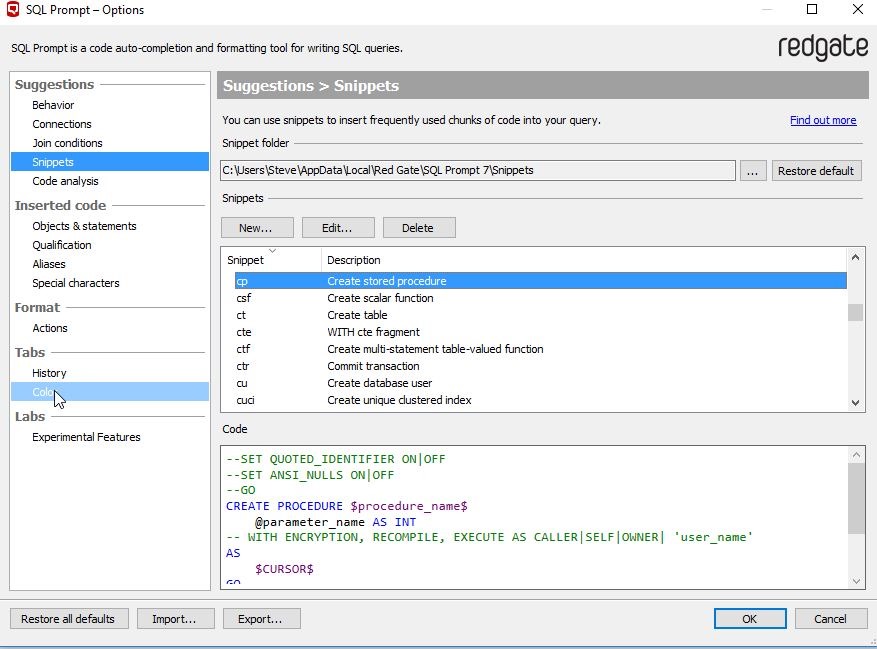
    2016-09-13 13_06_17-SQLQuery1.sql - (local)_SQL2016.AlwaysEncryptedDemo (PLATO_Steve (64))_ - Micros

    Let’s make this more efficient. I can go to the Snippet Manager under the SQL Prompt menu and select it. When it opens, the snippets are highlighted, so I type “cp” to get to the Create Procedure snippet.

    2016-09-13 13_36_11-SQLQuery1.sql - (local)_SQL2016.EncryptionDemo (PLATO_Steve (64))_ - Microsoft S

    I click edit and see the code, which I highlight before deleting this.

    2016-09-13 13_36_45-SQL Prompt - Edit Snippet

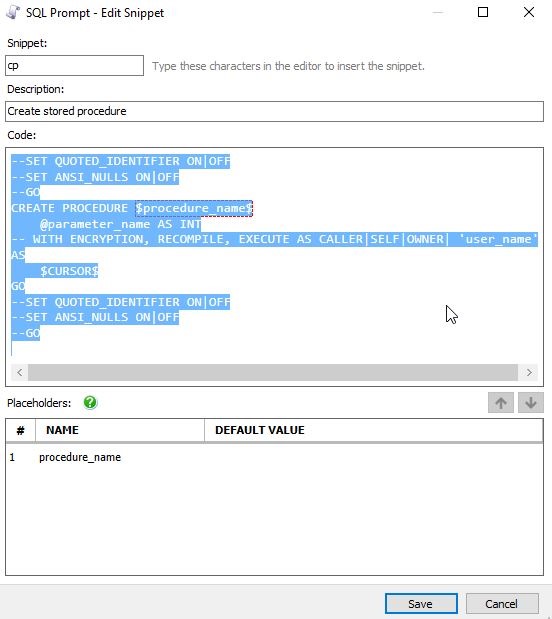
    Then I paste in the code that makes more sense to me. Notice that in my case, I have two placeholders, not one (as shown above).

    2016-09-13 13_37_03-SQL Prompt - Edit Snippet

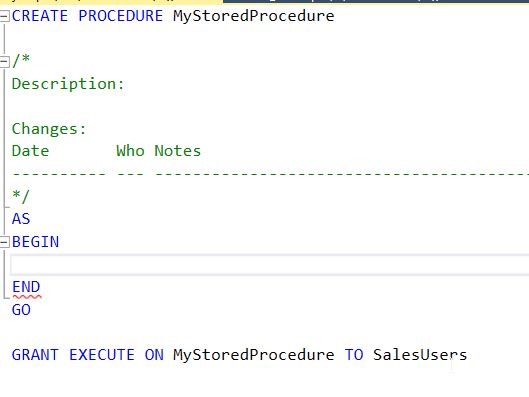
    The code I use has a header in the procedure, and the procedure name is used both for the definition and a GRANT EXECUTE. I include the begin..end structure for the procedure with the cursor starting in the spot where I’d put code. I also have a placeholder for a role name. It looks like this.

    CREATE PROCEDURE $procedure_name$

    /*
    Description:

    Changes:
    Date       Who Notes
    ———- — —————————————————
    */
    AS
    BEGIN
    $CURSOR$
    END
    GO

    GRANT EXECUTE ON $procedure_name$ TO $role_name$

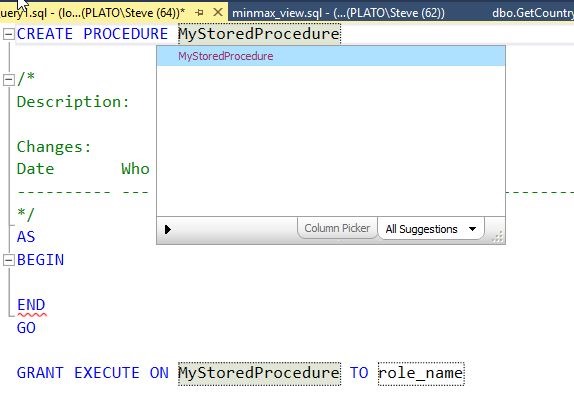
    In practice, when I type “cp” and hit Tab, I get the code with the procedure highlighted. I can enter a name here. Note what I typed is also placed in the GRANT statement at the bottom.

    2016-09-13 13_40_02-SQLQuery1.sql - (local)_SQL2016.EncryptionDemo (PLATO_Steve (64))_ - Microsoft S

    Once I am done and hit Tab, my cursor jumps to the next placeholder, in this case, the role name. Notice that SQL Prompt knows this is a role and gives me a list of roles and users to choose from.

    2016-09-13 13_40_44-SQLQuery1.sql - (local)_SQL2016.EncryptionDemo (PLATO_Steve (64))_ - Microsoft S

    When I finish and hit Tab again, the cursor jumps to the point between the BEGIN and End where I will enter my code. Now my job begins.

    2016-09-13 13_42_26-SQLQuery1.sql - (local)_SQL2016.EncryptionDemo (PLATO_Steve (64))_ - Microsoft S

    This little customization gives all my procedures some standard look as well as ensuring that I can quickly build procedures without a lot of mundane, tedious typing.

    Try out this quick SQL Prompt tip and see how much smoother your coding goes. And if you’re not a SQL Prompt user, download an evaluation today and see how much more efficient you can be when writing T-SQL code.

    You can see a complete list of SQL Prompt tips at Redgate.

  • Be Careful of Your Create Stored Procedure Batch

    I was rehearsing a demo with someone recently and we had some stored procedure code that looked like this:

    CREATE PROCEDURE UpdateEmpID @empid INT
     AS
     BEGIN
     UPDATE  dbo.Employees
     SET empid = 3
     WHERE  empid = @empid
     ;
     END
    

    However, this was part of a batch that had all of this code (proc code repeated).

    CREATE PROCEDURE UpdateEmpID @empid INT
     AS
     BEGIN
     UPDATE  dbo.Employees
     SET empid = 3
     WHERE  empid = @empid
     ;
     END
    
    -- test the procedure execution
     -- exec UpdateEmpID 2
    
    SELECT empid
     FROM dbo.Employees
     WHERE empid = 3

    When I execute this, I see a simple message. If I’m not paying attention, this seems to make sense.

    2016-12-15 16_02_48-SQLQuery2.sql - WAY0UTWESTVAIO_SQL2016.sandbox (WAY0UTWESTVAIO_way0u (54))_ - Mi

    What happens if I execute this procedure? I’ll see something like this:

    2016-12-15 16_04_24-SQLQuery2.sql - WAY0UTWESTVAIO_SQL2016.sandbox (WAY0UTWESTVAIO_way0u (54))_ - Mi

    At first glance, you’d think this makes sense. However, what has happened here? The procedure executed, which has an update, and I have a result set at the end. If I look at the proc code, this makes more sense. I’ll right click the procedure and select modify.

    2016-12-15 16_05_37-

    Once I do that, a new query window opens. This is the code in there.

    2016-12-15 16_07_24-SQLQuery5.sql - WAY0UTWESTVAIO_SQL2016.sandbox (WAY0UTWESTVAIO_way0u (62)) - Mic

    Why is my select code in there? That was designed to be a piece of test code. Shouldn’t the BEGIN..END after the AS define my procedure?

    Actually it doesn’t. the procedure doesn’t end until the CREATE PROCEDURE statement is terminated. That termination comes by ending the batch. The CREATE PROCEDURE documentation has this limitation:

    The CREATE PROCEDURE statement cannot be combined with other Transact-SQL statements in a single batch.

    This means that anything else you have in that batch will be considered as part of the procedure, regardless of BEGIN..END.

    I hadn’t noticed, or seen this before. Perhaps because I’m in the habit of including a GO between all my code, it hasn’t been an issue.

    I would hope most people would catch this before any code is deployed with testing, but perhaps not Be aware that stored procedures should be compiled in their own batches, always.

  • Starting with Chocolatey

    I ran across Chocolatey years ago when Scott Hanselman wrote about it in his power tool list. At the time, I wasn’t in need of the tool, but I thought it was cool and tried it. I was hooked.

    In fact, the next year I got two different laptops, and using chocolatey, I was up and running in an hour, being productive. As I found software I needed, I just grabbed a package from Chocolatey and continued working while it installed. This was way, way easier than anything I’ve done outside of a Linux environment.

    Getting Started

    The first thing to do in order to use Chocolatey is go to the install page and run the PowerShell command in an administrative command prompt. That’s easy to do.

    NOTE: This is a security change, so I’d do this on dev and client machines, not production boxes.

    Once you’ve installed and enabled Chocolatey, the next step is to use it. When I have a new machine, the first thing I do is get Dropbox. The reason is that Dropbox has my passwords and my Chocolatey script. This is as simple as opening your command window and typing

    choco install dropbox

    This installs and I log in and start downloading my Dropbox to the local machine. While this is working, I may open a second command window and do this

    choco install googlechrome

    Since this is a staple for me on any machine. I do usually add FireFox as well, but Chrome is the first browser for me.

    There are lots of packages available, and you can search for them. Once you get used to the tool, you’ll find yourself guessing at names to install things.

    That’s it.

    Just in Time Installs

    I have a batch file with a lot of “choco install xx” statements, but I don’t worry about making it too complete. In fact, I try to keep this to a minimal number of software applications because I do change my habits over time.

    I get the software I need, as I need it. When I built my last machine, I was still using cmd.exe. However, I decided to move to ConEmu on one machine and used “choco install conemu” to get the software on one machine. I liked the tool and a few months later I needed it on another machine, so I used chocolatey to just get it. While working, ConEmu installed in the background, and I could use it a few minutes later.

    The same thing with most other software. Greenshot, Visual Studio Code, many things I need are just easier to install now. If I need something, I call a package and it installs.

    Exceptions

    There are some exceptions. Notably for me, Redgate products aren’t up there, so I have to download those separately. We also use O365 for Office, and that’s a separate install. In fact, if you use media, you’ll have to uninstall and reinstall from the o365 site. SQL Server also requires a separate download and install.

    Convenience

    The main reason I use chocolatey is that is saves time. I don’t hunt through Google and websites for download links, I don’t next…next…next for installs. I have ConEmu running, so a CTRL+~, pick my ConEmu window and choco install what I need, letting this run in the background while I task switch to something else.

    This might not be for everyone, but I’ve found it very convenient and easy to use. Moving to chocolatey allows me to start treating laptops and desktops like cattle (with Evernote, Dropbox, OneDrive, etc.) and not be too concerned about the effort to rebuild or restore a system.

    My next thought is to get some of the tools I need, like test SQL instances, into containers, and perhaps being able to back these up and restore them even quicker than I can today.