Tag: administration

  • Toggle Switches

    More toggle switches mean more decisions, but also more control. Are they worth it?
    More toggle switches mean more decisions, but also more control. Are they worth it?

    When SQL Server 7 was released, it was touted as a self-tuning, self optimizing database platform requiring much less attention from a DBA. The product had relatively few tuning options and limited information available about how it processed queries. DBAs were worried about losing their jobs, though as history has shown us, the concerns were overblown. There was plenty of work for DBAs then, and that has continued through the current SQL Server 2012 release.

    However the number of tuning options, and the wealth of information exposed by SQL Server to developers and administrators has grown tremendously over the years. We have DMVs and DMFs, many more tuning options, new hints, isolation levels, and more that enable the DBA to manage SQL Server fairly in a very granular way when they want to do so. From what I understand, there are still less options than other platforms have and often the best advice I seen given from various people is to write more efficient code and let SQL Server still determine the optimal plan for query execution.

    This week, I’m curious how you feel about the tuning and configuration options in SQL Server. The downside of the additional options in other platforms is that there are more choices to make, more DBA decisions, and more administrative overhead in regularly, and constantly tuning these systems.

    Do you want more toggle switches in SQL Server?

    I don’t mean two position switches, like the physical ones used on the Apollo command module, but rather just switches you can use in SQL Server. These could be database or instance level, sp_configure settings, they could be query hints, they could be session options. Do you want more options, or do you think we have a lot to work with already?

    Personally I like the idea that we can change behaviors, but I’d really prefer that the defaults were well set and somewhat self-tuning for most installations.

    Steve Jones


    The Voice of the DBA Podcasts

    We publish three versions of the podcast each day for you to enjoy.

  • Customizing SSMS – Bigger Queries

    This is a short series on some customizations in SSMS to make it visually more appealing.

    As a presenter, I’ve learned how to change the way Management Studio (SSMS) looks to make it easier for people to see the screen on a projector. I had wrongly assumed that so many people knew many of these tricks, which is a poor attitude on my part. That should be especially apparent as I saw a presentation recently where the speaker didn’t know how to make things easier to see.

    Here’s another item I saw someone struggle with recently, the query font size.

    The Default View

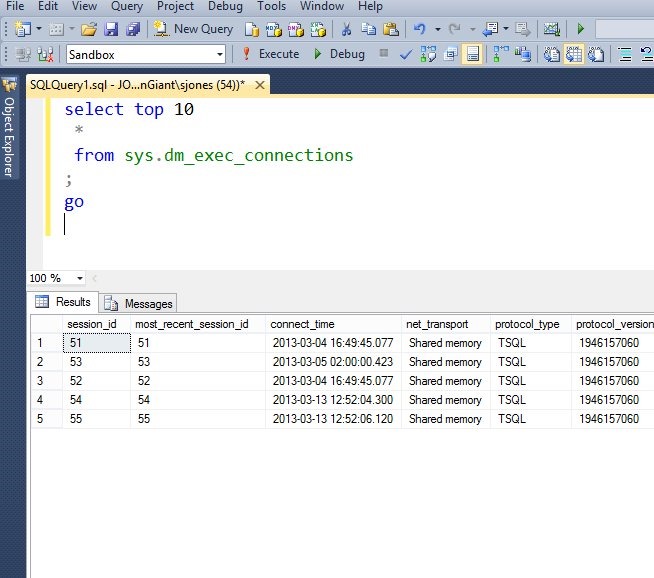
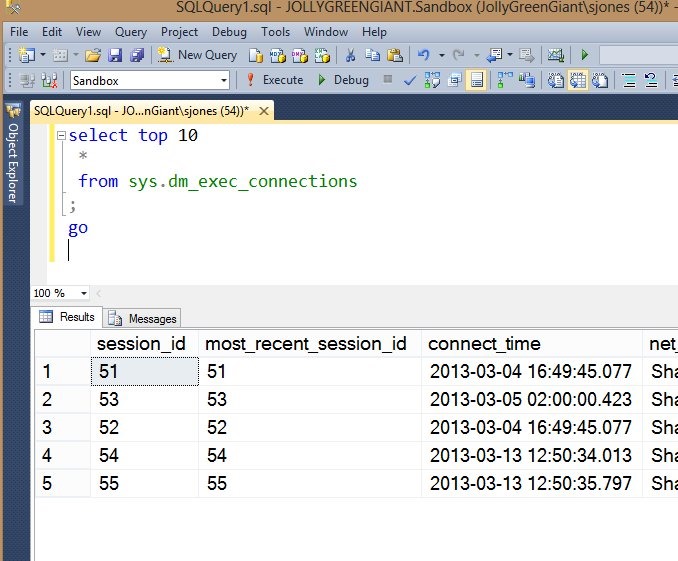
    When you install SSMS, this is what you often get, and how your queries look:

    ssms_f

    Not easy to read, especially for these old eyes. When someone uses the default settings in SSMS and presents on a big screen, I am usually struggling to see, sometimes even when I sit in the front row.

    Customizing

    You can make SSMS easier to read for yourself in a couple ways. The first is the quickest, but it’s a change for only the current SSMS execution. If you close and re-launch it, things will return back to the previous settings.

    If you look below the query and above the results, there’s a drop down that says 100% in it.

    ssms_g

    If you click that, you’ll get a drop down of some percentages you can choose.

    ssms_h

    These percentages will change the size of the query pane. For example, if I choose 200%, you can see things are much easier to read. The query pane is much better than the results. This is great for quick changes when you are presenting.

    ssms_i

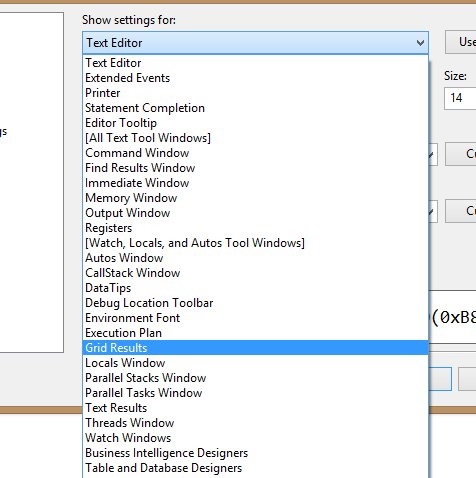
    For permanent changes, this is what I quickly do. Go to the Tools menu at the top of SSMS and select Options. You will get this dialog:

    Capture_002

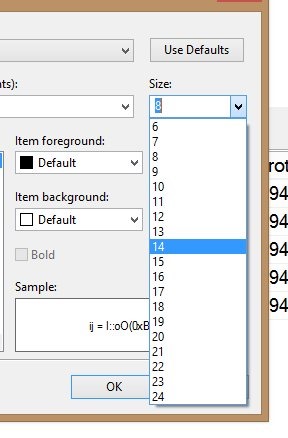
    I’ve selected “Fonts and Colors” from the left already, but once you do that, there’s a “Size” drop down on the right. Choose that.

    Capture_003

    I usually set that to 14 and it looks good for me. A balance of large size, but still being able to get lots of code on the screen.

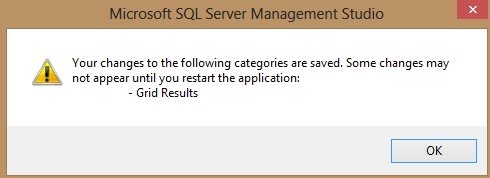
    Capture_004

    This make it easier to read your code. In another post I’ll talk about results.

  • The Backup Process

    This used to be my backup process. Five copies, one for each day of the week.
    This used to be my backup process. Five copies, one for each day of the week.

    I was reading Scott Hanselman’s post onThe Computer Backup Rule of Three, and I completely agree with him. If things are important, three copies are the minimum you should keep. I have had backups before, but I’ve found that when something breaks, like a tape drive or hard drive, I might not get to replace it right away. Usually this is procrastination, or as it’s more commonly known, laziness. During that window of opportunity, I’ve had Mr. Murphy strike. My inherent paranoia of having that second extra copy has saved me, both personally (at home) and professionally (at work).

    All too often I run into DBAs that seem to trust and assume their backups and processes are very reliable. After setting up a backup process, usually to disk, and testing it with a restore on another system, they assume it will work in the future. It should, but there is always the chance something will fail at some point in time. There’s the chance that some hardware failure or software reconfiguration will cause an issue with your process. There’s also the simple chance that your I/O system might introduce corruption into your backup files.

    If you aren’t regularly testing your processes, you can’t be sure they are working as they have in the past. The ideal environment would perform a restore of every backup file taken, every day, but that isn’t always possible. However restoring a random backup once every month or two will help you to ensure your backup, and restore, processes, have the best chance of succeeding when you actual need to perform them because of a disaster.

    This isn’t hard to script and automate, but it is something you need to do periodically. However even if you automate restores of all your databases, make sure you still practice your manual skills regularly. Automation might not work in a disaster situation, but those quarterly practice sessions restoring a database to a point in time with a tail log might just relax you when a crowd in your cube is asking if the database will be back up soon.

    Steve Jones


    The Voice of the DBA Podcasts

    We publish three versions of the podcast each day for you to enjoy.

  • Customizing SSMS – Hiding the panels

    This is a short series on some customizations in SSMS to make it visually more appealing.

    As a presenter, I’ve learned how to change the way Management Studio (SSMS) looks to make it easier for people to see the screen on a projector. I had wrongly assumed that so many people knew many of these tricks, which is a poor attitude on my part. That should be especially apparent as I saw a presentation recently where the speaker didn’t know how to make things easier to see.

    Note that I often caution writers not to assume too much from the reader, and here I took it one step further, assuming some topics weren’t worth writing about.

    Here’s one that I heard asked recently: how do you hide the side panels in SSMS?

    The Default View

    Here’s what SSMS looks like for most people.

    ssms_a

    The Object Explorer takes up a good portion of the screen on the left. For some people, they may have this:

    ssms_b

    Or even this:

    ssms_c

    In the last two images, the Solution Explorer and Properties panes are on the right. If you have these panes open, you might find yourself squeezing a query into a small space in the middle. If your resolution is 1024×768 (standard for many projectors), you might get very little on the screen.

    Customizing

    There’s a way to clean things up quickly and easily. All of these panes have this item in their upper right sides:

    ssms_d

    If you click the middle, pin icon, the “Auto Hide” will be enabled, and the panes will slide to the side. They’ll still be there, but now they’ll be in a side bar, like the Object Explorer is below:

    ssms_e

    If I hover the mouse over the “Object Explorer” button on the side, it will appear, or I can click it.

    I can always use the “View” menu at the top as well (or a shortcut) to expose any of these panes. However when I’m presenting, or want to make a quick change, the “auto hide” feature works very well for me.