Tag: backup

  • Testing BackBlaze Restores

    The most important thing for a data guy is having a way to restore data. If security, performance, etc. are broken, those can be fixed is we have the data. If we don’t have data, does security matter? It’s important, but secondary.

    When Crashplan stopped providing a multi computer setup, I needed to get a new solution for home. I asked on Twitter and then wrote a bit about my evaluation and choices.  These were my particular requirements, and yours may be different. In any case, I decided to evaluate BackBlaze under their couple week evaluation and keep the system simple for both my wife and I. As a part of that evaluation, I tested restores.

    Missing a File

    I didn’t simulate a crash and restore all my files, but instead decided to test this while out of town. I was in the UK, at the Redgate Software office and wanted to check an expense report I’d submitted. I also wanted to get the latest expense report to add some items to it. I keep these on my desktop, but I haven’t setup a home VPN for access, nor would that have helped. My desktop was powered down for my 11 day trip.

    I decided to see how BackBlaze was working. My first step was to connect to my account on the BackBlaze.com site. I logged in and saw my machine listed in the Overview. (I reshot these images later, so the dates aren’t shown)

    2018-06-28 08_41_14-Window

    Note: I didn’t have Backblaze software installed on my laptop.

    I selected Restore and went to a new screen where I had a choice for the restore. I selected getting a ZIP file, but it’s nice to have other options for large files. If I were pulling back 2TB of images, I might just pay for a hard drive.

    2018-06-28 08_41_24-Window

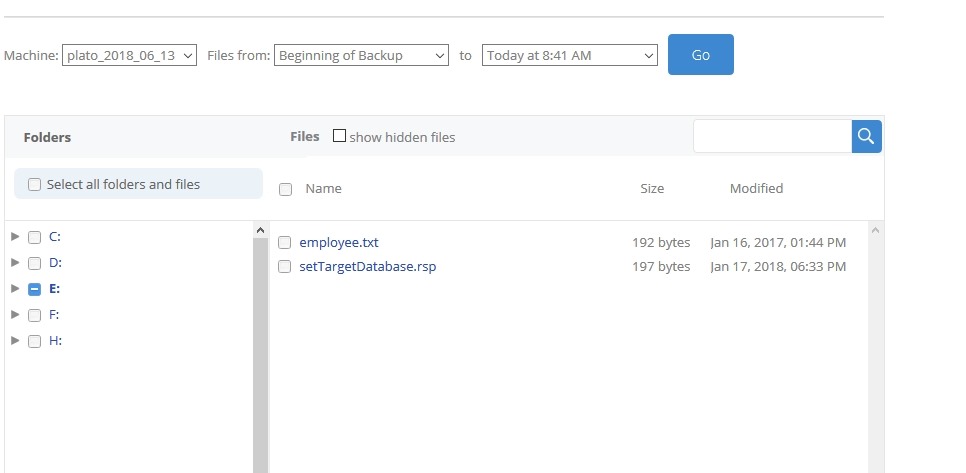
    Below this, I saw my drives and I could navigate to select select files.

    2018-06-28 08_44_21-Window

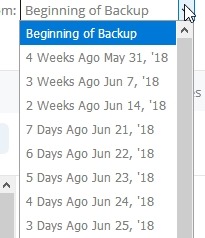
    I also had options to  see different versions of backups.

    2018-06-28 08_44_42-Window

    Once I found files, I picked the one I needed and started the restore. Just for a test, I picked a file on a different drive to see what would happen.

    2018-06-28 08_42_14-Window

    I went on with my day, and within an hour, I’d gotten an email. This let me know my restore was ready and I needed to securely sign in to get the download. I like that this was a sign in and now just a link to some random file.

    2018-06-28 08_47_19-Window

    I downloaded the zip file and inside were the files I’d selected. I unzipped them and filled out more of my expense report.

    This was a smooth process and validates my decision to use BackBlaze. It’s easy for my wife, which she’ll appreciate, and I can easily access things on the road.

    My trial goes until the end of June, but I’ll sign up for the service once I return home as this will work well for me.

  • Cloud Backup Comparison

    I used to use Crashplan. This was about $150 a year, but I could to 5 machines. I used to do 5. I had

    • My desktop
    • My wife’s laptop
    • My daughter’s laptop
    • My laptop
    • My son’s laptop

    This changed as my boy decided he didn’t like his data with ours. My laptop died and had to be rebuilt, so I use OneDrive/Dropbox for stuff I need and assume everything else will die. I essentially keep nothing on the laptop I need. My daughter has also gone to the cloud for things she cares about, so we’re down to:

    • My desktop
    • My wife’s laptop

    I’m going to assume 2TB of storage needed. I’m sure I have > 1TB already and I’m not taking less pictures.

    This post looks at choices and evaluation of the options. Your process may be different, but hopefully this helps.

    The Choices

    I asked for recommendations and got these.

    These are a combination of software and services. The software will just back up your machine, but you need to arrange storage separately. The service backs up your data to some vendor that manages it, which is what Crashplan did.

    I’m torn here. I’m not sure which I want. As much as I’d like the control, I also like the convenience, especially for my wife. I don’t want to be helping her find files on S3 or the Google Cloud and restore them. While she’s technically savvy, she doesn’t want a hassle here.

    Let’s break them down first.

    Software

    There are two choices that are software: Arq and Cloudberry. These systems work by running on your machine as a process and performing a backup at regular intervals. It’s essentially a server software, but one that runs on your desktop or laptop.

    I looked at Cloudberry years ago, as they have a SQL Server module that will move your database backups to the cloud.

    Arq Backup was recommended by a few friends, and it has some nice features. It keeps multiple versions of files, and backs up whatever you want, as long as your computer can see it. Arq works with Amazon cloud, S3, Glacier, Backblaze B2, Google Cloud storage, Dropbox, basically anything. Arq also lets you hold encryption keys, so you have control of your data.

    Cloud Storage Pricing

    If you use your own software, then you need to pay for storage separately. Since I have a lot of images and video, I need lots of space. If I look, I see these vendors as choices for me:

    The cheapest storage isn’t really quick access or online. It’s colder storage that can be slow to restore. That’s fine. It’s what I need. All of the storage tends to be /GB/mo, so let’s look at 2TB as a round number. I have close to that in pictures and video now. If I look at this, I get:


    Provider Monthly cost 2TB Ingress
    Google $14 Free
    Glacier $8 Free
    Backblaze $10 Free

    This is similar. Egress costs money, but the first few requests are low, so that’s not a big deal. In a crisis,  I can spread out retrieval.

    Pricing

    Arq costs $50 per machine, so that’s $100 for me.

    Cloudberry costs $49.99/user, so that’s $99.98. However, this is for a 1TB limit. If I want to go to 4TB, then I’m $300/user or some complex, move stuff from one machine to the other.

    Cloudberry is out here. They manage the files in the storage (as an image), and they limit this to 1TB.

    If I were to store 2TB with Arq, I’m looking at this for a 1 year cost:

    Provider Monthly cost 2TB Total, software + 12 months
    Google $14 $268
    Glacier $8 $196
    Backblaze $10 $220

    These aren’t bad, and having Backblaze use on line, not cold storage is tempting. So far, Arq + Backblaze is running.

    Using the Cloud

    I guess they’re all the cloud, but two of these are service providers. Carbonite and BackBlaze, offer a service. I setup an agent on my machine, it backs things up, manages storage, and I just pay the vendor. That’s what I have with Crashplan and I’ve been happy. Let’s look at these two.

    I used Carbonite at one point. They are popular, lots of people like them, and they offer all the items I’d get from the software. They say unlimited space, so that’s good, and they offer encryption. I’m dependent on them because I don’t get external access to the files, just through their interface.

    What I dislike is they try to make the service simple, but they don’t provide a lot of details. I feel like I’m running around, trying to understand more about the service. That’s annoying.

    Backblaze is similar, offering a plan with unlimited backup, and I assume, their own storage location. I can get a zip download for restore, or a flash or hard drive mailed. The HDD can be up to 4TB. That’s cool. It’s $200, but still. Backblaze also offers a “missing or stolen” computer location. That’s interesting.  I can also file share items that I’ve backed up.

    At first glance, Backblaze is better.

    Pricing

    Carbonite has a deal with people leaving Crashplan. They’ll move you over for $30/year rather than the normal $72.

    Backblaze has no real offer, though in a blog post they say  I can try this for free. After that, it’s $5/month or $50/yr.

    Let’s compare:

    <

    Provider Monthly cost 2TB Total, software + first 12 months 2nd Year Two year total
    Arq + Google $14 $268 $168 $436
    Arq + Glacier $8 $196 $96 $292
    Arq + Backblaze B2 $10 $220 $120 $340
    Backblaze Backup $10 (2 users) $100 (discount) $100 $200
    Carbonite $5 (2 users) $60 (discount) $144 $204

    In this scenario, if I look, I see Backblaze as the cheapest option, and potentially the cheapest over time. It also has the advantage of convenience.

    I’m going to go with Backblaze and set up an account. I get a 15 day trial, and I’ll see how things go during this time. I plan to let the backup run, also do some restores, and some file shares to see how things are working. I’ll also set up my wife and then report back.

  • How Far Back?

    At the Redgate SQL Privacy Summit recently, there was panel I hosted that I thought was really interesting. At one point someone asked a question and there was a bit of a discussion about the right to forget in the EU. One of the fascinating things wasn’t about the rights, but about backups. One of our panelists noted that we often keep too many backups, most of which are really useless.

    This portion of the discussion started by asking how many backups people keep. Many of those in the audience kept many backups, sometimes dozens. Many of them had some rotation scheme that determined how many files were kept over time. I know I’ve worked in places where we kept over a week or two worth of backup files, often along with a monthly or quarterly backup for a year and then multiple year end backups in perpetuity. I guess since we didn’t really know how long those backups were valid as we just marked some tape as the end-of-year one and left it in a vault somewhere.

    What was also interesting is the panelist asked if many people had restored a backup more than a month old. Almost no one had, but a few had restored a year old backup. I think that’s common, and I find I’ve only restored one backup more than a month old. That one was actually for a legal case, and it was six or seven years old. I actually had to find someone at Microsoft that could provide us with an old version of an SP to restore the database.

    I’m wondering today about the rest of you. Not if you have done it, but would you do it today? How far back would you go for a backup of an important database? Assume this isn’t any requirement to find the data at a point in time, but for recovery purposes in a disaster.

    For me, I’d expect that most of the systems I’ve managed really would have struggled to go back a week. After that point in time, so many transactions are missing that there are serious repercussions. This is why I’ve often ensured I had automated restores happening all the time, since I need to be sure that we can restore from yesterday or two days ago. If I went back more than a week, it would be because we had corrupt backups. While the business would probably survive, I’m not sure my job would. If I hadn’t been able to produce a workable backup for the last week, I think most organizations would be justified in terminating me.

    Whether they would or not is another debate.

    Steve Jones

    The Voice of the DBA Podcast

    Listen to the MP3 Audio ( 4.4MB) podcast or subscribe to the feed at iTunes and Libsyn.

  • Pause and Backtrack

    One of the main functions for anyone that manages a database is ensuring that they can recover the system in the event of any issues. My view is that restores are the most important skill and task that need to be performed on a database. Since restores require backups, I’d then rank backups as a 1a important task. They’re a dependency and necessity to ensure that we can restore data. Having a set of the data, in a transactionally consistent state just feels critically important to me, over everything else..

    I saw this new feature from Amazon Aurora for their MySQL compatible database. You can use Backtrack to rewind your database to a previous point in time. On one hand that’s an amazing feature. Make a mistake, have an error, click a few buttons and get the database restored back to the minute (or second) when you made a mistake. On the other hand, if you delete a table, do you want to roll all tables back to that point in time?

    This seems like an amazing feature. Amazon takes some of the hassles of managing some backups backups. You determine how far back you want to go, in hours, up to three days. Depending on the activity in your database, they charge differently. To me, that’s interesting. It makes sense to me as a customer. I do more, they track more, I pay more. This also seems to be a way to capture more money for Amazon by cutting some of the consumer surplus that exists with flat fee pricing, which is something many of us prefer.

    The way this works is also different than Azure. The Azure point in time feature allows you to go back, but you can’t restore on top of your existing database. You’d need to restore elsewhere, then play the rename game or move data between databases. While that seems inconvenient, if you’ve ever had someone restore a local SQL Server backup over a database you needed, you might appreciate the safeguards of not allowing a restore on top of an existing database. While the process might seem like a hassle, this does help prevent mistakes during a stressful situation.

    Which of these do I like? I prefer the Azure one, though I’d like the restores to be more granular than a minute. The reason is that I rarely want to restore in a disaster over the existing database. In most applications I’ve managed, there are updates to multiple parts of the database. A mistake in one table doesn’t necessarily mean that data changed in other tables should be discarded. Even during deployments, when things go wrong, I’ve often just broken one set of tables and rolling back the entire database in a restore is painful. Usually I’d prefer to undo what I can and get the any missing data from a restored copy of my database.

    Perhaps it’s just me, but I find the idea of allowing clients, or even many technical people, to easily roll back an entire database after a mistake to be very dangerous. By the time we recognize the mistake, verify data, notify others, we might have lots of changes in many tables. Abandoning that data for the sake of convenience is something that’s unnecessary. I also worry many people trying this feature don’t think through the implications of rolling back an entire database. If you feel differently, let me know. There are cases this is certainly helpful, but I think I’d rather have a “restore to a new db and rename both” automated task instead of AWS Backtrack.

    Steve Jones

    The Voice of the DBA Podcast

    Listen to the MP3 Audio ( 4.3MB) podcast or subscribe to the feed at iTunes and Libsyn.