Tag: Backup/Recovery

  • Restoring a Striped Backup–#SQLNewBlogger

    Another post for me that is simple and hopefully serves as an example for people trying to get blogging as #SQLNewBloggers.

    Recently I uncompressed some SQL Backup Pro files. Since multiple threads were used to make the backup, I ended up with multiple files in my file system, as shown here:

    2016-02-16 11_58_57-Backup

    Each of these is part of a striped backup, a piece of a backup file. To restore the backup, I need all the files to reassemble the backup. This is fairly simple, but you should be aware of how this works and how to perform a restore.

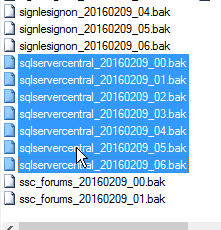
    In my case, you can see I have 7 files for each database. They are the same name with an _0x at the end, with x being the number of the file.

    To restore these, I go to SSMS and click the restore choice. That gives me my restore database dialog, where I can select that I’m restoring from devices. As you can see below, no devices (files) are selected.
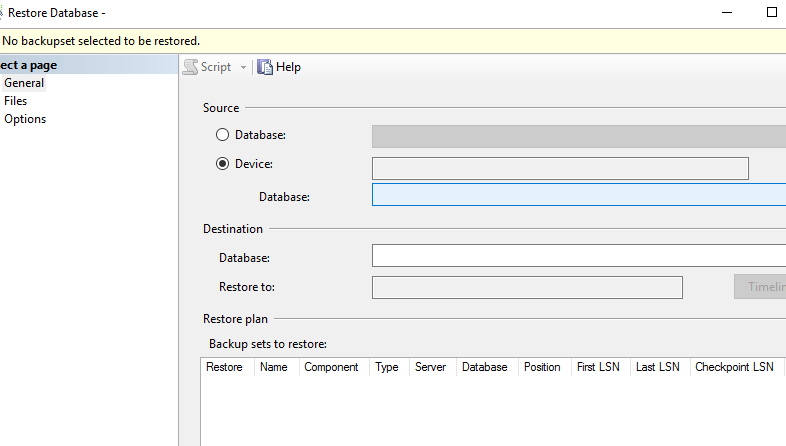
    2016-02-16 12_00_56-Restore Database -

    I then click the ellipsis to get a dialog allowing me to add files.
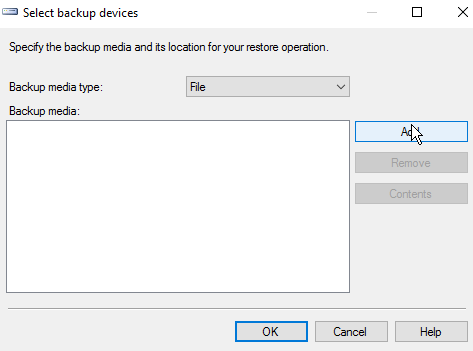
    2016-02-16 12_01_03-Select backup devices

    Hopefully you’ve done this before, and you can click “add” to add files. You need to naviate to the location of your backup files if it isn’t the default.

    2016-02-16 12_02_02-Locate Backup File - JOLLYGREENGIANT_SQL2014

    Next you can select the files. Holding down CTRL, I can multi-select files.
    2016-02-16 12_02_12-Locate Backup File - JOLLYGREENGIANT_SQL2014

    Once I pick them, I click OK and then I see them all in the device dialog.

    2016-02-16 12_02_19-Select backup devices

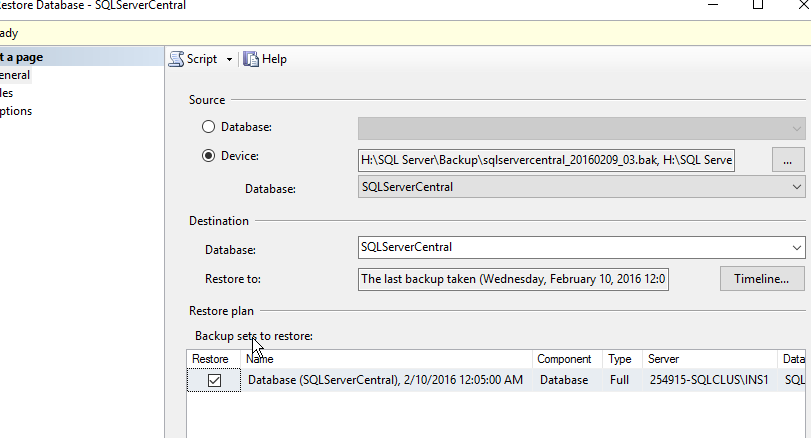
    Now I click OK and SQL Server reads the headers, and I end up with a single database to be restore, as shown below.
    2016-02-16 12_04_24-Restore Database - SQLServerCentral

    Now, I can click OK, and often do in development areas. HOWEVER, if you are doing this in production, please, please, please, click the Script button instead. You’ll get a new query window, and you can cancel out of this dialog to see the code.

    2016-02-16 12_16_07-SQLQuery7.sql - JOLLYGREENGIANT_SQL2014.master (JOLLYGREENGIANT_sjones (59))_ -

    From here, you should click “Save” and save this, then execute it.

    As you can see above, the statement is simple. List each disk file, separated by a comma. Then the rest of the RESTORE statement is a standard restore.

    SQLNewBlogger

    This is a fairly simple task, one I’ve done dozens of times, but it’s worth practicing. If you want to write about it, what happens if you’re missing a file? What if you change the order of files? This was a 10 minute blog, and it’s a good chance to play and practice your restore skills, which are as important as anything you do as a DBA.
  • The Writeable Warm Standby

    I saw a question recently that went like this: I get one full backup from FTP. I’ll get daily log backups through FTP after this, but never another full. I need to restore this daily log backup and allow the group receiving the database to read/write the copy, and then reset it with the new log backup overnight.

    First, this is untenable. At some point you’ll have some issue with transfer, lose a log, or the database will go corrupt. I can guanantee you that at some point you will need another full backup. Not every week, or even every month, but you will need one.

    Second, this is a tough situation. I saw some answers, which I agreed with, but I started thinking about ways to get that data moved. My first thought it use STANDBY and move the data every day to a clean database. I’ve done this before, and in the GB range, even 100s of GB, this can work. It helps if you can whack indexes and constraints on the destination, but a copy of data table-by-table goes fast.

    However then I thought about other ways. You can’t take a backup of a standby database, nor can you take a snapshot. However while searching, I saw an answer to this post on SO.

    TL;DR: copy the mdf/ldf to a new database.

    That was interesting, so I decided to test it. Turns out, it works pretty well. HOWEVER, it’s dangerous, and I think you should be very careful about this. I wouldn’t count on this being production stable, and certainly not data stable. You better have other copies of this data.

    Here’s what I did. First, create a database with some data.

    CREATE DATABASE mydb;
    GO
    USE mydb;
    GO
    CREATE TABLE mytable(id INT);
    GO
    INSERT mytable SELECT 1;
    GO
    

    Next, let’s back this up, take if offline, and then copy files.

    USE master;
    GO
    BACKUP DATABASE mydb
     TO DISK = 'mydb.bak';
    GO
    

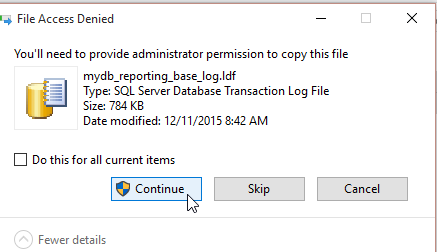
    Now we can copy the files to new files. There are UAC issues here, so you’ll need to add some rights to the files if you do this regularly. I left a comment in my script, but I actually did a CTRL+C,CTRL+V in the data folder, allowing the UAC permissions to work.

    2015-12-11 08_42_22-Photos

    Once that was done, I had new files:

    2015-12-11 08_28_15-Photos

    I tried to run at attach, but got a permissions error:

    Msg 5120, Level 16, State 101, Line 30
    Unable to open the physical file “D:\SQLServer\MSSQL11.MSSQLSERVER\MSSQL\DATA\mydb_reporting.mdf”. Operating system error 5: “5(Access is denied.)”.

    The solution I found was to run SSMS as an administrator. Annoying, but it works.

    At least for the OS error. However, then you get this:

    Msg 1824, Level 16, State 1, Line 35 Cannot attach a database that was being restored.

    You can’t do this. At least not easily.

    You can do this. First, delete the files you copied over, then run this:

    CREATE DATABASE mydb_reporting
    go
    alter database mydb_reporting set offline;

    The next step is to delete the MDF and LDF files, which will be mydb_reporting.mdf and mydb_reporting_log.ldf  by default. I could specify other names, and would if this were something I needed to script.

    Once those files were deleted, I’d next copy my files again and rename them. That would result in this:

    • mydb_reporting_base.mdf –> mydb_reporting.mdf
    • mydb_reporting_base_log.mdf –> mydb_reporting_log.ldf

    Now I can go back to SSMS. In SSMS, I do a simple ALTER.

    ALTER DATABASE MYDB_Reporting SET ONLINE

    Then I can run this:

    2015-12-11 09_03_28-Start

    I have a copy of my database. Can I apply logs and move forward? Let’s try. First, let’s add data and make a log backup

    USE mydb
    GO
    INSERT mytable SELECT 99
    GO
    
    BACKUP LOG mydb TO DISK = 'mydblog.trn'   
    GO
    

    Next we restore again. We also set the databases offline again.

    RESTORE LOG mydb_reporting_base
     FROM DISK = 'D:\SQLServer\MSSQL11.MSSQLSERVER\MSSQL\Backup\mydblog.trn'
     WITH  MOVE N'mydb' TO N'D:\SQLServer\MSSQL11.MSSQLSERVER\MSSQL\DATA\mydb_reporting_base.mdf'
        ,  MOVE N'mydb_log' TO N'D:\SQLServer\MSSQL11.MSSQLSERVER\MSSQL\DATA\mydb_reporting_base_log.ldf'
        , STANDBY = 'D:\SQLServer\MSSQL11.MSSQLSERVER\MSSQL\Backup\undo.log';
    GO
    USE master
    GO
    ALTER DATABASE mydb_reporting_base
     SET OFFLINE;
    GO
    ALTER DATABASE mydb_reporting SET OFFLINE
    GO
    

    Once again it’s file copy time. The UAC comes into play again as I copy and rename the _base files. However once that’s done, things work.

    2015-12-11 10_17_02-Photos

    This works, but I am not recommending this as something you should do, especially for critical systems. This can work, but it’s dangerous, and really not supported by MS.

  • The Log Chain

    I ran across a question recently from someone that received a similar message to the one showed in this image:

    2015-07-30 12_02_22-SQLQuery3.sql - ARISTOTLE.master (ARISTOTLE_Steve (62))_ - Microsoft SQL Server

    In this case, the log chain is broken. I’ve received this message, usually from a script that is automatically restoring all the logs in a folder. I’ve also had clients call me with this message, saying their log shipping system is broken.

    What has happened is that you (or someone) is restoring the logs out of order. Each log backup forms part of a sequence that we call the log chain. The restore process requires that each log backup be restored in the same sequence in which is was created.

    In the error message above, SQL Server is letting you know that the Log Sequence Number (LSN) contained in the file from which a restore was attempted doesn’t match the last LSN in the restored database.

    Fixing This

    The fix is easy; restore the correct files in the correct order. In this case, I knew I’d taken 3 log backups, and I was restoring in the incorrect order. I’d restored log backup 1, and was now trying to restore log backup 3.

    If I restored log backup 2 (using with norecovery), the restore would work. I could then restore log backup 3 and eventually bring the database online.

    If you can’t find the correct log backup, then your database is still usable. Just run RESTORE DATABASE WITH RECOVERY, and you can access your data. However the data will only be correct to the point in time of the last successful restore.

    That could be a serious problem if you are missing a log backup early in your restore sequence. It could be a career limiting problem.

    Always be sure you keep all log backups since the earliest full backup you keep handy for restores and protect those files. Losing one could be a major problem for your organization.

  • Attaching All Databases with PowerShell–Refactoring out Write-Host

    Someone posted a note to me on Twitter that noted that Write-Host is not recommended for your scripts. I checked the link to an MSDN blog on Write-Host Considered Harmful, and it made some sense. Basically it says that since Write-Host always goes to the console, any output sent through Write-Host can’t be consumed in a pipeline by other PoSh commandlets or processes.

    At first I thought, what does that have to do with my script? I’m really just noting status information. However, the more I thought about it, the more I realized that it’s a minor change, and who knows? Maybe I’ll chain this in some other process, or more importantly, maybe someone else will.

    Today I popped open the script in the PowerShell ISE and did this:

    posh_a

    That’s an easy fix. Just write the output to the pipeline, and if there’s nothing consuming output, I get it on the screen.

    I also refactored a bit more. I added a “Debug x:” line to each Write-Output command, with x replaced by the appropriate debug level I’d checked for. This way I know what debugging output is being returned to the calling screen.

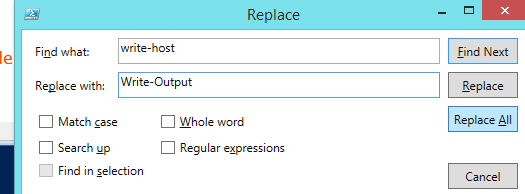
    I also found a few lines that were just output, using “Attaching as…” code. I replaced those with Write-Output.