Tag: powershell

  • Setting DebugPreference for Testing–#SQLNewBlogger

    Another post for me that is simple and hopefully serves as an example for people trying to get blogging as #SQLNewBloggers.

    I was working on a PoSh script recently and needed to debug some things. Rather than have Write-Host throughout it, I wanted to log some stuff when I had issues, but not all the time. This post talks about how to do this.

    A Simple Script

    Here’s a simple script that I wrote to investigate this:

    write-host("test")
    Write-Debug("This is a debug message")
    $i = 10
    Write-Debug("I: $i")
    $i += 1
    Write-Debug("I: $i")
    $i += 1
    Write-Host($i)

    In this script, I have a few messages. If I just run this, I get this result:

    ❯ .\debugscript.ps1
    test
    12

    That’s pretty easy to see. However, what if I want my debug messages to print? I can add a –Debug parameter, but that doesn’t affect the script.

    ❯ .\debugscript.ps1 -Debug
    test
    12

    Set $DebugPreference

    Instead, what I need to to is change the debug preference, which is in the $DebugPreference variable. This is in the Preference Variable list, and defaults to SilentlyContinue.

    However, if I set this to Continue, I get the behavior I want.

    ❯ $DebugPreference="Continue"
    ❯ .\debugscript.ps1
    test
    DEBUG: This is a debug message
    DEBUG: I: 10
    DEBUG: I: 11
    12

    If I don’t want to see these, I can set the variable back.

    $DebugPreference="SilentlyContinue"

    Using the variable with write-debug is a quick way to turn debugging on and off in your console.

    SQLNewBlogger

    I had used this before, but had to think about it for a few minutes as I hadn’t done any PowerShell lately. So I decided to add 15 minutes to my work and document this for myself.

    And for the next person that wants to interview me on how I write PoSh. You could do the same thing.
  • Powershell Practice with a War Game

    I attended part of the recent PowerShell + DevOps summit, and one of the sessions was from Fernando Tomlinson (@wired_pulse and @underthewire_ps) on incident response. He talked about a number of things, but one was his work at UnderTheWire.tech, where there are PowerShell training items.

    One section here is on War Games. These are challenges, where you need to use PowerShell to progress through the levels of the game. It’s a chance to practice some knowledge, or maybe look things up and learn. I decided to try one of these.

    Century

    The first war game is Century. Here you join a Slack server to get credentials, and it’s also where you can ask for help. Once you join, you have an initial set of credentials to connect to a host through SSH. If you’ve never done this, it’s a chance to learn.

    For me, I knew Win10 had added this, and I hadn’t actually installed PuTTy on this machine, so I tried this:

    ssh century1@century.underthewire.tech

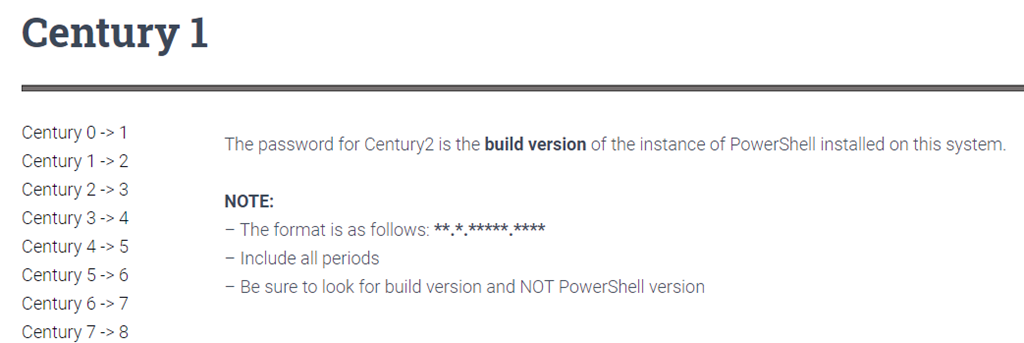
    This prompted me for a password, which I had from Slack. From here, I needed to go through the next step in the wargame. In this case, the 1st level looked like this:

    2021-04-27 16_06_17-Century 1 – UTW

    Easy enough, I need information on PowerShell that is installed. If you know how to do this (I did), it’s easy. I copied the build number, and then used “exit” to disconnect. I opened a new SSH connection, with the century2 user and the build number as the password.

    It worked, and I continued through the challenge.

    Thoughts

    This was an interesting test of how to use PowerShell. I don’t do a lot of desktop admin type stuff, so I had to look up some items. I had to type carefully (or copy/paste carefully) and read. For example, one item said to look in a folder for a file, but I was looking at the list of items in the root, not as folders. Slightly embarrassed myself in asking for help on this one.

    Overall, these weren’t too hard, but I enjoyed the process of working through the game and learning something new. Not a bad way to play with some PoSh.

  • The PowerShell Basics If Statement–#SQLNewBlogger

    Another post for me that is simple and hopefully serves as an example for people trying to get blogging as #SQLNewBloggers.

    This is a fairly simple construct, but I keep looking up the syntax if I haven’t written anything for a couple of weeks, which does happen. I’m hoping this quick post will help me remember the structure.

    Parenthesis and Braces

    The general structure is simple. It’s like this:

    if ($a -eq 1) {
    # do something  
    }

    This structure has the test expression inside the parenthesis and then any statements to execute, one or more, inside braces. Fairly simple, as long as you remember the –eq, –gt, –lt, etc.

    If you have an ELSE, then you add that next with the braces again.

    if ($a -eq 1) {
    # do something  
    }
    else {
    # do something else
    }

    That is easy to remember, as long as you use one language. I’ve been working more with Python, which is where I think I get confused.

    SQLNewBlogger

    This was about the 5th or 6th time I looked up the syntax, so I stopped and wrote this. It took only about 10 minutes to do this, no need to do more than mock up code, but show how this works.

  • 2020 Advent of Code–Day 3

    This series looks at the Advent of Code challenges.

    As one of my goals, I’m working through challenges. This post looks at day 3.

    Part 1

    Day 3 was tough. The explanation isn’t great, at least, I didn’t get it at first. Essentially you have a map, and then you have some slope. The first part has a slope of right 3, down 1. If you move, assuming the upper left is (1,1), the next spot is 2, 4. That’s if you count going down as positive.

    Here’s the map:

    ..##.......
    #...#...#..
    .#....#..#.
    ..#.#...#.#
    .#...##..#.
    ..#.##.....
    .#.#.#....#
    .#........#
    #.##...#...
    #...##....#
    .#..#...#.#

    If I count each space, then there is a period (.) in this (2,4) space. If it’s a tree, then there is a hash (#) there. We are trying to count trees before we hit bottom.

    The trick I missed is that the map we’ve given repeats. It repeats to the right as often as needed to get to the bottom.

    This is really a coordinate problem, counting each down as we move, and repeating the map. The trick often in a short width here is to do the math to wrap around from the right to left if you run out of room.

    In SQL, I used a loop. I didn’t spend a ton of time, but couldn’t see a good way to avoid this as I need this to be readable, and I need this to keep working through the map. Here’s the code:

    WHILE @currentrow <= @rows
      BEGIN
        SELECT @currentcol += @right
        IF @currentcol > @width
          SELECT @currentcol = @currentcol - @width
        SELECT @currentrow += @down;

       SELECT @trees = @trees + CASE
           WHEN SUBSTRING(dataval, @currentcol, 1) = '#' THEN 1
           ELSE 0
        end
         FROM day3
         WHERE rowkey = @currentrow
      END
    SELECT @trees AS TreeCount

    I move, count the value if there’s as tree, and then continue moving through the next rows. The WHERE clause orients the rows.

    It worked. I go the right answer here.

    Part 2

    In part 2, this changes to checking a number of sloops and then multiplying the results together. In terms of my code, this is really a repetitive way of running the code again. I could have used different variables and checked multiple slopes at once, but I was busy.

    In python, I did something similar. I essentially calculated the next X and Y position, and then looped through the file. Each time the Y matched the current row, I checked for the matching #. If it matched, increment.

    Once I matched the correct Y, I incremented X and Y.