Tag: powershell

  • Using Write-Debug

    I wrote a post about PoSh output recently, noting that in general we ought to use Write-Output or Write-Verbose for messaging. In there, I mentioned Write-Debug as well as a way of allowing the user to control debug information.

    Since I often find myself fumbling a bit with debugging scripts, I decided to give this a try and see how it works.

    First, let’s build a simple script. In this case, I’ll write a script that takes two parameters and determines which one is larger.

    $i = $args[0]
    $j = $args[1]
    Write-Debug("First Param:$i")
    Write-Debug("SecondParam:$j")
    if ($i -eq #null ) {   $i = 1
      Write-Debug("Setting first as a default to 1")
    }
    if ($j -eq #null ) {   $j = 1
      Write-Debug("Setting second as a default to 1")
    }
    if ($a -gt $b) {   Write-Output("The first parameter is larger")
    }
    elseif ($i -eq $j ) {   Write-Output("The parameters are equal.")
    }
    else {       Write-Output("The second parameter is larger")   }

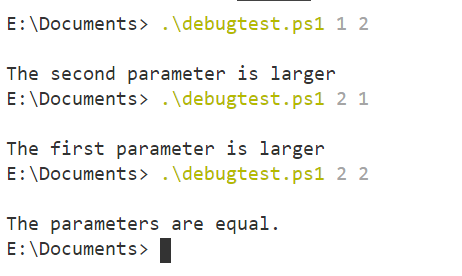
    If I run this, I get what I expect. Here are a few executions.
    2020-10-19 13_02_38-debugtest.ps1 - Visual Studio Code

    Now, what if I’m unsure of what’s happening. For example, I forget the second parameter. How does my program know the first parameter is larger? I have some debug information in there, but it doesn’t appear. However, if I change the value of $DebugPreference, I see something.

    2020-10-19 13_05_07-debugtest.ps1 - Visual Studio Code

    The variable, $DebugPreference, controls how Write-Debug messages are processed. By default, this is set to SilentlyContinue. However, if I change this to Continue, all the messages appear. If I want, I can also set it to Stop or Inquire, allowing me to control the program differently.

    You can read more about preference variables here.

    This is a handy thing to use. I’ve often had a variable I set in programs, sometimes as a parameter, that allows me to show debug messages, but I often then need a series of IF statements inside code to check this and display debug information. Now, I can just include write-debug info in my code, and if the preference isn’t set, I don’t see them.

    I’ve seen this used in custom cmdlets from vendors, including Redgate, and it is nice to be able to access more information when something isn’t working, and have it suppressed by default.
  • Writing Output from Powershell

    One of the things we often want to do when building a PoSh script is to get some output. I first learned about Write-Host, but I learned over time that this isn’t the best way to do this. Most of the early scripts I saw used this, so I was confused until I went through a few of this post: Write-Host Considered Harmful. This is from Jeffrey Snover, the inventor of PoSh.

    In the post, he notes that most of the time we don’t want to use Write-Host, because this means we can’t use the output of a command in the pipeline. For debugging you might think that this doesn’t matter, but Write-Debug is better.

    He recommend Write-Output, which is something I want to start to use. That, or Write-Verbose, so the user can get more or less output as needed.

    Hopefully this will help me to better write PoSh code that others can easily use.

  • Fixing the PoSh Hotkey in ADS

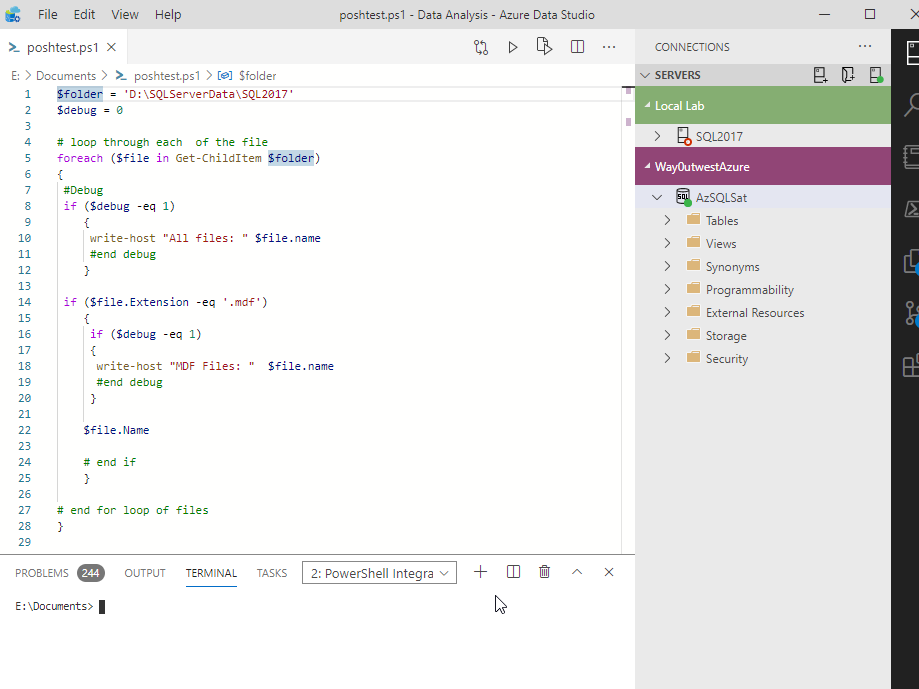
    I installed the PowerShell (PoSh) extension in ADS recently. This is available in the extension pane, and once installed, you get the 4th icon on the right added to your sidebar, for PoSh.

    2020-09-10 15_07_51-poshtest.ps1 - Data Analysis - Azure Data Studio

    I have the SSMS Keymap extension installed as well, since that was the first one I grabbed. This gives me keymapping to allow CTRL+E to execute queries. I have literally a decade of muscle memory here, and really wanted this to work.

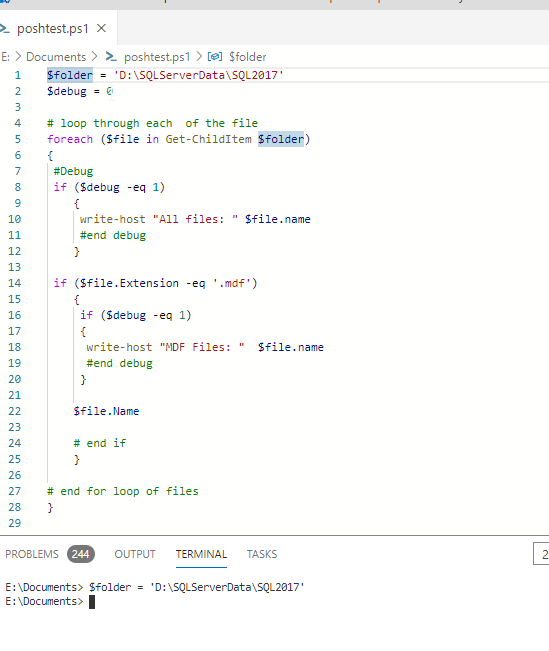
    However, when I highlight code in ADS and press F8, which is what I do in VS Code, I get this:

    2020-09-11 14_42_34-poshtest.ps1 - Data Analysis - Azure Data Studio

    Not only is my PoSh code in the editor tab not executed in the Terminal, but the Server Connection pane pops open.

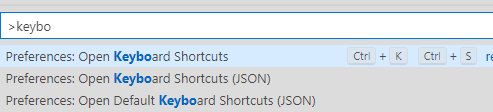
    This is because that’s what keymap does for F8. I can use the command palette to debug this.

    2020-09-11 14_44_14-Keyboard Shortcuts - Data Analysis - Azure Data Studio

    If I open up the keyboard shortcuts and search for F8, I find that a number of things use this.

    2020-09-11 14_44_21-Keyboard Shortcuts - Data Analysis - Azure Data Studio

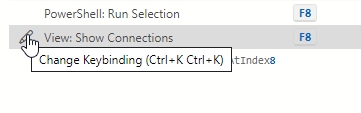
    The last binding is the one that’s in effect, and you can see that the Show Connections overrides the PowerShell item.

    Fortunately, I can edit this by clicking on the left of this line.

    2020-09-11 14_45_41-Keyboard Shortcuts - Data Analysis - Azure Data Studio

    Once the dialog pops up, it is there to capture any keystrokes, so it’s hard to get a picture of this. However, with a little experimenting, I remapped this to CTRL+L, which has some bindings, but these aren’t ones I use.

    Now I see PowerShell as the last item, and if I close this tab, and go back to my code, I can press F8, and I’ll see the line executed in the terminal.

    2020-09-11 14_47_45-poshtest.ps1 - Data Analysis - Azure Data Studio

  • Custom Quarantine PoSh Prompt

    Since I’ve been quarantined at home and working in my office, every day is the same. I can’t go to the gym, or coach, or go to the restaurant, or much of anything. As a result, I regularly, forget what day it is.

    Yes, it’s on my phone, but that’s not always open and visible. It’s on my watch, but I have to swing up my wrist and hope it lights up. Or reorient my wrist to see it.

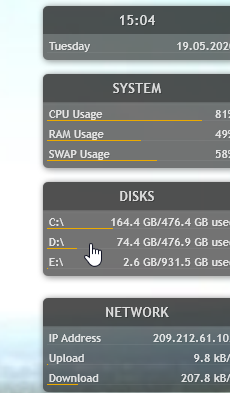
    I have Rainmeter running, which is nice, and I have a summary in the upper corner of my screen, but often I have something covering this.

    2020-05-19 15_04_13-Microsoft Edge

    The time is in the toolbar, but I sometimes hide toolbars to record things. Basically, I forget what day it is and I’m looking for a few hints I can use to make this easier. As I play with PowerShell regularly, I thought it would be good to update my prompt slightly.

    Plus, it would be good PoSh practice.

    Setting a profile. I’ve seen a few posts on customizing the prompt, and they all say I need a function, called prompt, in my profile. I found this article, which gave me a good idea. Put the time in the prompt.

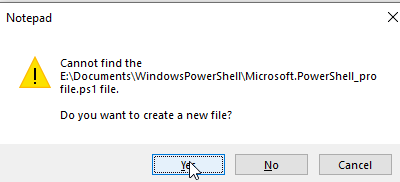
    I then had to figure out how to get to my profie. It turns out “notepad $PROFILE” in a PoSh prompt will get you there. If you don’t have a profile, you’ll see this:

    2020-05-19 14_55_12-Notepad

    Say yes, and then add some code. I had to look up the Format options and experiment a bit to decide how I wanted things to look.

    function prompt {
            $lastResult = Invoke-Expression '$?'
            if (!$lastResult) {
                    Write-Host "Last command exited with error status." -ForegroundColor Red
            }
            Write-Output "${msg}$(
                    # Show time as 12:05PM and day of week
                    Get-Date -Format "dddd HH:mm"
                    # Show current directory
            ) $(Get-Location)> " 
    }

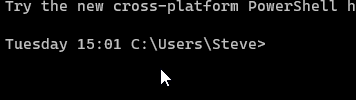
    I saved this and now when I get a new PoSh prompt, I get this:

    2020-05-19 15_01_53-PoSh

    Now I easily know the day and time when I’m working in a PowerShell terminal. This also shows up in my Visual Studio Code terminal as well, since that’s just a PoSh environment.

    SQLNewBlogger

    This was a quick thing I did in about 5 minutes to customize my environment, and help me be more productive. A happy employee works smoother.

    I decided to show off how I did this and spend a quick 10 minutes writing down and documenting what I did.