Tag: powershell

  • Anyone Can Click Through Once

    I was watching some of the Virtual Summit conference content (which is still available) trying to catch up on a few sessions that I missed during the event. One of the sessions I watched was a PowerShell panel. In the panel, Ben Miller (b | t | L) said that “anyone can click their way through something once.”

    I agree with that. It’s really easy to run through something once, even a long wizard or install process. Most of us find it easier to just get something done than work on a script to complete it. Often, I find myself doing this for tasks that I tackle rarely, like installing SQL Server. With the growth of containers, I rarely install SQL Server anymore, but the few times I might want a VM outside of a cloud system, I find it easier to just run the install than find a script and alter the settings.

    However, there are tasks I need to repeat. Anything that I might need to run more than once or twice, I usually do think about scripting. I look at T-SQL and PowerShell, both of which are very useful, but have different times and places where they fit better. The key, however, is that running a repeatable process is easier when it’s scripted.

    This is true whether you are doing something for yourself or for your employer. When you have to repeat a series of steps, it’s too easy to forget one or make a mistake. Maybe more importantly, as more companies adopt DevOps automation and pipelines, the need for command line automation and logging is critical.

    One of the panelists noted that they think PoSh is critical for your career and wouldn’t hire someone that didn’t know the technology. Not everyone agrees, but the tremendous growth of systems, the need to often deploy changes using automation, and the likelihood that you will see PoSh on the Microsoft platform, I tend to think this is something employers will strongly desire.

    Steve Jones

    Listen to the podcast at Libsyn, Stitcher, Spotify, or iTunes.
  • Renaming Files by Padding Numbers with PowerShell

    Some time ago I had downloaded all the SQL Saturday XML files. I’ve been meaning to flatten those into a database, but that project keeps getting away from me. And now it’s become an archive task.

    In any case, I’ve been looking to work with Jekyll and get a list of events. There is one at SQLSatHistory.com, but I’m going to try and do a bit more than a simple list. In any case, I have found a small issue: my files were named SQLSat1,xml, SQLSat2.xml, etc.

    That’s not a big problem, but it results in my archive looking like:

    • SQL Saturday #1 – Orlando
    • SQL Saturday #100 – Brazil
    • SQL Saturday #101 – Kansas City
    • etc.

    The file names are strings, and in alpha sorting, 100 comes before 2. That’s not critical, but it’s not what I want, and I would like something that’s a bit better and easier to follow.

    The easiest way to do this is to rename the files. I have some data in the files, and I have those being parsed, so if I can rename the files, I can get the events generated in an orderly fashion.

    PowerShell has a Rename-Item cmdlet, which will work, but what new name? I need to parse out the filename and then come up with a new one. Likely there are better methods, but this worked quickly for me to rename some files.

    The Process

    My thought in doing this was first to extract out the number and then check the length. From there, I can assemble a new string. Instead, as I was starting, I thought of a better way. I decided to remove everything but the number.

    There is a replace method for strings. As In, I can do this:

    $EventNumber = $XmlFile.Name -replace 'SQLSat', ''

    This will take away the string before the number, and results in file names going from:

    • SQLSat1.xml
    • SQLSat2.xml
    • SQLSat3.xml

    to

    • 1.xml
    • 2.xml
    • 3.xml

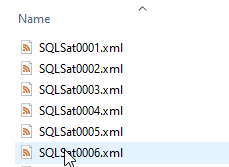
    I repeated that and removed the .xml as well, which gave me each event’s number. From here, I found a cool trick on Stack Overflow to do this. The PadLeft method is used

     % PadLeft 4 '0'

    I use 4 as a padding factor. This results in giving me what I want, and when I concatenate this, I get the file names I want.

    $NewFile = "SQLSat" + $EventNumber + ".xml"

    From there, a simple call to Rename-Item with each file resulted in an orderly list of events.

    2021-01-07 13_21_43-xml

  • Creating an HTML URL from a PowerShell String–#SQLNewBlogger

    Another post for me that is simple and hopefully serves as an example for people trying to get blogging as #SQLNewBloggers.

    I wrote about getting a quick archive of SQL Saturday data last week, and while doing that, I had some issues building the HTML needed in PowerShell. I decided to work through this a bit and determine what was wrong.

    My original code looked like this:

    $folder = "E:\Documents\git\SQLSatArchive\SQLSatArchive\SQLSatArchive\ClientApp\public\Assets\PDF"
    $code = ""
    
    $list = Get-ChildItem -Path $folder
    
    ForEach ($File in $list) {
    
    #write-host($File.name)
    
    $code = $code + "<li><a href=$($File.Name)>$($File.BaseName)</a></li>"
    
    }
    
    write-host($code)

    This gave me the code I needed, which I then edited in SSMS to get the proper formatting. However, I knew this needed to work.

    I
    had used single quotes and then added in the slashes, but that didn’t work. This code:

    $folder = "E:\Documents\git\SQLSatArchive\SQLSatArchive\SQLSatArchive\ClientApp\public\Assets\PDF"
    $code = ""
    
    $list = Get-ChildItem -Path $folder
    
    ForEach ($File in $list) {
    
    #write-host($File.name)
    
    $code = $code + '<li><a href="/Assets/PDF/$($File.Name)" >$($File.BaseName)</a></li>'
    
    }
    
    write-host($code)

    produced this type of output:

    <li><a href="/Assets/PDF/$($File.Name)" >$($File.BaseName)</a></li>

    Not exactly top notch HTML.

    I decided that I should look around. I found a post on converting some data to HTML, which wasn’t what I wanted, but it had a clue in there. The double quotes.

    I needed to escape quotes here, as I wanted the double quotes around my string. I changed the line building the string to this:

    $code = $code + "<li><a href=""/Assets/PDF/$($File.Name)"" >$($File.BaseName)</a></li>"

    And I then had what I wanted:

    <li><a href="/Assets/PDF/1019.pdf" >1019</a></li>

    Strings in PoSh can be funny, so a little attention to escaping things and knowing about variables and double quotes is helpful.

    SQLNewBlogger

    This was about 15 minutes of messing with Google and PoSh to solve, but then only about 10 minutes to write up.

    A good example that shows some research, initiative, and investigation in addition to solving a problem.

  • PowerShell Arrays and Hash Tables–#SQLNewblogger

    Another post for me that is simple and hopefully serves as an example for people trying to get blogging as #SQLNewBloggers.

    I was watching the GroupBy talk the other day and noticed that Cláudio Silva was using arrays, or what appeared to be arrays, in his talk. That was an interesting technique, one that I haven’t used very much.

    A day later, I ran into an explanation on dbatools.io, that showed this code:

    PS C:\> $columns = @{
    >> Text = 'FirstName'
    >> Number = 'PhoneNumber' 
    >> }

    That didn’t quite seem like what I wanted, so I decided to investigate more.

    I looked up PowerShell Arrays, and that wasn’t what I wanted. These are a list of values, as in

    $a = 1, 2,3

    Which gives me this:

    >>$a
     
    1 
    2 
    3

    Useful, but not for my purposes. I need to map things together, which means a hash table.

    Hash Tables

    It turns out I need a hash table. This is a key value pair that lets me pick a name and value and store them together. The way I construct these are with the @{} structure. Inside here, I set semi-colon separated pairs, with the name=value syntax.

    Here’s an example I used:

    $ColList = @{Date="EventDate"; Event="Event"}

    In here I map two keys (Date and Event) to two values (EventDate and Event). For the cmdlet I am using, this allows me to map these two columns together. When I need a value, I can use the $variable.key to get the value back.

    2020-10-28 13_37_45-C__Users_Steve

    I assume this is what the SqlBulkCopy cmdlet uses, which is what dbatools wraps. I ended up passing this $ColList hash table in for the –ColumnMap parameter.

    SQLNewBlogger

    A quick writeup that I used to solve a problem. I had some issues figuring this out, and some searching and experimenting got me a little better understanding of what was happening.

    After about 30 minutes of some work, I took 10 minutes to type this up and explain it to myself. A good example of what you could add to your blog, showing how you use this in your work.