I love SQL Prompt. This might be my favorite tool from Redgate Software and just when I thought it couldn’t be any better, a new formatting engine has been released.
Reading through existing source code and understanding the intent is an important part of any software developer’s life. Often, we find ourselves reading code written by other people, which can be difficult to comprehend when the structure and layout is unfamiliar. This is one reason why many companies have had coding standards that not only enforce items such as naming, but also can prescribe whether tabs or spaces are used, indentation prescriptions, and even line breaks. While our industry has some conventions, they are not as widespread as we might hope.
One of the features I find most useful about SQL Prompt is the ability to quickly reformat code in an easy to read fashion. For example, I’ll get code like this from a forum post or a co worker:
SELECT  * FROM
  ( SELECT 'Month' = DATEPART(mm, NewsDate), 'Count' = COUNT(*)     FROM News GROUP BY DATEPART(mm, newsdate)  ) a
With a quick CTRL+K, CTRL+Y, and then I see this:
SELECT  *
 FROM
    (
        SELECT  'Month' = DATEPART(mm, NewsDate)
              , 'Count' = COUNT(*)
         FROM   dbo.News
         GROUP BY
            DATEPART(mm, NewsDate)
    ) a
;
That’s much easier for me to read, and thus easier to understand, debug, and improve. Over the years I’ve become used to indentations in certain places, and different types of alignment that can help me understand how a query is structured quicker. I also find certain layout, such as commas first, easier when I try to alter and debug code.
While SQL Prompts formatting engine has worked well, it’s lacked some features that I’ve wanted. For example, I’ve written a lot of code with the Window functions in T-SQL and prior to SQL Prompt v7.3, the formatting would place then entire OVER() clause on a single line. The same thing used to happen with various DDL features as well, meaning that I’d be able to clean up some code, but I’d then go back and add various line breaks to help the code fit on one line and be easier to read.
The Way0utwest Style
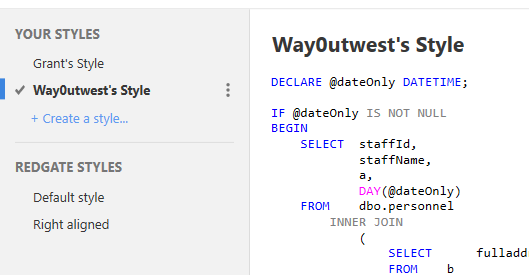
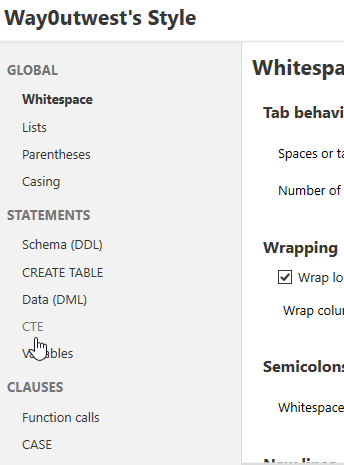
That’s changed. I’ve been beta testing a new formatting engine for a few months as a part of the Experimental Features in SQL Prompt, and I love it. In fact, I’ve even added my own style, as you can see below:

This is my custom style, which I’m still working on. On a regular basis, I’ll edit the style, changing some of settings as I find new code that doesn’t quite look right to me. I’m amazed by the incredible array of options, and I find myself impressed with the SQL Prompt team once again.
This hasn’t been an effort for me. I don’t usually go poking too far into the settings or make a concerted effort to get things right the first time. Like many things with Prompt, I just want it to work in the background, correcting code. When it doesn’t format in an easy to read way, I’ll go alter a setting. For example, the first time I got some CTE code, the default style will format things like this:
WITH myTally (n)
AS (SELECT n = ROW_NUMBER() OVER (ORDER BY (SELECT NULL))
    FROM sys.sysobjects
   )
SELECT *
FROM myTally;
However, that isn’t quite what I want. I quickly opened the SQL Prompt menu, and I see my formatting options at the bottom:

I have also been able to access this from the Experimental Features menu (you’ll want to keep an eye on this area in the future).

Once in the style editor, I can click the colon after my style name and then edit.

There are a number of options, but CTE is one of these.

Inside this area, I can choose to do a few things. I can choose when to break to new lines, when to add spaces, and where to indent. This is truly a flexible and highly configurable formatting engine.
As I make changes, I can see the new format below with a sample query, or I can check a box to see how my current query will be reformatted. Once I’m happy, I can save the changes and move on to what I need to do: write code.
There are far too many options to work with, and it’s one reason that I don’t bother trying to set all the various settings. In some cases, I’m not even sure how I want the code formatted until I realize that there’s an issue understanding a complex layout. It’s at that point that I’ll go ahead and change some settings to adapt SQL Prompt to my current query. I can even create a new style that inherits the settings from a previous style if I’m experimenting, a topic for another blog.
Formatting for Friends
In my format list there’s a second style I’ve labeled “Grant”. This is a separate style that formats differently based on Grant’s preferences. I asked Grant for his .sqlpromptstylev2 file and added to my system. The default path is %USER_PROFILE%\AppData\Local\Red Gate\SQL Prompt 7\Stylesv2. Once I have his style, I can reformat code the way he wants it if I send it over.
Why? Certainly Grant can reformat code the way he wants it with his own SQL Prompt. It’s a nice touch fo rme to be able to work with code the way that’s easier for me and then reformat it in a way that’s easy to understand if I send a short segment over email, Slack, or some other communication means.
I’ve also worked in situations where code needed to be formatted a certain way. Various clients and employers have dictated that code is strictly laid out in a certain style for code reviews and committed in a VCS in a particular way. By having the option to quickly switch styles in Prompt, I can reformat code for others without too much effort.
SQL Prompt has been one of the more useful and helpful tools I’ve worked with in SQL Server, and just when I thought it might be mature, I get this fantastic formatting engine. It’s been fun to play with across the last few months and now it’s live as a default feature in SQL Prompt 7.3. You can now start playing with your own formatting style when you upgrade.
Or download a copy of my style and see how I prefer to read code: Way0utwest’s Style.sqlpromptstylev2
If you’re not a SQL Prompt customer, you don’t know what you’re missing. This is a vast improvement over the native intellisense and I’d say you should download an evaluation and give SQL Prompt a try today.