Tag: Redgate

  • The GUI Helps Build SQL Prompt Snippets

    I work for Redgate and write about products. I’ve got a series of SQL Prompt posts here on little things I like. SQL Prompt might be my favorite tool.  SQL Prompt will be yours as well if you give it a try.

    SQL Prompt is an amazing tool for writing T-SQL. It helps you to concentrate on your code, without having to go off and examine Books Online or other documentation, or even worry about formatting.

    One of the keys to making Prompt efficient for you, in your environment, is to use Snippets. These are short codes that insert a lot of T-SQL, like the SSF snippet. As I’ve worked to make myself more efficient, I’ve also tried to be efficient in my creation of snippets. One way to do that is using the SSMS GUIs.

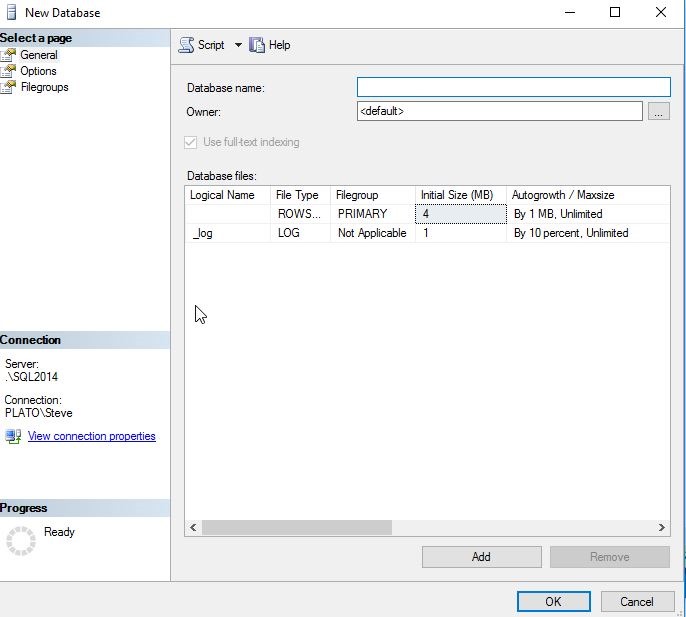
    For example, suppose I want to build a snippet for databases. I can open the Create Database dialog. This has the places where I can specify the name, owner, size, growth, options, etc. You can see the main page below.

    2016-09-23 10_09_59-Posts ‹ Voice of the DBA — WordPress

    Once, I’m happy, I click the “Script” button at the top, as shown here.

    2016-09-23 09_48_24-New Database

    This gives me the code in a window, where I can then customize for my template parameters and then paste in the snippet.

    The same thing for logins and users. I create and drop a lot of security princpals, so I can right click on logins, as I have here in the Object Explorer.

    2016-09-23 10_11_35-SQLQuery1.sql - (local)_SQL2014.Sandbox (PLATO_Steve (68))_ - Microsoft SQL Serv

    I’ll get a New Login dialog, and I can add in the items that matter, like defaults, password, types, etc.

    2016-09-23 10_12_12-Login - New

    When I now click the Script button, I get my code. Note, I’ll cancel out of the dialog, and work with the code shown here.

    2016-09-23 10_14_34-SQLQuery3.sql - (local)_SQL2014.Sandbox (PLATO_Steve (61))_ - Microsoft SQL Serv

    I can cut and paste this into the Snippet edit box. In the image below, I’ve deleted the old code for cl (“Create SQL Server login”) and put my code in. I change the specifics (username and password) to template parameters by putting a name in between two dollar signs ($). This will give me a quick way to customize the snippet in each case.

    2016-09-23 10_15_10-SQL Prompt - Edit Snippet

    Note that I need to replace each instance of “JohnDoe” with “$username$” for this to work well. I did that before I saved the snippet, as well as added a template for the database.

    Now when I type “cl”, I get the snippet.

    2016-09-23 10_19_13-ObjectDefinitionBox

    and hitting Tab gives me the code.

    2016-09-23 10_19_22-SQLQuery3.sql - (local)_SQL2014.Sandbox (PLATO_Steve (61))_ - Microsoft SQL Serv

    That’s a quick and easy to add Snippets for those items you perform often with the GUI in SSMS. You will code quicker and more consistently, and you’ll create new objects without thinking.

    Hopefully, you’ll see the value in SQL Prompt and start using snippets to improve your ability to code quickly and take the hassles and guesswork out of cleanly building SQL Code. You can also read a similar piece I wrote on the Redgate blog.

    Try a SQL Prompt evaluation today and then ask your boss to get you this productivity enhancing tool, or if you’re using the tool, practice using ii the next time you need to insert some data.

    You can see a complete list of SQL Prompt tips at Redgate.

  • Creating Custom Databases with SQL Prompt

    I work for Redgate and write about products. I’ve got a series of SQL Prompt posts here on little things I like. SQL Prompt might be my favorite tool.  SQL Prompt will be yours as well if you give it a try.

    SQL Prompt has lots of great features that can help you write SQL quicker. However, you’ve got to train yourself to use a few of these and not just start to type with your old habits. This quick tip looks at one of those areas where a little customization can make things work smoothly.

    Perhaps you are like me and you’re often creating databases for testing things. It’s quick and easy, and certainly a good template goes a long way to ensuring that you don’t have any issues when you build a database.

    There’s a “cdb” snippet in SQL Prompt that I have come to really like. Of course, the default code leaves something to be desired, so I usually change it. I wrote a bit about this on the Redgate blog, but there are a few other things I’d add to my changes for a developer.

    Here’s the default code:

    CREATE DATABASE database_name
    ON
    PRIMARY ( -- or use FILEGROUP filegroup_name
      NAME = database_name_data,
      FILENAME = 'database_name.mdf'
    ) --, and repeat as required
    LOG ON
    (
      NAME = database_name_log,
      FILENAME = 'database_name.ldf'
    ) --, and repeat as required
    --COLLATE collation_name
    --WITH
    --  DB_CHAINING ON/OFF
    --  TRUSTWORTHY ON/OFF
    --FOR LOAD
    --FOR ATTACH
    --WITH
    --  ENABLE_BROKER
    --  NEW_BROKER
    --  ERROR_BROKER_CONVERSATIONS
    --FOR ATTACH_REBUILD_LOG
    GO

    Here’s how I changed this on the Redgate blog:

    CREATE DATABASE database_name
    ON
    PRIMARY ( 
      NAME = database_name_data,
      FILENAME = 'E:\SQLServer\MSSQL12.SQL2014\MSSQL\DATA\database_name.mdf'
    ) 
    LOG ON
    (
      NAME = database_name_tlog,
      FILENAME = 'E:\SQLServer\MSSQL12.SQL2014\MSSQL\Log\database_name.ldf'
    ) 
    WITH
      TRUSTWORTHY ON
    GO

    However, I really want other things in place when I’m working in a dev environment. For example, I’ve started to want to ensure that I create random test databases with the Simple recovery model. While I usually have the model database set to Simple, that isn’t the default and I sometimes forget. As a result, I’ll add this code to my snippet:

    ALTER DATABASE database_name SET RECOVERY SIMPLE;

    I also usually want to change the growth settings. I don’t care too much about the total limit, since I use placeholders, but I do want a slightly larger initial size to prevent growths when I load test data. In my case, I usually want to specify an initial size larger than model. Having this in the snippet also means I can easily modify it.

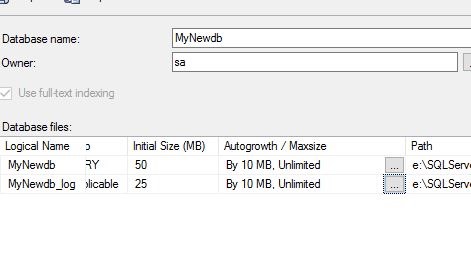
    However, I don’t want to make this complex. I’ll make this easy by using the GUI to generate template code. I can open the Create Database dialog and see my options, which I can change, as I’ve done for size in the image (50 from 1 for data).

    2016-09-23 09_47_21-New Database

    There’s a dialog for growth, and as you can see, I’ve adjusted the values.

    2016-09-23 09_47_29-Change Autogrowth for MyNewdb

    and for things like recovery model. I’ve open the dialog below. Below here are all the other database options I might want to set.

    2016-09-23 09_47_50-SQLQuery1.sql - (local)_SQL2014.Sandbox (PLATO_Steve (68))_ - Microsoft SQL Serv

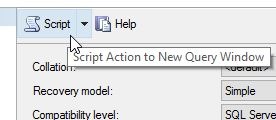
    When I’m done, I can click the “Script button shown in this image. It’s at the top of the dialog.

    2016-09-23 09_48_24-New Database

    Once I do this, I cancel out of the GUI, and I can see my code.

    2016-09-23 09_48_33-SQLQuery1.sql - (local)_SQL2014.Sandbox (PLATO_Steve (57)) - Microsoft SQL Serve

    Now I’ll cut and paste the items I want into my SQL Prompt snippet. This gives me something like this:

    2016-09-23 09_53_18-SQL Prompt - Edit Snippet

    I could have more or less options, depending on what matters to me. I might even have a cdbp snippet for production settings, where I have more items specified to be sure they’re set. It’s one thing to expect defaults, it’s another thing to think they won’t change and shouldn’t be specified.

    Hopefully, you’ll see the value in SQL Prompt and start using snippets to improve your ability to code quickly and take the hassles and guesswork out of building clean SQL Code. If you’d like to see another take on this snippet, check out my Redgate blog.

    Try a SQL Prompt evaluation today and then ask your boss to get you this productivity enhancing tool, or if you’re using the tool, practice using ii the next time you need to insert some data.

    You can see a complete list of SQL Prompt tips at Redgate.

  • #RedgateRocks Tonight at #sqlsummit

    Tonight is the #RedgateRocks party at 1927 Events in Seattle. You’ll need to get a wristband from the Redgate Software booth in the exhibition hall to gain admission, so stop by.

    Today’s your last chance.

    And if you’re looking for someone to go to dinner with, come to our #sqldinner meetup in the Convention Center lobby at 5:30.

  • Win a Year of Death Wish Coffee at the #sqlsummit

    One of the promotions this week at the PASS Summit from Redgate Software is a chance to run a year’s supply of coffee. This isn’t just any coffee, but the Death Wish Coffee, full of extra caffeine. Grant Fritchey loves this stuff, and that’s what one lucky attendee will get.

    If you want to win, come talk to me or one of the other Redgaters at our booth in the Exhibition Hall. Then you’ll know how to submit your entry.

    And if you don’t want coffee, we’ve got plenty of other fun giveaways.

    Don’t forget to also pick up your wristband for the #redgaterocks party.