Tag: Redgate

  • Using TRY..CATCH in SQL Prompt

    I work for Redgate and write about products. I’ve got a series of SQL Prompt posts here on little things I like. SQL Prompt might be my favorite tool.  SQL Prompt will be yours as well if you give it a try.

    I learned something new recently about SQL Prompt. I was working on documenting and experimenting with snippets and found a quicker way to write code.

    One of the things I think is great is to use the TRY..CATCH structure. I don’t do it enough, but I want to do this more, and make it smooth. SQL Prompt includes a tc snippet, which gives me this code when I type t-c-TAB.

    2016-09-23 12_13_39-SQLQuery4.sql - (local)_SQL2014.Sandbox (PLATO_Steve (63))_ - Microsoft SQL Serv

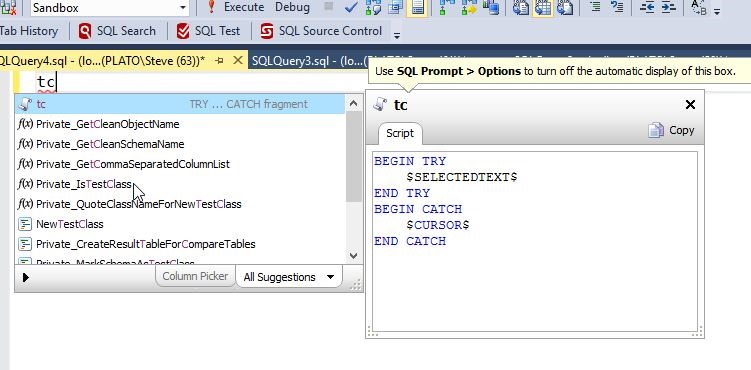
    You’ll notice that my cursor is in the CATCH block. Why? Well, if you pause after t-c, you’ll see the snippet and code (unless you’ve turned off the window). Notice the $CURSOR$.

    2016-09-23 12_13_17-SQLQuery4.sql - (local)_SQL2014.Sandbox (PLATO_Steve (63))_ - Microsoft SQL Serv

    This means the cursor appears there. Not too handy. However, also notice the $SELECTEDTEXT$ snippet. This is handy.

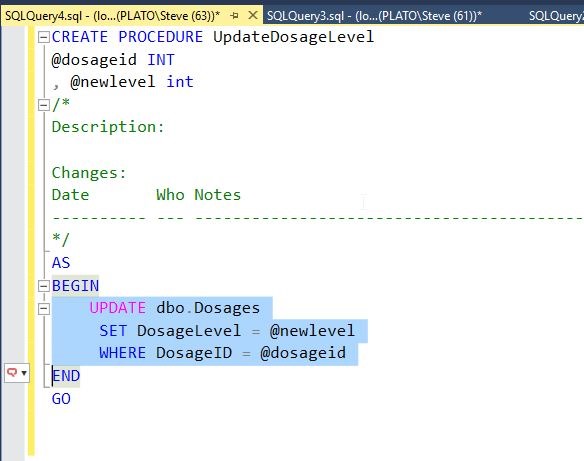
    Let’s change our code and include an update statement. For example, suppose as part of a procedure, I’m writing this code:

    2016-09-23 12_15_44-SQLQuery4.sql - (local)_SQL2014.Sandbox (PLATO_Steve (63))_ - Microsoft SQL Serv

    I’ve got a procedure, and I’ve forgotten to include TRY..CATCH. Certainly I can surround the highlighted code with the structure, but that’s cumbersome, even using Prompt’s intellisense.

    There’s a better way.

    Notice the little SQL Prompt icon in the side bar. Prompt is active, and if I click CTRL, I’ll get this:

    2016-09-23 12_16_59-SQLQuery4.sql - (local)_SQL2014.Sandbox (PLATO_Steve (63))_ - Microsoft SQL Serv

    I’ve activated SQL Prompt in the context of my highlighted text. Now I can type t-c and see the snippet.

    2016-09-23 12_17_49-SQLQuery4.sql - (local)_SQL2014.Sandbox (PLATO_Steve (63))_ - Microsoft SQL Serv

    If I hit TAB, I get this:

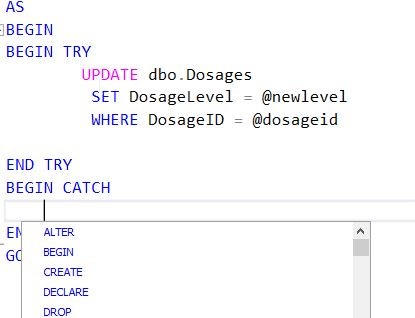
    2016-09-23 12_18_23-SQLQuery4.sql - (local)_SQL2014.Sandbox (PLATO_Steve (63))_ - Microsoft SQL Serv

    Pretty cool. My update is surrounded by the snippet code, and placed where the $SELECTEDTEXT$ placeholder was used.

    Use this. Write code quicker and make it better.

    Try a SQL Prompt evaluation today and then ask your boss to get you this productivity enhancing tool, or if you’re using the tool, practice using ii the next time you need to insert some data.

    You can see a complete list of SQL Prompt tips at Redgate.

  • Fun and Contests at Summit 2016

    I’ll be attending the 2016 Pass Summit as a part of the Redgate Software crew. I’m not speaking this year, so most of my time will be at the Redgate booth, showing you a few tricks and tips with products and maybe convincing you that we can help your company produce software just a little bit better.

    As a part of the Redgate experience this year, we have a few fun contests for you, an amazing new product, and a party as well. First, the contests.

    Win Coffee

    Many of us like coffee. Even if you don’t, I bet someone in your life does. Redgate is giving you that chance to win Death Wish Coffee. In fact, you can win a year’s supply. Just the thing to help you get through those longs weeks at work.

    Come by the Redgate booth and learn the answers to a few questions. Then enter online.

    Oh year, you’ll also win a SQL Toolbelt + support.

    Win a GoPro Hero 5 Session

    We have a difference flyer that you can fill out and return to win a GoPro Hero 5 Session. That’s a neat little camera that looks like a lot of fun. In fact, maybe I need to get one of these for some mini movies in my life.

    SQL Clone

    I’m excited about SQL Clone. In fact, I saw a demo, using mocked up basic PoSh over a year ago and I knew this was a great idea. It’s finally coming to fruition, with a beta release next month (Nov 2016).

    However, Grant is presenting a session SQL Clone on Thursday, Oct 27, at 3:15pm. Come see this talk and learn why I think this will really help with database development (and other tasks).

    Redgate Rocks

    Thursday night, Oct 27,  Redgate Software is hosting a party. This will be from 7:30-10:30 at 1927 Events on 3rd Ave. With drinks and snacks, this will be a fun time and  a good chance to unwind and chat with colleagues.

    You’ll need a wristband to attend, so be sure to stop by the Redgate booth and pick one up.

    Follow @redgate

    We’re on twitter as @redgate, and we’ll be posting updates during the week, so keep in touch with us and hope to see you next week.

  • Webinar: Database Deployment with Git, Jenkins, and Octopus Deploy

    I’ve got a webinar later today that looks at how Redgate Software’s DLM Automation and other SQL Toolbelt tools can be used to smoothly move development changes from one database to another.

    Sign up and spend an hour with me this morning.

    This is part of a monthly series that Redgate is running, where we’re changing the platform out every month. In this case, I’m going to use a git as my VCS, storing changes in there as I make them to a database.

    From there, I will push the changes to a remote git repo and have Jenkins automatically pick up the changes and build, test, and deploy the changes to another database. I’ll make table changes, data changes, proc changes, anything you want. Just ask.

    However, that’s not all. From there, we’ll see Octopus Deploy take a package of changes and deploy them out to other environments, letting my manage and track the process with the click of a button.

    I’ve been doing this demos for a few years, across multiple platforms, but never on Jenkins. However, I’m amazed that things work as smoothly here as they do with TeamCity or VSTS.

    Building software is building software, including database software.

    If you’ve got some time today, join me and see how easy this can be.

    Sign up and see database changes made live.

  • The Snippet Manager in SQL Prompt

    I work for Redgate and write about products. I’ve got a series of SQL Prompt posts here on little things I like. SQL Prompt might be my favorite tool.  SQL Prompt will be yours as well if you give it a try.

    I love SQL Prompt, since it makes T-SQL coding quicker and easier. One of the handiest things is the Snippet Manager. I’ll show you how this works.

    When I type something, like “cl”, I get a list of things, as shown below..

    2016-09-23 10_24_42-SQLQuery3.sql - (local)_SQL2014.Sandbox (PLATO_Steve (61))_ - Microsoft SQL Serv

    I see CLOSE, which has “cl” in it, as well as a number of functions. However there are two items (cl and clrp) that have a description to the right. They also have a scroll to the left. These are snippets. If I hit Tab, the highlighted snippet, cl, will be replaced with code. This is shown below.

    2016-09-23 10_19_22-SQLQuery3.sql - (local)_SQL2014.Sandbox (PLATO_Steve (61))_ - Microsoft SQL Serv

    This is all custom code I put into my Snippet Manager. I can now replace these parameters with new values, or just execute this code as is to create a new login and user. Note I typed three things (c, l, TAB) to get lots of code here.

    The Snippet Manager

    To access the Snippet Manager, click the SQL Prompt menu item and look down towards the bottom.

    2016-09-23 10_27_33-SQLQuery3.sql - (local)_SQL2014.Sandbox (PLATO_Steve (61))_ - Microsoft SQL Serv

    This will bring up the Snippet Manager (part of SQL Prompt options in 7+). Note that I have a folder where I store snippets at the top, various snippets below that (with new/edit/delete buttons) and then the snippet code the the highlighted snippet at the bottom of this image.

    2016-09-23 10_27_41-SQL Prompt – Options

    The snippet is highlighted, and if I type, I get completion here. So, I’ll type C-D, and jump to the “cdb” snippet. Note I’ve skipped over cci.

    2016-09-23 10_29_53-SQL Prompt – Options

    I can then edit or delete this snippet. If I edit it, I’ll get a dialog with the snippet and the placeholder parameters listed. This is shown below.

    Note: I’ve customized this code, so it isn’t the SQL Prompt default.

    2016-09-23 10_31_02-SQL Prompt - Edit Snippet

    I can also create new ones. For example, on one of our Redgate VMs, we keep some demo snippets. I’ll can create a new one by clicking “New…”

    2016-09-23 10_32_05-SQL Prompt – Options

    I’ll then get this dialog.

    2016-09-23 10_32_12-SQL Prompt - Create New Snippet

    I can give this a name, a description, and type any code into the code window. I’ve added a few items below.

    2016-09-23 10_35_15-SQL Prompt - Create New Snippet

    Now if I save this, close the Snippet Manager, and go back to a Query Window, I can type d-e-m, and see this:

    2016-09-23 10_36_53-SalesDemo-2016-09-07-1117-export-i-fh727xw9 - VMware Workstation

    My new demoxpcmdi appears before the other “demo” snippets. I can also see my description to the right.

    Hopefully, you’ll see the value in SQL Prompt and start using snippets to improve your ability to code quickly and take the hassles and guesswork out of cleanly building SQL Code. You can also read a similar piece I wrote on the Redgate blog.

    Try a SQL Prompt evaluation today and then ask your boss to get you this productivity enhancing tool, or if you’re using the tool, practice using ii the next time you need to insert some data.