Tag: Redgate

  • Webinar: Database Deployment with Git, Jenkins, and Octopus Deploy

    I’ve got a webinar later today that looks at how Redgate Software’s DLM Automation and other SQL Toolbelt tools can be used to smoothly move development changes from one database to another.

    Sign up and spend an hour with me this morning.

    This is part of a monthly series that Redgate is running, where we’re changing the platform out every month. In this case, I’m going to use a git as my VCS, storing changes in there as I make them to a database.

    From there, I will push the changes to a remote git repo and have Jenkins automatically pick up the changes and build, test, and deploy the changes to another database. I’ll make table changes, data changes, proc changes, anything you want. Just ask.

    However, that’s not all. From there, we’ll see Octopus Deploy take a package of changes and deploy them out to other environments, letting my manage and track the process with the click of a button.

    I’ve been doing this demos for a few years, across multiple platforms, but never on Jenkins. However, I’m amazed that things work as smoothly here as they do with TeamCity or VSTS.

    Building software is building software, including database software.

    If you’ve got some time today, join me and see how easy this can be.

    Sign up and see database changes made live.

  • The Snippet Manager in SQL Prompt

    I work for Redgate and write about products. I’ve got a series of SQL Prompt posts here on little things I like. SQL Prompt might be my favorite tool.  SQL Prompt will be yours as well if you give it a try.

    I love SQL Prompt, since it makes T-SQL coding quicker and easier. One of the handiest things is the Snippet Manager. I’ll show you how this works.

    When I type something, like “cl”, I get a list of things, as shown below..

    2016-09-23 10_24_42-SQLQuery3.sql - (local)_SQL2014.Sandbox (PLATO_Steve (61))_ - Microsoft SQL Serv

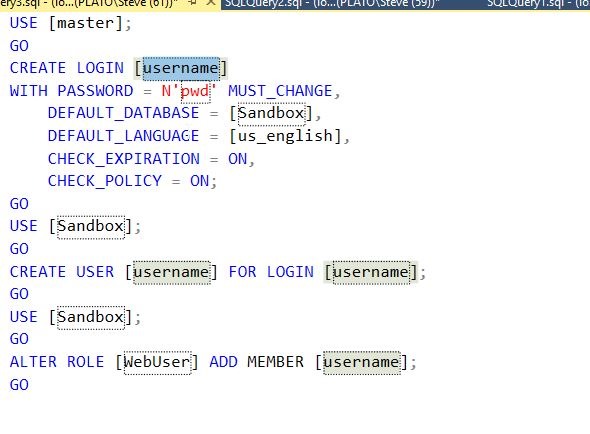
    I see CLOSE, which has “cl” in it, as well as a number of functions. However there are two items (cl and clrp) that have a description to the right. They also have a scroll to the left. These are snippets. If I hit Tab, the highlighted snippet, cl, will be replaced with code. This is shown below.

    2016-09-23 10_19_22-SQLQuery3.sql - (local)_SQL2014.Sandbox (PLATO_Steve (61))_ - Microsoft SQL Serv

    This is all custom code I put into my Snippet Manager. I can now replace these parameters with new values, or just execute this code as is to create a new login and user. Note I typed three things (c, l, TAB) to get lots of code here.

    The Snippet Manager

    To access the Snippet Manager, click the SQL Prompt menu item and look down towards the bottom.

    2016-09-23 10_27_33-SQLQuery3.sql - (local)_SQL2014.Sandbox (PLATO_Steve (61))_ - Microsoft SQL Serv

    This will bring up the Snippet Manager (part of SQL Prompt options in 7+). Note that I have a folder where I store snippets at the top, various snippets below that (with new/edit/delete buttons) and then the snippet code the the highlighted snippet at the bottom of this image.

    2016-09-23 10_27_41-SQL Prompt – Options

    The snippet is highlighted, and if I type, I get completion here. So, I’ll type C-D, and jump to the “cdb” snippet. Note I’ve skipped over cci.

    2016-09-23 10_29_53-SQL Prompt – Options

    I can then edit or delete this snippet. If I edit it, I’ll get a dialog with the snippet and the placeholder parameters listed. This is shown below.

    Note: I’ve customized this code, so it isn’t the SQL Prompt default.

    2016-09-23 10_31_02-SQL Prompt - Edit Snippet

    I can also create new ones. For example, on one of our Redgate VMs, we keep some demo snippets. I’ll can create a new one by clicking “New…”

    2016-09-23 10_32_05-SQL Prompt – Options

    I’ll then get this dialog.

    2016-09-23 10_32_12-SQL Prompt - Create New Snippet

    I can give this a name, a description, and type any code into the code window. I’ve added a few items below.

    2016-09-23 10_35_15-SQL Prompt - Create New Snippet

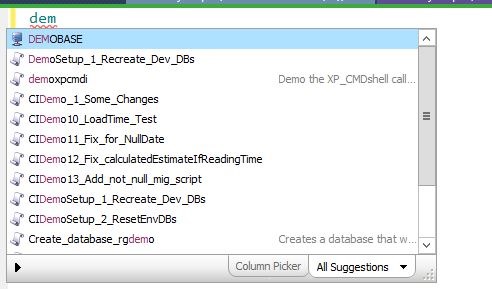
    Now if I save this, close the Snippet Manager, and go back to a Query Window, I can type d-e-m, and see this:

    2016-09-23 10_36_53-SalesDemo-2016-09-07-1117-export-i-fh727xw9 - VMware Workstation

    My new demoxpcmdi appears before the other “demo” snippets. I can also see my description to the right.

    Hopefully, you’ll see the value in SQL Prompt and start using snippets to improve your ability to code quickly and take the hassles and guesswork out of cleanly building SQL Code. You can also read a similar piece I wrote on the Redgate blog.

    Try a SQL Prompt evaluation today and then ask your boss to get you this productivity enhancing tool, or if you’re using the tool, practice using ii the next time you need to insert some data.

  • My SQL Prompt GitHub Repo

    I work for Redgate and write about products. I’ve got a series of SQL Prompt posts here on little things I like. SQL Prompt might be my favorite tool.  SQL Prompt will be yours as well if you give it a try.

    Last year I published an article on SQLServerCentral from Guarav Vohra on using SQL Prompt with a VCS. I really like the article, and had been meaning to get my own SQL Prompt Snippet library into a repo, but kept putting it off.

    If you don’t have a SQL Prompt library, download an eval and give it a try. It’s a fantastic tool and worth your boss buying since it will save you time when coding.

    Finally this year, as I was setting up my 4th new machine in less than a year, and probably my 10th VM with SQL Prompt, I decided to just get myself set up to collaborate with myself. I don’t really have a team for development work now, but I do work across 3 physical machines weekly and perhaps 3-4 VMs as well.

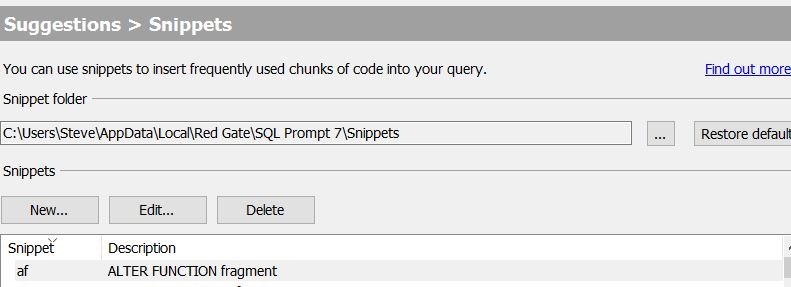
    Here’s how I got my snippets into a repo. First, get the folder where your snippets are stored. Since I’m on Prompt 7.3x, my system might look slightly different. If you open the Snippet Manager, you should see something similar to this:

    2016-10-03 11_30_24-SQL Prompt – Options

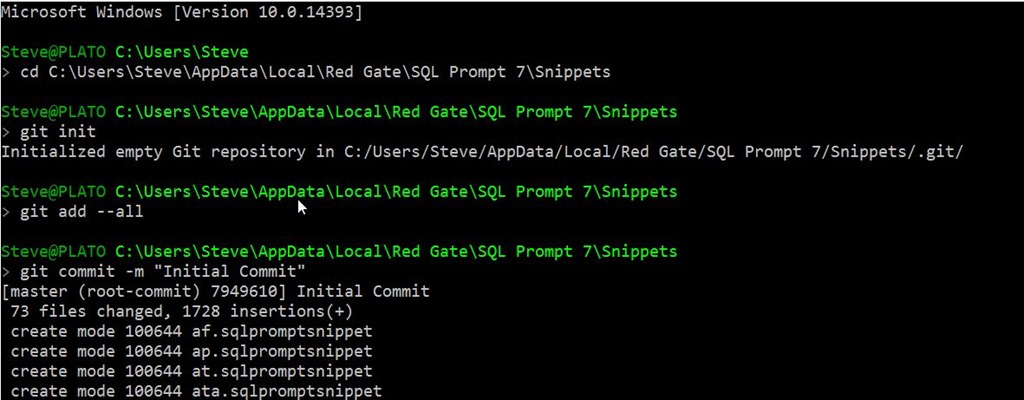
    The important part is the folder. I copied this path and pasted it into a command prompt. In this folder, I then ran a “git init” to create the repo.

    2016-10-03 10_07_44-cmd

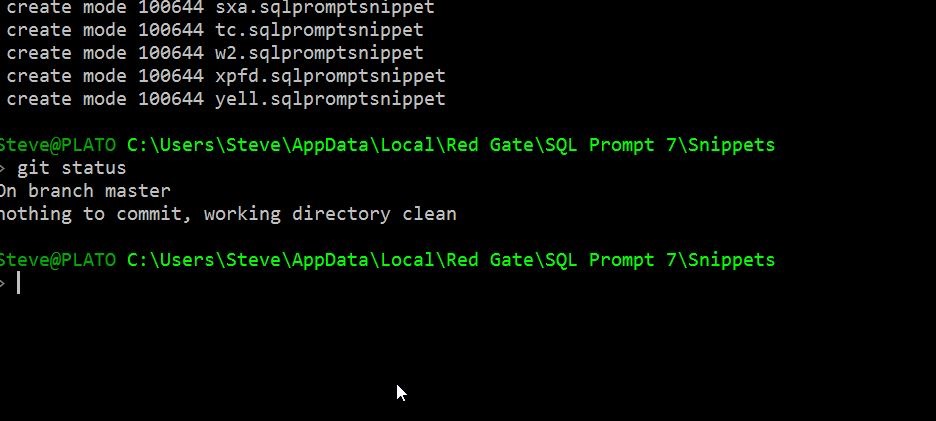
    Once that was done, you can see I did a “git add –all” to add all the existing files and folders. I then made an initial commit, with a basic comment.

    That committed all my current snippets to the repo. However, this is a local repo. This doesn’t help me with sharing across machines. The next step is to get up a repo somewhere I can access when I’m on another machine.

    I chose GitHub since I put lots of work stuff there. I could have done BitBucket, set up my own Git server, etc., but this was simple. I created a new repo on Github.com and then got this:

    2016-10-03 10_08_25-way0utwest_SQLPromptSnippets

    This image appears as one of the options when you create a new repo. I could have cloned this empty repo to my machine, but since I’d already set on up, I wanted to push to github.

    I used this code, and authenticated, to push my code. You can see the push below.

    2016-10-03 10_07_55-cmd

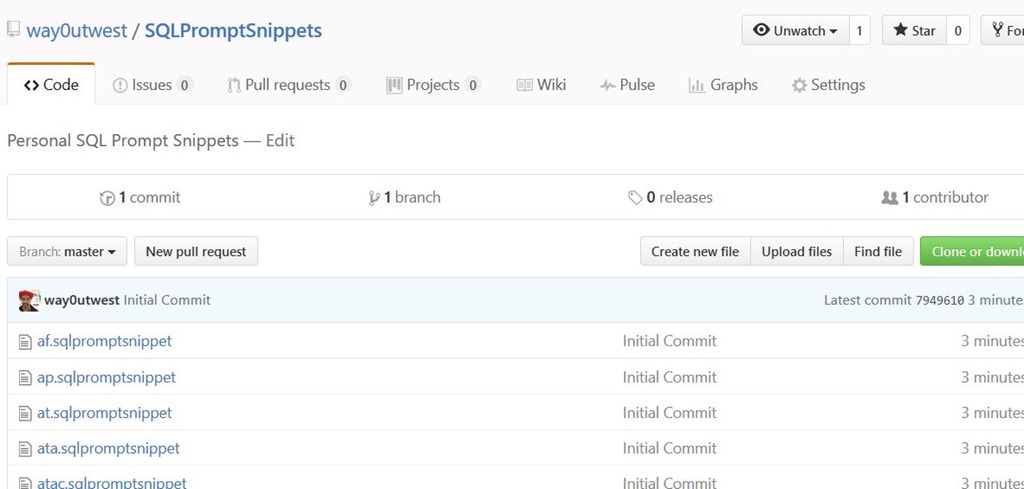
    Now, all my snippets are up on Github.

    2016-10-03 10_10_55-way0utwest_SQLPromptSnippets_ Personal SQL Prompt Snippets

    That has my snippets saved off to the cloud. I tested this by adding a new snippet and then from the command line doing:

    git add –all

    git push

    And my code moved to GitHub.

    The next post will look at pulling this code down to another machine with SQL Prompt.

  • Quick Tips–Using ii in #SQLPrompt

    SQL Prompt has lots of great features that can help you write SQL quicker. However, you’ve got to train yourself to use a few of these and not just start to type with your old habits. This quick tip looks at one of those areas when inserting data into tables.

    There are times I’m building some test data to try a new piece of code. In the past, I’d start typing INSERT. In SQL Prompt, this gives me a selection after beginning the ins, which is how far I get as a quick typist.

    2016-08-22 10_34_02-SQLQuery7.sql - (local)_SQL2014.Sandbox (PLATO_Steve (57))_ - Microsoft SQL Serv

    Effort: 4 keystrokes.

    I’ve tried to write cleaner T-SQL, so I’d add in the INTO, which for me is “i” plus 2 down arrows.

    2016-08-22 10_34_11-SQLQuery7.sql - (local)_SQL2014.Sandbox (PLATO_Steve (57))_ - Microsoft SQL Serv

    Now: 9 keystrokes

    Next, I’d begin with the table, in this case, my Employee table. For me, this means hitting “e” and then the down arrow.

    2016-08-22 10_35_26-ObjectDefinitionBox

    Now: 11 keystrokes

    Hitting Tab at this point would get me the insert statement, with the list of columns and default values. Having the quotes already there, and the data types, can be really handy.

    Total: 12 keystrokes

    That’s a pretty quick way to get the insert statement. However, there’s a better way. If I type “ii”, I get this:

    2016-08-22 10_41_51-ObjectDefinitionBox

    That’s one of the built in snippets for SQL Prompt that builds an insert statement. Now I can add my table.

    2016-08-22 10_42_02-SQLQuery7.sql - (local)_SQL2014.Sandbox (PLATO_Steve (57))_ - Microsoft SQL Serv

    That means in 6 keystrokes I’ve built the same insert statement, and it’s much quicker. As I’ve gotten used to using ii, I can get test data for an algorithm built very quickly.

    Hopefully, you’ll see the value in SQL Prompt and start using snippets to improve your ability to code quickly and take the hassles and guesswork out of cleanly building SQL Code. You can also read a similar piece I wrote on the Redgate blog.

    Try a SQL Prompt evaluation today and then ask your boss to get you this productivity enhancing tool, or if you’re using the tool, practice using ii the next time you need to insert some data.

    I’ve also written a similar piece on the Redgate Blog,  You can see a complete list of tips at Redgate.

    You can also watch this tip in action: