Tag: Redgate

  • Team Purple

    This is Down Tools Week at Redgate Software, and I’m visiting the office. I had hoped to dive into a team and participate, but scheduling and other commitments mean that I’m only working with a team part of the time.

    We had our first standup yesterday. They tried desperately to clip me out of the picture here.

    Photo Sep 05, 11 00 39 AM

    After some morning setup, we walked down to the atrium and gathered in a group, talking about our plans and the work for the afternoon.

    We’re using a kanban board, which will live on the glass wall of our conference room. One of the team is “Doing” work on the “doing” part of the wall, filling in the letters. I don’t see a post-it in the “ToDo” section, so we’re already off track. Hopefully when he gets to “Done”, we’ll get a ticket in that column.

    Photo Sep 05, 11 14 27 AM

    We have a number of people working full time this week on a few items, with support from other teams that we’ll need API help from. The developers are pair programming, in 3 groups, with really three goals for the team. They are thinking to switch a few times so that each group gets to work on each part of our project.

    Photo Sep 05, 10 23 03 AM

    Breaks are frequent since the coffee machine is downstairs.

    Photo Sep 05, 11 14 06 AM

    We have a couple of people helping to coordinate and keep things on track, and luckily we got the conference room with the couches.

    Photo Sep 05, 10 23 07 AM

    I’ve been in and out, helping work on the presentation that we’ll give on Friday. Hopefully we’ll have some real, tangible results to show as well as a talk. So far things look good, with lots of progress on the first integration point with another product.

  • Filtering Objects with DLM Dashboard

    I’ve been looking at some of the features of DLM Dashboard as I go through work building database development pipelines. In this post I wanted to cover one of the lesser used features, filtering objects.

    Note: DLM Dashboard is a free tool from Redgate Software. Use it to monitor the schema of your development, test, and production databases and get notified when changes are made.

    Why would you filter objects if you’re auditing changes? Well, this isn’t really an audit per se. It’s more a tracking mechanism that provides auditing, but sometimes you don’t want to audit everything.

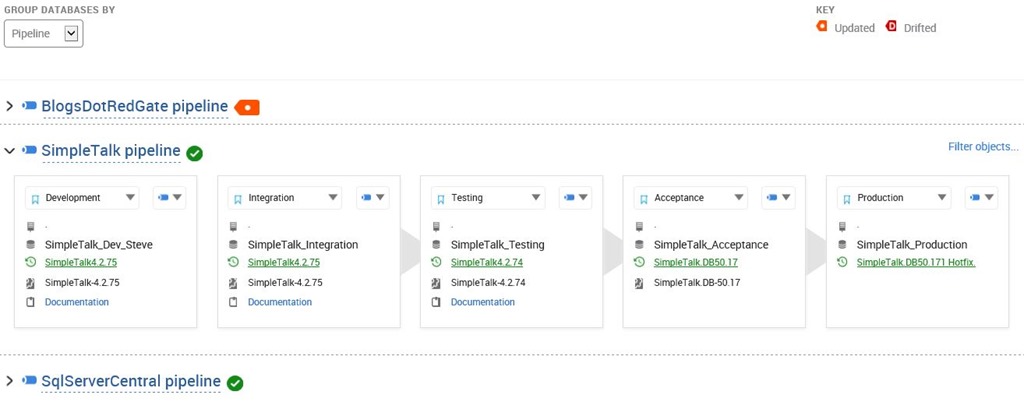
    For example, in my database pipeline, I have these databases:

    2016-08-23 12_04_29-SalesDemo-2015-12-01-1745-export-i-fgod4b6h - VMware Workstation

    As much as I want to track down the changes to code, there are things I don’t want to deal with. For example, I don’t care about users. I (properly) use roles to manage security, and the users in each environment aren’t going to be deployed from one database to the other. More importantly, we don’t need to track them. So let’s stop.

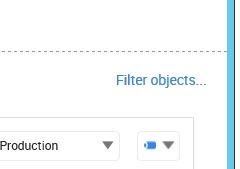
    If I go to the right side of my pipeline, I can see a “Filter objects…” link.

    2016-08-23 12_04_49-SalesDemo-2015-12-01-1745-export-i-fgod4b6h - VMware Workstation

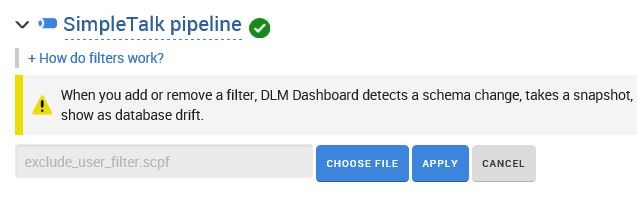
    When I click that, I get this popup on the left, where I can upload a filter file. The filter file is the same format that SQL Compare uses, and indeed, the easiest way to create one is with SQL Compare. I’ll do that.

    2016-08-23 12_05_09-SalesDemo-2015-12-01-1745-export-i-fgod4b6h - VMware Workstation

    I’ll run SQL Compare and then grab two random databases. It doesn’t really matter since I don’t care about the comparison. Here I’m comparing a database to itself.
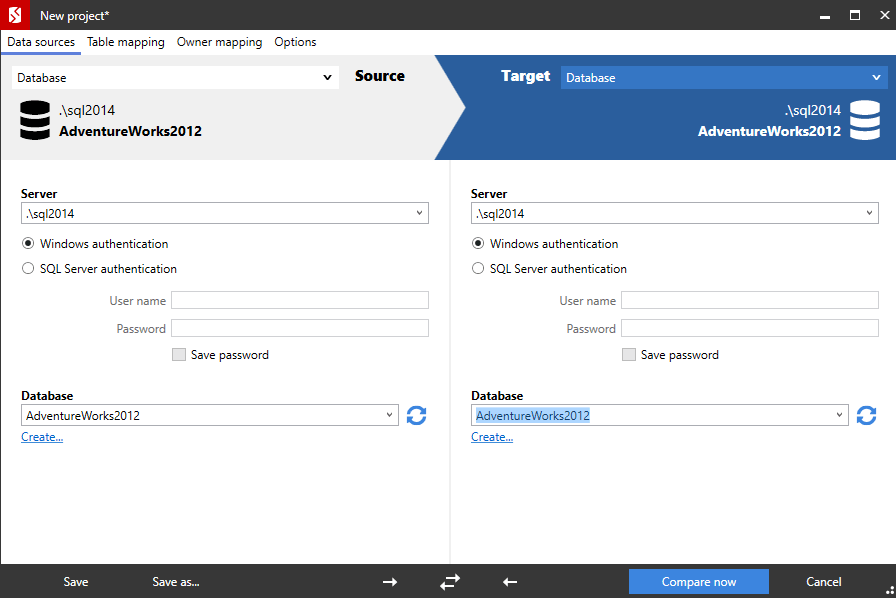
    2016-09-05 08_24_52-New project_

    When the comparison finishes, I can go to the left side and set filters.
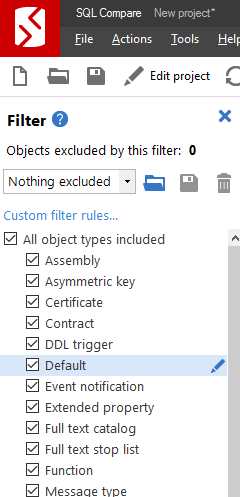
    2016-09-05 08_25_26-SQL Compare - New project_

    There are a lot of choices here, but I’ll simply remove the checkbox on “Users”.

    2016-09-05 08_25_43-SQL Compare - New project_

    Once I do that, I can save the filter file. There’s a save icon near the top of the filter dialog.

    2016-09-05 08_26_00-SQL Compare - New project_

    Clicking this gives me a dialog to enter a file name.
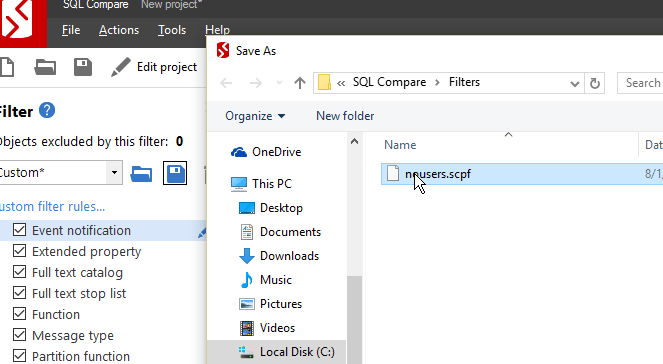
    2016-09-05 08_26_15-Save As

    Now I can just close SQL Compare. By default, these filter files are in %My Documents%\SQL Compare. Once I’ve saved that file, I can see it in the Windows Explorer.

    2016-09-05 08_26_38-C__Users_way0u_Documents_SQL Compare_Filters

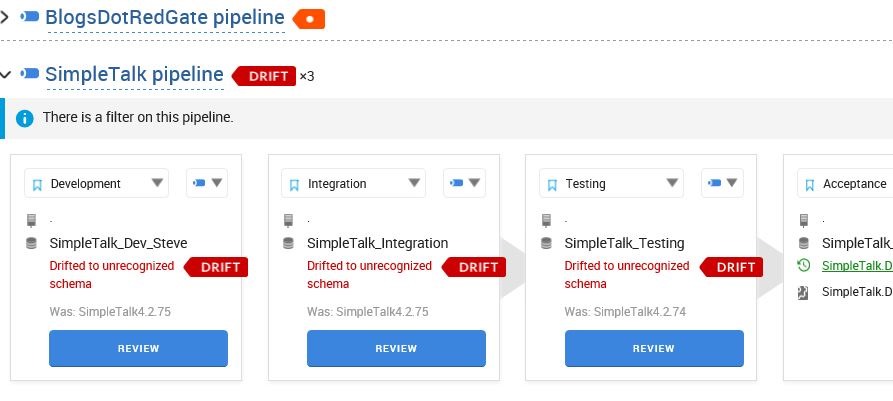
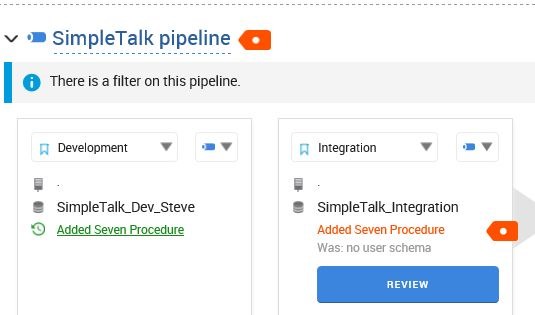
    Now let’s go back to DLM Dashboard. I can browse to my filter file and load it. Once I do that, the filter is applied, and my main page notes that I’ve got a filter applied on that pipeline.

    2016-08-23 12_10_49-SalesDemo-2015-12-01-1745-export-i-fgod4b6h - VMware Workstation

    There is a warning here, that notes the change of a filter is actually a drift detection change. This means the schema is not recognized. The same things happens if you remove a filter.

    2016-08-23 12_13_51-SalesDemo-2015-12-01-1745-export-i-fgod4b6h - VMware Workstation

    If I look at the details, you’ll see the filter has been applied.

    2016-08-23 12_14_07-SalesDemo-2015-12-01-1745-export-i-fgod4b6h - VMware Workstation

    Note: This filter is only applicable to those database in this pipeline.

    Now, let’s test this. Users are ignored in this pipeline, so if I add a new user to the database, it shouldn’t affect the system. Let’s do that.

    2016-08-23 12_13_06-SalesDemo-2015-12-01-1745-export-i-fgod4b6h - VMware Workstation

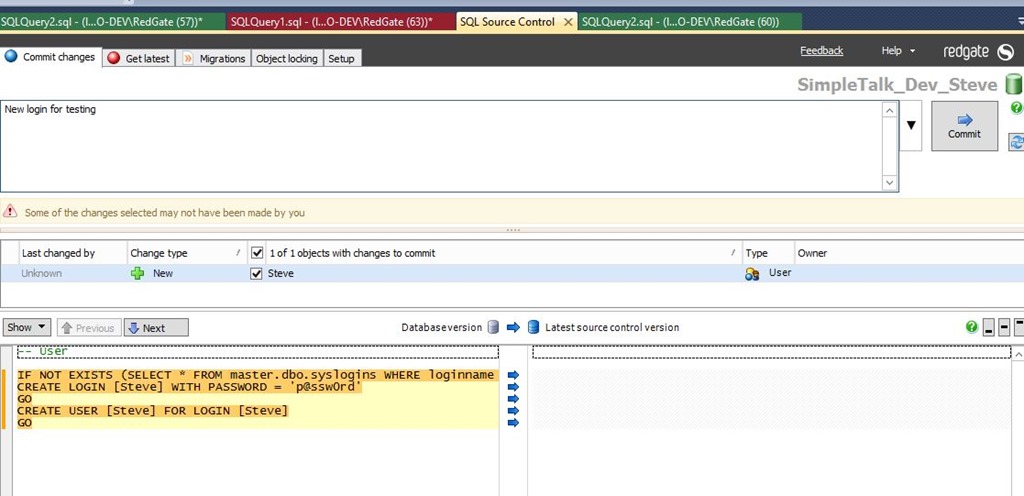
    SQL Source Control detects this (though I could filter it here as well).
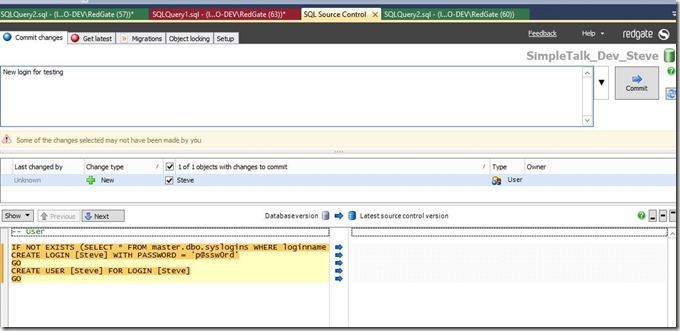
    2016-08-23 12_13_30-SalesDemo-2015-12-01-1745-export-i-fgod4b6h - VMware Workstation

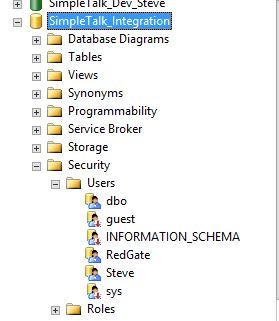
    After I commit the change, it flows through the CI process and gets deployed to the Integration database. I can see the login here:
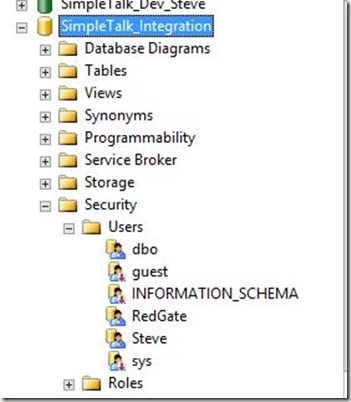
    2016-08-23 12_16_47-SalesDemo-2015-12-01-1745-export-i-fgod4b6h - VMware Workstation

    However, I don’t see drift.

    2016-08-23 12_16_56-SalesDemo-2015-12-01-1745-export-i-fgod4b6h - VMware Workstation

    You’ll have to trust that I named the drifted schema this, but what if I include a few changes? I’ll add a new procedure and commit it to my VCS. The CI process runs and this is deployed to integration. Now I can see a change in Integration.

    2016-08-23 12_20_08-SalesDemo-2015-12-01-1745-export-i-fgod4b6h - VMware Workstation

    This is the same schema I named in Development (I know, I should use numbering). It’s marked as a change from the CI process, and I need to acknowledge that.

    The details of the change:

    2016-08-23 12_20_18-SalesDemo-2015-12-01-1745-export-i-fgod4b6h - VMware Workstation

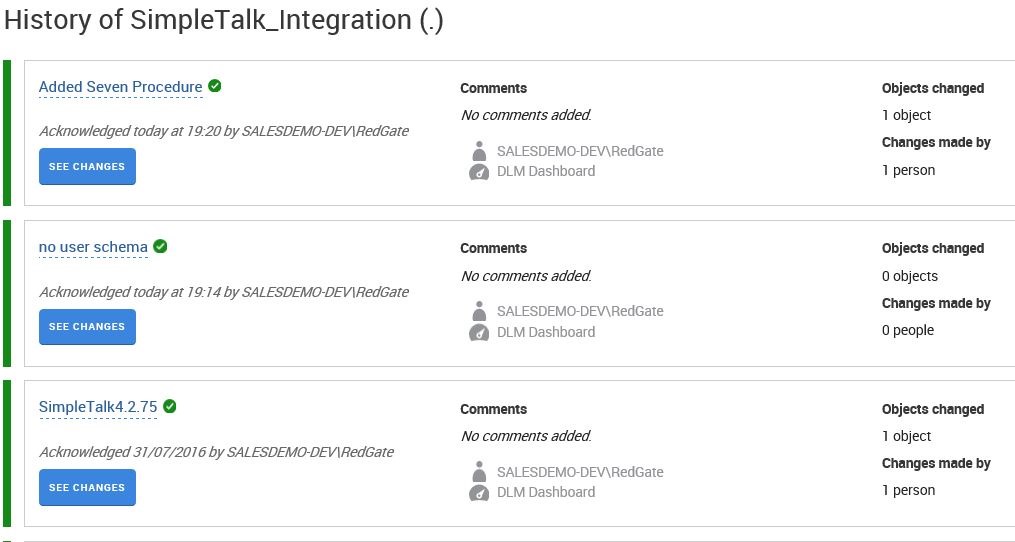
    The history, after I’ve Acknowledged the changes

    2016-08-23 12_20_48-SalesDemo-2015-12-01-1745-export-i-fgod4b6h - VMware Workstation

    Filtering Helps

    When you’ve got environment specific items, or things that you want to exclude from tracking, filtering works. These might be schemas controlled by other groups or a third party. This might be security information. This could be anything.

    By using a filter, you can reduce the noise. By deploying these filters throughout your DLM process, in SQL Source Control, in DLM Automation, in DLM Dashboard, you can limit the extra information that isn’t necessary for you to view.

    Getting Started

    You can start using DLM Dashboard for free today. Download a copy, at no charge, and monitor up to 50 databases from a single installation. Or install multiple instances to watch more databases.

    I think you’ll find DLM Dashboard is a handy tool for tracking those development efforts you want to be sure are deployed completely to downstream environments, while ignoring those that aren’t important.
     

  • Moving Fast at Redgate

    One of the pushes at Redgate Software over the last year or so is to move faster. We aim to develop software quicker and get the changes and improvements into the hands of our customers quicker. A new feature doesn’t help anyone if it sits inside of a VCS, undeployed, for months. Customers and clients need to see the software changes.

    There are various ways to achieve this. The SQL Prompt team manages themselves, and being a small group, they have been successful at not only writing code quickly, but releasing often. In fact, they’ve released code to customers over 70 times in the last year. As a result, a few other development groups are looking to work in a similar, lightweight, rapid development manner.

    However, that’s not an appropriate process for all developers. In fact, in most companies I’ve worked in, there is always someone that needs to manage and report on milestones and efforts to build software with some sort of plan. In addition, most products have a wider scope than something like SQL Prompt, which means more developers, more coordination required, and everyone must deal with more friction throughout the process.

    One of our project managers wrote an interesting piece on how he worked to get the SQL Monitor team, one of our larger pieces of software, to meet their goals, and also move to a more rapid development and deployment process. It’s a look at the changes made in process and the adaptations to reality that occurred last year. I found it fascinating to read since I’d see the team dramatically improve the product in a fairly short period of time.

    As with most of the stories about successful software development teams, buy in and support from management, especially project management is important. Without your leadership wanting and being willing to change, little will. Developers have to believe as well, but I suspect that if management truly supports improvement and is willing to change the way they work with developers, the people that write code are usually willing to go along for the ride

    Steve Jones

    The Voice of the DBA Podcast

    Listen to the MP3 Audio ( 2.9MB) podcast or subscribe to the feed at iTunes and Mevio .

  • Did My Dev Changes Get to Production?

    One of the things that people don’t think about often is whether the changes made in development actually get to production. Usually this is because most changes go, and unless it’s a big change that causes a problem for a large number of customers (or a large customer), we often just deal with mistakes as we can.

    That’s not ideal, and certainly not what I’d like to see as a developer. I’d like to get changes to customers quickly enough that I get feedback. In this post I want to look at how DLM Dashboard can help here.

    Tracking Changes

    There’s a disconnect in traditional software development. Developers write code to meet some spec, and often drop that into some storage spot, hopefully a Version Control System (VCS) and eventually that code gets deployed to production. Whether a web site, client local app, mobile, database, etc., that code tends to move in batches.

    Developers typically haven’t been concerned about the overall packaging of all the code, mostly because code gets pulled from multiple people, so it’s hard to track this. We depend on project manager or some deployment person to ensure all changes get deployed.

    For the database, because people often manually build, or at least edit, scripts, I find there are more changes for a particular line of code to get left out. That can be bad, and maybe really bad if you deploy the database in advance, such as a day or week before other code.

    How do we track changes?

    How can we track changes? In a VCS things are easy to see. However, we really need to see a bundle of changes. Having a version of the database, not just the latest version, becomes important. Let’s look at an example.

    I’ve made some changes in development, and my CI process pushed them to my integration environment. This shows my current database pipeline like the image below:

    2016-07-30 17_03_38-SalesDemo-2015-12-01-1745-export-i-fgod4b6h - VMware Workstation

    In this case, I’ll get a close-up of the details, but I’ve moved my Integration environment from a database v of 4.2.70 to 4.2.71. This is from a new stored procedure, as you can see below.

    2016-07-30 17_04_05-SalesDemo-2015-12-01-1745-export-i-fgod4b6h - VMware Workstation

    I can see the details of the procedure, as I’ve shown here.

    2016-07-30 17_05_30-SalesDemo-2015-12-01-1745-export-i-fgod4b6h - VMware Workstation

    I typically might not look at each CI build, though perhaps as a DBA I’d go through a series of changes across some period of time. That’s a post for another day. In this case, I usually would approve all the changes occurring in Integration environments. Eventually I’ll end up with quite a few changes. I’ll make a few more, with a few more commits and up the version a few numbers after marking this version as reviewed.

    I’ve made four separate commits, and now see this in my dashboard.

    2016-07-30 17_13_23-SalesDemo-2015-12-01-1745-export-i-fgod4b6h - VMware Workstation

    As you can see, the CI process has updated the integration database to 4.2.74 from 4.2.70. However, as I dig in, I can see details. The “Review” button only gets me the changes from the most recent commit.

    2016-07-30 17_14_22-SalesDemo-2015-12-01-1745-export-i-fgod4b6h - VMware Workstation

    However, I can click “See Schema History” at the top and then click the particular version to see all the changes. Here are the first two.

    2016-07-30 17_16_13-SalesDemo-2015-12-01-1745-export-i-fgod4b6h - VMware Workstation

    I don’t care about these changes by themselves. However, I do want to be sure that the appropriate changes have made it through to other environments, especially production. Let’s deploy some changes to the Test environment. Easy for me in Octopus Deploy. Let’s deploy 4.3.74.

    2016-07-30 17_17_31-SalesDemo-2015-12-01-1745-export-i-fgod4b6h - VMware Workstation

    Once Octopus Deploy does it’s thing, I should see the same changes in the Testing environment. However, when I look at the SimpleTalk_Test database, how can I tell the changes are correct? It’s not easy.

    2016-07-30 17_32_20-SalesDemo-2015-12-01-1745-export-i-fgod4b6h - VMware Workstation

    There are a lot of objects in here, and comparing them piece by piece is a pain. Certainly I could use something like SQL Compare, but do you really want to have to double check your deployments by running another tool? Will you remember to do this?  What if development has moved on, as shown below?

    2016-07-30 17_34_52-SalesDemo-2015-12-01-1745-export-i-fgod4b6h - VMware Workstation

    To run a comparison, I’d now need to track back versions in my VCS.

    However, if you look at the image above, you’ll see that I know what the state of every object in my test environment is. It’s at version 4.2.74. That’s the versions I had in Integration above, and the version I deployed to Test.

    Verification

    If a developer isn’t sure why something doesn’t work in production, or test, or anywhere else, they can look at the changes that were actually deployed, and reference back to the state they worked with in development. In fact, they could even create a new database, and trace back the exact version of all changes in the VCS or CI server, and actually try to reproduce the issues.

    Above all, a developer can tell quickly that if version 73 of the database is deployed, but the code expects version 74, there’s one thing that might need to be checked first: the changes made to the database in v74.

    Hopefully you’ll see there is value in using DLM Dashboard as a developer to ensure the work you complete gets deployed correctly to later environments. If you don’t have an automated pipeline like I do, and DBAs or developers create manual scripts, it’s even more likely DLM Dashboard can help ensure all the correct code is deployed.

    DLM Dashboard is free, and each instance works for up to 50 databases, so download it to day and give it a try.

    Download DLM Dashboard