Tag: Redgate

  • What’s the little popup window in #SQLPrompt?

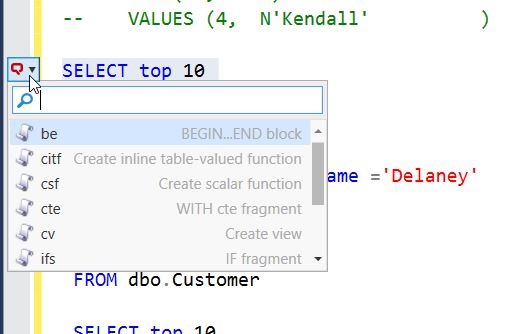
    Awhile back I was working in SSMS and saw this window.
    2016-11-21 16_25_51-SQLQuery1.sql - localhost_SQL2016.sandbox (PLATO_Steve (66)) - Microsoft SQL Ser

    It threw me off since I was trying to write some code and hadn’t expected it. I clicked Escape, Enter, a few things and was getting frustrated when it disappeared.

    I ignored it until I saw the window again and then investigated. I’m glad I did because I was able to answer a question from someone else recently that didn’t know how to get rid of it.

    Tl;Dr CTRL will make it appear or disappear.

    When I am working with SQL Prompt, it’s in the background. I usually just depend on it to pop up some code or give me information. This means when I have a cursor, there’s no sign of SQL Prompt. Notice this below.

    2016-11-21 16_27_38-SQLQuery1.sql - localhost_SQL2016.sandbox (PLATO_Steve (66))_ - Microsoft SQL Se

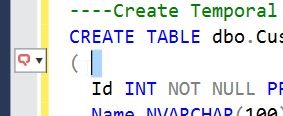
    As soon as I select an area, as little as one space, I get a small SQL Prompt window in the left sidebar. As you can see in the image below, this has a down arrow on it.
    2016-11-21 16_27_44-SQLQuery1.sql - localhost_SQL2016.sandbox (PLATO_Steve (66))_ - Microsoft SQL Se

    I can click on this, but being a keyboard person whenever possible, I accidently discovered that CTRL will expand this, as shown below.

    2016-11-21 16_29_34-SQLQuery1.sql - localhost_SQL2016.sandbox (PLATO_Steve (66))_ - Microsoft SQL Se

    What threw me initially is that not all my snippets are in this list. Only those that have the $SELECTEDTEXT$ token inside them. These are handy snippets that I want to use to encapsulate text.

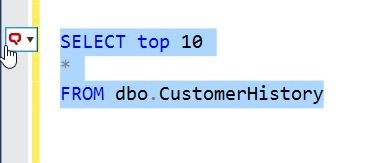
    For example, let me surround a simple query.
    2016-11-21 16_32_00-SQLQuery1.sql - localhost_SQL2016.sandbox (PLATO_Steve (66))_ - Microsoft SQL Se

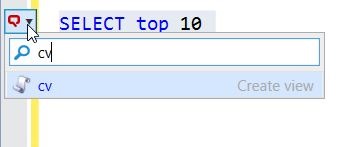
    I see the SQL Prompt icon and can click CTRL to open the list. If I type “cv”, I get the Create View snippet.
    2016-11-21 16_32_11-SQLQuery1.sql - localhost_SQL2016.sandbox (PLATO_Steve (66))_ - Microsoft SQL Se

    Once I then hit tab, I get the snippet with my query inside.

    2016-11-21 16_32_22-SQLQuery1.sql - localhost_SQL2016.sandbox (PLATO_Steve (66))_ - Microsoft SQL Se

    This is especially handy with things like TRY..CATCH, where I can write the TRY part and then quickly surround it with the structure.

    Once you get used to this, and learn not to habitually tap the CTRL key (as I do), you’ll find this list of snippets handy. And if you don’t like them, just tap CTRL and get rid of the list.

  • Validating a Set of Database Scripts using DLM Automation

    The basis of all the DLM Automation from Redgate is a series of PowerShell cmdlets. They might look intimidating or confusing, but they aren’t. This is part of a series of posts that examine how you use each one.

    Previously I looked at New-DatabaseConnection. In this post, I’ll go through Invoke-DlmDatabaseSchemaValidation. This is the cmdlet that one uses to check if your set of scripts will actually produce a database. This is equivalent to the “build” plugin that exists for a few platforms.

    The way this works is that the location of the database scripts is passed to this object through a pipe. This will then validate the scripts on LocalDB with a build of the database and the static data scripts. If this works, then an output object is returned.

    A Quick Build

    Let’s see how this works. I have a valid database folder on my computer. This has all my object code in subfolders, including static data in the data folder. I want to validate this folder.

    2016-11-22 13_56_30-ScriptFolder

    I can do that with this code. I’ll pass the location of the scripts into the cmdlet.

    $output = “e:\Documents\GitHub\SimpleTalk_Devlopment\ScriptFolder” | Invoke-DlmDatabaseSchemaValidation

    When I do this, a LocalDB instance is created and the code validated. I get a message to that effect. The output variable has the confirmation message.

    2016-11-22 14_06_39-powershell

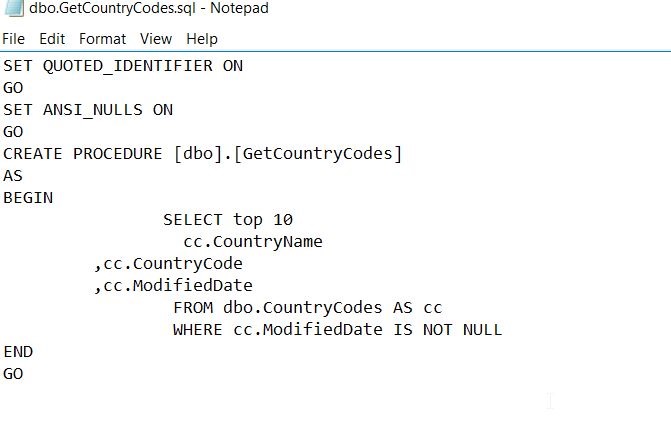
    This means the code is valid. However, does this really work? Let’s edit some code and see. I’ll change the code for a procedure. Here’s the original GetCountryCodes.sql.
    2016-11-22 14_08_29-dbo.GetCountryCodes.sql - Notepad

    Let’s change this to top 100 and add an ALTER, but I’ll get an extra comma in there. This is no longer valid SQL.

    2016-11-22 14_10_45-dbo.GetCountryCodes.sql - Notepad

    Let’s re-run the build. We now see this has failed with an error, and the file is the one I edited:

    2016-11-22 14_11_41-powershell

    This is a quick look at builds, but there is more that can be done. You can specify the server and database to be used, combining this with the New-DlmDatabaseConnection I previously wrote about.

    I urge you to experiment with this cmdlet if you want to perform your own builds.

  • Getting Team City working with BitBucket

    As a part of building a CI/CD home lab, I set up TeamCity in the past. I plan on using this for multiple projects, and in fact, I’d built a basic Hello, World C# application as my first build.

    Now it is time to work on something more complex. As a part of my SQL Server Builds project, I decided to host the Ready Roll build here. That means connecting TeamCity to BitBucket.

    I had no idea how this might work, and some searching showed that this needed a plugin prior to v10, but the capability was built-in after that. I’ve been meaning to upgrade, so I did that first. As you can see, I have my TC v10 system, and when I go to create a new project, BitBucket is a first class citizen.

    2016-11-15 11_57_33-Projects — TeamCity

    Once I picked this, the system has me authenticate with Bitbucket (I won’t show this) and then get a key and secret that I paste into the dialog. This is fairly easy to follow, but for security purposes I’ll skip that. Once I’m authenticated, I can see my repos:

    2016-11-15 14_21_23-Create Project From Bitbucket Cloud — TeamCity

    I pick this repo and a project is created. In fact, TeamCity detects that I’ve got a VS solution in the repo, so it sets that as my build config.

    2016-11-15 12_02_58-Build Configuration — TeamCity

    That’s pretty cool, and I’m hooked up. Or am I? Let’s see. I’ll manually run a build.

    2016-11-15 12_43_56-Sqlserverbuilds RR __ Build _ #1 (15 Nov 16 12_36) _ Overview — TeamCity

    It doesn’t work. However, if you read the error, you’ll realize that the ReadyRoll project type doesn’t seem to work. That’s because I’m building on this server, which is separate from my development machine. I need to install the ReadyRoll binaries there.

    A quick download from Redgate, and I install ReadyRoll. Now when I click “run”, I get this:

    2016-11-15 12_44_05-Sqlserverbuilds RR __ Build _ Overview — TeamCity

    Success.

    There’s more to getting setup, but this is a quick look at getting TeamCity hooked up to BitBucket.

    If you want to try ReadyRoll, grab an eval.

  • DLM Automation–Making a Database Connection

    One of the things I’ve been wanting to do is dig more into the command line automation cmdlets from the Redgate DLM Automation suite. While there are plugins for many build and release systems, I should be able to customize, or fall back, to the command line if necessary.

    Plus, this allows me to get a better feel for what’s happening at each step.

    This post looks at the basics of making a connection to a database. Note that this is documented on the DLM Automation 2 Cmdlet Reference page.

    New-Database Connection

    When I started working with the connections, I used the New-DatabaseConnection cmdlet. However, when I run this now, I get this:

    2016-10-14 15_32_04-DLM Automation–Making a Database Connection - Open Live Writer

    That’s fine, as my call to the new cmdlet works.

    2016-10-14 15_32_34-cmd - powershell

    Do I know what’s happening here? I should investigate further.

    First, if I’ve run this, what does it do? Not much, apparently. If I run an Extended Events session looking for a connection, I don’t get one. Let’s try a new command, this time using a name and password.

    2016-10-14 15_37_53-cmd - powershell

    That’s an invalid password for my instance (as it should be on every instance in the world). However, I don’t get an error. No connection was made. In this case, the cmdlet is storing off the connection credentials that will be used. If I don’t provide the user/password, then a trusted (Windows auth), connection is assumed.

    Can I now test this? Sure, I’ll use the Test-DLMDatabaseConnection to make a connection.

    2016-10-14 15_39_37-cmd - powershell

    This fails. That’s good to know. Now I can use this to actually determine if I target database is alive before I continue processing. My preferred method here would be to wrap this up in some error handling. For example, I can use a try..catch structure in PoSh. I’ll switch to the ISE to make this cleaner. Here’s the code

    try
    {
    Test-DlmDatabaseConnection -$test -ErrorAction Stop
    } 
    catch
    {
    Write-Host "error"
    }

    In the ISE:

    2016-10-14 16_22_45-Windows PowerShell ISE

    I can also get the error details from the current object ($_). Note, I’m not a PoSh expert, so if there are better ways, let me know.

    2016-10-14 16_36_48-Windows PowerShell ISE

    I can also pass in some common parameters, like –ErrorAction and –ErrorVariable. Then I can use these to decide whether or not to continue. In my case, I’ll just write a message. Here’s my code:

    $testconn = New-DlmDatabaseConnection -ServerInstance ".\SQL2014" -Database "st_integration" -U "sa" -Password "test"
    try
    {
    Test-DlmDatabaseConnection $testconn -ErrorAction SilentlyContinue -ErrorVariable ErrorHolder;
    } 
    catch
    {
    Write-Host $_.Exception.Message
    };
    
    if ($ErrorHolder)
    {
    Write-Host($ErrorHolder)
    }
    else
    {
    Write-Host("Everything works");
    }

    That will give me this:

    2016-10-14 16_41_08-Windows PowerShell ISE

    If I remove the user and password parameters, I get this:

    2016-10-14 16_41_29-Windows PowerShell ISE

    You didn’t think I’d publish the real sa password, did you? Of course not. If I change the code to the right password, things connect.

    Checking the Object

    What if I just want to check the object? Well, there are properties associated with the object. For example, if I use a simple variable to assign to the object, I can see some properties. If I just type the variable name, $testconn, I get these properties:

    • ServerInstance
    • Database
    • SQLServerCredential
    • ConnectionString
    • Description

    You can see these returned in a test session.

    2016-11-14 16_58_29-cmd - powershell

    Other Options

    I have other parameters I can use with my connection, or rather, in place of my connection object. I can use a connection string, with all of the parameters that are valid there. For example:

    2016-10-14 16_53_17-Windows PowerShell ISE

    If I enter the correct password, I get this:

    2016-10-14 16_54_09-Windows PowerShell ISE

    My connection string can contain all of the items I might normally use: ApplicationIntent, Encrypt, NetworkLibrary, etc. A full list of parameters is at: https://www.connectionstrings.com/all-sql-server-connection-string-keywords/

    The New-DlmDatabaseConnection object outputs a RedGate.DLMAutomation.Compare.SchemaSources.DatabaseConnection object, which is the input to quite a few other of the cmdlets. While not complex, it is worth understanding how to use this cmdlet, which is the basis for determining from which source or two which target you will be moving database changes.

    In another post, I’ll start to bind this cmdlet with others and actually perform some database deployment automation work.