TDM was based on some existing technology, and incorporated a product that we were already selling, but it was an evolution based on our knowledge and experience that helps organizations build better software. We’ve had these products for a number of years:
data masking – Data Masker for SQL Server and Oracle
data generation – SQL Data Generator for SQL Server
classification – SQL Data Catalog for SQL Server
However, we didn’t want to just rebrand these, but rather attack the problem space in a new way. We especially wanted to be sure that our products would work across different database platforms.
The result is Test Data Manager, which includes these capabilities:
classification
subsetting
masking
data generation
database virtualization/cloning
Of these areas, only the last one (virtualization/cloning) uses an existing product, Redgate Clone. The rest of these are CLI driven brand new products designed to be put together to meet your needs. I’m particularly excited by subsetting (I wrote about this recently), as I think this is a boon to agility.
If you want to shift-left, empower your developers, and build better quality database software faster, check out Test Data Manager and get a demo scheduled.
I had a customer question whether Flyway Desktop (FWD) would cause problems if developers were adding columns into the middle of tables. It’s a valid concern, and this post shows that FWD doesn’t cause you issues, even if your developers do silly things.
Unless they want to do silly things.
I’ve been working with Flyway Desktop for work more and more as we transition from older SSMS plugins to the standalone tool. This series looks at some tips I’ve gotten along the way.
The Scenario
Imagine that you have a table with a few columns, like this one.
CREATE TABLE Product
( ProductID INT NOT NULL CONSTRAINT ProductPK PRIMARY KEY
, ProductName VARCHAR(50)
, ProductDesc VARCHAR(1000)
, ProductSize CHAR(1)
, ProductWeight INT
, ProductColor VARCHAR(20)
, StatusID int
)
GO
This table has the same structure in dev and prod, and I need to add a new column. We need a quantity per package as we have new products where there are multiple items in a box, so there is a need to add ProductQtyPerUnit to the table.
I decide that this needs to be before StatusID since it’s related to the other product description items, and I want them to be together. This is a good concept when designing entities, but it’s not worth doing when we have millions of rows in this table in production.
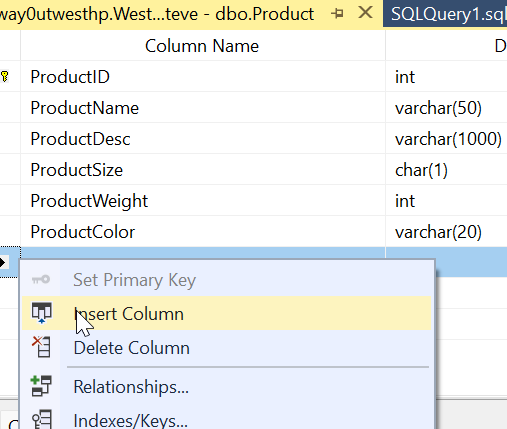
In the SSMS designer, I do this. I right click my table, click Design, the right click before StatusID and select Insert Column:
I then design my new column. Things look good.
Most developers would just save this change. However, if I were to click the Generate Change Script button, I’d see this (I leave out the SET stuff at the top).
BEGIN TRANSACTION
GO
CREATE TABLE dbo.Tmp_Product
     (
     ProductID int NOT NULL,
     ProductName varchar(50) NULL,
     ProductDesc varchar(1000) NULL,
     ProductSize char(1) NULL,
     ProductWeight int NULL,
     ProductColor varchar(20) NULL,
     ProductQtyPerUnit smallint NULL,
     StatusID int NULL
     )  ON [PRIMARY]
GO
ALTER TABLE dbo.Tmp_Product SET (LOCK_ESCALATION = TABLE)
GO
IF EXISTS(SELECT * FROM dbo.Product)
      EXEC('INSERT INTO dbo.Tmp_Product (ProductID, ProductName, ProductDesc, ProductSize, ProductWeight, ProductColor, StatusID)
         SELECT ProductID, ProductName, ProductDesc, ProductSize, ProductWeight, ProductColor, StatusID FROM dbo.Product WITH (HOLDLOCK TABLOCKX)')
GO
DROP TABLE dbo.Product
GO
EXECUTE sp_rename N'dbo.Tmp_Product', N'Product', 'OBJECT'
GO
ALTER TABLE dbo.Product ADD CONSTRAINT
     ProductPK PRIMARY KEY CLUSTERED
     (
     ProductID
     ) WITH( STATISTICS_NORECOMPUTE = OFF, IGNORE_DUP_KEY = OFF, ALLOW_ROW_LOCKS = ON, ALLOW_PAGE_LOCKS = ON) ON [PRIMARY]
GO
COMMIT
This script essentially creates a new table, copies over data, then drops the old table before a rename. On a large table, this could acquire a number of locks and potentially cause errors or disruptions for clients. If I want deployments at any time, without causing downtime, this isn’t the script I want to run.
Flyway and Column Changes
If I do this in dev, assuming I don’t have millions of rows of data, I might not notice this. What about detecting this change in Flyway? Let’s see.
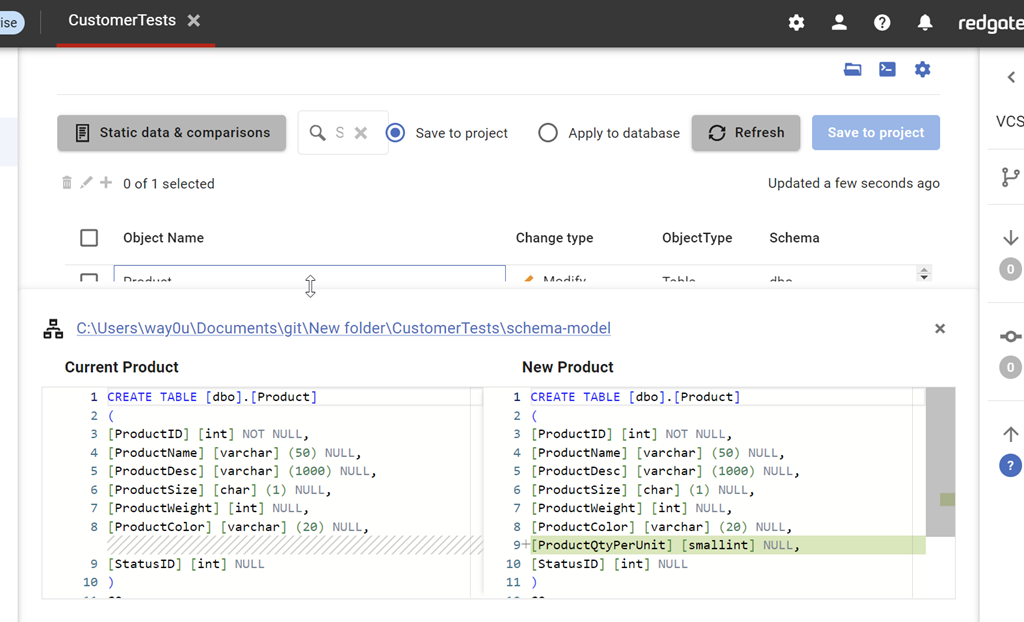
I have a Flyway project open in Flyway desktop and I’ll refresh the changes. As you can see, we detect this new column. As you can see, we detect the change, showing the insertion of the column into the middle of the table.
I can save this and then generate a migration script for this change. When I do this, I see this script. Notice that this script is unlike the SSMS script and just adds a column to the table.
This is the same behavior in SQL Compare. By default, we don’t want to rebuild tables and move data. We want to just add the new change to the system.
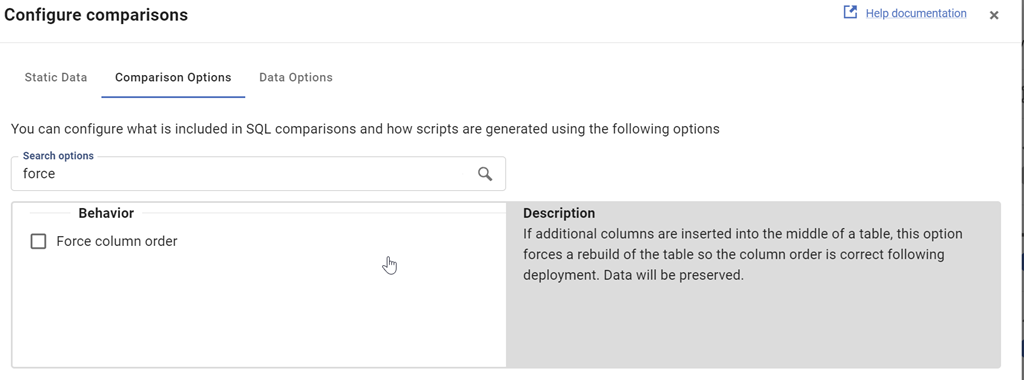
This is controlled by the Force Column Order option, which is off by default. We can see this when I look at the comparison options for the project.
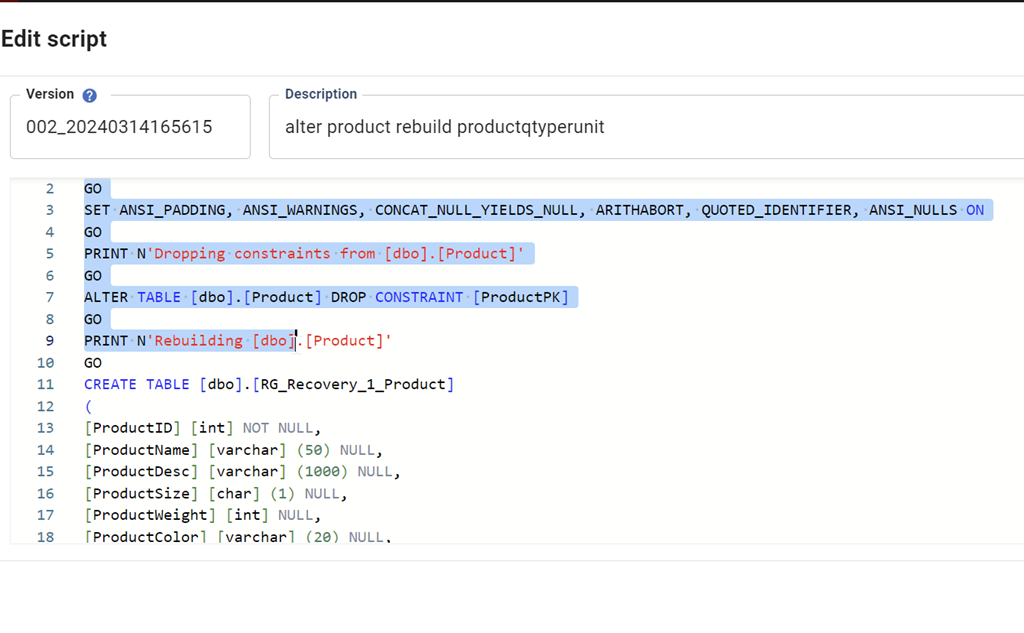
I can check this and then re-generate the migration script. When I do that, we see this script. This one
The entire script is here:
PRINT N'Dropping constraints from [dbo].[Product]'
GO

ALTER TABLE [dbo].[Product] DROP CONSTRAINT [ProductPK]

GO

PRINT N'Rebuilding [dbo].[Product]'

GO

CREATE TABLE [dbo].[RG_Recovery_1_Product]

(

[ProductID] [int] NOT NULL,

[ProductName] [varchar] (50) NULL,

[ProductDesc] [varchar] (1000) NULL,

[ProductSize] [char] (1) NULL,

[ProductWeight] [int] NULL,

[ProductColor] [varchar] (20) NULL,

[ProductQtyPerUnit] [smallint] NULL,

[StatusID] [int] NULL

)

GO

INSERT INTO [dbo].[RG_Recovery_1_Product]([ProductID], [ProductName], [ProductDesc], [ProductSize], [ProductWeight], [ProductColor], [StatusID]) SELECT [ProductID], [ProductName], [ProductDesc], [ProductSize], [ProductWeight], [ProductColor], [StatusID] FROM [dbo].[Product]

GO

DROP TABLE [dbo].[Product]

GO

EXEC sp_rename N'[dbo].[RG_Recovery_1_Product]', N'Product', N'OBJECT'

GO

PRINT N'Creating primary key [ProductPK] on [dbo].[Product]'

GO

ALTER TABLE [dbo].[Product] ADD CONSTRAINT [ProductPK] PRIMARY KEY CLUSTERED ([ProductID])

GO
By default, Flyway isn’t going to try and rebuild your tables if developers add columns into the middle of a table. This is the recommended and preferred way of dealing with these changes. If your developers complain, then discuss the fact that we don’t need to worry about the physical order of columns in a table. If you want columns returned in a different order, do that in a query (and don’t use SELECT *).
If you really need tables rebuilt, you can check the option, but you shouldn’t do that.
Try Flyway Enterprise out today. If you haven’t worked with Flyway Desktop, download it today. There is a free version that organizes migrations and paid versions with many more features.
If you use Flyway Community, download Flyway Desktop and get a GUI for your migration scripts.
The title of our keynote session at the Redgate Summit in Atlanta is Navigating the Database Landscape, and I’ll be delivering part of the talk, along with Grant Fritchey and Kathi Kellenberger today, Mar 13. This is based on the State of Database Landscape Survey results, as well as our experience working with customers and implementing DevOps solutions over the last decade. The talk was mostly written by others, but as I rehearsed the session, I found myself wondering about how I’d approach my job if we returned to being a DBA or developer.
When working in technology today, there are many challenges outside of actually learning about any of the particular products, languages, platforms, etc. We have the politics of working with others, ongoing work, emergency requests outside of channels, random questions asked by others, code reviews, and probably a few other things I’m forgetting, all outside of learning any new skills. While I consider myself a lifelong learner, I know that finding time (and energy) to acquire the basics of any new technology is challenging.
At the same time, while working in any size estate, it seems that someone always wants to add a new tool, platform, language, service, or database to the environment. It’s great we have choices, but it seems like sometimes every technologist wants to just use something new rather than work within the areas we have experience. Early in my career, it was rare to find more than 1 or 2 database platforms in a company. Now we have lots, often seemingly just added because one person watched a talk or video and thinks it would solve all our problems in this particular instance.
Working in an enterprise of any size likely means there are multiple database platforms in use. While you might only be in charge of 1 or 2 today, who knows when someone will call you as the “database expert” and expect you to configure Redis or troubleshoot ElasticSearch. I’ve had friends in this position, and I’ve had people come ask me to figure out MySQL, DB2, BTrieve, Lucerne, and more in my career. It’s a challenge, and it’s also stressful because I want to do a good job, even if I don’t know what I’m doing. Fortunately Internet search, contacts among friends, and more have helped me usually solve an issue.
The modern database landscape is likely to be more complex than ever, and with the advent of cloud services, we find there are lots of options that anyone in an organization might choose to use in production, and then ask you to support them. Our jobs are increasingly complex, both from the depth of things we need to know about a database to the breadth of different products and services that might enter our realm of responsibility. Navigating all this is a challenge, but if you rise to the occasion, there can be a lot of rewards.
This week is the first Redgate Summit of 2024. It’s Wednesday, in Atlanta and you can register and join me if you’re in the area.
These are full day conferences, with multiple tracks, similar to the SQL in the City conferences we used to run. With our move to supporting database professionals on any platform, anywhere, we’ve rebranded these as Redgate Summits. Come join me at one of the following dates, if you are anywhere in the area:
I’m not sure if we’ll be doing Redgate Summits in AUS this year, but I’ll be in Brisbane, Sydney, and Melbourne in May.
The Atlanta schedule is packed, with especially for Grant and me, but we’ve got engineers, Friends of Redgate, and other experts coming. We’ve got some AI experts as well, and with three tracks, there will be plenty for you to learn. Ask us questions, get inspired, find out how you can better build and manage database software.
Hopefully I’ll see you are one of these events this year.
Now, back to holiday today for me, as I’m coaching the final day of Colorado Crossroads for my 13s team, as well as helping with an 18s team.