Tag: Redgate

  • Friday Flyway Tips: Searching Migrations

    When a Flyway Desktop (FWD) project (or Flyway project) has been around for a long time, there can be a lot of migration scripts. That can be a pain for users, but there is a way to find your changes or limit what you see. This post looks at how to do this starting with Flyway Desktop 6.5.4.

    I’ve been working with Flyway Desktop for work more and more as we transition from older SSMS plugins to the standalone tool. This series looks at some tips I’ve gotten along the way.

    A Busy Screen

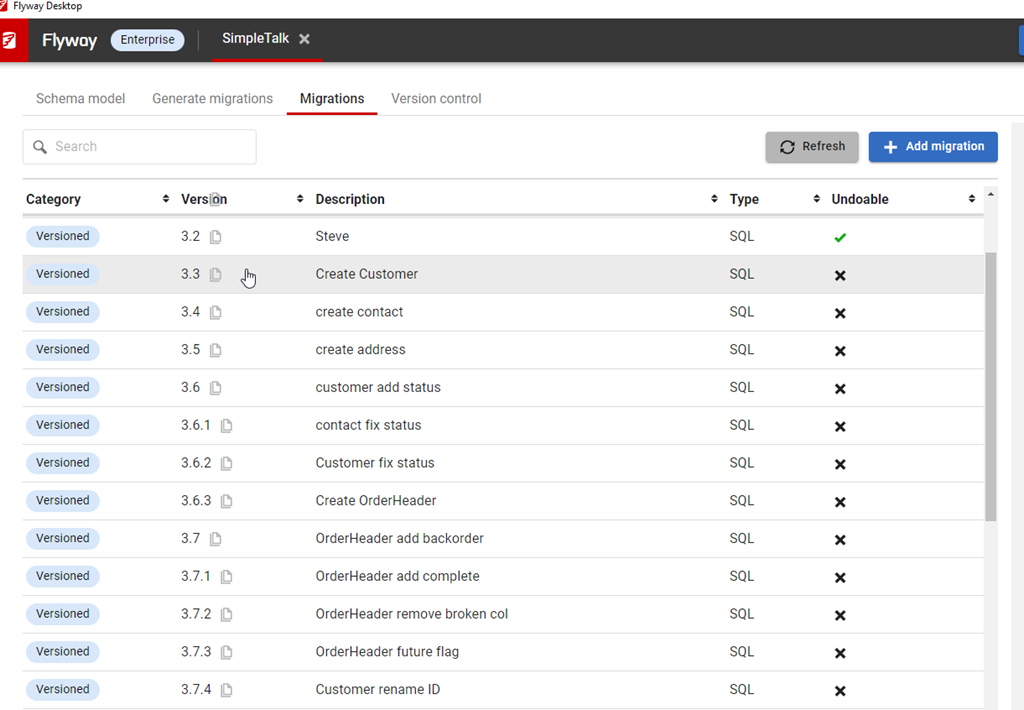
    I’ve got a lot of migrations in this project. You can see below in the image, noting the scroll bar goes up and down here.

    2023-08-10 12_30_54-Flyway Desktop

    Many customers have many more migrations, which could run into the 100s. I’ve worked with large Oracle migrations in the past where there were 100s for an upgrade from v4 to v5. The project would have been 1000s in its lifetime.

    Use Search

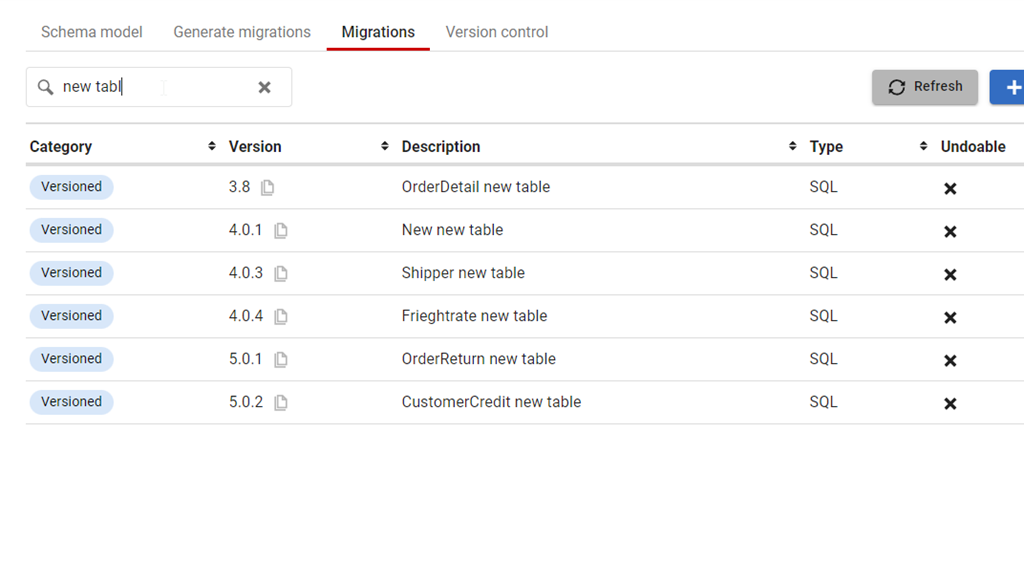
    At the top of the Migrations tab, there is a new search box. This was added somewhere in Flyway Desktop 6, and I just noticed it. However, it’s very, very handy. If I start typing in there, like “New Table”, then I see just those migrations.

    2023-08-10 12_33_47-Flyway Desktop

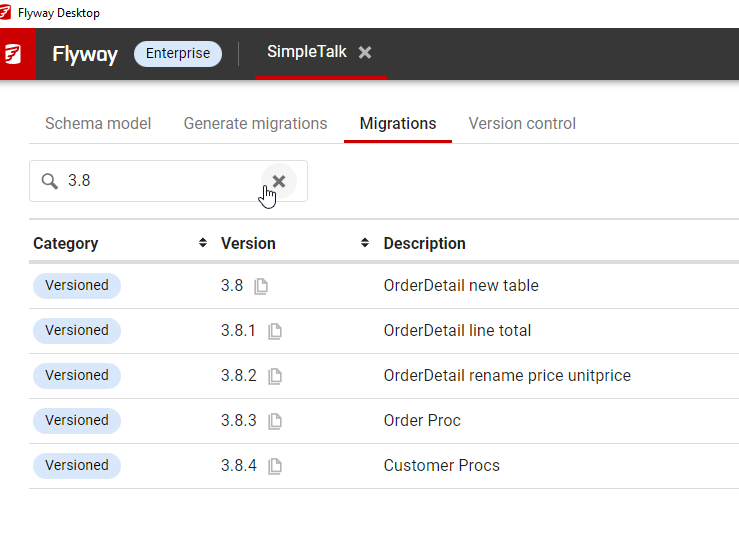
    I can even search versions, like the specific migrations in the 3.8 release that I am wondering about.

    2023-08-10 12_35_55-Flyway Desktop

    This works by checking the version and description fields. The rest aren’t as useful, but it does mean if you come up with some standards for the description in your team, you can easily use this to find changes in your project.

    Try it today. If you haven’t worked with Flyway Desktop, download it today. There is a free version that organizes migrations and paid versions with many more features.

    Video Walkthrough

    I made a quick video showing this as well. You can watch it below, or check out all the Flyway videos I’ve added:

  • The 2023 Redgate UK DevOps Roadshow

    Years ago Redgate did some traveling events under the SQL in the City brand. These were a lot of fun and kind of amazing. One of the longer tours also made me realize I would hate being in a musical band and touring.

    However, I enjoyed the events and while we’ve moved on from that brand, we have a new one

    The Redgate DevOps Roadshow

    The UK edition of this kicks off in September 2023 and I’ll be in these cities:

    I’ll be traveling with one of our Sales Engineers (Chris Hawkins, I hope), and doing will day sessions for customers on the Flyway suite of tools. You’ll get some practice, learn how things work, and get answers to your questions. Hopefully that day, but if Chris and I don’t know, we’ll query the brilliant engineers back in Cambridge.

    If you’ve ever attended a Redgate event, you know we put on a nice show, we take care of you, you’ll have plenty to eat and drink, and we have fun.

    Hopefully I’ll see some of you in September in the UK.

    Keep watching as well as we’re working on a US edition of this. I’ll do some of these, while Grant and Ryan will do others. I’ll keep my schedule updated as I get more info.

  • A Multitude of Summary Views in SQL Compare 15

    A client asked for a summary of changes, so I wrote a post to show where to find this in SQL Compare 15. As I was checking out the Summary, I realized there are different ways to present this info, which can make your job as a data professional easier. This post shows the different views.

    This is part of a series I have on SQL Compare from Redgate Software. It’s an amazing piece of software that you should try if you haven’t. Download an eval today.

    In the previous post, I showed this image, which is the default view. This lists the changes by object, meaning that I see the objects listed on the left with schema and name, and then the actions on the right. In the image below, the first item on the left is dbo.Street, with two items after it. On the right, we see this is a need to drop a PK and then create a new PK.

    2023-07-20 14_21_37-Deployment

    This is a good list, but there are other choices. In the upper right, there is a drop down. If I click it, I see this:

    2023-07-20 14_27_13-Deployment

    The Object is the default one, but if I click Modification, I see this view, which lists the types of changes. You can see that I have 1 drop PK, 4 table alters, 1 view alter, etc.

    2023-07-20 14_26_56-Deployment

    A good view, though I don’t often case about this, other than I usually would look for drops because those are problematic.

    The third view is the modifications, but in the order they’ll take place. I like this, since as someone who has been a production DBA, I want to know what changes are happening in what order.

    2023-07-20 14_27_07-Deployment

    In this view above, the alters are split out. So I get one alter of a table, BaseTable, then a view, then a refresh, then alters for two other tables.

    Using these summary views are good ways to initially conduct a review of what is changing for a deployment. This is valuable because for a lot of changes, this makes sense. For some, I might want to see the code, so having the changes in order here let me quickly find this change in the script and view the exact way this is going to be deployed.

    SQL Compare is an amazing tool and it makes life much easier. If you haven’t tried it, download an eval today and give it a try. If you’d like to see this in a pipeline or more automated system, give the Flyway suite of tools a try.

  • Getting a Summary of Changes in SQL Compare 15

    A client asked for a summary of changes, so I wrote this quick post to show where to find this in SQL Compare 15.

    This is part of a series I have on SQL Compare from Redgate Software. It’s an amazing piece of software that you should try if you haven’t. Download an eval today.

    If you use SQL Compare, you might find yourself in situations like this, where there are a bunch of changes.

    2023-07-20 14_17_58-SQL Compare - E__Documents_SQL Compare_SharedProjects_(local)_SQL2017.SimpleTalk

    This isn’t a lot, but when you build the script, you then are confronted with a lot of information. If I choose all those objects, here’s my script in the deploy wizard.

    comparescript

    This is a lot of code to look through. Most people can do this, but it’s also easy to miss something in this long listing. Humans make mistakes, and we want to minimize mistakes.

    The UX isn’t great, but if you look at the top of the code window, below the 14 objects part, there are three items: Deployment Script, Summary, and Warnings. If there are significant warnings, that will actually be the default screen, but the summary is something people miss. You can see this below:

    2023-07-20 14_21_30-Zoomit Zoom Window

    If I click Summary, I see this:

    2023-07-20 14_21_37-Deployment

    This is a much more manageable list of things that are being touched, and a good list to show in a standup or code review for others to watch.

    Grabbing a screen shot is something you could easily send to people as well. If you use the Flyway solution, we’ll also generate a report of this with your CI or deployment processes.

    Give this a try the next time you use SQL Compare. If you don’t use it, give it a try. It’s amazing.