Tag: Redgate

  • Alert Filtering in SQL Monitor

    SQL Monitor has improved a lot over the last couple of years. We have multiple teams building features and addressing issues, and each month when we have a readout of changes, I’m impressed. Since we update the produce every week or two, customers are seeing these enhancements regularly.

    Recently I saw a demonstration of the alert filtering improvements and I wanted to share a few thoughts.

    Lots of Alerts

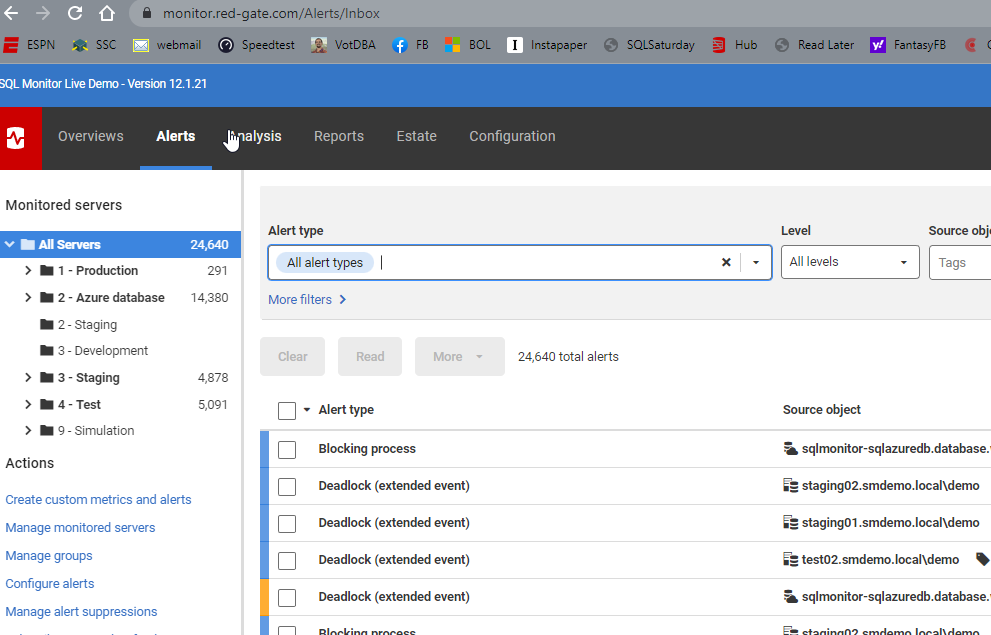
    If I go to monitor.red-gate.com, there are a lot of alerts raised across our test systems. While each individual card shows the current alerts, there are more behind the scenes. I’ll write about the cards another time, but in this post, let’s just look at the Alerts tab.

    You can see in the image there are 24k+ alerts, and they are distributed across a variety of systems. The left side shows the groupings for databases and a count of alerts.  The main section of the screen shows lots of alert types listed, the source database, etc.

    2022-06-21 11_23_21-Alert Inbox

    One thing I like is the use of color and visual cues. Above, most of these alerts are low level, and bordered on the left in blue. A mid level alert is shown here in yellow. This helps me to triage and decide what to do.

    Filtering

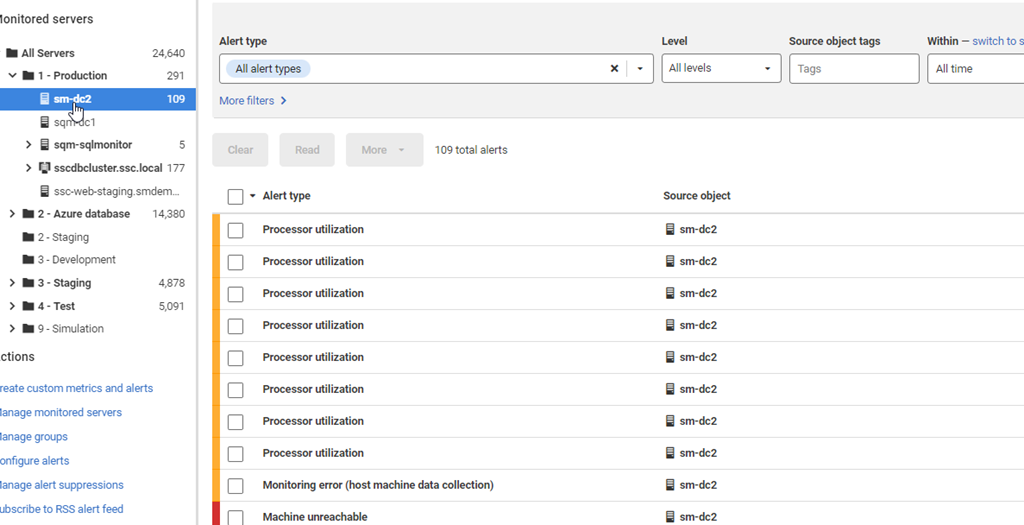
    While I can click on the server groups on the left and limit the views to a group (or a server), there are still a lot of alerts. The Production group shows 291 below.

    2022-06-21 11_26_49-Alert Inbox

    The sm-dc2 shows 109 itself when selected.

    2022-06-21 11_26_56-Alert Inbox

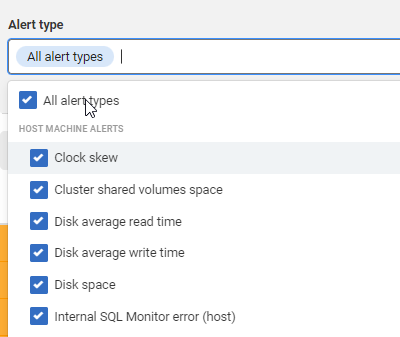
    One of the newer filtering options is that I can click the dropdown at the top of the screen for Alert Type and then limit what I see. The default is all alert types.

    2022-06-21 11_28_20-Alert Inbox

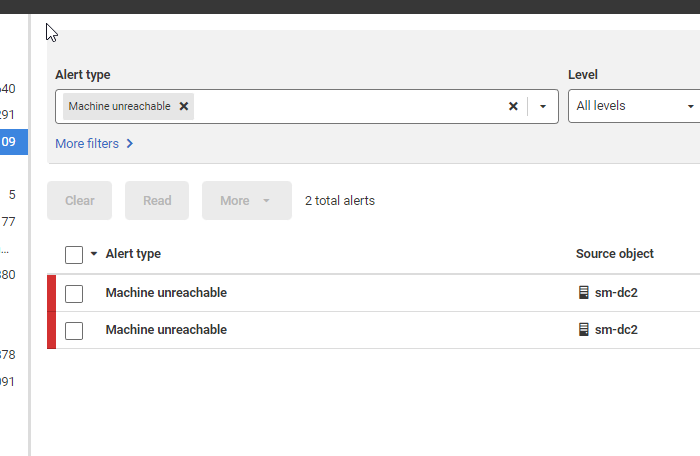
    However, I can uncheck that and pick just one type, like Machine Unreachable.

    2022-06-21 11_28_58-Alert Inbox

    Now I only see a couple of alerts.

    2022-06-21 11_29_44-Alert Inbox

    I can also filter by the alert level, tags, a timeframe, alert property, or alert status.  All of this let me focus in on specific aspects of what might be wrong with a database. Using Filters is a good way to more quickly determine what might be happening on a database and how frequently I have these issues. From there, I can use my own skills and understanding of the database to determine what might be causing alerts to fire.

    If you give SQL Monitor a try, I’m sure you’ll find it valuable for managing and monitoring your estate, helping you to quickly detect and respond to issues. Download an eval today and give it a try.

  • Refreshing Tables in Data Masker

    Data Masker for SQL Server is a product that helps to change data for compliance purposes. It works well, but it isn’t intuitive in a few ways. We bought the product and it has been improved, but it still sometimes throws me for a loop with certain features.

    Recently I was editing a masking set and I added a table to the database. In this case, I opened my masking set and went to add a masking rule, but the table wasn’t there. It took me a few minutes to figure out how do to this.

    This is documented, but there are a lot more words there than this simple procedure that worked for me.

    Refresh the Controller

    Your masking set has a controller for each schema (essentially). If you pick the controller, you can select “Edit rule”.

    2022-06-07 07_23_31-simpletalk_ Data Masker for SQL Server

    In this rule, go to the Tools tab. The first button is a refresh button. Pick that.

    2022-06-07 07_23_44-Edit Rule Controller

    Now, you see more stuff, but in this case since I added a new table, I click the top button. This is Refresh All Tables, under the “ignore exclusion list” section.

    2022-06-07 07_23_51-Refresh Database Tables

    This runs, and I’ll see my new table(s) in the left list of Known Tables. Click the Save and Update button. You should get a confirmation that tables are updated. You can turn off some of these dialogs, so this might not appear for you. I usually don’t turn these off since I demo things.

    2022-06-07 07_24_00-Data Masker

    Then update the rule controller. It isn’t intuitive that you need to click “Save” or “Update” on every screen, especially in modern software where we expect changes to just be made on selection. However, this is an older design and needs the confirmation.

    Now, you should see the new table in any rules you create/edit.

    Data Masker is a great tool for protecting data in non-production environments. It is highly customizable and lets you meet your compliance or regulatory needs. Download an eval today and give it a try.

  • Search and Replace Three Part Names with SQL Compare

    A customer had an interesting challenge in their codebase recently, and I thought this would make a good post. This involves SQL Compare and three part names.

    This is part of a series I have on SQL Compare from Redgate Software. It’s an amazing piece of software that you should try if you haven’t. Download an eval today.

    The Scenario

    A customer was using SQL Compare and they wanted to update the database name in a script to point to a new database. They had objects in a development database pointing to another development database. What they asked was: “How can we search and replace across all objects to change db1.dbo.mytable to db2.dbo.mytable?”

    There are a couple ways that you can attack this problem, but I’ll show you what I think works best.

    Ensuring Three Part Names Appear

    There is a switch in a SQL Compare that allows you to include or exclude three part naming in the scripts. This is the switch that says “Ignore Server and Database Names in Synonyms”.

    I don’t have that checked, and when I look at my comparison, I see this. There are two synonyms in these database, which you can see in the image, point to different targets.

    2022-04-19 16_43_59-SQL Compare - E__Documents_SQL Compare_SharedProjects_(local)_SQL2017.SimpleTalk

    If I have this option checked, as shown here:

    2022-04-19 16_45_19-(local)_SQL2017.SimpleTalk_1_Dev v localhost.SimpleTalk_1_Dev.scp

    Then nothing appears.

    2022-04-19 16_45_31-SQL Compare - E__Documents_SQL Compare_SharedProjects_(local)_SQL2017.SimpleTalk

    Make sure you don’t have this option checked. I’ll fix that first.

    Next, I’ll add a couple more synonyms to show a few differences and then re-run the compare. Now I have 3 objects, 2 of which are different, one doesn’t exist in the comparison database.

    2022-04-19 16_49_11-SQL Compare - E__Documents_SQL Compare_SharedProjects_(local)_SQL2017.SimpleTalk

    Generate the Script

    I want to generate a script. I’ll do that by pressing the “deploy” button. I’ll change the option from deploy to generate script. This will open in SSMS.

    2022-04-19 16_50_34-Deployment

    I click the “Open in editor” button and SQL Compare generates the script and opens SSMS. Warning, it opens a new version of SSMS, not the existing one I have open. Grrr.

    I see my script here, which is good.

    2022-04-19 16_53_29-SCO485aa5e5566748149e0e8259930b6af0.sql - (local)_SQL2017.Compare2 (ARISTOTLE_St

    I can search and replace now, looking to change the database name. Hard to see in the image below, but I’m searching for this:

    FOR [AdventureWorks2017].

    and replacing it with:

    FOR [sandbox].

    2022-04-19 16_54_56-SCO485aa5e5566748149e0e8259930b6af0.sql - (local)_SQL2017.Compare2 (ARISTOTLE_St

    This will set the synonyms to the new target in the dev environment. In this case, I’m changing from AdventureWorks2017 to Sandbox.

    The last thing to do if this script is to set up a new database is to remove the synonym drop statements. We can’t alter synonyms, so we need to drop them. That will be an error in this script if the synonyms don’t exist. Since this runs as a transaction, the entire thing will fail.

    This shows a simple way to help create a script that can be used to refresh a dev environment with the proper schema settings when synonyms or other three part naming is in use.

  • Ensuring SQL Compare Checks Synonyms

    I was running a PoC for a customer and they noticed that synonyms were being missed when they changed the database being used. It was surprising to me, but it turns out the solution is simple.

    This post explains how to fix this.

    This is part of a series I have on SQL Compare from Redgate Software. It’s an amazing piece of software that you should try if you haven’t. Download an eval today.

    The Scenario

    Imagine that I have a synonym in my database. In the development environment, I have this pointed to one object, but in production, it will be pointed to a different object. The name of the object is likely the same, but the server (instance) name or the database name might be changed. I see this all the time where I might have these databases in my dev environment:

    • Sales_Feature
    • Finance_Feature

    In Sales_Feature, I have a synonym pointed to Finance_Feature, which works most of the time.

    When I get to production, I have “Sales” and “Finance” databases. I need the synonym pointed to Finance, even though I might take code from these dev databases and commit to version control. There’s certainly a development challenge here in this scenario, but let’s ignore this. Let’s just assume we want to determine that we’ve actually made a change here.

    In my scenario, I’m going to look at Dev and Prod, though on the same instance. I’ll create a synonym in one database that points to a different database. Here’s a quick set of test code:

    USE [SimpleTalk_1_Dev]
    GO
    CREATE SYNONYM dbo.MyTable
    FOR Compare1.dbo.MyTable
    GO
    

    Now, I’ll create a similar synonym in another database, but pointing to a different location. Think dev and QA here.

    USE [SimpleTalk_5_Prod]
    GO
    CREATE SYNONYM dbo.MyTable
    FOR Compare2.dbo.MyTable
    GO
    

    If I run SQL Compare, the differences are shown here:

    2022-03-30 16_01_33-SQL Compare - New project_

    There is no difference. Clearly the synonyms are different, but why don’t I see them?

    The Solution

    It turns out that SQL Compare assumes you might have these pointed to different instances or databases when moving to production from development. It assumes you only care if there is some other difference.

    If I edit the project options, I can see this. When I click the “Edit project” and go to the Options tab, I can scroll down. I’ll see the “Ignore database and server name in synonyms” option checked by default.

    2022-03-30 16_03_33-New project_

    If I uncheck this and then run the compare again, I see this:

    2022-03-30 16_04_34-SQL Compare - New project_

    Now I see a difference in the two databases. This also works if you have two different instances and the same database names, which is a more common occurrence.

    This same option applies in all our products that use the SQL Compare engine, so SQL Change Automation, SQL Source Control, Flyway Desktop, and the various automation components, all of which are in the Redgate Deploy. If you find your synonyms aren’t being deployed, make sure you have this option unchecked.

    If you don’t have any tools to help manage database development and deployment in a DevOps way, download a trial.