Tag: Redgate

  • Tagging in SQL Monitor

    For many of us, we’ve learned over time that we need to filter out the amount of things that we deal with in an given situation. We certainly often do this in queries with a WHERE clause.

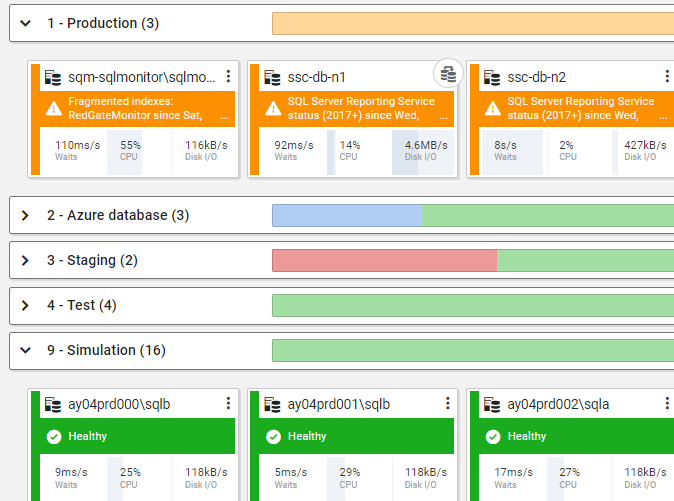
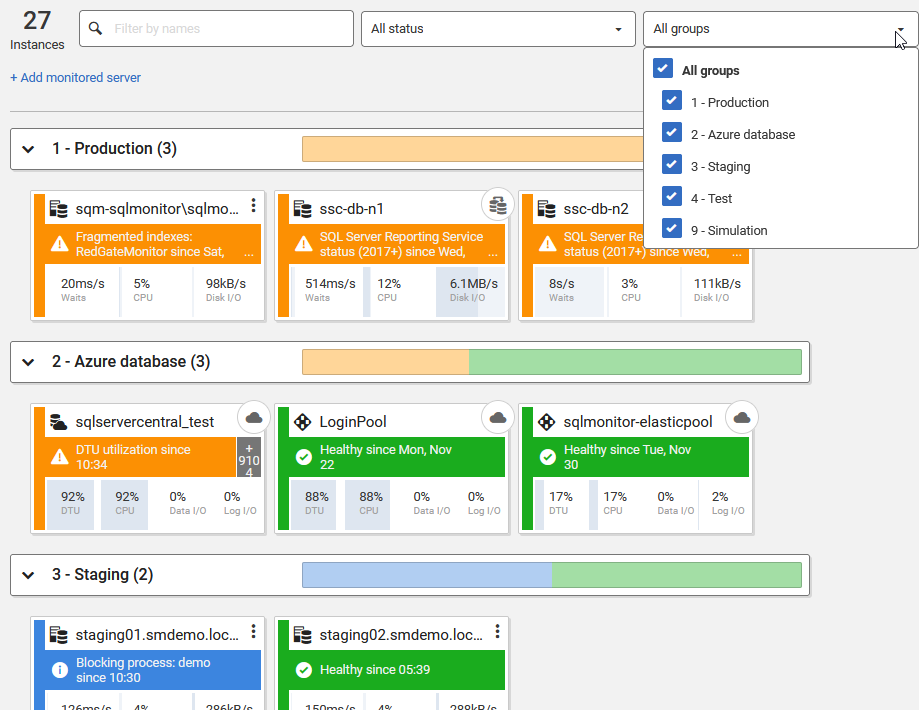
    While plenty of software comes up with ways to group and filter items, often they are done in a way that doesn’t fit the needs to the user. An example of this is categories in SQL Monitor. They’re good, and people use them, but they aren’t enough. You can see the grouping/categories below from monitor.red-gate.com. The filter is at the top and the various cards are grouped under the three areas: Production, Azure database, and Staging.

    2021-12-02 10_40_13-Global Dashboard — Mozilla Firefox

    That is a gross filter, but often customers might have multiple ways they want to filter servers, so we’ve added something new: tags.

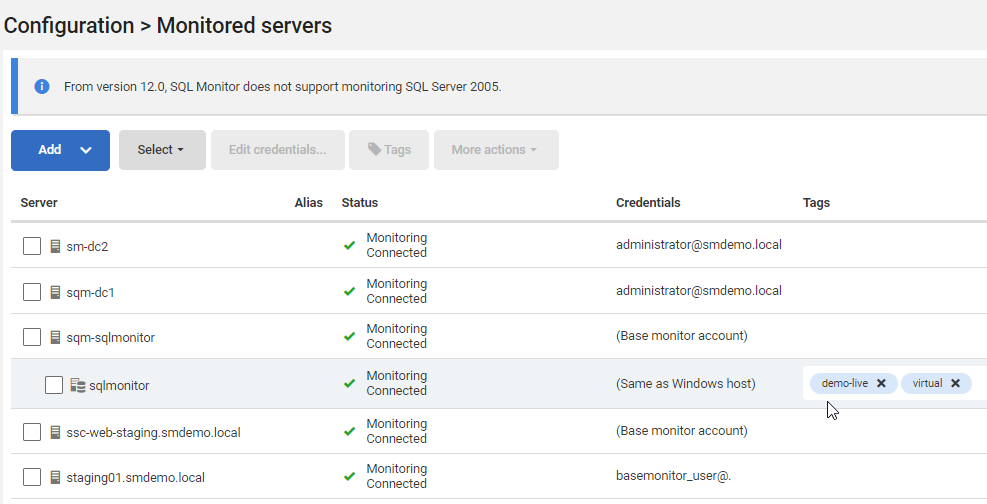
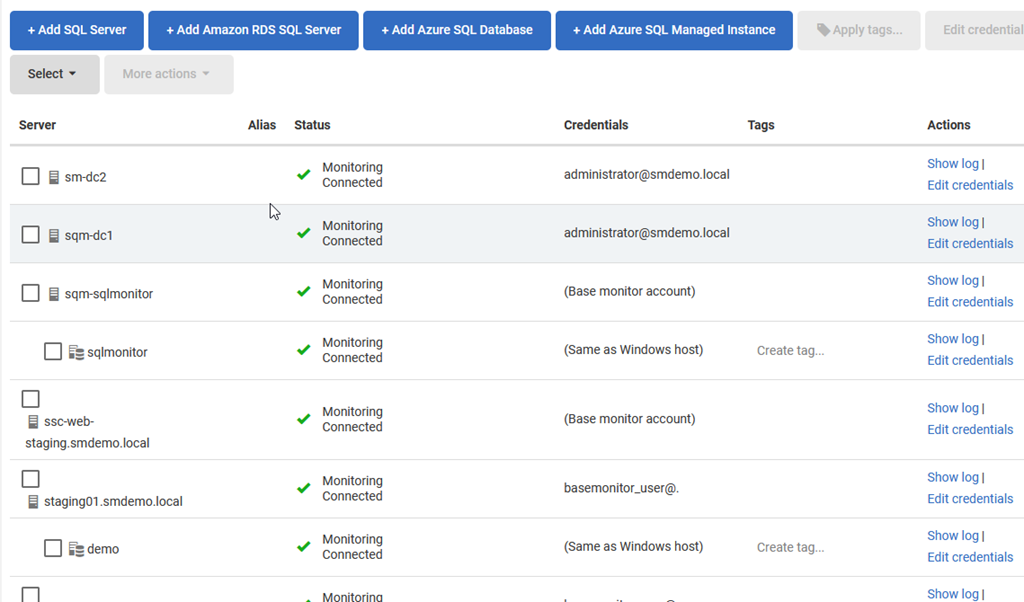
    In the demo system, there aren’t any set up yet, but you can see where these are added in the Monitored Servers configuration. You can create multiple tags for a database or select multiple databases and apply a tag to all of them.

    2021-12-02 10_37_38-Monitored Servers — Mozilla Firefox

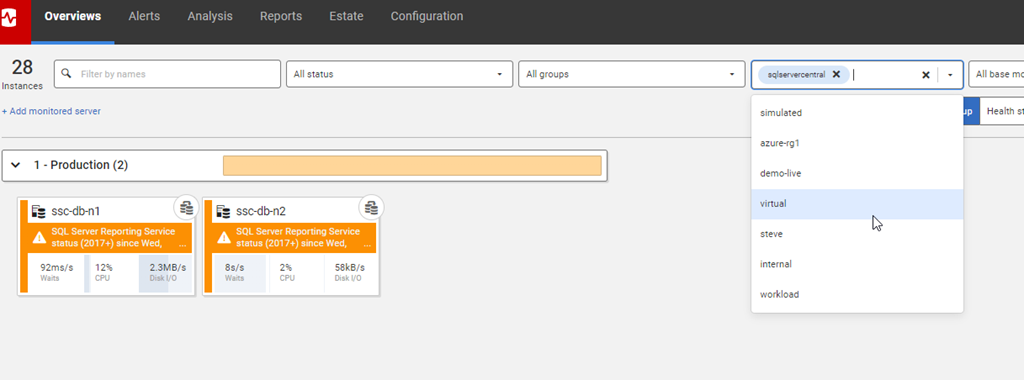
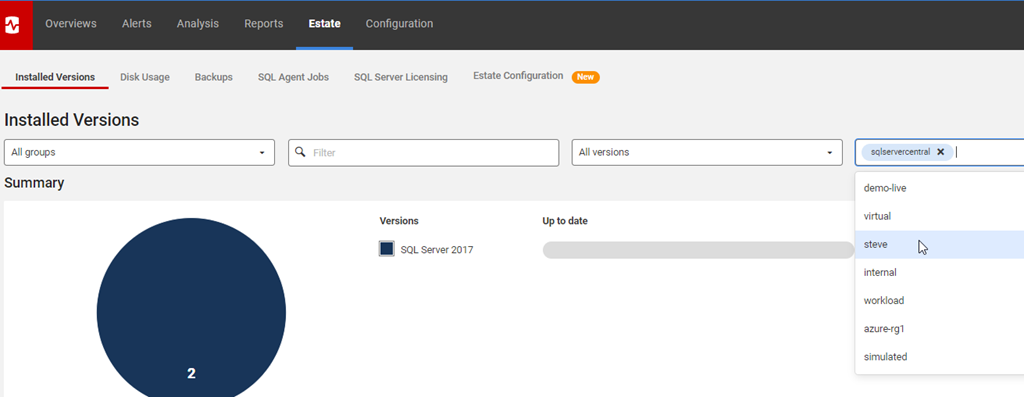
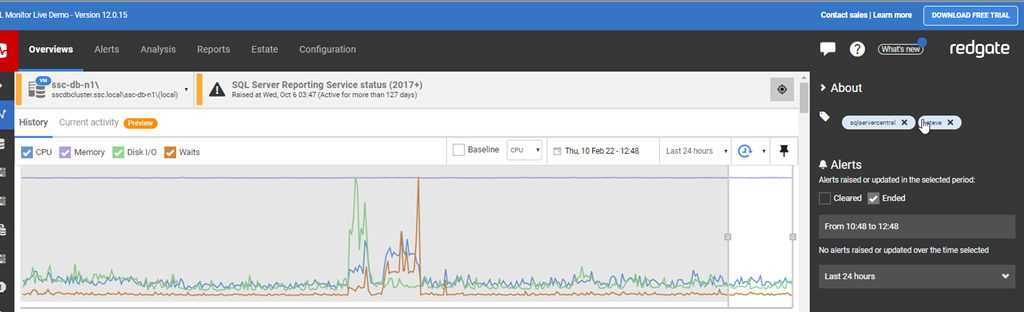
    On the Overview page, you can then quickly filter down by tags at the top. Just to the right of the groups.

    2021-12-02 10_37_14-Global Dashboard — Mozilla Firefox

    Not a huge change, but it’s one that is requested a lot and it’s rolling out now to your SQL Monitor installs. Give it a try and as always, give us feedback on how it works.

    If you haven’t tried SQL Monitor, download a trial and see how easy this makes monitoring your SQL Server databases.

  • Redgate’s Pre-con at the 2021 PASS Data Community Summit

    I was fortunate to present a pre-con at the PASS Summit alongside Kendra Little in 2019. That was the last in person event, and I really enjoyed the session. I”m not presenting a pre-con this year, but I am part of the PASS Data Community Summit keynote and also presenting a session in the Database DevOps learning pathway “A version Control primer for Databases”.

    Redgate is sponsoring a pre-con with Grant Fritchey, who blogged about the Redgate pre-con, DevOps for the DBA This takes place online on Tuesday November 9. The pre-con is just $200, which is much reduced from the usual fee, and what’s even better is that all of the proceeds will be donated to Black Girls Code.

    It’s a chance to learn about introducing automation into your database development process and aligning with the DevOps techniques that your applications developers use. You also can support a great charity that helps kids enter our field.

    Register today and I’ll see you online next month at the Data Community Summit.

  • Using SQL Data Compare with Joins

    Recently a customer was asking about how they could move data with SQL Data Compare from one server to another. In this case, the customer had a complex join and WHERE clause they wanted to use with SQL Data Compare. This post will show a simple way to do this.

    The Source Data

    I can’t show customer data, but here is a mock up using the AdventureWorksDW sample database. I have this query that contains some information I want to sync from one database to another:

    SELECT c.FirstName,
            c.LastName,
            dd.FiscalQuarter,
            dd.CalendarYear,
            fis.OrderQuantity,
            fis.SalesAmount,
            fis.PromotionKey
            fis.SalesOrderNumber
    FROM dbo.FactInternetSales fis
         INNER JOIN dbo.DimDate dd
             ON dd.DateKey = fis.OrderDateKey
         INNER JOIN dbo.DimCustomer c
             ON c.CustomerKey = fis.CustomerKey
    WHERE ProductKey = 310
           AND dd.CalendarYear = 2011;

    This query includes multiple tables and a WHERE clause. In SQL Data Compare, there is no place to enter a query to use as a source for data. None of these sources allow for a query.

    2021-10-01 15_54_16-New project_

    I can, however, simulate this query in a view. I add a line above the code and I have a view.

    CREATE VIEW aDemoView AS
    SELECT c.FirstName,
            c.LastName,
            dd.FiscalQuarter,
            dd.CalendarYear,
            fis.OrderQuantity,
            fis.SalesAmount,
            fis.PromotionKey
            fis.SalesOrderNumber
    FROM dbo.FactInternetSales fis
         INNER JOIN dbo.DimDate dd
             ON dd.DateKey = fis.OrderDateKey
         INNER JOIN dbo.DimCustomer c
             ON c.CustomerKey = fis.CustomerKey
    WHERE ProductKey = 310
           AND dd.CalendarYear = 2011;

    I then need to check the option in the SQL Data Compare project to include views.

    2021-10-01 15_56_10-New project_

    Once I do this, I see my view, although it is unmapped. Note views are at the bottom of the dialog.

    2021-10-01 15_57_36-New project_

    Now I need a target.

    Make a Table From the View

    In the destination database, I need a comparison target. In this case, what I would do is take the definition of the view and use that to create a table. In this case, I’d start with the SELECT column list. I replace SELECT with CREATE TABLE, as shown here:

    CREATE TABLE DemoView
    (
            c.FirstName,
            c.LastName,
            dd.FiscalQuarter,
            dd.CalendarYear,
            fis.OrderQuantity,
            fis.SalesAmount,
            fis.PromotionKey,
            fis.SalesOrderNumber

    Next, I need to remove the aliases and round out the data types.

    CREATE TABLE DemoView
    (
            FirstName varchar(100),
            LastName varchar(100),
            FiscalQuarter tinyint,
            CalendarYear int,
            OrderQuantity int,
            SalesAmount NUMERIC(10,4),
            PromotionKey TINYINT,
            SalesOrderNumber VARCHAR(20)
            )

    Last, I will need a comparison key, so I’ll add the SalesOrderNumber as a PK.

    CREATE TABLE DemoView
    (
            FirstName varchar(100),
            LastName varchar(100),
            FiscalQuarter tinyint,
            CalendarYear int,
            OrderQuantity int,
            SalesAmount NUMERIC(10,4),
            PromotionKey TINYINT,
            SalesOrderNumber VARCHAR(20) CONSTRAINT DemoViewPK PRIMARY KEY
       )
    GO

    I execute this in my target database and this gives me a destination for the data.

    The SQL Data Compare Map

    Once I have a source and target, I can map them in SQL Data Compare. First, I select both objects in the Tables and Views tab and then click Map.

    2021-10-01 16_07_03-New project_

    This moves the two items up to the top pane.

    2021-10-01 16_07_26-New project_

    I need a comparison key in order to move data, and I select the “Not Set” on the left side. This gives me a place to set the comparison key. We need to know how to determine which rows are different from which other rows.

    2021-10-01 16_11_05-Comparison key

    Once this is done, I click the item in the main pane and click “Compare”.

    2021-10-01 16_11_13-New project_

    When this completes, I see my results. This table is shown as different, and I see the rows below.

    2021-10-01 16_15_19-SQL Data Compare - New project_

    All of these rows are only in the source, which is the left side. I can click “Deploy” and get a script to move all this data to the other server.

    Options

    In this case I had a fairly specific set of data in the view with a WHERE clause. If I wanted to keep this more generic, I could always use the WHERE clause in SQL Data Compare to select a set of data to move here.

    The other option would be to SELECT .. INTO  this data into a table on the source. I could load this into a table that I used for a comparison with the target. If I repeated this in the future, I could either truncate and reload this table, or just add to it, potentially with a different SELECT.

    In general, I prefer to bulk move information and control the data to move outside of SQL Data Compare. It’s easy to forget to change a WHERE clause somehow in a project. Much easier to control what I load into the source and then move everything to the destination.

    Summary

    The easy way to move complex data from source to destination is by putting the complex data into a source location. Either a table of some sort or a view. Then we can use SQL Data Compare to easily move this to a destination in another database.

    SQL Data Compare is an amazing product for syncing sections of data between databases. It might not work for all situations and can be slower with very large sets, but it’s a fantastic tool for DBAs.

  • Quick Database Copies and Branching with Spawn

    I delivered a talk last week at the Future Data Driven summit. It’s one I’ve done a few times, but I really enjoy it. It’s on the Future of Database Development, where I present a view of where I think, and hope, database development goes.

    Part of this is using the Spawn service and a neat demo a few of the Redgate Software developers came up with. In this post, I wanted to just share a neat pattern that is in the demo.

    Visual Studio Code and F5

    The demo is in Visual Studio Code. I can git clone a repo and then open it in VS code. I authenticate to the spawn service and then press F5 to compile and start debugging. When I do this, I see as part of the output, this text:

    2021-09-28 12_53_36-Welcome - spawn-demo - Visual Studio Code

    This indicates that my database containers, 2 in this case, already exist and are being used. This app has some startup code in it so that any developer who clones the repo can just start running the app and writing code without worrying about what database software is installed on their machine.

    If I check the Spawn service from the command line, I see my two database containers. In this case I am using these containers from the main branch. Hence the images (demo-todo and demo-account) get the branch added to the end.

    2021-09-28 12_56_00-cmd

    Changing Branches

    In application software, we often create a branch to start doing our own work. With databases, this might involve either re-using the same database(s) in the new branch, or doing a copy (rebuild, restore, etc.) to have a clean version of a database.

    With Spawn, I just create a new branch in VS Code. Then I click F5 again. Now I see that I need new containers. These are created with the branch name. Therefore I see demo-todo-demosteve and demo-account-demosteve as the new containers.

    2021-09-28 12_57_56-Window

    Coding in the project setup gets the credentials and ensures the app just works.

    The Future

    I think the future of better database development, especially for those “full stack” or application developers, means provisioning new databases as needed. This likely requires containers, and hopefully, a service.

    We’ll see if we get there, but I do think a lot of the trends in software development are there to try and ensure we can reduce the hassles of building new environments on developer machines.