Tag: Redgate

  • Join me for Masking, Privacy, Protection, and Clones at SQL in the City Feb 28

    Registration is open for SQL in the City 2018. Our first event is Feb 28 and I’ll be heading back to the UK for the event. This time Grant and Kathi will be there and we’ll be joined by the amazing Ike Ellis. This is an event to watch.

    I’ll be covering some GDPR stuff about compliance, with good information that all DBAs and system administrators should know. This is a prove you’re doing what you have decided to do session.

    In the afternoon I’ll also cover some enhancements to SQL Clone in our Privacy bundle that helps you mask data from production and build your dev/test environments in a way that can protect your sensitive data.

    Some Redgate products will be used to show how to accomplish the same tasks, but all of us will be talking about core concepts and ideas that you need to know. We’d like you to consider our software if it provides you with value for the cost, but either way, you will learn about things that we all think are important.

    Register today and I’ll see you in a few weeks.

  • Moving Lookup Data with ReadyRoll

    I’ve been using ReadyRoll for a small project and wanted to move some lookup data. There are some tables where I want to keep data in sync across environments, so if my build and release pipeline can do this, great. ReadyRoll makes this easy, and this is a short post to show how.

    The Current Environment

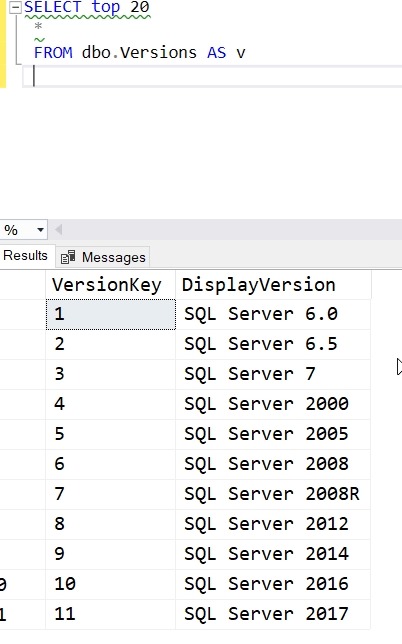
    I’ve got a table in my dev database that has SQL Server versions. I can see the list here:

    2018-01-31 12_15_05-SQLQuery6.sql - (LocalDB)_Projectsv13.SSBuilds_1Dev (PLATO_Steve (51))_ - Micros

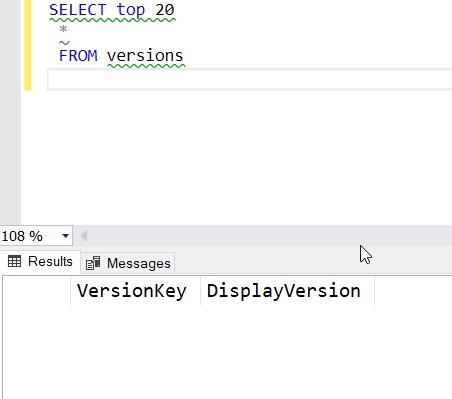
    In my QA and staging systems, I see this (only one is shown, but it’s the same in both).

    2018-01-31 12_13_41-SQLQuery5.sql - dkranchstaging.database.windows.net.ssbuildsRRstaging (vstsdeplo

    The goal is to have this data migrate with other changes in a build and release pipeline.

    Adding Data to the Project

    I’ve already built this as a ReadyRoll project and set up a build and release pipeline in VSTS. Now I want to include my data.

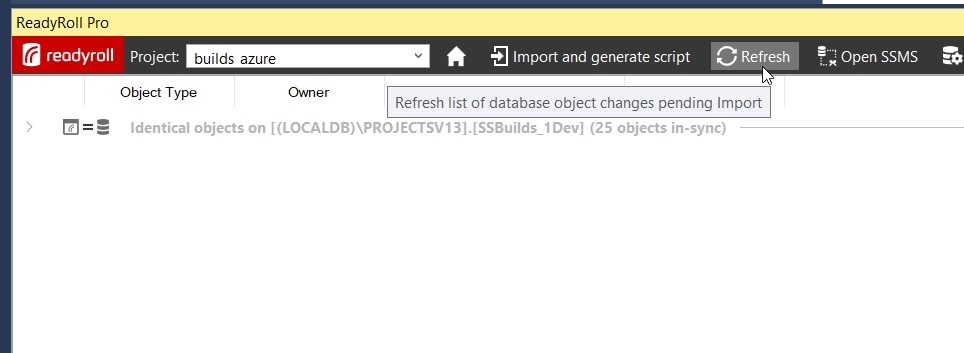
    In the ReadyRoll tool window, I have refreshed the project and I see everything in sync. That’s good, and that’s how I want to be starting a small section of development.

    2018-01-31 12_11_09-builds_azure - Microsoft Visual Studio

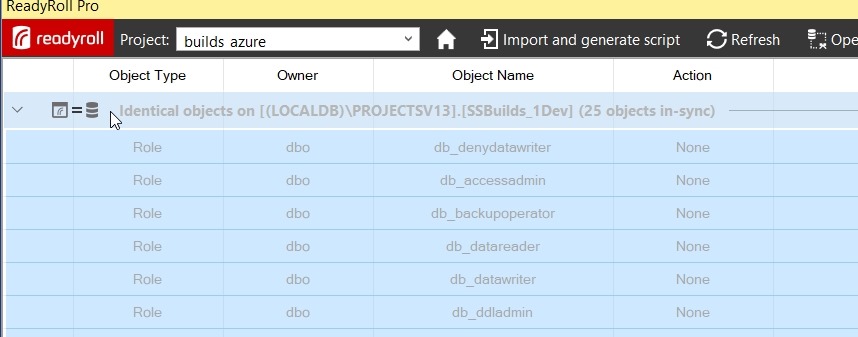
    I want to find my table, so I need to expand the “Identical Objects”. When I do that, I see a list of all objects in the database.

    2018-01-31 12_17_22-builds_azure - Microsoft Visual Studio

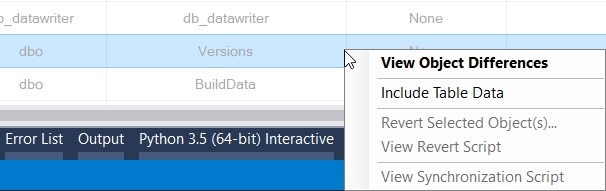
    I can scroll down to find my table. When I do, I’ll right click it to get a few options. One of these is “Include Table Data”. We want to pick this one.

    2018-01-31 12_20_01-

    Once I do that, I get a note to refresh again. This is so RR can determine what table data needs to be added to a migration script.

    2018-01-31 12_21_07-builds_azure - Microsoft Visual Studio

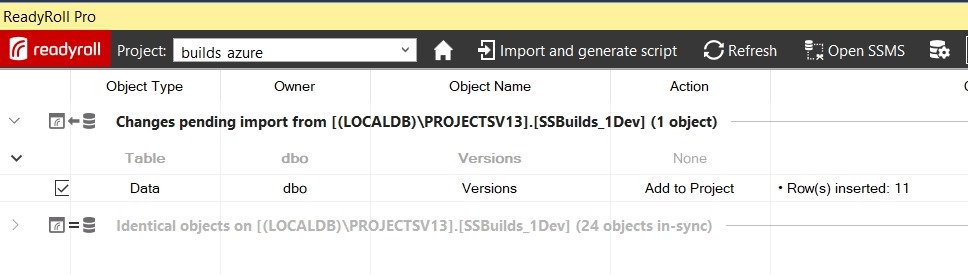
    My changes show that I need to get 11 rows of data into a new script.

    2018-01-31 12_21_44-builds_azure - Microsoft Visual Studio

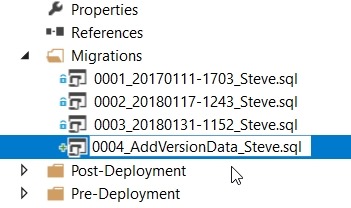
    I click Import and generate script, which will build my migration script and add it to the project. In my case, this is script 4.

    2018-01-31 12_23_00-builds_azure - Microsoft Visual Studio

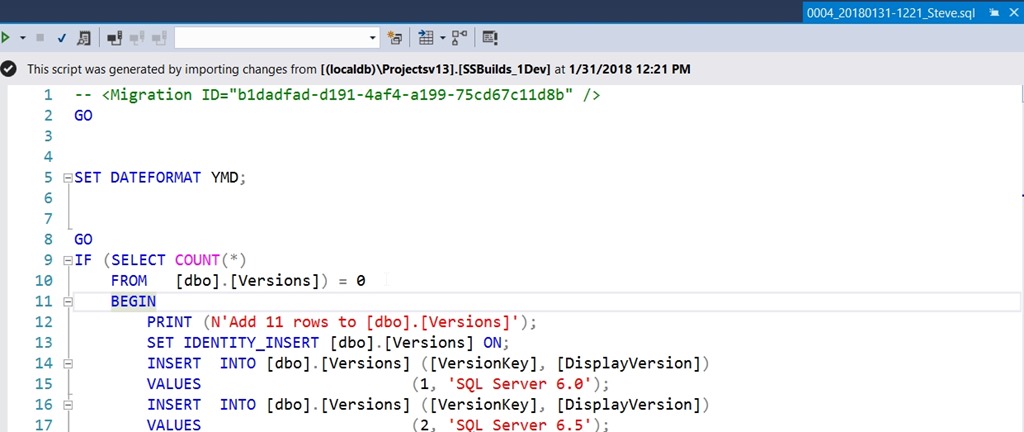
    Note that this script has a few things in it, based on a call to SQL Data Compare in the background. First, it sets a dateformat. Next, it does the insert for an empty table, since that is the situation I’m in. Last, this uses the SET IDENTITY_INSERT option.

    If you don’t like these options, change them here. You can alter this script to suit your environment. Remove the IF, let the identities be what they are, make the changes that matter to you.

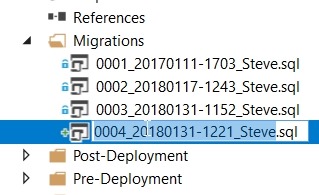
    The only thing I’ll do is click the script name twice to edit it.

    2018-01-31 12_25_08-builds_azure - Microsoft Visual Studio

    The numeric sequencing is important. The rest, not so much. I’ll choose something simple here.

    2018-01-31 12_25_21-builds_azure - Microsoft Visual Studio

    Build the Project

    I can build locally, and I always should to be sure things work. Once I see this and I’ve tested a few things, I’ll let the “system” do more work.

    2018-01-31 12_28_32-builds_azure - Microsoft Visual Studio

    The nice thing about ReadyRoll is that I can include my database project alongside application projects, if I want. For application developers or hybrid developers, I can use a consistent interface for saving changes to version control.

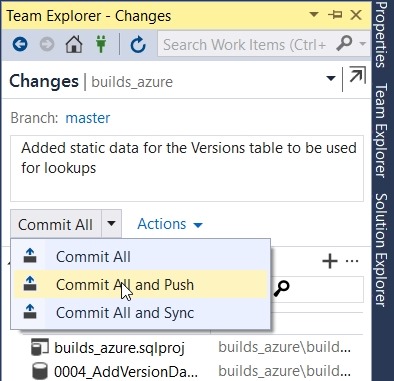
    In Team Explorer, I’ll check changes, add a comment, and then Commit and Push.

    2018-01-31 12_30_36-builds_azure - Microsoft Visual Studio

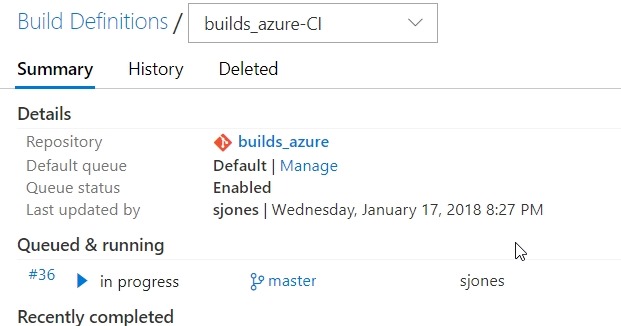
    If I go to VSTS, I’ll see the build in progress. I’m using a local build agent and usually within 15 seconds, my build will start. Sometimes it’s really fast.

    2018-01-31 12_31_04-builds_azure-CI summary

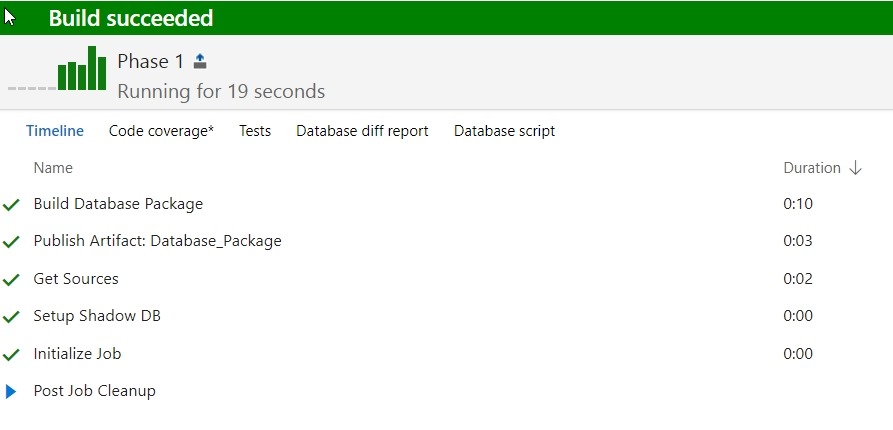
    If I click the build number, I can see I’ve barely caught this before it finished.

    2018-01-31 12_31_19-Build 36

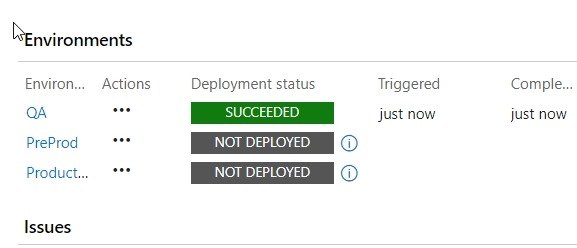
    The build completes, so now I need to check releases. I have a CD trigger that will deploy to a local QA instance when the build succeeds. If I go look at the release, I’ll see that’s occurred.

    2018-01-31 12_35_49-Release-14 - Visual Studio Team Services

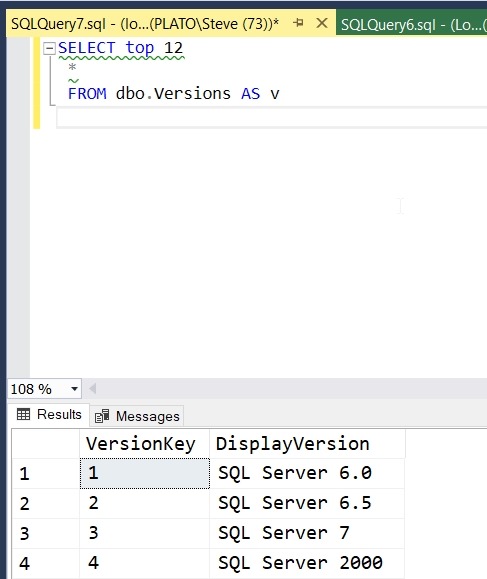
    This worked, so let’s check the QA instance. As you can see, my data was deployed.

    2018-01-31 12_36_43-SQLQuery7.sql - (local)_SQL2016.ssbuilds_rr_sjones_2_integration (PLATO_Steve (7

    If you were watching closely, you see I have a small data issue. I need to correct that, but that’s for another post.

    ReadyRoll is a part of the SQL Toolbelt, and if you’re a customer, I’d urge you to start a PoC and see what you think of the tool. ReadyRoll Core, with limited features, is included with Visual Studio Enterprise, and if you’re a customer of Microsoft, you can try that. We also have 14 day trials if you’d like to do this on your own.

  • Surround Code with Comments in SQL Prompt

    I work for Redgate and write about products. I’ve got a series of SQL Prompt posts here on little things I like. SQL Prompt might be my favorite tool.  SQL Prompt will be yours as well if you give it a try.

    I can’t believe I haven’t built this snippet before now, but it’s not in my list. I’ve dealt with this for some time, but I decided enough was enough.

    Here’s what I want. Note that all the code is inside a single comment.

    2018-01-27 09_28_29-SQLQuery1.sql - (local)_SQL2016.Northwind (PLATO_Steve (66))_ - Microsoft SQL Se

    Getting There

    I often have some random notes that I want to keep in a comment. For example, I might get a list of tables like this:

    2018-01-27 09_25_12-SQLQuery1.sql - (local)_SQL2016.Northwind (PLATO_Steve (66))_ - Microsoft SQL Se

    If I highlight this code and hit Ctrl, I get a list of snippets that contain a certain token. In my case, I get:

    2018-01-27 09_26_31-SQLQuery1.sql - (local)_SQL2016.Northwind (PLATO_Steve (66))_ - Microsoft SQL Se

    If I select Comment, I get the code commented, but as single line quotes.

    2018-01-27 09_26_58-SQLQuery1.sql - (local)_SQL2016.Northwind (PLATO_Steve (66))_ - Microsoft SQL Se

    That’s OK, but if I am saving something like STATISTICS output, that’s not pretty or easy for me to read. I prefer a single comment, not a series of separate inline comments. This is even more annoying with code.

    Let’s fix this with a snippet. Here’s my snippet code:

    2018-01-27 09_30_43-SQL Prompt - Create New Snippet

    The $SELECTEDTEXT$ token will take whatever text you’ve highlighted and insert it into the token. In my case, I just want this commented out.

    Let’s see how this works. Suppose I have this query:

    2018-01-27 09_36_06-SQLQuery1.sql - (local)_SQL2016.Northwind (PLATO_Steve (66))_ - Microsoft SQL Se

    I really want to get the results from STATISTICS IO and TIME as I’m tuning a few things here and I want to check how well my changes work.

    Once I run this, I’d like to place the results with the query and see them to compare with the next iteration. I paste the results into the query window like this:

    2018-01-27 09_37_42-SQLQuery1.sql - (local)_SQL2016.Northwind (PLATO_Steve (66))_ - Microsoft SQL Se

    Now I can highlight those results and hit CTRL, type surr, and get this:

    2018-01-27 09_38_12-SQLQuery1.sql - (local)_SQL2016.Northwind (PLATO_Steve (66))_ - Microsoft SQL Se

    I hit tab and I have my notes commented out:

    2018-01-27 09_38_28-SQLQuery1.sql - (local)_SQL2016.Northwind (PLATO_Steve (66))_ - Microsoft SQL Se

    The next time I run the query, I can easily compare how things have changed:

    2018-01-27 09_38_37-SQLQuery1.sql - (local)_SQL2016.Northwind (PLATO_Steve (66))_ - Microsoft SQL Se

    I also use this when working through a list of results. I’ll get those in the query window, highlight them, and then surround them with a comment.

    There are lots of places you might like to use this token with SQL Prompt. For more ideas, Phil Factor has a nice scenario for using this with other tokens in the Redgate Hub.

    Give SQL Prompt a try today and see how it can improve coding and feel free to share your tips here.

  • Managing SQL Prompt Code Analysis Rules

    I work for Redgate and write about products. I’ve got a series of SQL Prompt posts here on little things I like. SQL Prompt might be my favorite tool.  SQL Prompt will be yours as well if you give it a try.

    SQL Prompt includes new Code Analysis rules that help you write better code. This iteration of the rules in v9 are items that are highlighted with a green squiggly line. These are basic rules, and may not apply in your environment, and you may want to disable some of these. Here’s how.

    Imagine you have a simple query like this one:

    2018-01-29 13_14_03-SQLQuery1.sql - (local)_SQL2016.Northwind (PLATO_Steve (66))_ - Microsoft SQL Se

    As you can see, there are green squiggly lines under some code. These are static Code Analysis warnings from SQL Prompt. If I put my cursor on the line, I’ll see the warning about the old style column alias:

    2018-01-29 13_19_24-SQLQuery1.sql - (local)_SQL2016.Northwind (PLATO_Steve (66))_ - Microsoft SQL Se

    In this case, I know this is rule ST02, and it’s not a warning I care about. I like the equals alias construct and don’t want to constantly see this, so I’ll disable this rule.

    First, open the SQL Prompt menu. There are a few new items shown below. The “Enable Code Analysis” is below the other Prompt “Enable Suggestions”. There is also the “Manage Code Analysis Rules”. Select that item.

    2018-01-29 13_20_59-

    When the dialog opens, we see a number of rules broken into sections. Each of these is numbers, and has a prefix. Best Practices have BP prefixes, Deprecated items use DEP, etc.

    2018-01-29 13_21_50-Sql Prompt - Code analysis rules

    Scroll down to the Style rules, which have ST prefixes. We can see that ST002 is the Old-style column alias. Uncheck this box and click “Save”.

    2018-01-29 13_23_23-Sql Prompt - Code analysis rules

    Now the rule is disabled. If I wait a couple seconds, I’ll see the green lines disappear.

    2018-01-29 13_24_20-SQLQuery1.sql - (local)_SQL2016.Northwind (PLATO_Steve (66))_ - Microsoft SQL Se

    There are all sorts of items that SQL Prompt tracks as a part of Code Analysis. We’re looking to understand how you use these rules, what exceptions you need, and any additional rules you’d like to see added. Send us feedback at UserVoice.

    Give SQL Prompt a try today and see how it can improve coding and feel free to let me know how you like this new feature.