Tag: sql server

  • T-SQL Tuesday #52 – Arguments

    tsqltuesdayIt’s time for T-SQL Tuesday, this month hosted by Michael J Swart, our artistic DBA in the community. I love Michael’s pictures, and enjoy the time I get to chat with him at events.

    His invitation this month for #52 is to argue against a popular opinion. He asking us to find a "never ever" issue and argue for it. Or perhaps an "always do this" advice and argue against that. It’s a great topic.

    T-SQL Tuesday is the monthly blog party, invented by Adam Machanic. The second Tuesday of the month is the time to publish a post on your own blog about the topic and join the other people that write about the same topic.

    Never Turn on Auto Shrink

    I think that if you turn on the auto-shrink setting, Paul Randal rips an LED off his interactive panels. Even if he doesn’t, why would you ever enable auto shrink? It causes fragmentation, it’s somewhat insane as your files will just regrow if the space is needed for a workload such as a maintenance operation.

    The recommendation is to never turn on Auto Shrink on your databases. There are numerous references, though I’ll point to Brent Ozar’s nice summary. I’m going to pick a fight with this advice, though only in a narrow, limited sense.

    Auto shrink is, in general, a very bad idea. However I think there are a few places where I’d use the setting, understanding the implications.

    The Road Warrior

    There was a salesperson that had a laptop, traveling around and working his a piece of SQL Server (Express) based software. Let’s call him Joe, since that’s a nice generic name for this story.

    When Joe arrived at a client site, he’d get data from the clients in an Excel spreadsheet. He’d use the import wizard, load a bunch of data into a new table, point his software at it, and do some analysis of the data. He’d then make recommendations to the client and sell something based on his recommendations. When he was done, he’d click a button in the software and drop the table. The amount of data from clients varied, and it sometimes caused his database (and log files) to grow. He’d also forget to the drop the table sometimes and would wind up with 4-5 clients’ worth of data before he removed the tables.

    Over time, this also caused his laptop to run low on space. This wasn’t a big deal, and the help desk could respond to his concerns by remotely running a shrink of the files for him. However the time spent dealing with questions, and the concern that Joe experienced weren’t worth the effort. Auto-shrink worked fine for Joe and some of his colleagues.

    Performance wasn’t a big concern, as a single user accessed the database. The data didn’t live long enough to worry about fragmentation or maintenance and the reduction in irritation from Joe and the help desk was worth it.

    The Dusty Archives

    I once worked in a company that had an archive database. We had a process that copied data from previous years to a new database that was taken offline and a copy burned to a few optical discs for long term archival. We actually build this process to use a separate instance for the copy as the source SQL Servers were located in various parts of the US, and the data was remotely transferred to a central location for archival, and because we didn’t want to ship optical drives to multiple locations and explain to warehouse personnel how to use them.

    I, and my cohorts in IT, also didn’t really want to travel to small, inconvenient warehouses located in small cities without direct flights.

    One of the requirements was that we make these databases as small as possible to save space. We typically built a few archive databases before we shrank them and took them offline. In hindsight, the process of copying the data should have minimized the size of data and log files with its own shrink, but that wasn’t the case. An administrator needed to perform the shrink and sometimes they’d forget. Actually, most of the time they’d forget.

    The simplest solution was to enable auto shrink on this instance. That way once database files were sitting on the instance for any length of time, the databases would shrink themselves. No need for anyone to worry.

    Performance wasn’t an issue in these cases as recovery of the data would have meant a transfer back to a source system, where fragmentation and indexing would have been a concern.

    Narrow Cases

    In both cases, the reason auto shrink worked was performance wasn’t an issue, and administration was. Performance didn’t matter, and it wasn’t a heavily used system. I think these, and perhaps a few other narrowly defined cases are acceptable uses of Auto Shrink.

    However I also think there are many more abuses of the setting and I’d prefer it removed from SQL Server. Scheduling this process with Powershell would be trivial if you really needed it.

    And if you don’t know how to use Powershell (or SQLCMD), perhaps you shouldn’t be shrinking database files.
  • Virtual Lab – Setting up a new VM

    This is part of a series where I set up a virtual lab for testing and misc. work. The other parts in the series are here: Building a Virtual Lab with Hyper-V.

    I have my disks set up, now it’s time to create my virtual machines. I’m going to show you how to create one, but all really are done the same way. The names change, but no matter what my purpose is, this is how I set up the VMs. Once this is done, I’ll use other posts to go into the customizations for each machine.

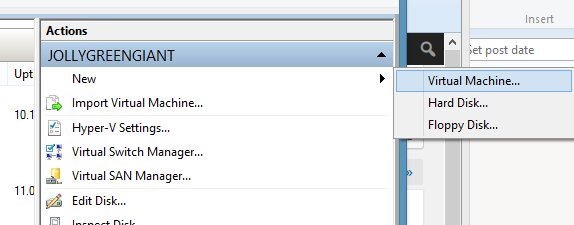
    We’ll start in Hyper-V manager, selecting a new VM.

    virtlab_p

    After the welcome screen, you need to name your VM and choose a location. I’ve got a folder set up for this lab on my machine, so I choose that, and set the name (for this machine) as DenverDC. This will be my domain controller and the first machine I set up.

    virtlab_q

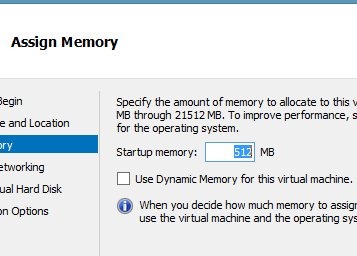
    Next we assign memory. I’ll want more for the SQL Servers, but this is easily changed at a later date, so I’ll leave this alone. One of the advantages of Core is less memory needed, and I could probably get by with less, but since I have 24GB on the host, I can spare half a gig.

    virtlab_r

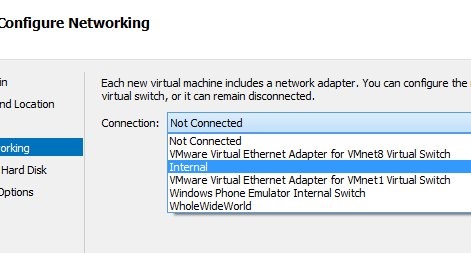
    After memory comes the networking. As you can see, I have a number of choices. The "WholeWideWorld" is the connection some of my VMs use to access the internet. In this case, I’m choosing the Internal network, which is the Internal switch I have set up. This is limited to connections between the VMs and since I want this to be an isolated network, this works fine.

    virtlab_s

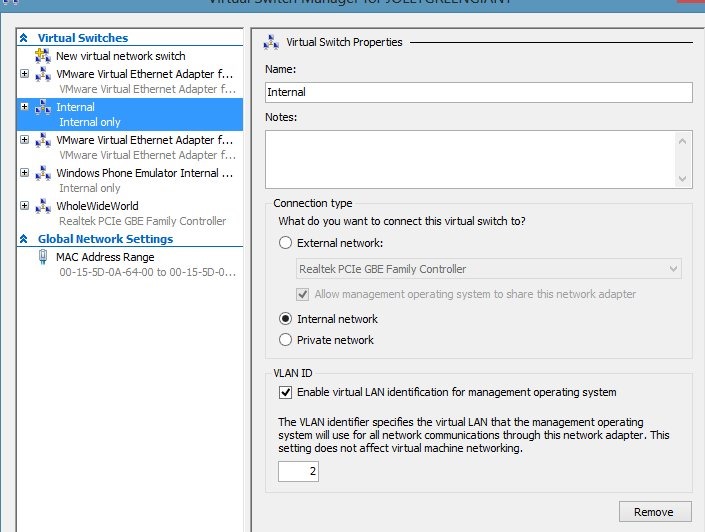
    My internal switch is actually configured as follows:

    virtlab_v

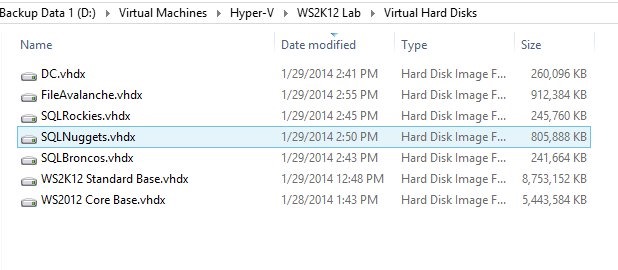
    Now we need to set storage. Since I set up my disks before this and named them in a way that I can understand, I choose the one I need. The default here is a new hard disk, but I’m saving space with differencing disks.

    virtlab_t

    I get a summary. Please check this as you set things up. Note that my differencing disk is set.

    virtlab_u

    I click finish, and I have a VM. I start it up from Hyper-V Manager and connect.

    virtlab_w

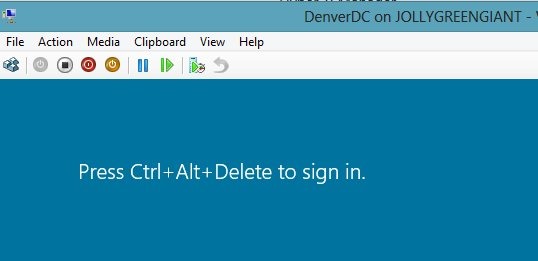
    Inside of Windows, I get the familiar Windows start screen (for Win8/WS2012). I click CTRL+ALT+DEL (leftmost icon on the toolbar) and then get prompted to change my password

    virtlab_x

    I change it,and I’ll use the same admin password on this machine that I use on a number of VMs.

    NOTE: This is NOT the password I use for any other services, including my VMWware VMs. At all. It’s only for Hyper-V VMs, but since I may have a few generations of VMs, I don’t want to forget this password. I also may end up starting up a few random VMs for talks, so I need to be able to get in.

    Once I log in, I get a basic session. Not much in Core.

    virtlab_y

    The only thing I really want to do here is rename the computer. I need to do more, but those will be in other posts. Let’s get the hostname.

    I could start server config (sconfig.exe) and get a basic setup, but I wanted to play with my PowerShell knowledge. So I started PoSh, and Google helped me find the computer name. I also used Google to find out the rename.

    virtlab_z

    The computer name (hostname) comes from

    $env:computername

    It doesn’t make sense, so I rename it with

    Rename-Computer -Newname "DenverDC"

    Once this machine restarts (Restart-Computer), it will have a new name.

    I know that I could use sconfig and it’s fast, or click around on my Standard servers and rename the machine, but once I get used to typing these commands in Powershell, it’s very, very quick.

    Note that my disks have been updated with changes. Their sizes have grown from the original 4MB.

    virtlab_aa

    I repeat this process for all the other machines, just to get them set with a password and name. Once they’ve rebooted, they’re ready for the next step.

  • Fixing CREATE TABLE

    I’ve always wondered about this. When I create a stored procedure I do this:

    CREATE PROCEDURE MyProc
      @param1 int
     as
     BEGIN
       -- add code here
     END;

    As is often the case, I realize that I’ve made some mistake and need to change the code later. So I’ll do this:

    ALTER PROCEDURE MyProc
      @param1 int
     as
     BEGIN
       -- add better code here
     END;

    In both cases, I’ve repeated lots of the code that I used the first time, though hopefully less of the bugs. If I create a function or view, I do something similar. However when I build a table, I do this:

    CREATE TABLE MyTable
     ( MyInt int
     );

    If I decide that’s not enough data storage, and it’s likely not, I would do this:

    ALTER TABLE MyTable
      ADD MyChar varchar(50);

    We’re used to this, but why do we do this? Why not this?

    ALTER TABLE MyTable
     ( MyInt int
     , MyChar varchar(50)
     );

    It’s almost as though DDL mixes the idea of code submission with architectural scaffolding. It’s inconsistent, and it’s the big reason why we can’t use comments in our table code like this:

    ALTER TABLE MyTable
     ( MyInt int  -- integer to store a pointer to this row, requires unique index for integrity
     , MyChar varchar(50) -- random value of some data I need to store for this example.
     );

    I don’t have any hopes that things will change, but it does make me wonder why SQL, which is often simple and highly versatile with a few consistent structures, would create this strange inconsistency.

    Steve Jones

    The Voice of the DBA Podcast

    Listen to the MP3 Audio ( 2.4MB) podcast or subscribe to the feed at iTunes and Mevio . feed

    The Voice of the DBA podcast features music by Everyday Jones. No relation, but I stumbled on to them and really like the music. Support this great duo at www.everydayjones.com.

  • Auditing Matters

    There’s been some reporting about Yahoo Mail getting hacked and potential issues recently. I ran across this piece that talks about what happened and it’s an interesting read, but there’s one quote that stuck with me: “Yahoo reported on its Tumblr that it had detected “a coordinated effort”—basically, an attack—by somebody trying to gain access to user accounts.”

    It’s not the notification or the proactive resetting of accounts, but the detection that resonates with me. We’ll never stop all hack attacks. We’ll never plug all the holes in software. We’ll never anticipate the ways in which our systems might be compromised, but we can detect issues. I think more often than not we can deal with any hacks or attacksif we are aware they took place.

    We have some login auditing in SQL  Server, an auditing and eventing framework, and the ability to capture and store this data. However we don’t have good proactive tools to help us detect issues. I’d like to see enhanced tooling to allow us to review log data, write alerts that look for patterns, and more. While much of this can be built by DBAs, it requires use to develop and maintain software, and even then it’s easy to miss potential attack vectors if you don’t constantly supplement your knowledge and enhance your tools.

    Given what we have to work with, I’d encourage you to learn a bit about the different frameworks and gain some basic skills with the tools. I’d also encourage you to think about writing queries to look for potential hacking issues, like updating all of your lookup values to the same string, or embedding script tags in your data. I’d encourage you to write or speak about what you learn, and how you use the information. If you’d like to write software to make the task easier, that would be great.

    I’d also encourage you to befriend your network or security administrators and teach them how to query their own lo data. Lots of their tools collect data, but provide poor query tools for the information. Perhaps you can even build them a data warehouse that allows them to tighten security by examining their own data.

    Steve Jones

    The Voice of the DBA Podcast

    Listen to the MP3 Audio ( 2.4MB) podcast or subscribe to the feed at iTunes and Mevio . feed

    The Voice of the DBA podcast features music by Everyday Jones. No relation, but I stumbled on to them and really like the music. Support this great duo at www.everydayjones.com.