Tag: SQL Source Control

  • SQL Source Control v5.0 Beta–First Migration Script

    I joined the beta program for SQL Source Control recently. I know, I work for Redgate, I should be in all beta programs. However I present on our various products, and I need those presentations  to work reliably. As a result, I rarely get ahead of our RTM products because I value stability.

    However, I really, really like SQL Source Control, and wanted to get the migrations stuff working in Git. Of course, I’m also looking for holes and problems, so I’ll be giving feedback.

    Install is simple, though after I download the beta, it took me a week to get going because of other tasks. In the meantime, there were updates. I always check for SQL Source Control updates, and I had to download and install an update. Redgate operates on a very agile, DevOps development cycle, so always check for updates.

    2016-03-11 12_27_35-Settings

    That was easy, other than the SSMS reboot. Here are the versions of SQL Source Control:

    2016-03-11 12_29_14-About SQL Source Control

    And SSMS:

    2016-03-11 12_29_25-Settings

    I had a previous database I’ve been using for demos that I keep in GitHub. This hasn’t worked with migrations in the past, but I want it to, so I decided to see how this database would “upgrade” to migrations.

    Syncing from GitHub

    First I created an empty database.

    2016-03-11 12_33_24-Settings[3]

    I then linked this to my git repo. This is easy, but I’ll run through it. I select the database in the Object Explorer (OE) and then click link in the SQL Source Control (SOC) plugin. I’m using Git, so this is a good place to start.

    2016-03-11 12_33_38-Settings

    Next I pick the folder and let the system create the link. Note this repo already is updated from the remote (Github) and contains all my database scripts.

    2016-03-11 12_34_40-

    Once that’s done, I switch to the Get Latest tab and click “apply” to move all the code to my database. This process reads all the .SQL files and runs them in my database, in the appropriate order.

    2016-03-11 12_34_53-Settings

    When that’s done, I have a database. Simple setup, and this makes it easy for me to get a dev system on a new instance quickly.

    2016-03-11 12_47_44-Start

    Migrations

    Now the fun part. Migrations. I’ve been waiting for this version of SOC to support Git. No message here saying my VCS isn’t supported.

    2016-03-11 12_48_38-SQL Source Control - Microsoft SQL Server Management Studio

    Now I want to create a migration script. There are a lot of things I could do here, but let’s do something simple. I’ll go ahead and add a not null column to my RSSFeeds table.

    Let’s try the designer. This is easy enough to do. We’ll add the last column.

    2016-03-11 12_56_34-Settings

    However we can’t save this:

    2016-03-11 12_56_42-Post-Save Notifications

    This doesn’t work as a script, either. The reason is that SQL Server doesn’t know how to manage this change. What goes in the NOT NULL space?2016-03-11 12_57_31-Settings

    There are lots of ways to do this, but the way many people want to deal with this is”

    • Add a NULL column
    • Populate data
    • Change the column to NOT NULL

    Let’s do that. We’ll use a script to do this:
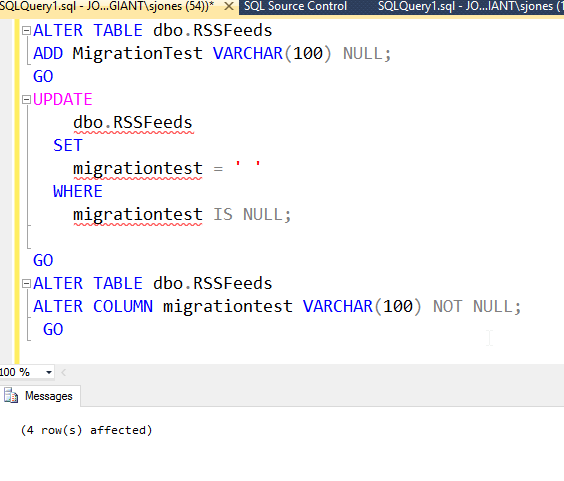
    2016-03-11 13_07_45-Settings

    This works, but when we go to commit this change, we see this:

    2016-03-11 13_08_09-SQL Source Control - Microsoft SQL Server Management Studio

    The tool lets us know this might cause issues, and we need a migration script. If I click on the the “Add a migration script”, I go to the Migrations tab, where I see the table effected. Let’s select it and click “Create migration script.”

    2016-03-11 13_08_52-SQL Source Control - Microsoft SQL Server Management Studio

    This brings me to the script editor. I’ve pasted in my script.

    2016-03-11 13_09_08-New migration script.sql - JOLLYGREENGIANT_SQL2014.ASimpleTalkDB (JOLLYGREENGIAN

    Note I also need to give this a name. The default isn’t great.

    2016-03-11 13_09_25-Settings

    Once I’m done here, I close and save. Now I can see all the items listed on the Commit tab. I’ll start at the bottom. Here is my data change, which is subordinate to the migration script. I’ve scrolled over to see the actual data.

    2016-03-11 13_09_45-SQL Source Control - Microsoft SQL Server Management Studio

    Now let’s look at the schema. Here the NOT NULL is added, but we know this won’t work. This needs the migration script.

    2016-03-11 13_09_57-Settings

    And here’s the script. This is what I wrote and pasted in.

    2016-03-11 13_10_04-SQL Source Control - Microsoft SQL Server Management Studio

    I commit this, and I’ve got a script. Or do I? Do you know what the issue is?

    It’s that I didn’t set a default. I left this out to show you there’s no magic here. SQL Source Control isn’t doing the work for you of deciding how schemas should change. Instead, you need to write the appropriate scripts. In this case, I’ll acknowledge and commit, which it lets me do.

    2016-03-11 13_15_48-Warnings

    However, this will be an issue, so I’ll add another commit. I can check this in my history tab (I committed too quick).

    2016-03-11 13_36_00-History

    You can see this has added the default. What happens on another machine? Let’s check my presentation VM, which is also updated to SOC v5 Beta (with a snapshot to undo this).

    I created a new database and linked it.  At the bottom of the list of objects, I see my migration script.

    2016-03-11 13_50_44-Win7x64 SQL 2012 Demo - VMware Workstation

    I also see this in the migrations tab.

    2016-03-11 13_50_11-Win7x64 SQL 2012 Demo - VMware Workstation

    Applying all changes worked. If I look at the table, I see what I expect, with the the NOT NULL setting, the data, and the default is set correctly

    2016-03-11 13_56_02-Win7x64 SQL 2012 Demo - VMware Workstation

    This is a very basic look at what’s happening with the new SQL Source Control v5. It’s in beta, and if you’re interested, we want more testers and lots of feedback. We’re excited about this release, but we want to ensure it’s the best there is.

  • The Next DLM Demo Webinar–Feb 23

    A quick note that I will be presenting a webinar on Feb 23rd at 10:00am MST. That’s noon EST and 5:00pm GMT. You can sign up here if you’d like to watch. This is similar to other DLM webinars I’ve done that look at the Redgate stack of products that help you develop database software in a smoother fashion.

    I am changing things up a bit. This time the stack is:

    • Git – version control
    • Team City – Continuous Integration or Build server
    • Octopus Deploy – Release Management tool.

    As with the other webinars, I’ll show how I track the version of the database in each environment, then show how to make changes in SSMS, commit them to my VCS with SQL Source Control, and then deploy them in an automated fashion across various environments. In this case, I’ll have this flow of environments

    • development
    • integration
    • test
    • acceptance
    • production

    It’s an impressive demonstration. As I’ve watched this grow at Redgate, I am impressed with how well things work. I wish I’d have had these tools when I built database software earlier in my career.

  • Git Pull in SQL Source Control

    I wrote recently on Git Push in SQL Source Control (SOC), and now wanted to add the other side of the story, pull. This process is even simpler.

    I’ll be working with a new database, one that has two client systems set up already with Git support. I know I haven’t tackled that part of SOC and Git, but I’ll do that in a new post.

    In this case, I’ve got a repository on Github for my Redgate and SQL in the City demos. It’s a sample database, but I’ve been making multiple changes to the database across time, using Version Control as a way of continuity, and then being able to rollback changes or see history.

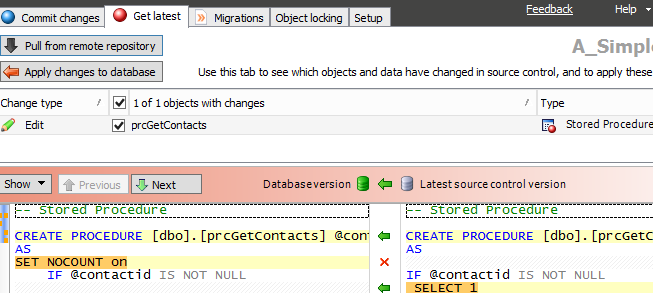
    I’ve got a connection in a VM to a second development machine. When I launch my VM, and SSMS, I go to the second SOC tab, the one that is labled “Get Latest.” You can see the image below, and notice that there are two buttons in the upper left. There is the familiar “Apply changes to database,” which has been the way that we pull changes from TFS and SVN, but now there is a new “Pull from remote respository.” This is the one specific to Git.

    2015-10-22 23_19_54-OneNote

    In this case, I’ve refreshed my database previously in sync with the local Git repo. Therefore the button is grayed out. However, I don’t know if there are remote changes until I click the other button.

    I do that and get the familiar four step dialog from SOC that checks for changes and then compares them to the local database. However what you don’t see is that a “git pull” is issued first, pulling changes from the remote repo. In my case, I had one change I’d made in London, actually, and hadn’t synced with my VM.

    2015-10-22 23_20_15-salesdemo-2015-02-25-1422-export-i-fgg5cstb - VMware Workstation

    This is the familiar SOC actions now where I see the changes and can use the “Apply changes to database” to compile this code in my local database.

    In some sense, this is less exciting then push, but it’s nice to be able to do this in the client.

    I’ll write some more on the workflow as I develop changes in the coming posts, which are going to be aimed at building a small database in Azure SQL database and moving changes from my local system to Git for tracking, and then to Azure for production use.

  • The SQL Source Control Frequent Updates Channel

    One of the things we do at Redgate is release software often. It’s not just that we want you to release your software often (and develop better), but we do it ourselves. Different teams release at different cadences, which is both cool, and hard to keep track of. The SQL Prompt team is really amazing, releasing hundreds of times in the last year. A pace of almost 4 times a week!

    SQL Source Control is a product I’ve been using fairly often lately. There is a team working on updating the code regularly, and I recently found out that they had two different streams of software releases. This is so the development team can get early feedback on some new features, but also so you can get access to the new features, performance improvements, and bug fixes as soon as they’re available.

    As a result, we have a normal, mainstream channel for releases, and a frequent release channel. The frequent channel offers new updates every Wednesday whereas the normal channel releases are less regular. The releases tend to be every few months, depending on the feature set being worked on. The regular channel also rolls multiple frequent releases into one larger update.

    Enabling Frequent Release

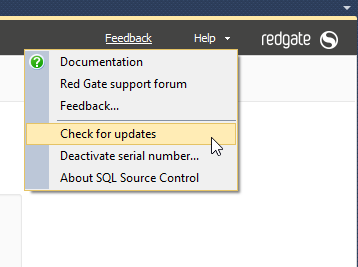
    If you’re interested in getting frequent releases, then open SQL Source Control (SOC) and then click the help item. The “Check for updates” item is there, which is what you want to select.

    2015-10-22 11_15_18-SQL Source Control - Microsoft SQL Server Management Studio

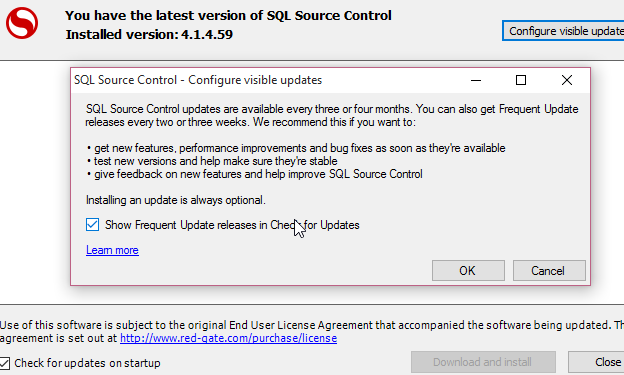
    The update screen appears, and you may or may not have updates available. I don’t, as I updated this morning. However in the upper right corner is a “Configure visible updates” button. Click that.

    2015-10-22 11_15_28-SQL Source Control - Microsoft SQL Server Management Studio

    Once you do that, you’ll get a dialog that tells you that you might get more updates, every few weeks and get new versions. If you check the box, as I have, you get updates quicker.

    2015-10-22 11_15_36-OneNote

    One note. This isn’t for beta versions. This is for code we are sure is ready, but we’re hoping to refine how it works and this gives us a chance to essentially have a additional test audience view the code and let us know. This is over and above the automated CI process we use and rigorous testing already completed by the development team.

    My experience is that I turned this on in early September to get the new Git support. I got the release with push/pull about three weeks before others (this has since been released to the regular channel). Since then, I’ve gotten two other releases that changed minor items, the same ones available to everyone else on the frequent release channel. The next regular channel release isn’t due until early 2016.

    If you want to see more frequent changes, enable the updates. If not, you’ll get updates on the normal schedule you do now. If you’re trying to understand what version you’re on, or what the features are, we have release notes:

    And if you want to shape the product, please vote on UserVoice for the things that you’d like to see in the future.