Tag: SQL Source Control

  • SQL Source Control Link Errors on a New Machine

    I replaced my desktop recently and installed new software through Chocolatey.. One of the things I installed was git. I ran “choco install git” and then started using it. I cloned some repos and everything seemed fine.

    Then I cloned a repo of a SQL Source Control database, created a new database and tried to link the repo. I got an error on screen, which I forgot to screen capture. The error was 128, which wasn’t helpful.

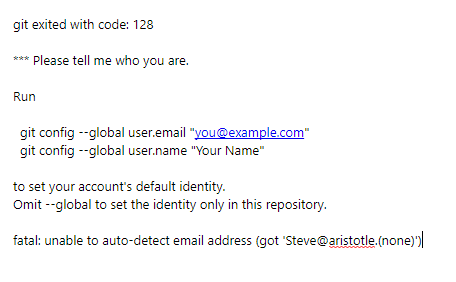
    Fortunately, I did manage to copy the error to the clipboard. I pasted it in Notepad and saw this:

    2020-05-14 14_29_25-Are you a gatekeeper_ - Evernote

    Aha!

    I never configured git. Since I’m mostly working in my own repos, committing back to places that I will access from another machine, I haven’t thought about this. I know I’ve done this on the previous machine because SQL Source Control worked a month ago.

    What’s nice about git, and what I wish more software did, is that it tries to help you. In this case, it tells me that it can’t detect an email address and therefore can’t populate the commit metadata.

    What do I do?

    Run the commands and config my environment. I copied and edited the commands in a command prompt. And typo’d things one time.

    2020-05-14 14_34_24-cmd

    Once this was done, SQL Source Control worked.

    2020-05-14 14_35_06-Link to source control created

    SQL Source Control is a fantastic way to easily grab your database code and put it into a repo. Give it a try today if you never have tried it, but you’ve ever scripted out your object code.

  • SQL Source Control and Bitbucket–Getting Started

    This is in response to someone asking about getting started with their database in SQL  Source Control and then hosting at BitBucket. I’m going to assume people can set up an account at Bitbucket and won’t cover that. Instead, this is part of a series that looks at getting a CI build working.

    I’m going to start showing how to get a git repo set up locally and connect a database to it with SQL Source Control in this post. I’ll then connect that to Bitbucket and move changes around. In a future post, we’ll see a CI build taking place from our Bitbucket repo.

    Linking SQL Source Control

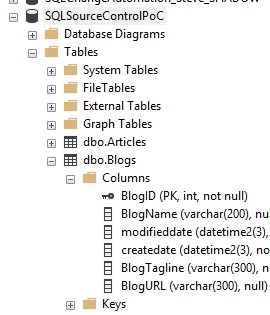
    I’ve got a test database set up on a SQL Server 2017 instance, called SQLSourceControlPoC. The script for that database is here: SOCPoC_Create.sql.

    2019-03-14 09_54_39-SQLQuery1.sql - Plato_SQL2017.SQLSourceControlPoC (PLATO_Steve (60)) - Microsoft

    The first step is to get a repository set up. You need to install git, which is easy. You can get a client tool, like SourceTree or Github Desktop for Windows, but I like the command line and I’ll use that.

    On Windows machines, under your use account, you have a Source, and then a Repos set of folders. I’ll change to those in the command line. I’ll then create a folder, called “SQLSourceControlPoC”. I find it easy to keep the folder name the same as my project, which in this case is the database. I’ll create a folder under this to store my actual code.
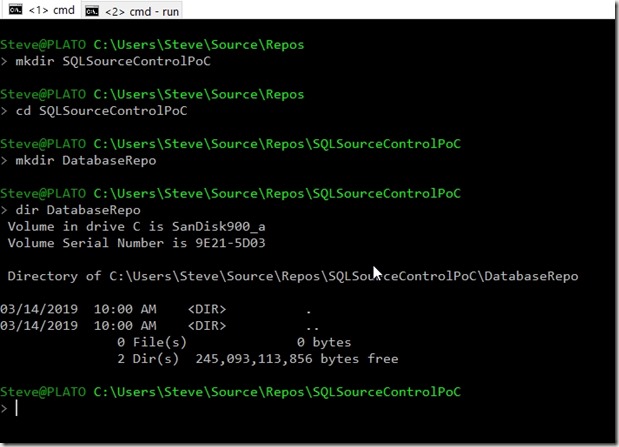
    2019-03-14 10_00_50-cmd

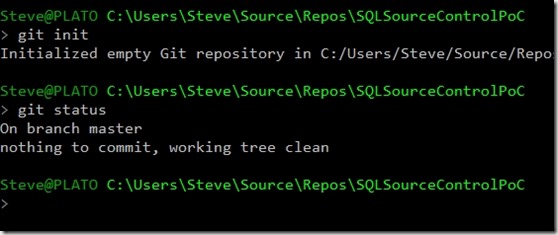
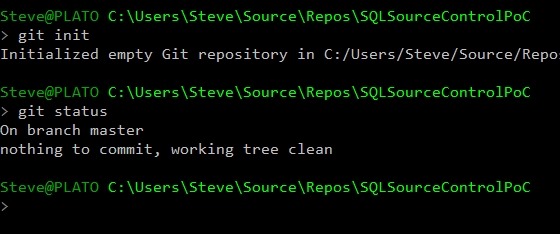
    Now I’ll set up a git repo, which I do with “git init” in the folder.
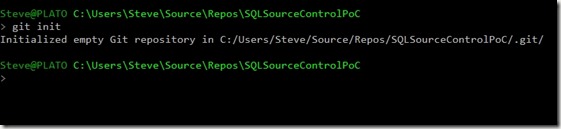
    2019-03-14 10_01_39-cmd

    That’s it. Now let’s start with SQL Source Control.

    I’m going to assume you have SQL Source Control installed already. If you don’t have that, download an eval and run the setup. From there, I can right click on the database name and select “Link database to source control”.
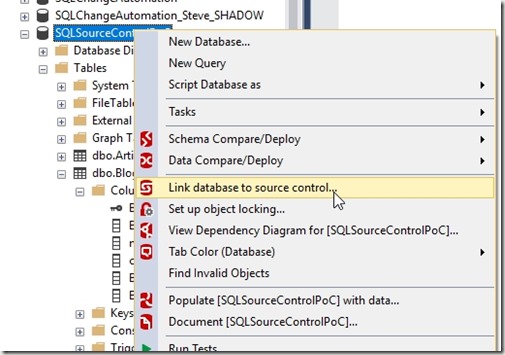
    2019-03-14 09_56_10-SQLQuery1.sql - Plato_SQL2017.SQLSourceControlPoC (PLATO_Steve (60)) - Microsoft

    This will open the SQL Source Control tab in SSMS. This shows my database name at the top, and since this database hasn’t been linked, we’ll start with the wizard for linking.

    2019-03-14 10_03_26-SQL Source Control - Microsoft SQL Server Management Studio

    We set up a git repo already, so we’ll leave the top item checked. We click Next and get a dialog that asks which VCS and where is our repo. I’ll select git and browse to the location where I created the repo.

    Note, I’ve specified the subdirectory. I like a subdirectory as this allows me to place other code in the repo if I need it (like notes, readme, etc.) and keep the database code from SQL Source Control clean.

    2019-03-14 10_04_41-Link to source control

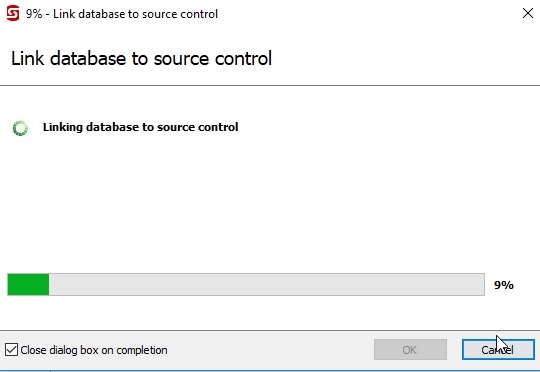
    When I click link, I get a progress bar.

    2019-03-14 10_06_15-Link to source control

    When that finishes, I get the Setup tab, which shows me the configuration and gives me some options.
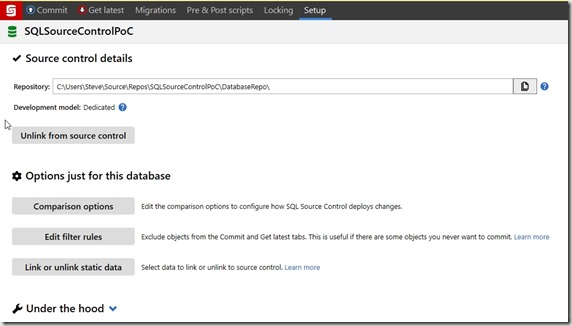
    2019-03-14 10_07_47-SQL Source Control - Microsoft SQL Server Management Studio

    We can ignore this for now and select the “Commit” tab instead (top left). This will switch to that tab and look for changes in the database that aren’t stored in our version control system. Here’s our current VCS view:

    2019-03-14 10_09_10-DatabaseRepo

    We only have our SQL Source Control file. There are many more objects in the Commit tab, as we see below. SQL Source Control assumes the database is the source of truth here and tries to capture all changes.

    2019-03-14 10_12_35-SQL Source Control - Microsoft SQL Server Management Studio

    There’s a lot to see here, but we won’t dive into what’s here. There are other articles and posts on this. For this article, I’ll enter a commit message and click “Commit”. Once I do that, my VCS view changes.

    2019-03-14 10_17_19-DatabaseRepo

    SQL Source Control has created folders for my objects, with a separate file for each object below the folder. For example, the Tables folder looks like this:

    2019-03-14 10_19_28-Tables

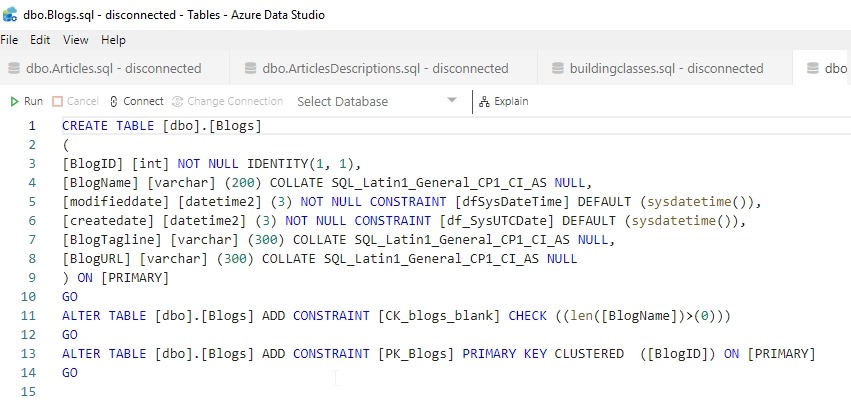
    The contents of the dbo.Blogs.sql file are shown here in Azure Data Studio.

    2019-03-14 10_19_57-dbo.Blogs.sql - disconnected - Tables - Azure Data Studio

    And my git status:

    2019-03-14 10_21_01-cmd

    We’ve gotten our code into a git repo, now let’s move on.

    Connecting to BitBucket

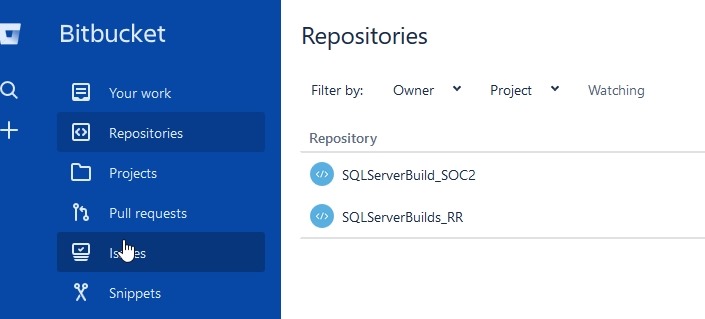
    I’m going to assume you have a Bitbucket account. If not, go do that. When you do, click your Repositories menu item, and you will get a list of repos. I have two already.

    2019-03-14 10_22_12-way0utwest _ home — Bitbucket

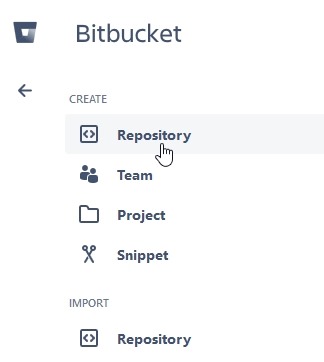
    In the mid left, there’s a plus (+) sign. Click that to get the add dialog.

    2019-03-14 10_22_22-way0utwest _ home — Bitbucket

    Pick repository and then you’ll enter some data. I chose a name that’s the same as my local repo to ensure some easy tracking. I made this public, so anyone can download my repo if they want to play with the code.

    Note: I’m not likely to accept and PRs.

    2019-03-14 10_22_58-Create a repository — Bitbucket

    Once I click Create repository, I get a welcome screen. In this case, I get some instructions, and the important ones are moving my local git repo here.
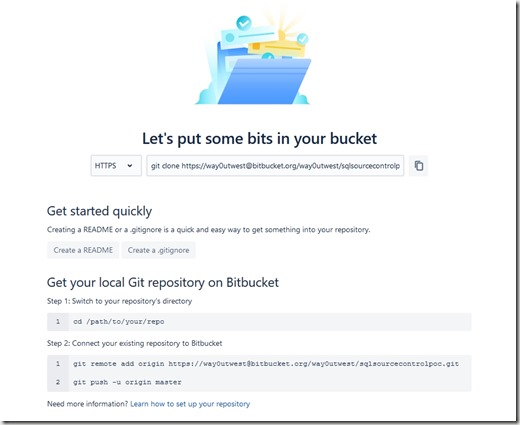
    2019-03-14 10_23_13-way0utwest _ sqlsourcecontrolpoc — Bitbucket

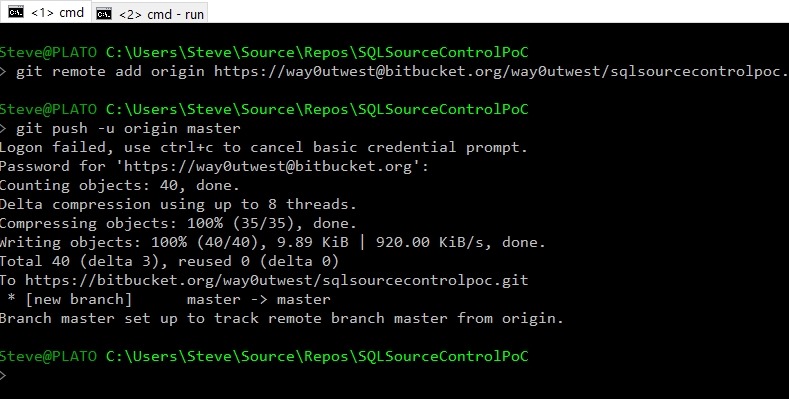
    Let’s do that. I’ll go back to my command line and enter the git remote command (from above) and then the git push. Note the authentication popup.

    2019-03-14 10_26_34-cmd - git  push -u origin master

    That failed for me, but when I went back to the command line, I entered my password again and it worked.

    2019-03-14 10_26_57-cmd

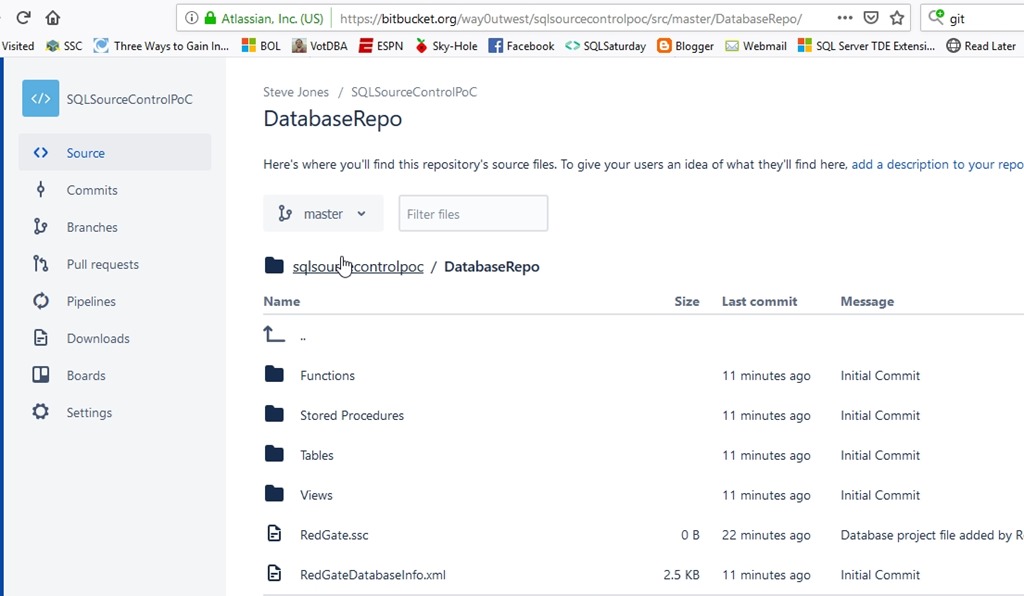
    Going back to Bitbucket and refreshing the Source tab, I see code.

    2019-03-14 10_28_34-way0utwest _ sqlsourcecontrolpoc _ DatabaseRepo — Bitbucket

    Right now I have code in a SQL Server database. This is linked to a local git repo on my desktop, which is linked to a remote git repo at Bitbucket.

    Making Changes

    One last thing is to make a change on the local database and get that to Bitbucket. Let’s do that. I’ll enter this code in SSMS:

    2019-03-14 10_31_58-SQLQuery1.sql - Plato_SQL2017.SQLSourceControlPoC (PLATO_Steve (60))_ - Microsof

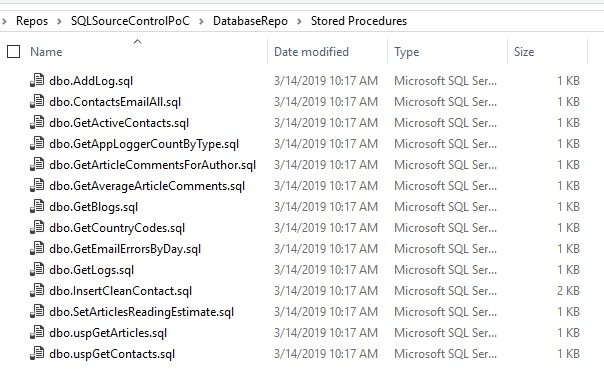
    I execute this and I have a proc in my database, but this isn’t in git.
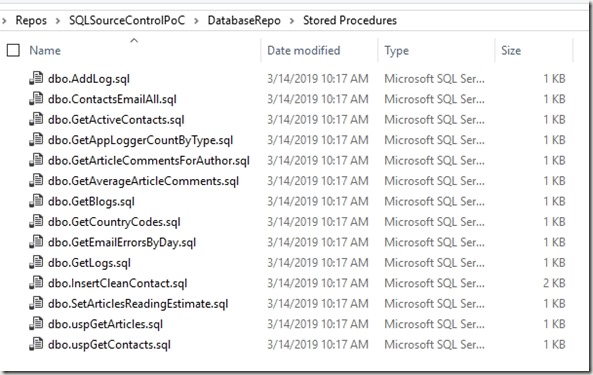
    2019-03-14 10_32_37-Stored Procedures

    If I go to the Commit tab in SQL Source Control, I see one change. I’ll check this in the lower windows to verify the code, select the item in the middle and enter a Commit message.
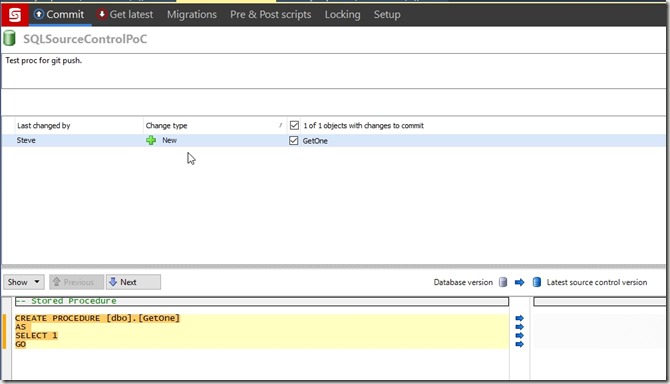
    2019-03-14 10_33_39-SQL Source Control - Microsoft SQL Server Management Studio

    Once the commit completes, the change is in my local repo, but not in Bitbucket. However, SQL Source Control gives me a “Push” button. If I click this, a git push will execute.

    2019-03-14 10_35_17-SQL Source Control - Microsoft SQL Server Management Studio

    Note: I had some authentication issues here. The push may or may not work, depending on how you have authorization set up for Bitbucket. I had to enter a username and password, which sometimes worked, sometimes didn’t. Performing a “git push” from the command line worked.

    In Bitbucket, I now see my procedure.

    2019-03-14 10_56_42-way0utwest _ sqlsourcecontrolpoc _ DatabaseRepo _ Stored Procedures — Bitbucket

    Summary

    This is a quick look at how to get my database code in to Bitbucket via SQL Source Control and git. This should help you begin to understand how to start enabling database development to follow what application developers do.

    I’ll work on getting a CI build in my next post. If you want to see a particular CI system, let me know.
  • Learn about SQL Source Control in Redgate University

    I love the SQL Source Control product from Redgate. It’s not perfect, and it can be slow to run at times, but the simplicity of what it does, of getting my code quickly and easily to a VCS is fantastic. I really appreciate it.

    This is one of the tools I enjoy demoing and showing off how to ensure you get all the code from you system stored away. I wish I had been able to purchase this product years ago when I was building database software as my day job.

    We now have a course to help you learn how to use SQL Source Control at Redgate University. This is a series of 10 sections (as of now) that cover a variety of ways in which you can capture development code with SQL Source Control and even deploy those changes to another database.

    Give the course a try, and see what you might learn about this product. We’ve got other courses as at Redgate University, with more coming all the time.

    If you’ve got ideas or suggestions for the courses, send us a note at https://www.red-gate.com/hub/university.

  • Updating VSTS to SQL Change Automation

    We (Redgate) released SQL Change Automation a few weeks back. This is the first stage to implementing a combined toolset that works with both state/comparison development and migrations based development. The change updated both our migrations toolset (previously ReadyRoll) and our build/release cmdlets (DLM Automation) to SQL Change Automation (SCA).

    I have pipelines that are setup with Redgate DLM Automation tasks. This post shows how I updated the first of these to SCA.

    Finding the Build

    Here’s my current VSTS build pipeline for a project. Note that these are DLM Automation 2 tasks. There is a single task that you configure with the Operation (on the right) to build, test, or sync a database.

    2018-06-28 16_56_49-SQL Server Builds - SOC-CI - Visual Studio Team Services

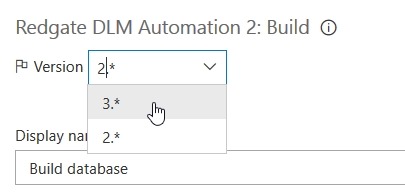
    Note that there is a version drop down at the top of the right side. Here I need to drop this down to find the SCA task, which is version 3.

    2018-06-28 16_58_05-SQL Server Builds - SOC-CI - Visual Studio Team Services

    Once I select this, you’ll see that my task changes to SCA, both on the left and right.

    2018-06-28 16_58_14-SQL Server Builds - SOC-CI - Visual Studio Team Services

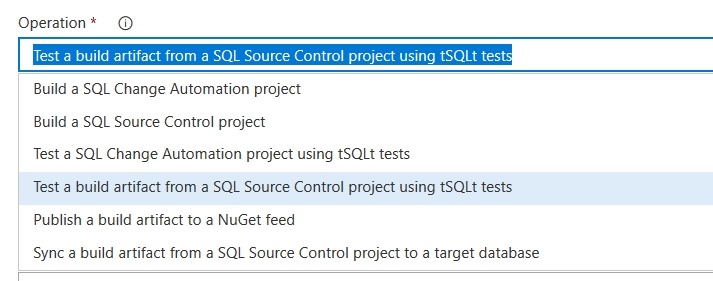
    I can change both tasks to v3 and I’m set. This is really the change that we’ve done, and we’ve combined operations. If you drop this down you will see there are SCA (migrations) projects here along with SQL Source Control state projects.

    2018-06-28 16_59_28-SQL Server Builds - SOC-CI - Visual Studio Team Services

    This means that if I convert from a SQL Source Control/state project, my pipeline stays intact. I’ll just change the operation from a build with SQL Source Control to one with SCA.

    This mostly works, but there are some path differences for release, so I’ll talk about those in another post.

    This is a simple change, but it’s important for future strategy. You can watch a bit of our strategy in this SQL in the City video on the database deployment pipeline. If you want to give this a try, download SQL Source Control and/or SQL Change Automation and start a test project.