Tag: SQL Change Automation

  • A Quick SQL Change Automation Build

    I was going through a few of the Redgate products with a customer recently and they wanted to perform some validation of the build and release process with SQL Change Automation without setting up Azure DevOps or Jenkins or any server. Not a  bad idea, and a good way to actually learn how to do things.

    Working with PoSh is a little funny, since many of the Redgate cmdlets require objects, not strings, so this is a quick post on how to get a build working and output a nuget package with your database code.

    Prerequisites

    The things you need to do before we get started:

    • Have a SQL Server instance you are a sysadmin of (or at lease create/own dbs)
    • Install SQL Change Automation
    • Set up a SQL Change Automation Project
    • Create a folder for storing build artifacts

    The Script

    I’m going to show the script first, and then I’ll describe how a few things work, since I expect some people want to just get a build working.

    # Build script for SCA projects
    param( $OverrideVersion="3.2")
    # Instance variables
    #    BuildInstance - SQL Server instance name for building 
    $BuildInstance = "Aristotle"
    
    # Database Variables
    #    BuildDB - existing database used for build connection. Won't be altered
    $BuildDB = "builddb"
    
    # Package Variables
    #    PackageID - Set the nuget package name to be used
    #    PackageVersion - suffix on nuget package id.
    $PackageID = "SimpleTalkDB"
    $PackageVersion = $OverrideVersion
    
    # Path variables
    #   ProjectFile - full local path to the SCA project file (.sqlproj)
    #   BuildArtifactPath - Path where the Nuget package is stored
    $ProjectFile = "E:\Documents\git\SimpleTalkDemo\SimpleTalkDB\SimpleTalkDB.sqlproj"
    $BuildArtifactPath = "E:\buildartifacts"
    
    # Debug
    # Use Continue to get more output
    $DebugPreference = "SilentlyContinue"
    
    # Setup database connections using variables from above to the build instance
    $BuildConnection = New-DatabaseConnection -ServerInstance $BuildInstance -Database $BuildDB
    
    # Build the database with a validate
    $ValidProject = Invoke-DatabaseBuild $ProjectFile -TemporaryDatabaseServer $BuildConnection 
    
    # Get the artifact and write to disk. Note the name comes from the package vars above.
    $buildArtifact = New-DatabaseBuildArtifact $ValidProject -packageId $PackageID -PackageVersion $Version
    
    Export-DatabaseBuildArtifact $buildArtifact -Path $BuildArtifactPath

    This is a basic script that validates a SQL Change Automation project and packages up a particular version of your project.

    The way this works is as follows. First variables. For the build I need to change these:

    • BuildInstance – where will I run the build
    • BuildDB – I just need an existing database for the build. We actually won’t use this.
    • PackageID – Name for the nuget package
    • PackageVersion – What version. This can be passed into the script as a parameter
    • ProjectPath – Where is the sqlproj file from SQL Change Automation
    • BuildArtifactPath – Where am I storing the artifacts.

    The flow of the script is:

    • Set variables
    • Create a connection to a SQL Server (New-DatabaseConnection)
    • Build, which is to perform a project validation on a SQL Server (Invoke-DatabaseBuild)
    • Create the artifact in memory (New-DatabaseBuildArtifact)
    • Write the nuget package to disk (Export-DatabaseBuildArtifact)

    From here, I’d use the Nuget package as the start of a release process, another post for another day.

    I can override the package version with a parameter, so I can enter this on the cmd line:

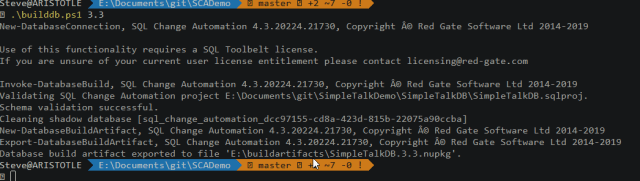
    .\builddb.ps1 3.3

    That gives me a build that works on my system.Successful build from PoSh
    In my folder for BuildArtifacts, I see the new package.
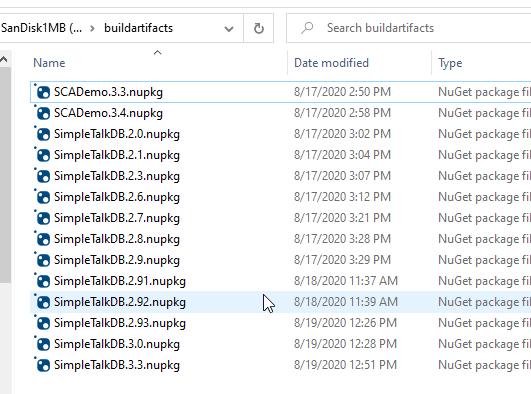
    List of nuget packages in folder

    Give it a try, and let me know if this works for you.

  • Setting up a New SQL Change Automation Project

    It’s been awhile since I’ve set up a new project in Redgate’s SQL Change Automation project. I’ve mostly used this in Visual Studio, but I need to demo something to a client, so I decided to document the process of getting started here.

    There are often updates to this product, as we release every week or two, so the first thing was the click on the banner in SSMS and upgrade to the latest version. Once you have things working, you don’t need to do this often, but you should to it quarterly at least.

    2020-07-07 18_00_55-SQL Change Automation

    My Environment

    I’ve got multiple copies of my databases on one instance. I have 1 for development, 1 for QA, and one for Prod. This is a good PoC setup for getting familiar with the product.

    2020-07-09 10_13_51-SQL Change Automation - Microsoft SQL Server Management Studio

    The flow is we only make changes in SimpleTalk_1_Dev with SSMS. Everything else will happen through automation.

    These databases already have objects in them, but they’re not overly complex.

    2020-07-07 17_56_15-SQLQuery1.sql - ARISTOTLE_SQL2017.Sandbox (ARISTOTLE_Steve (54)) - Microsoft SQL

    I have SQL Change Automation (SCA) installed in SSMS, versions 4.2.20176 and 18.5 respectively. Let’s see if we can do some development.

    Creating a Project

    When I open the SCA tab in SSMs, I see the open and new project options.

    2020-07-08 10_22_54-SQL Change Automation - Microsoft SQL Server Management Studio

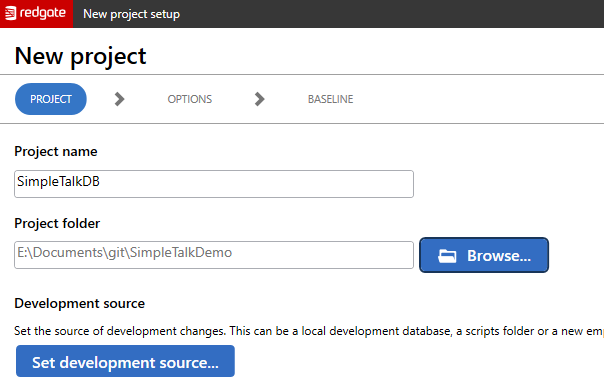
    We are creating a new project here, so let’s click the button to do that. Once I do that, I get a dialog that appears. I’ve entered a name and then select my folder where I keep code.

    Note, I’ve picked a folder name here, and the project will create a subfolder under this with the name of the Project as the folder name. In this case, my actual project files will be in E:\Documents\git\SimpleTalkDemo\SimpleTalkDB.

    2020-07-09 11_24_25-New project setup

    I do want the project folder under version control. Before I have SCA do anything, I use a command line and initialize this for git. If you don’t know how this works, I’ve got a post on that.

    2020-07-08 19_41_49-SQLServerCentral – The #1 SQL Server community

    Now I can go back and connect to the development source. This is the dev database. There doesn’t need to be anything in here, but in this case, it’s a copy of the schema from production. Once I enter the credentials and pick the database, I come back to this screen and I see the first part of my project.

    2020-07-08 19_43_53-New project setup

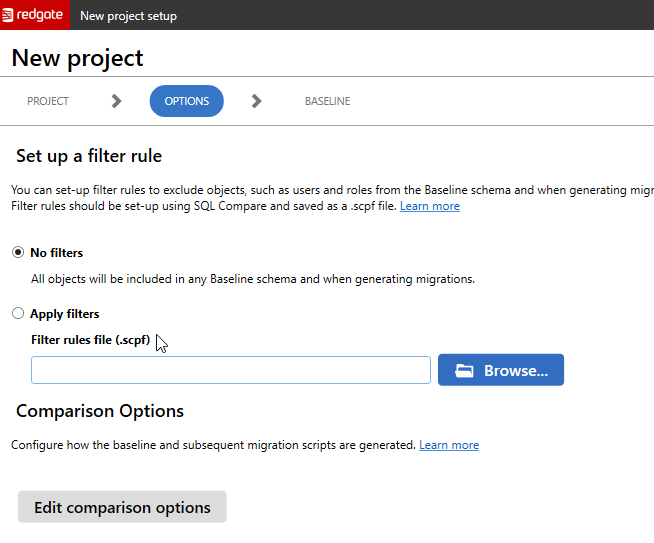
    Clicking Next gives us the filter screen. This uses the filter files from SQL Compare to determine which objects we are including for development purposes. For most projects, we don’t filter anything. We want all objects to be included in our project.

    2020-07-08 19_44_00-New project setup

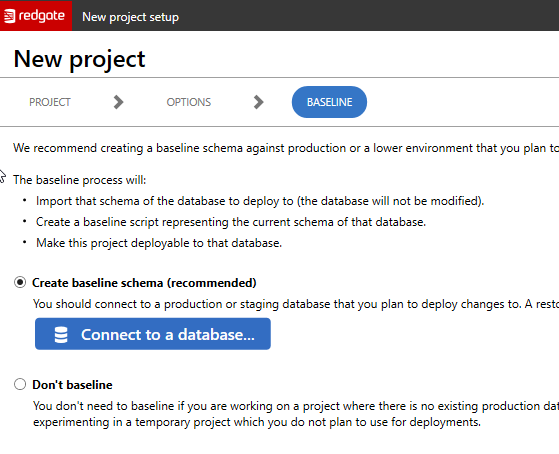
    I’ll leave this alone and click Next. The last screen is the baseline screen. This allows me to set a baseline or not. A baseline is a view of what the target database looks like right now. In this case, this is the production database.

    This process will look at the objects in that database and create a script that builds up a base database to the same state as production right now. That is useful because all items we add to this project depend on the state being this way. You can read more about baselines in the documentation.

    2020-07-08 19_44_07-New project setup

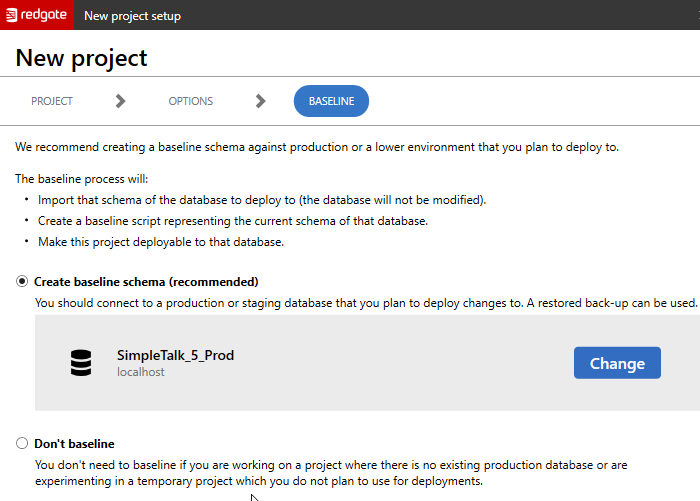
    I will configure this to connect to my production database and once that’s correct, I’ll click “Create” to set up the project.

    2020-07-09 11_26_26-New project setup

    The project gets created fairly quickly, and once it’s complete, I get a summary. As you can see below, the project was set up and there are some notes about what was done.

    2020-07-09 11_27_07-SQL Change Automation - Microsoft SQL Server Management Studio

    You can see that one migration script was generated and this was for my baseline. This contains all the objects in my current production database, which won’t be deployed unless I have an empty database, like a CI database.

    There were also 19 programmable objects, which are views, functions, and stored procedures. These are items that we don’t want to track each change to, but only the state at a point in time.

    All of this is reflected in my project folder, which you can see below. There are subfolders below some of these for the various object code.

    2020-07-09 11_30_14-SimpleTalkDB

    I’ve got a new project. Now I want to commit this to version control first, and then I can start development work.

    2020-07-09 11_32_04-cmd

    If you’ve never worked with SQL Change Automation, download an eval and give it a try today. I’ll be documenting the process as I build out a demo for a customer, and you can follow along.

  • SQL Change Automation v4 Puts Migrations in SSMS

    I’ve been waiting for this a long time. Over the years, as Redgate has improved and changed the SQL Change Automation product in Visual Studio, I’ve been wanting to see it in SSMS. After watching this take shape across the last year, I now see it live.

    2019-09-19 14_50_45-SQL Change Automation - Microsoft SQL Server Management Studio

    SSMS integration is finally here with SQL Change Automation v4. Kendra wrote a bit about how this allows collaboration on database projects that use migrations between both Visual Studio and SSMS (Management Studio). This gives you the flexibility to work in the environment that is most natural for you. You can share the same project in both IDEs. Watch Kendra introduce this in a video to see just how things work, and the value of migrations.

    I am definitely a migrations oriented developer. I like to track changes, and I like to customize scripts. To me, migrations is the best way to perform database development, though I certainly understand the attractiveness of the SQL Compare/state/model method of development.

    If you have never tried migrations, I urge you to give it a try on a PoC (Proof of Concept) project and see how you can control exactly what code is run when making changes to your databases. That’s important to me, especially when trying to minimize the risk and downtime of making changes. Even without working in a DevOps process, I like migrations.

  • The SQL Change Automation in SSMS Beta

    Give it a try, as the beta is out. I’ve been watching this product and getting updates for the last six months or so and lately I’ve been pushing to get this out. It’s close enough to be useful and helpful for me, and I wanted to get other feedback.

    Someone listened and you can now try this. If you’ve been using SCA (SQL Change Automation) in VS, now you can work in SSMS as well.  give it a try and let us have your feedback. I’m excited to get migration based development into SSMS.