Tag: SQL Change Automation

  • Pushing SQL Change Automation Code to Azure DevOps

    Making changes on your own system for a SQL Change Automation project is great, but if you’re the only one using the project, it might feel like a lot of overhead. I’d argue it isn’t and it’s a better way of building software, but that’s a separate discussion.

    For most of us, we need to get a good copy (and backup of code) as well as share this with others. In the previous article, I was making changes in my own SQL Change Automation project. I was committing these to a local git repo and now I want to put them into another place. This article will look at moving my repo to the cloud.

    Enter Azure DevOps

    I love Azure DevOps as a software development platform. It has everything I need, hundreds of extensions, and I can easily replace parts of it with other technology if I want. I could use my own git repo locally (or at BitBucket) and still build/release with Azure DevOps. I could use the Azure DevOps repos and build my software with Team City. Or release it with Octopus Deploy.

    I have flexibility.

    For me, I’m going to stick with Azure DevOps in this series, and I’ll show you how to add a project to Azure DevOps.

    Sign In to Visual Studio

    When I created this project, I used a git repo as the default from Visual Studio. However, as you can see, I didn’t add any remotes.
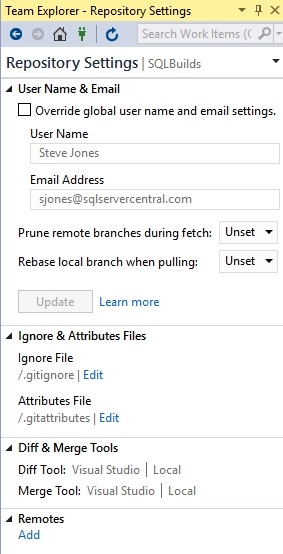
    2019-02-28 16_11_35-SQLBuilds - Microsoft Visual Studio

    I did log into Visual Studio at some point when I started it, and since I’ve used this before, I have a number of connections to different services. You can see below my connections in Team Explorer.

    2019-02-28 16_12_31-SQLBuilds - Microsoft Visual Studio

    If you go to dev.azure.com/name, you can see your organization. For me, this is https://dev.azure.com/SteveJonesRedgate/. When I log in, I see my organization, and a list of projects.

    2019-02-28 16_18_38-Projects - Home

    In the upper right is a “create project” button, and I’ll click that. When I do, I get a blade to enter some data. I can do that, and I’ll make this public, so anyone can see it.

    2019-02-28 16_19_25-Projects - Home

    The project is created, and I get a welcome screen. For now, let me ignore this and go back to Visual Studio. If I click the Sync item in Team Explorer, I’ll see this:

    2019-02-28 16_22_46-SQLBuilds - Microsoft Visual Studio

    VS sees my account. If I click advanced, I can see the projects, and I’ll select the one I just created.
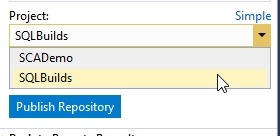
    2019-02-28 16_23_10-SQLBuilds - Microsoft Visual Studio

    When I click publish, this moves the repo up to the web. If I return to my project online, I can click “Repos” and see the code.

    2019-02-28 16_24_19-SQLBuilds - Repos

    This is the structure as my local VS project. If I had make a screen shot of the before, this would be an empty space online, with instructions for connecting local repos, adding files, and more.

    A Backup Copy

    From here, I can continue to do local development and push/pull as necessary between my local project and the online repo at Azure DevOps. I can set up branches and do more. This is also my backup in case my local storage crashes. From here I can pull down copies of my code if needed.

    In the next article, we’ll look at how we get code from this repository onto another machine.
  • Adding Objects to our SCA Project

    In my last post, I started out with a new SCA project, getting a connection to my database up and running. Now, let’s start the new project by adding some objects.

    Adding Objects

    I’m going to start with a couple objects to make this simple, but we’ll move on from there in other posts to describe the options and details.

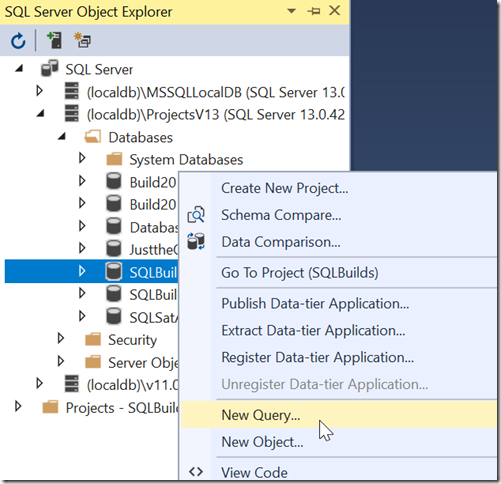
    Our database is not terribly useful without tables, so let’s create a table. I’ll start by using a query window to build a table. Right click the database and choose New Query.

    2018-09-19-00_48_40-_thumb1

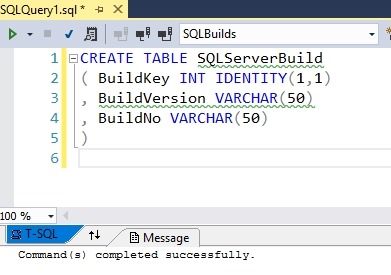
    Once this opens, let’s write a query. I’m comfortable building tables like this, so I’ll add the first table to hold my SQL Server builds.  I’ll write the code shown below and then execute this.

    2019-02-11 14_09_59-SQLBuilds - Microsoft Visual Studio

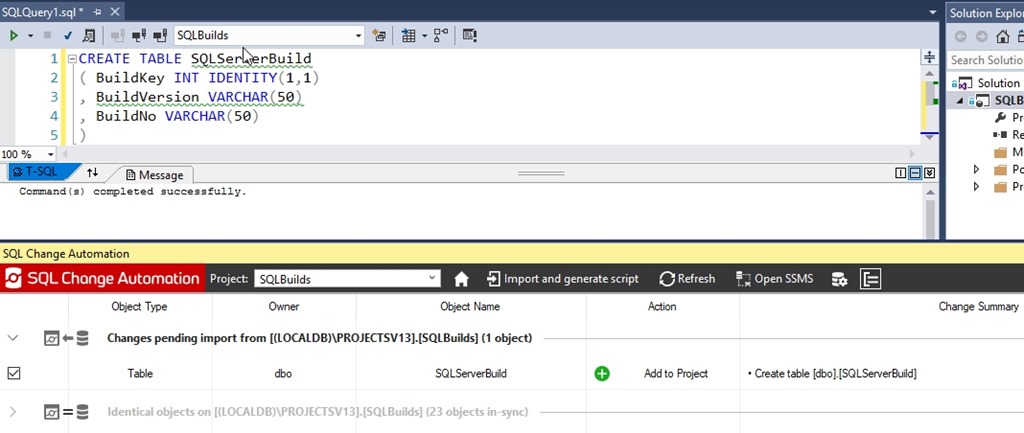
    At this point, the development database has a change, but it’s not in my project. I need to use the SCA pane to let VS know that I’m ready to import this change. Open the pane and click refresh. The following should appear when the process completes.

    2019-02-11 14_10_30-SQLBuilds - Microsoft Visual Studio

    In this dialog, we see a new table was found. The process compares the Shadow database, where no changes have occurred, with the development database, which has a new table. This gives me a “diff” in essence and I can add this to my project.

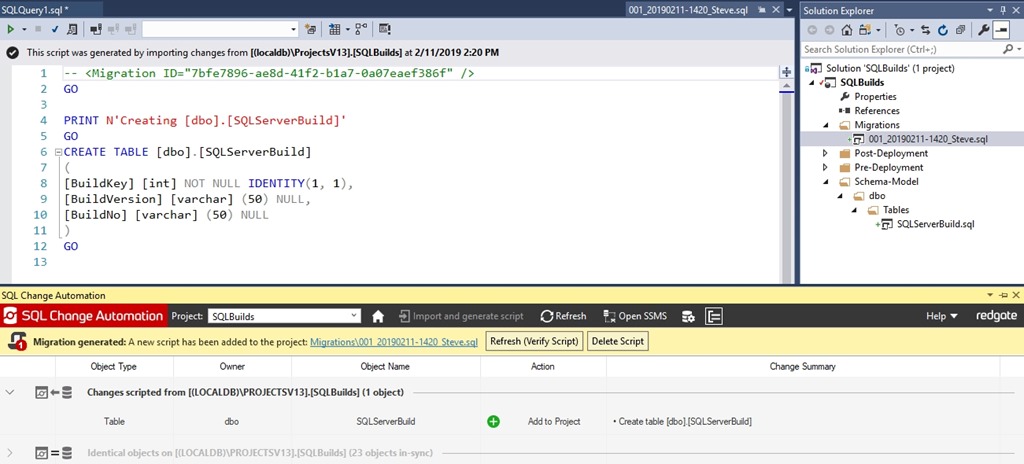
    The change is checked on the left, so I can click the Import and Generate Script button. I’ll do that and I see the image below. There’s a lot here, so let’s discuss this after the image.

    2019-02-11 14_20_43-SQLBuilds - Microsoft Visual Studio

    The first thing to look at is the script that’s active in the upper pane. If you notice, the tab name is on the right side of that upper left pane, highlighted in blue. This is my first migration script. You can see the migration ID at the top and then a PRINT statement, which is useful for logging during the build or deployment process, then the top of my code.

    On the right side, in the Solution Explorer, we see that my script has been added to the Migrations folder. The default name has been applied, but I can rename this if I want.

    In the SCA pane, we see a few things. First, the change is grayed out because the change was scripted.  Above that, we have a yellow bar that notes a migration was generated, and it gives us the path in the project. Finally, there is a “Refresh” button to verify the script. We want to click that. This will use our script with the Shadow database to verity the code is correct. Once I click that, I get a note that the project was verified.

    2019-02-11 14_21_52-SQLBuilds - Microsoft Visual Studio

    At this point, the Shadow and development databases are in sync.

    This tells me that my changes should work when I deploy them to another system. Hopefully that works, and we’ll tackle that next time.

  • Starting a Proof of Concept with SQL Change Automation

    One of the ways that you can more easily perform database development tasks is with SQL Change Automation (SCA). This is a plug-in from Redgate that works with Visual Studio, and while there are tutorials on Setting up SCA and starting in VS, I wanted to add my own take that might make this a little easier for some people.

    This is a short Proof of Concept (PoC) that gets you started, and I’ll add in more features over time in future articles. I’ll use the idea of a database of builds for SQL Server, which is a project that you might find useful in your organization.

    Starting in Visual Studio

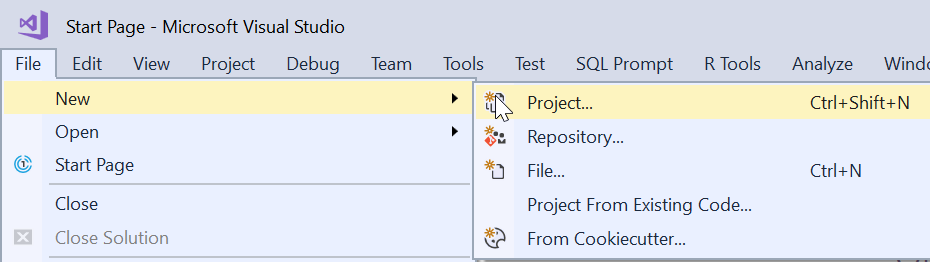
    If you’re an application developer, you are familiar with building new projects. If you’re not, you can probably figure this out, but I’ll just describe and explain the process. In the File Menu, we start our PoC with a File New.

    2018-09-18 20_17_49-

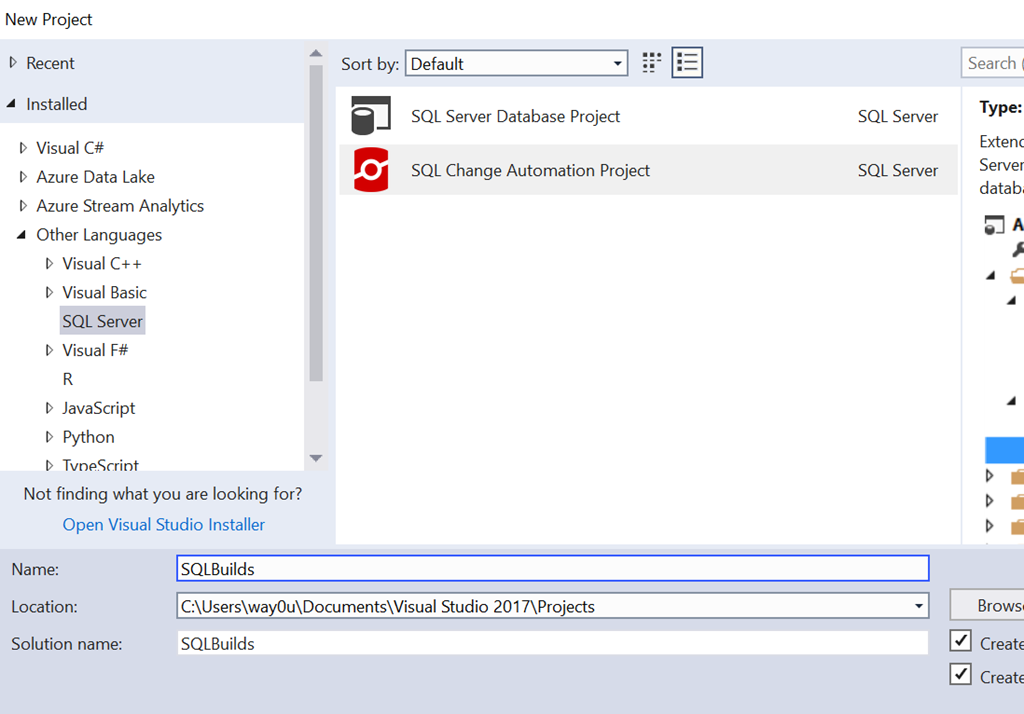
    Once you do this, you’ll see a large list of project templates or types. You can see the recent, installed, or even online types. These are broken into a weird mix of languages and target platforms, but in any case, SQL Server is relegated to the “Other”. Along with SSDT projects, if SCA (or ReadyRoll) is installed, you can choose this type.

    2018-09-18 20_19_14-New Project

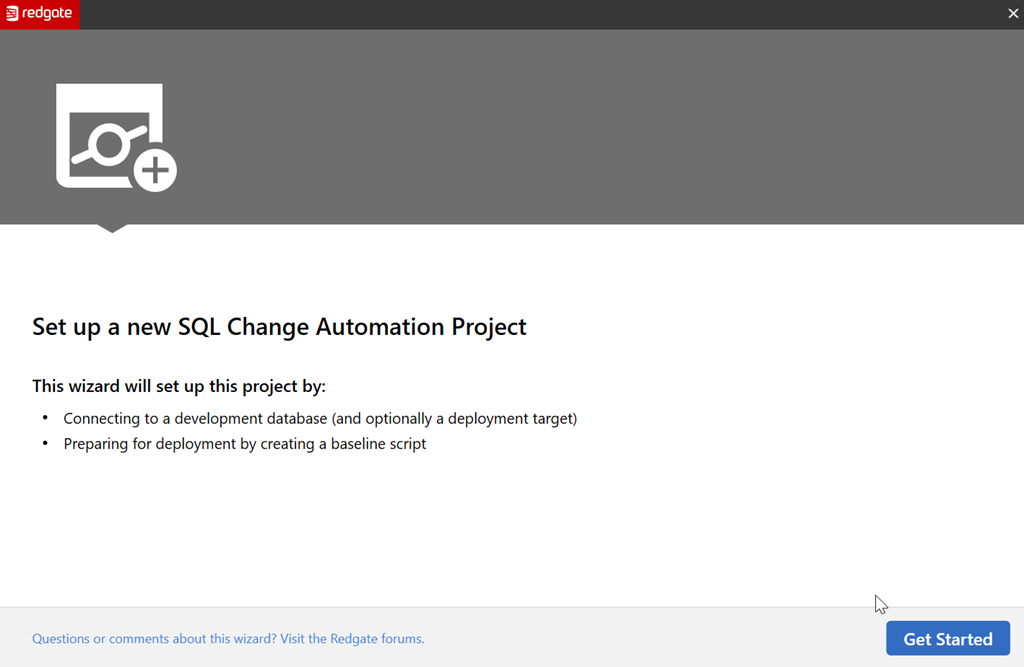
    Once we do this, the project is created, and an outline appears in the Solution Explorer. Before you can go there, SCA pops up a Getting Started dialog. This is designed to help you get moving since the project doesn’t necessarily lend itself to an intuitive flow.

    2018-09-18 20_19_30-

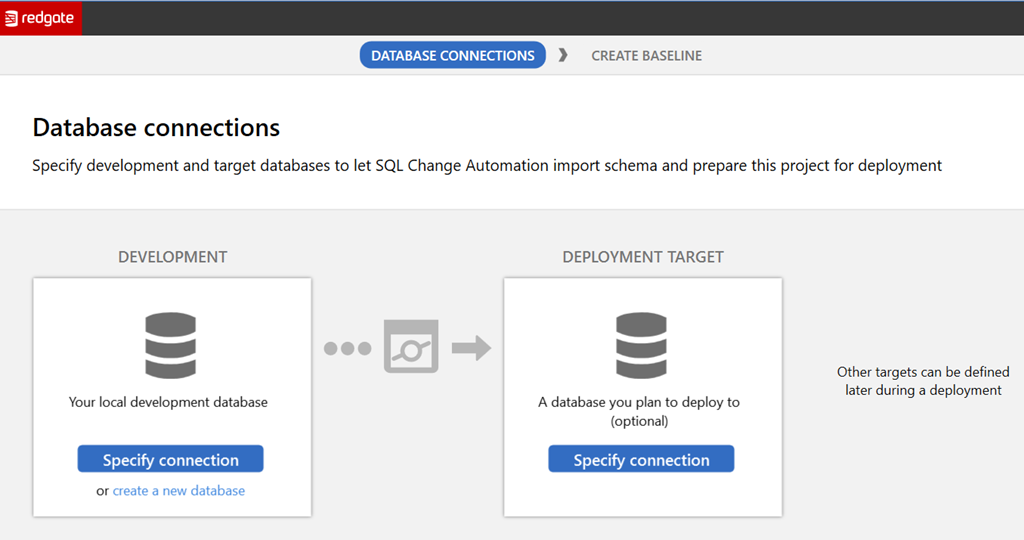
    Let’s get started, as it says. The next screen you see is the database connection. This is a slightly confusing dialog to some, but it makes sense once you understand the purpose. We have two connections with buttons and some links, as shown here.

    2018-09-18 20_19_40-

    The left side is the development database. The instance chosen is also going to be the place where your shadow database is created. You can pick an existing database here by picking the instance and database in the connection dialog. Alternatively you can create a new database, where you’ll specify the details.

    The right side is the target database, which is the downstream target you’ll use for deploying code. This could be production, or it could be a QA database. Either way, this is a default target, and this can be overridden with parameters in the SCA PowerShell cmdlets.

    For now, let’s ignore the left and leave it blank. For the right, let’s create a new database. Once we click the link, we get this.

    2018-09-18 20_20_04-

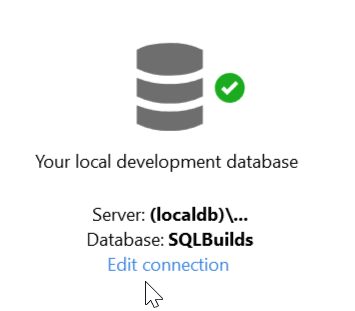
    The default database is the name of the project. The default instance is a LocalDB instance, which is an in process SQL Server. This is named (loadldb)\Projectsv13 in the  current (Aug 2018) versions of SCA. I’ll leave this alone, but the Edit Connection link would allow you to pick a new instance and database.

    Once this is created, we return to the dialog, seeing the dev database and the target, which we left blank. When we move forward, we see this dialog.

    2018-09-18 20_20_16-

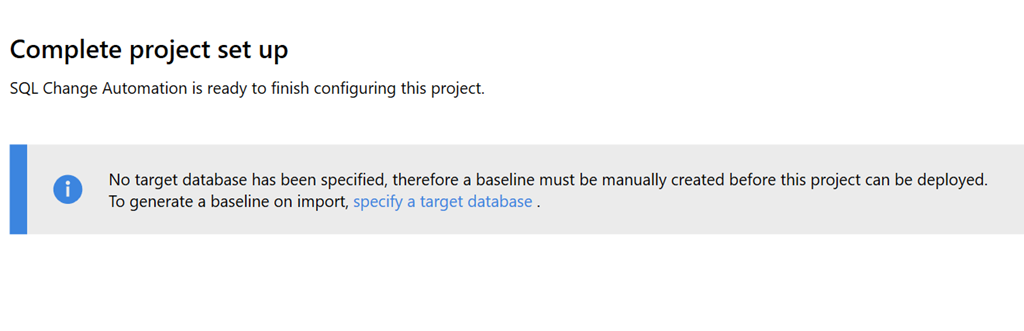
    This is a reminder that we didn’t create a target, but that’s OK. We can do that later, especially since this is a new project. There is no baseline, which would be an initial script to rebuild the database to its current state. Right now our baseline is nothing.

    I’ll create the project and go back to VS. Once I go that, I can see the database on the LocaDB instance in the Object Explorer. I also see the Shadow database here.

    2018-09-18 20_27_51-SQLBuilds - Microsoft Visual Studio

    If I click Refresh in the SCA pane, I’ll get no results since there are no objects in the database.

    2018-09-18 20_27_35-SQLBuilds - Microsoft Visual Studio

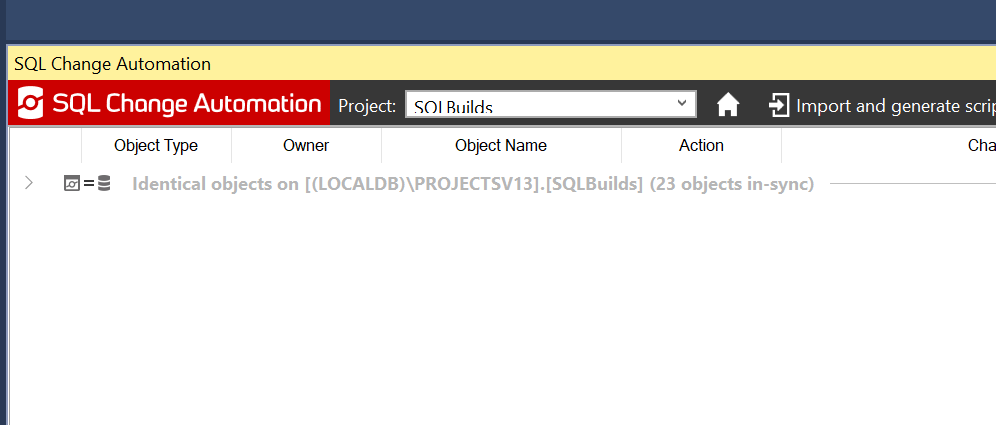
    Once this runs, I see that all objects are identical. This means the dev database and the shadow database have verified each other.

    2018-09-19 00_43_59-SQLBuilds - Microsoft Visual Studio

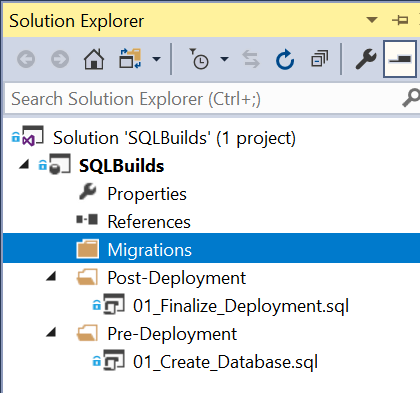
    My project is similarly blank. In solution explorer, I see the outline of the project.

    2018-09-19 00_46_24-SQLBuilds - Microsoft Visual Studio

    At this point, I can begin development. Migrations scripts I create will appear under the Migrations folder and if necessary, I can edit the pre and post scripts. Or add more scripts here. The default scripts are in place already, but I can change them as needed.

    In the next post, we’ll start development.

  • What is Projectsv13 in SQL Change Automation?

    I got this question recently from someone that was evaluating the SQL Change Automation client in Visual Studio. After setting up a new PoC (Proof of Concept), they were confused about why there is a new entry in their list of SQL Servers.

    If you’re wondering, this is what you see in Visual Studio 2017, for the SQL Server Object Explorer.

    2018-09-18 20_20_30-SQLBuilds - Microsoft Visual Studio

    In my case, I’ve actually got a few different instances since I’ve been working with the SQL Change Automation (SCA) for years, across a few versions.

    As the instance names list, these are LocalDB instances. LocalDB is a version of SQL Server that is spun up in process, rather than a service. Other than that, it’s a real SQL Server instance that is running. In fact, if you want, you can connect to this with SSMS.

    2018-09-18 20_22_31-Connect to Database Engine

    If I connect with those credentials, this will appear in the SSMS Object Explorer as well, the same as any other instance.

    2018-09-18 20_22_48-SQLQuery3.sql - dkrSpectre_sql2017.sandbox (DKRSPECTRE_way0u (69))_ - Microsoft

    Why is this in SCA?

    As an early part of the SCA product, when it was in ReadyRoll, there was a desire to not impose burdens on application developers. If you were working with a project for C# or ASP.NET and wanted to include the database, the idea was to keep things simple.

    The simple way to get up and running is to use LocalDB, so no install, no worries with Express and a service running, just use LocalDB. This used to be more of a default, but now it’s just one of the options.

    In my case, once I’ve setup my project to connect, the Shadow database, by default, is also right here, and I’ll see both databases under the (localdb)\Projectsv13 instance.

    2018-09-18 20_27_51-SQLBuilds - Microsoft Visual Studio

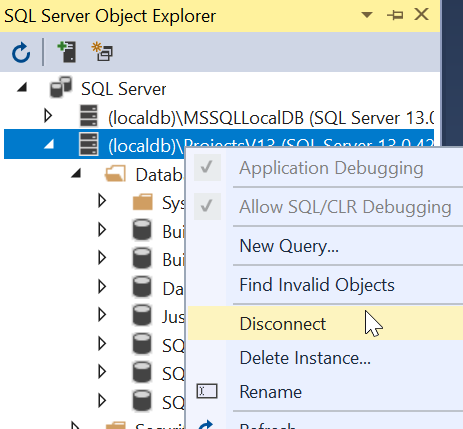
    All of this is configurable, so you can set things to work in whatever manner works best for you. If you typically have a development instance, either local or remote, you can easily use those instead, and you’ll never need to worry about LocalDB. In fact, if this bothers you, you can disconnect or even delete the instance.

    2018-09-18 20_32_02- 

    LocalDB is a lightweight way to work with SQL Server, but you don’t need to use it.