Tag: SQLNewBlogger

  • Exporting a Table to CSV in PoSh–#SQLNewBlogger

    Another post for me that is simple and hopefully serves as an example for people trying to get blogging as #SQLNewBloggers.

    I saw someone struggling with exporting some data from a table in a CSV, and decided to give it a try. I think there were a few things that were broken, but here is the basic idea.

    The Scenario

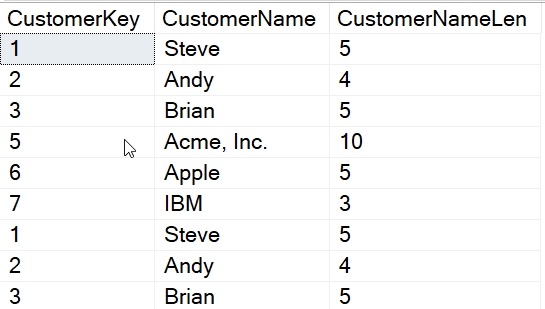
    I want to get all the data from a table into a CSV. As a setup, I have a table that looks like this:

    2019-12-02 13_01_11-SQLQuery10.sql - Plato_SQL2017.sandbox (PLATO_Steve (56))_ - Microsoft SQL Serve

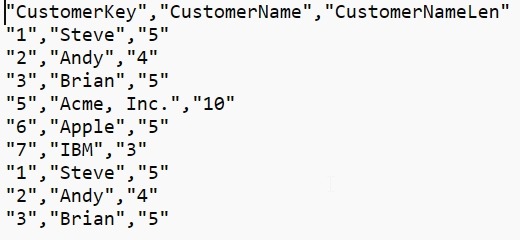
    What I’d like is this data in a CSV, with a format like this:

    "CustomerKey","CustomerName","CustomerNameLen"
    "1","Steve","5"
    "2","Andy","4"
    "3","Brian","5"
    "5","Acme, Inc.","10"
    "6","Apple","5"
    "7","IBM","3"
    "1","Steve","5"
    "2","Andy","4"
    "3","Brian","5"

    Let’s make that happen.

    PoSh to the Rescue

    If you have SQL Server and the Powershell module installed, you can use the Invoke-SqlCmd cmdlet. This takes parameters for a query and a server that you want to use. There are other parameters as well, but I’ll keep this simple.

    The parameters I’ll use are a query with three part naming and then an instance. Here is the command:

    Invoke-Sqlcmd -Query "SELECT * FROM [Sandbox].[dbo].[Customer]" -ServerInstance "Plato\SQL2017"

    Now we want to get that data out to a CSV, and we can use the Export-Csv cmdlet for this. For me, I often want to avoid extra work, though in the past, I’d have set the output of the Invoke-SqlCmd to a variable. I don’t need to here, so I can use pipe the output to the cmdlet like this:

    Invoke-Sqlcmd -Query "SELECT * FROM [Sandbox].[dbo].[Customer]" -ServerInstance "Plato\SQL2017" |
    Export-Csv -Path E:\Documents\sql\Customer.csv –NoTypeInformation

    This will create a new file for me, called Customer.csv.


    2019-12-02 13_15_17-sql

    In here, we have our data.

    2019-12-02 13_01_52-E__Documents_sql__2019Dec02_125737.csv - Sublime Text

    Easy, and quick. You could even type this from the command line, without saving the code.

    SQLNewBlogger

    A quick look at a common task. In this case, I was helping someone, but I’ve had the need to do this myself, and fixing someone else’s code actually taught me something here. I’d use this as a story of solving a problem in an interview with new technology (PoSh).

    Solving the problem was about 10 minutes work, and really, this took about 15 minutes to set up, get working, and clean the code a bit. I also had to change a few of the other issues to make this simpler, but those will be good posts in the future.

  • Setting Certificate Backup Permissions for an Instance–#SQLNewBlogger

    Another post for me that is simple and hopefully serves as an example for people trying to get blogging as #SQLNewBloggers.

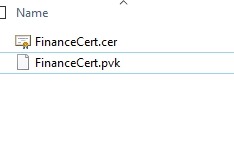
    Recently I was testing some security change, and I made a backup of my certificate from one instance. I did this on a share that I’ll use to move the files to another instance. In this case, I had these files in the folder.

    2019-08-23 14_31_13-SQL

    The problem is that by default, SQL Server locks down permissions, as it should. That means that the other instance couldn’t access the files, as its service account didn’t have permissions.

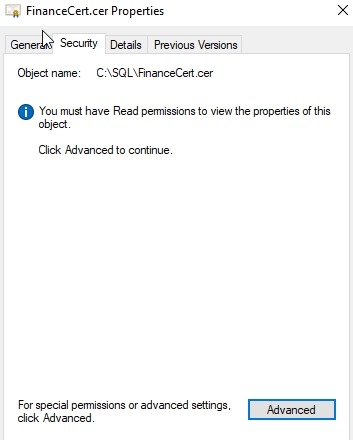
    I fixed this by opening the security tab for the file. I had to do this for each, but I’ll show one here.

    2019-08-23 14_31_22-FinanceCert.cer Properties

    I clicked “Advanced” to get a more detailed view of permissions.

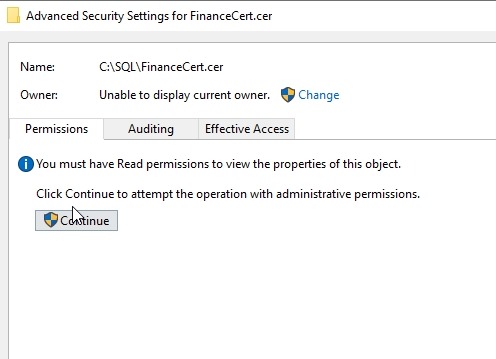
    2019-08-23 14_31_28-Advanced Security Settings for FinanceCert.cer

    Again, I really need to approve this view of the security settings. Once I acknowledge the UAC dialog, I can see this:

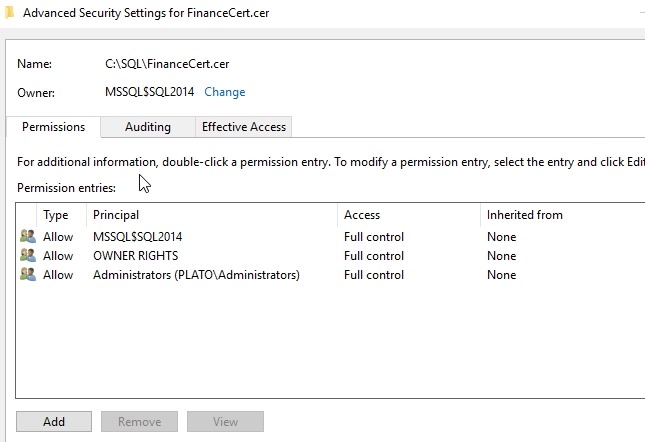
    2019-08-23 14_31_38-Advanced Security Settings for FinanceCert.cer

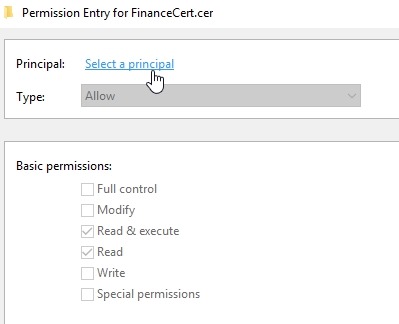
    What I needed to do here was add permissions for another service account. Clicking Add lets me select a principal.

    2019-08-23 14_31_46-Permission Entry for FinanceCert.cer

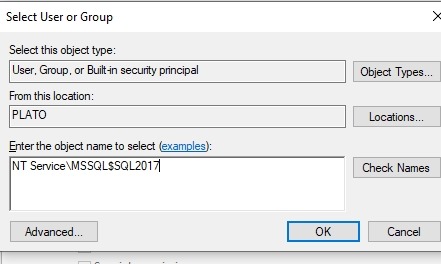
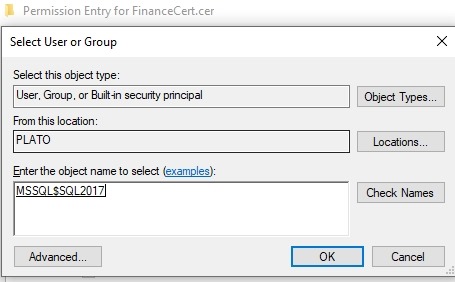
    For a local account, I need to give the “NT Service” prefix to my account, despite this not being shown as part of the service account settings.

    2019-08-23 14_31_57-Permission Entry for FinanceCert.cer

    When you click Check Names, this will shorten. If you enter this short version, it won’t work.

    2019-08-23 14_32_01-Permission Entry for FinanceCert.cer

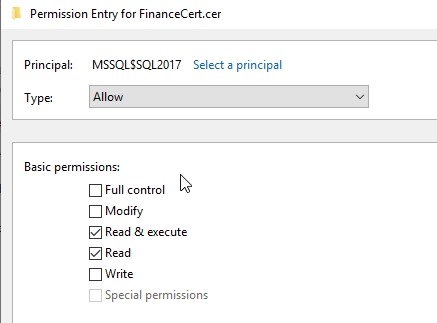
    In my case, this account really just needs Read permissions.

    2019-08-23 14_32_05-Permission Entry for FinanceCert.cer

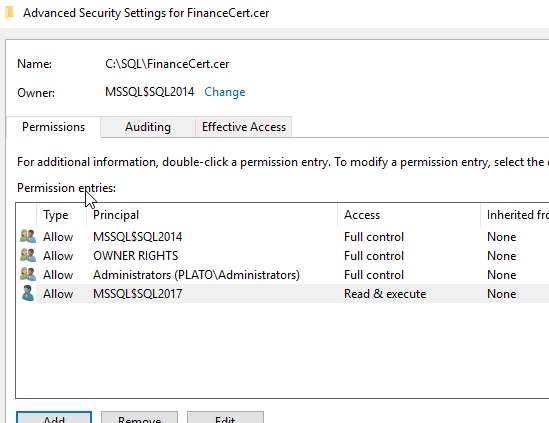
    Click OK, and I see it listed.

    2019-08-23 14_32_10-Advanced Security Settings for FinanceCert.cer

    That’s it. Now my SQL2017 instance can access the backup and create the certificate.

    SQLNewBlogger

    This is something I’d expect most people working with SQL Server on Windows would be easily able to do, but showing some knowledge here gives confidence in your abilities.

    This took longer to get screenshots than to write. You could easily do something similar.

  • Batch Scripting SQLCMD–#SQLNewBlogger

    Another post for me that is simple and hopefully serves as an example for people trying to get blogging as #SQLNewBloggers.

    I wouldn’t do this anymore, but I ran across a post where someone couldn’t use PowerShell in their organization. A poor decision, IMHO, for the Microsoft platform, but it is a restriction. In this case, the user wanted to get a batch file to run a SQLCMD script. This post shows how.

    Two Files

    Let’s suppose I have two files in a folder. In this case, I have a version.sql file that contains this:

    select @@version

    The other is my batch file, which I’ll name runsql.cmd. In this file, I’ll do a few things. First, suppress the code with this:

    @@echo off

    That’s just a good habit, though you might leave this out until things are working. Now, I will use a loop to get a list of files with an extension. I use the FOR loop in this way:

    for %%x in (*.sql) do (

    This gets a list of all .sql files in the current folder. For each one, we will process all statements inside the parenthesis. The open is on the line above, the close will be below.

    The next lines are my sqlcmd call and the various items I need. In my case, I’ll get the instance name as a parameter and use trusted authentication.

      sqlcmd -S "%1" -E -i %%x
    )

    I could use other parameters (%2, %3, etc.) to get a user and password if I wanted to. Instead, I’ll get the instance as a parameter, and then pass the filename in to sqlcmd with the –i parameter.

    When I run this, with my single .sql file, I see this:

    2019-10-15 10_55_48-cmd

    Easy to do, and I could add other .sql files in here if I wanted them to run.

    SQLNewBlogger

    This was a quick post to write in answer to someone asking a question. I knew about the %1, %2, and searched to find a quick SO post on getting filenames into a variable. It actually took about 5 minutes to research and test (and post) and then about 10 minutes to write this up.

    You could do this, showing some knowledge of learning and creating a solution. For extra credit, how can I capture output of this?

  • Removing SSMS Completion Time–#SQLNewBlogger

    Another post for me that is simple and hopefully serves as an example for people trying to get blogging as #SQLNewBloggers.

    If you’ve upgraded your SSMS lately, you might have seen this. Queries now have a completion time on the Messages window.

    2019-10-17 17_15_23-SQLQuery1.sql - Plato_SQL2017.sandbox (PLATO_Steve (52))_ - Microsoft SQL Server

    On one hand, I think this is great, because I can tell that I’ve run this recently. On the other hand, I might have multiple batches, so I can get confused or mis-informed. I also just don’t like this.

    Microsoft didn’t agree, because at first, I couldn’t remove this. That was really annoying. However, with  SSMS v18.3.1, I can.

    If I go to the SSMS Options, and then go to Query Execution | SQL Server | Advanced, I see this:

    2019-10-17 17_18_34-Options

    At the bottom of the first column is the Show completion time checkbox. Uncheck this, and suddenly, I’m happy.

    2019-10-17 17_19_52-SQLQuery2.sql - Plato_SQL2017.sandbox (PLATO_Steve (59))_ - Microsoft SQL Server

    One caveat, I do need to open a new window. That old window, even if I change the connection, still shows the time. Fortunately, CTRL+A, CTRL+C, CTRL+V help me move on.

    SQLNewBlogger

    This was one of those annoying things I needed to fix because it impacted my productivity. It’s a perfect post of my finding a way to be more productive and learning on my own.