Tag: SQLNewBlogger

  • Cleaning Up Registered Servers

    Another post for me that is simple and hopefully serves as an example for people trying to get blogging as #SQLNewBloggers.

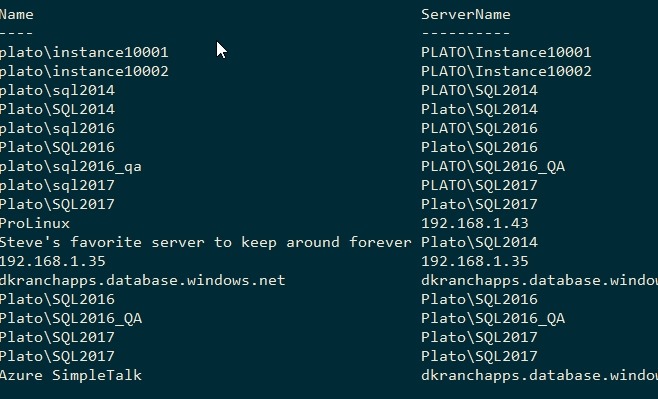
    I was working with Get-DbaRegServer from dbatools and got some errors. When I dug through the errors, I noticed some interesting items listed in my server list. This is what I saw:

    2020-03-30 10_18_14-cmd - powershell (Admin)

    While all the servernames are valid, the names are a little silly. I initially thought some of these were the reason for my errors with the cmdlet, but they weren’t. Still, I want to remove a few of these.

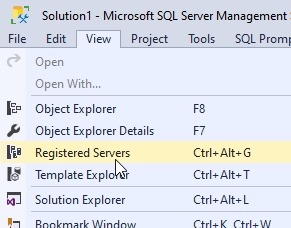
    I can likely find these in the registry or elsewhere, but there’s an way way to see this: SSMS. Under the View menu, there is a Registered Servers item.

    2020-03-30 10_22_23-

    Clicking this will get me a new pane, where the Object Explorer lives.

    2020-03-30 10_22_35-Solution1 - Microsoft SQL Server Management Studio

    If I expand this, I see a few categories, including my Azure Data Studio (ADS) connections and groups. It’s a nice way to see what’s registered.

    2020-03-30 10_22_44-Solution1 - Microsoft SQL Server Management Studio

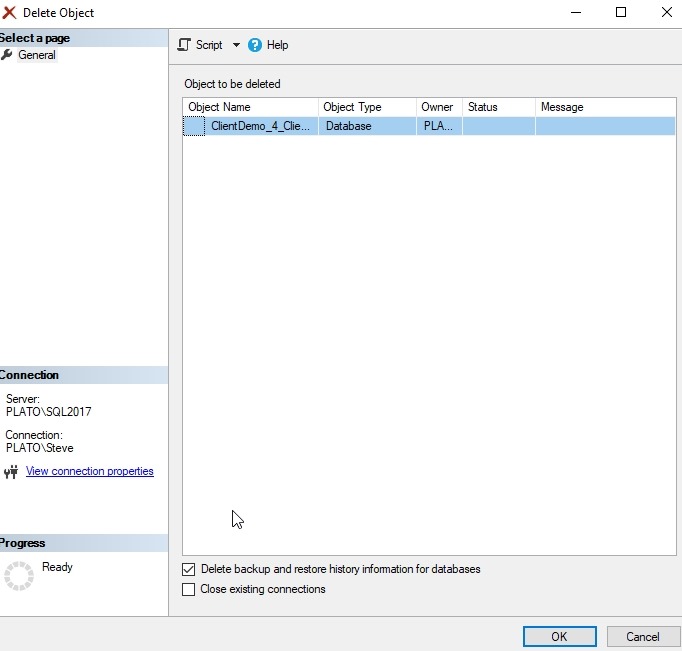
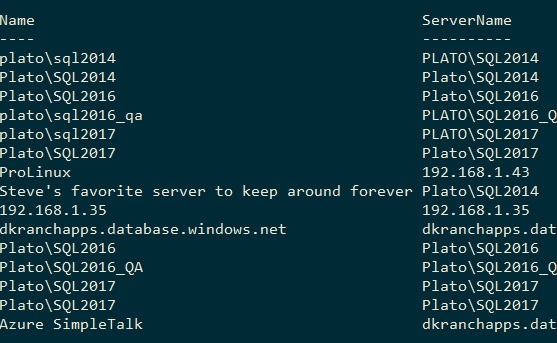
    For the Local Server Groups for SSMS, I can highlight an instance and click “delete” to remove it. You get a confirmation dialog, but it’s removed. I can this in PoSh. Instance001 and 002 are gone.

    2020-03-30 10_29_47-cmd - powershell (Admin)

    I can’t, however, remove the ADS ones. I get this with a right click (nothing with Delete).

    2020-03-30 10_27_29-Solution1 - Microsoft SQL Server Management Studio

    The integrations between SSMS and ADS do not extend to altering the connections.

    Simple stuff, but handy to have around, especially over time as you add lots of registrations over time.

    SQLNewBlogger

    This took about 3-4 minutes to figure out as a part of other things I was doing, but I made a few notes and then spent 10 minutes writing this up and taking screenshots.

    This is a good place to start blogging if you want to get going.

  • Getting Your dbatools Version–#SQLNewBlogger

    Another post for me that is simple and hopefully serves as an example for people trying to get blogging as #SQLNewBloggers.

    I was trying to test something recently and it didn’t work. One would think that I would remember to check versions, but I didn’t before posting on Twitter. I did get a response from @dbatools, and one of the questions was which version did I have.

    I wasn’t sure, and wasn’t sure how to check, so I had to do some Googling around. This post notes what I found and how I got the version.

    I have known that I can get the PowerShell version from $psversiontable. I can run that and see info about PowerShell..

    2020-03-30 09_42_37-cmd - powershell

    This doesn’t get me a view of modules I’ve installed. I tried Get-Help, but it wasn’t what I wanted.

    2020-03-30 09_44_06-cmd - powershell

    I then tried a search and stumbled upon Get-InstalledModule, which worked well, but it has a lot of info. When I run this, I get lots of data.

    2020-03-30 09_46_20-cmd - powershell

    Fortunately, it’s alphabetical and I don’t have a lot of modules that are named with something after “d”, so I could easily find the data.

    2020-03-30 09_46_39-cmd - powershell

    I know there’s an Update-Module and Install-Module, so I tried Get-Module. That actually works. I thought about this later, after I’d actually gone through the searching and posting results.

    As with anything, there are a couple methods here, but certainly it’s good to be able to solve a simple problem like this one.

    SQLNewBlogger

    This was something I figured out in about 2 minutes. Writing this post took longer, but I bet I now remember this. It also might be something I get asked in an interview.

    Try it yourself today. Start a blog and start documenting what you learn.

  • Installing PowerShell for SQL Server – #SQLNewBlogger

    Another post for me that is simple and hopefully serves as an example for people trying to get blogging as #SQLNewBloggers.

    PowerShell is the hot new scripting language for working with processes outside of an application. It’s cross platform, and it has a lot of capabilities for working with SQL Server. The way that this gets installed has changed, so this is a quick post to ensure others know how to do this.

    Running a Command

    I know there is an Invoke-SqlCmd cmdlet in PowerShell. On a new laptop, I tried to run it and had issues.

    2019-12-17 15_57_22-cmd - powershell

    SQLPS is the old module, and SqlServer is the new one. The error message says to try importing the module, so let’s do that.

    2019-12-17 15_59_40-cmd - powershell

    That doesn’t work either. Hmmm. I think I need to install this. To do that, I need an elevated command prompt. I’m using ConEmu, and I can restart this session as an admin. Or you can use the start menu to find cmd and start this as an admin:

    2019-12-17 16_02_41-Installing PowerShell for SQL Server - #SQLNewBlogger - Open Live Writer

    Once you have an elevated prompt, start PowerShell and then run this:

    Install-Module SqlServer

    This will install the module if you answer the prompts correctly. I had to use the -AllowClobber parameter as I had some conflicting things installed from dbatools. I’ll likely update those after this with their own AllowClobber.

    2019-12-17 16_05_24-cmd - powershell (Admin)

    Once this is done, you should be able to use the cmdlets. First you import the module with this:

    Import-Module SqlServer

    Then you can run code:

    2019-12-17 16_08_05-cmd - powershell (Admin)

    SQLNewBlogger

    After getting a new laptop, I needed to set a few things up. PowerShell was one of those. As I started to do this, I grabbed screenshots to document the process for my blog. I then built this post in about 10 minutes.

    You could do this as well, to round out the knowledge you gain as you do something similar, and show you’re familiar with these concepts.

  • Using a PoSh variable in a string- #SQLNewBlogger

    Another post for me that is simple and hopefully serves as an example for people trying to get blogging as #SQLNewBloggers.

    This is something I haven’t quite understood or used often, but I’ve been aware of it and wanted to learn more.

    A member at SQLServerCentral wanted to embed a value in a string, and was having issues. In this case, they had this code:

    $dt = get-date -format "_yyyyMMMdd_HHmss"
    Invoke-Sqlcmd -Query "SELECT * FROM [Sandbox].[dbo].[Customer]" -ServerInstance "Plato\SQL2017" |
    Export-Csv -Path E:\Documents\sql\$dt.csv -NoTypeInformation

    In this case, there was an error with the Export-Csv cmdlet, with a syntax issue near the period. I suspected this was some variable expansion that didn’t work.

    I found this post that helped me understand a bit more and decided to experiment a bit. Let’s try some things. First, I used to do this type of code:

    $dt = Get-Date –format “yyyyMMdd”
    write-host(“Today is “ + $dt)

    I then see this:

    2019-12-02 14_42_23-cmd - powershell

    However, I can use this code:

     write-host("Today is $dt")

    That gives me the same result. Apparently, I can include the variable in the string and it gets expanded. This works with just a string, as shown here:

    PS C:\Users\Steve> write-host("Today is $dt.csv")
    Today is 20191202.csv
    PS C:\Users\Steve>

    Not the error I expected, but this makes more sense with a value that’s needed in a parameter. The blog helps explain this with the following code:

    PS C:\Users\Steve> $directory = Get-Item 'c:\windows'
    PS C:\Users\Steve> $message = "Time: $directory.CreationTime"
    PS C:\Users\Steve> $message
    Time: C:\windows.CreationTime
    PS C:\Users\Steve>

    An issue. However, if I use the expression evaluation of $() inside, I get this:

    PS C:\Users\Steve> $message = "Time: $($directory.CreationTime)"
    PS C:\Users\Steve> $message
    Time: 09/15/2018 00:09:26
    PS C:\Users\Steve>

    That’s the trick I needed for Export-Csv. I used this code in the last line:

    Export-Csv -Path E:\Documents\sql\$($dt).csv –NoTypeInformation

    And the code worked as expected.

    There’s likely more I should know, but I will start to use varaiables inside strings when I just need the value of the variable as a string. If I need this to better work with some property, method, or parameter value, I’ll use $() around the variable.

    SQLNewBlogger

    This post was about 20 minutes of me experimenting with a few things and slowly working out how some variables worked. I somewhat wrote this as I was experimenting, adding in the code that ran.

    A good example of writing while learning. You could do this on your blog as you learn to work through some code or a feature.