Another post for me that is simple and hopefully serves as an example for people trying to get blogging as #SQLNewBloggers.
I was playing with some data, loading it into staging tables and then moving it to a real table. I typically have done this with T-SQL, writing efficient upsert code that works well. However, I haven’t used Merge in a long time and thought I should practice a bit with the structure.
Note: Merge isn’t that efficient and most experts do not recommend it (Aaron Bertrand, Dwain Camps). If you decide to use Merge, make sure you are aware of performance implications with your system. It should be fine with smaller sets, but be aware of potential issues if your data scale grows.
There’s a nice Simple Talk article on Merge that helps you understand how this structure works. There are lots of tips and tricks with merge, but the basic idea is that I can decide to merge data from one table into another and handle the various cases of rows that exist or don’t exist, and what to do. This is the classic upsert, where we insert new rows and update existing ones.
A Quick Scenario
I was actually playing with some SQL Saturday data, so let’s use that and set up a few tables. We’ll set up an Event table and an EventStaging table with some data.
CREATE TABLE Event
(EventID INT PRIMARY KEY CLUSTERED
, EventName VARCHAR(200)
, City VARCHAR(100)
, EventDate DATE
)
GO

CREATE TABLE EventStaging
(EventID INT PRIMARY KEY
, EventName VARCHAR(200)
, City VARCHAR(100)
, EventDate DATE
)
GO

INSERT Event
  VALUES
   (1  , 'SQLSaturday #1 - Orlando 2007', 'Orlando', '2007-11-10')
, (4  , 'SQLSaturday #4 Tweener(Sun) - Orlando 2008', 'Orlando', '2008-06-05')
, (2  , 'SQLSaturday #2 - Tampa 2008', 'Tampa', '2008-02-15')
, (3  , 'SQLSaturday #3 - Jacksonville 2008', 'Jacksonville', '2008-05-03')

insert dbo.EventStaging
  values
   (4  , 'SQLSaturday #4 - Orlando 2008', 'Orlando', '2008-06-07')
, (5  , 'SQLSaturday #5 - Olympia 2008', 'Olympia', '2008-10-11')
, (6  , 'SQLSaturday #6 - Cleveland 2008', 'Cleveland', '2009-02-01')
, (7  , 'SQLSaturday #7 - Birmingham 2009', 'Birmingham', '2009-05-30')
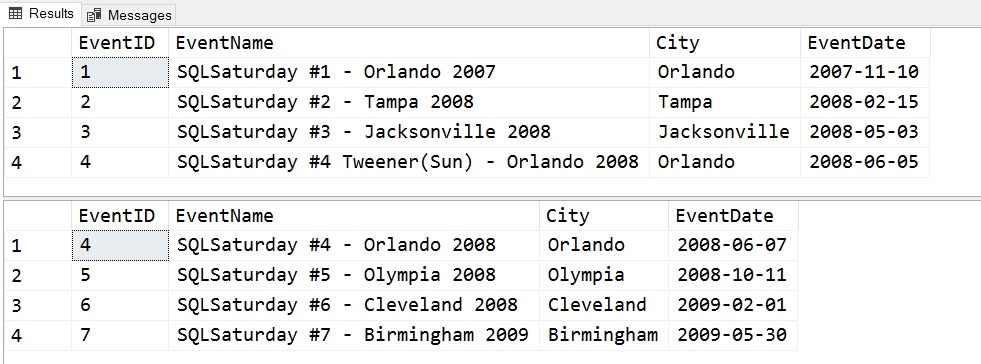
The data is loaded into EventStaging and then needs to move to Event for the application. If you examinet the data, you’ll see that the events with ID =4 is in both tables with different data. Events 5, 6, 7 are only in the staging table and need to be moved.
We can see the data here:
To move this data, let’s start with the merge header
MERGE dbo.Event ev
  USING dbo.EventStaging es
  ON ev.EventID = es.EventID
This opening is looking to merge data into the Event table using the EventStaging table as a data source. The join is included in the ON statement and follows the rules like any other join clause.
The next part of the statement is similar to a CASE statement, with a series of WHEN MATCHED or WHEN NOT MATCHED statements with THEN clauses that determine what happened.
MERGE dbo.Event ev
  USING dbo.EventStaging es
  ON ev.EventID = es.EventID
  WHEN MATCHED
   THEN UPDATE
    SET ev.EventName = es.EventName
      , ev.City = es.City
      , ev.EventDate = es.EventDate
  WHEN NOT MATCHED
   THEN INSERT (EventID, EventName, City, EventDate)
         VALUES (es.EventID, es.EventName, es.City, es.EventDate);
The two statements I have listed handle the update and insert. The first says that when we match a row, meaning there is a row in EventStaging that matches Event on the EventID, we will update the Event table (that’s the MERGE target). In this case, the rows 5, 6, 7 will fall into this case.
The WHEN NOT MATCHED is when there is a row in EventStaging that isn’t in Event, we insert the data. Note again, we don’t need to specify the table name in the INSERT.
When we run this command, the four rows in EventStaging are processed, with 3 inserts and 1 update. After running this, we can see the results here:
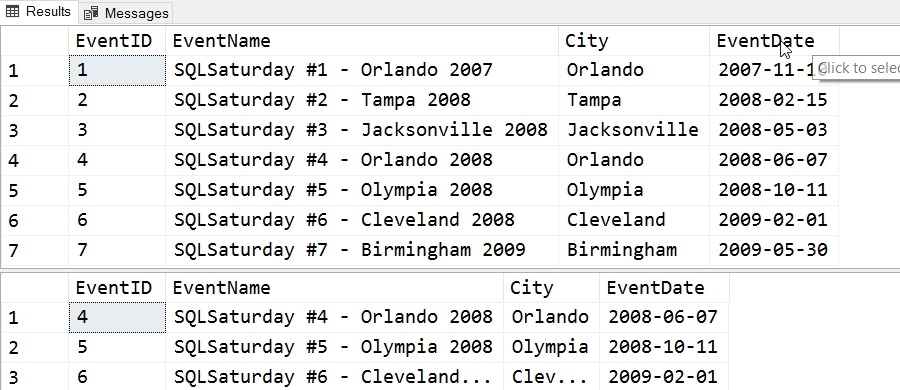
The name of the Orlando second event (#4) has changed, as has the date.
This is a quick look at Merge, and a handy command that you should consider using with smaller sets of data.