Another post for me that is simple and hopefully serves as an example for people trying to get blogging as #SQLNewBloggers.
I was chatting with someone the other day about MAX() and how it can work within a set of rows, rather than across an entire result set. That’s a good query skill to have, so I mocked up a short demo. This will show the window functions in T-SQL, using the OVER() clause with MAX.
Let’s build a table and add some data.
CREATE TABLE counters
( countid INT IDENTITY(1,1)
, countername VARCHAR(20)
, counteryear INT
, mycounter INT
)
GO
INSERT dbo.counters
        ( countername
        , counteryear
        , mycounter
        )
    VALUES
        ( 'Test1', 2012, 1 ),
        ( 'Test1', 2013, 2 ),
        ( 'Test1', 2014, 3 ),
        ( 'Test1', 2015, 4 ),
        ( 'Test1', 2016, 5 ),
        ( 'Test1', 2017, 6 )
GO
If I now query, I will just use and ORDER BY clause in the OVER() clause. This will order all the rows from the result set by the year, and then apply a MAX to them.
SELECT
    countid,
    countername,
    counteryear,
    mycounter,
    sumofallvalues = SUM(mycounter) OVER (ORDER BY counteryear),
    maxcounter = MAX(mycounter) OVER (ORDER BY counteryear)
FROM dbo.counters
ORDER BY
    countername,
    counteryear;
The partial results are shown below. The important parts are the year and the sum/max values.

We see here that the counter increases by one until the last row. This is the data set, the year and counter increment. The max should be six, but it’s not six until the last row. Why?
The answer comes from the framing of the rows. The OVER() clause, by default use a range of unbounded preceeding and current row as it’s set of values. In this case, with an order by on the counteryear, this means that when the query engine processes the first row, the entire set of values in the window is just the row with 2012. The next row has two rows, with unbounded preceeding being 2012 and the current row of 2013. This means for each set of rows, the range consists of previous values. I’ll show here what the counteryear values are for each row and the result of the max:
- 2012 uses the 2012 row only – max 1
- 2013 uses the 2012 and 2013 rows – max 2
- 2014 uses the 2012, 2013, and 2014 rows – max 3
- 2015 uses the 2012, 2013, 2014, 2015 rows – max 4
- 2016 uses the 2012, 2013, 2014, 2015, 2016 rows – max 5
- 2017 uses the 2012, 2013, 2014, 2015, 2016 rows – max 6
This is a window that moves with the data, and is defined as being from the beginning of the result set to the current row.
Let’s change things. I’ll add a second set of rows, and we can see here how this might differ.
INSERT dbo.counters
 ( countername
 , counteryear
 , mycounter
 )
 VALUES
 ( 'Test2', 2012, 1 ),
 ( 'Test2', 2013, 4 ),
 ( 'Test2', 2014, 2 ),
 ( 'Test2', 2015, 8 ),
 ( 'Test2', 2016, 5 ),
 ( 'Test1', 2017, 11 )
 GO
Now, let’s query again, but we’ll change our window. First, we’ll order by name for the MAX(), since that’s what we want to show. I’ll leave SUM alone. Next, I’ll change the window to be only the previous row and the current row.
SELECT
 countid,
 countername,
 counteryear,
 mycounter,
 sumofallvalues = SUM(mycounter) OVER (ORDER BY counteryear),
 maxcounter = MAX(mycounter) OVER (PARTITION BY countername
 ORDER BY counteryear
 ROWS BETWEEN 1 PRECEDING AND CURRENT ROW
 )
 FROM dbo.counters
 ORDER BY
 countername,
 counteryear;
Now the results are a bit different. My final ORDER BY ensures I have the tests separated. The first one looks similar in the max columns. I’ll explain the SUM in a different post.
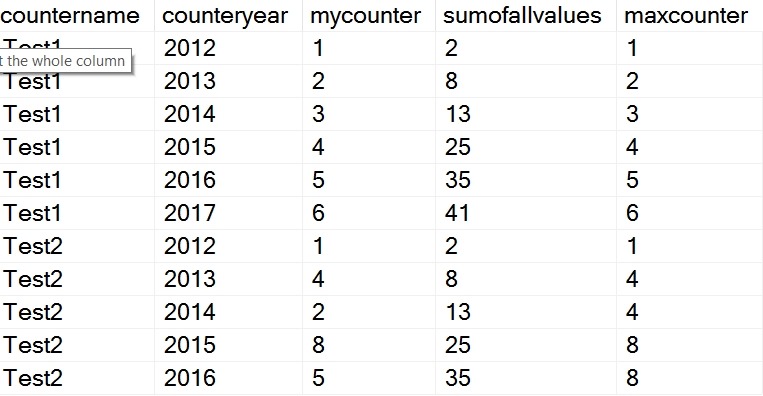
The MAX() for test2 is different. Let’s see what happens here. Since my window is a ROWS clause, and it’s set for 1 preceeding and the current row, I get these values.
Test2, 2012 row
- Preceeding – no values
- Current – 1
- Max – 1
Test2, 2013 row
- Preceeding – 1 (2012 value)
- Current – 4
- Max – 4
Test2, 2013 row
- Preceeding – 4 (2013 row)
- Current – 2
- Max – 4
Test2, 2014 row
- Preceeding – 2
- Current – 8
- Max – 8
Test2, 2015 row
- Preceeding – 8
- Current – 5
- Max – 8
This shows that MAX is limited to the frame I’ve applied to the window. The window is the OVER() clause, which in this case is the set of rows with the same counteryear value (the partition).
Window functions get confusing and are strange, especially if you’ve spent most of your career without them and finding tricks to use COUNT(), SUM(), and other aggregates on subsets of rows. Things get easier in SQL Server 2012+, and you should spend time playing with small sets of data and understanding windows.
SQLNewBlogger
This was about a 15-20 exercise, but it was good since I needed to stop and think about how to use and show a window function and the ranges. Good skills practice.
I’d like to see others explain this with a data set that they find interesting.
References
OVER() – https://docs.microsoft.com/en-us/sql/t-sql/queries/select-over-clause-transact-sql
MAX() – https://docs.microsoft.com/en-us/sql/t-sql/functions/max-transact-sql