Tag: SQLNewBlogger

  • DevOps Basics–Creating a local repo and committing files

    Another post for me that is simple and hopefully serves as an example for people trying to get blogging as #SQLNewBloggers. This is also a part of a basic series on git and how to use it.

    A local repo is a repository, and is the version control system you will use locally. In a previous post I looked at cloning a repo. That’s a way to get code from others, but what if I want to start a new project?

    That’s easy. This post will start a new project, save a few files, and show how to commit these to my git VCS.

    Create a Repo

    If you use tooling, there is usually a CREATE function somewhere, but at the command line, you can just do this:

    git init

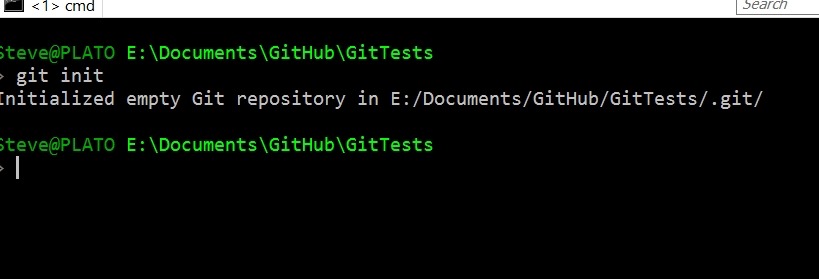
    Assuming you’ve installed git, this will create a repo in your folder, and let you know it exists.

    2017-04-26 14_16_13-cmd

    At this point I have an empty repo, and if I look in my folder, there’s a .git folder.

    2017-04-26 14_16_20-GitTests

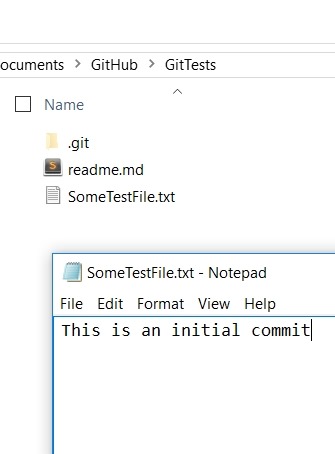
    This folder will essentially control how this repo works on my system. Let me start by adding a couple text files. I’ll use a markdown file as a Readme, since I’ll eventually push this to Github and I like to have something there that makes sense. I’ve also got the contents of the text file here, which makes it easy to track what changes are being made and versioned.

    2017-04-26 14_17_30-SomeTestFile.txt - Notepad

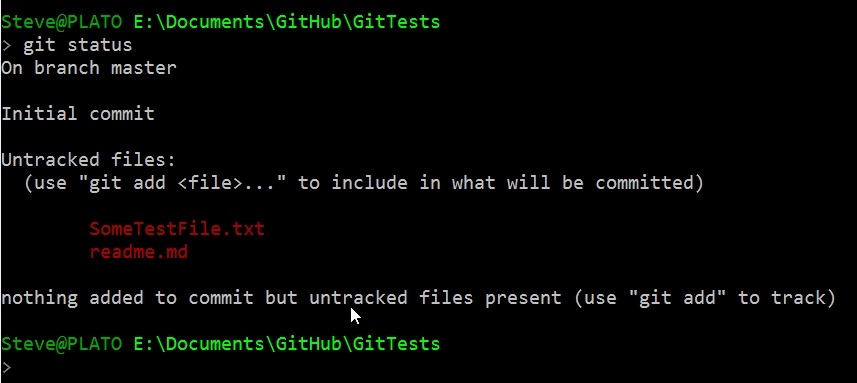
    Let’s now check my status:

    2017-04-26 14_18_01-cmd

    I’ve saved files here, but they aren’t being versioned. There’s not automatic tracking here just because I’ve saved files. This is something I need to do. Some tooling will do this for you, but it’s good to understand how this actually works. I need to tell git to track these files, so let’s do that.

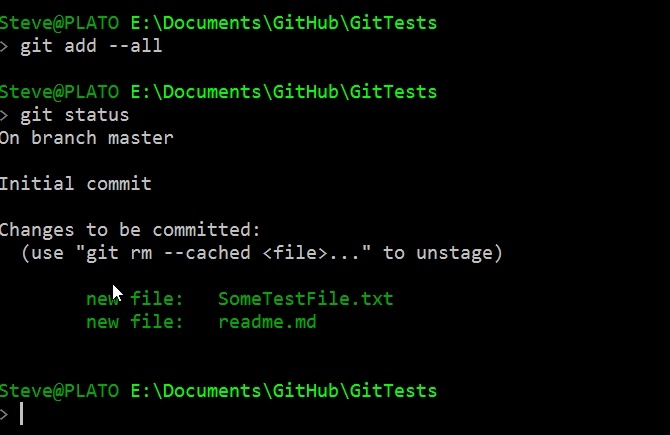
    First, I’ll add the files. I could specify specific files, but for now, I’m adding them all (both of them). Then I’ll check my status.

    2017-04-26 14_19_14-cmd

    Notice the files are in green now. These are being tracked, and they’re “staged” for commit, but they’re not committed. Git sees these are new files, but the changes haven’t been saved.

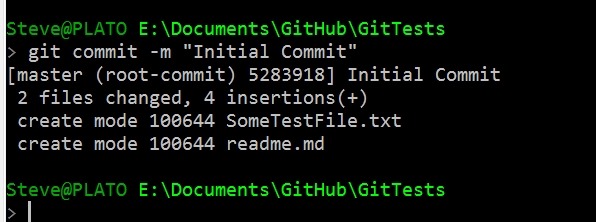
    I’ll now save the files with a git commit. I use the –m option to specify a comment on the command line. In another post I’ll show you what happens when you don’t do this.

    2017-04-26 14_20_41-cmd

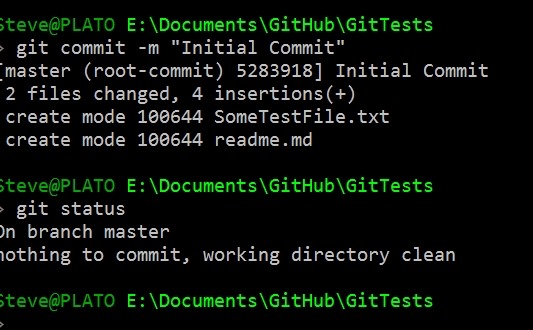
    If I now look at status, I see nothing.

    2017-04-26 14_21_32-cmd

    Why?

    Git is concerned with changes and versioning. If everything is tracked, then git sees a clean directory and no files to commit. The files exist, but the version is not tracked in git.

    Changes

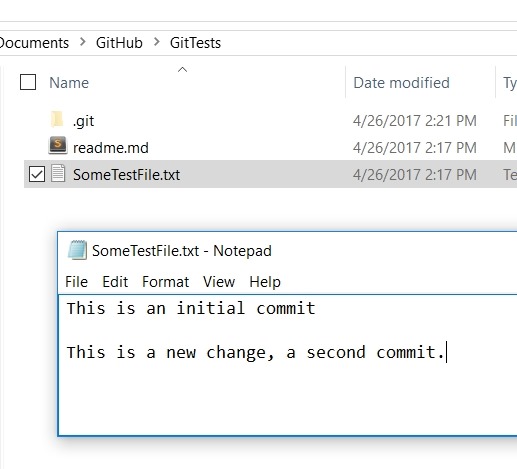
    I’ll make a change to a file and then we can see the effect. Here I’ll add text and save the file.

    2017-04-26 14_23_39-GitTests

    Now let’s check status. Below you’ll see I have a “modified” file, which I’ll then “stage” and add as something I want to commit.

    2017-04-26 14_24_05-cmd

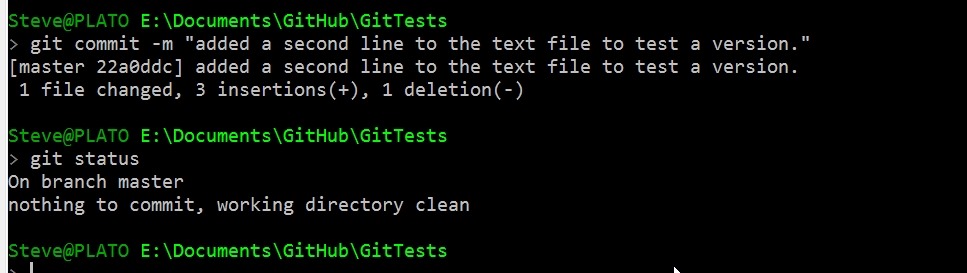
    Let’s now commit this.

    2017-04-26 14_25_21-cmd

    I can see that things are clean again, and my folder looks like I’d expect. The two files, one of which has two lines in it.

    That’s really it for now. If you want to play along, download git, create a repo, and make some changes and commits. In another post, I’ll look at how I see the changes and get back to a previous version.

    SQLNewBlogger

    This was a quick post, about 10 minutes, as I practiced and experimented with things I know about git, trying to ensure I get them straight in my mind. That’s a good way to learn or improve skills in an area.

    The hardest part in this post is trying to focus and stop writing.

  • Finding the Service Name–#SQLNewBlogger

    Another post for me that is simple and hopefully serves as an example for people trying to get blogging as #SQLNewBloggers.

    A quick one today, and this one I remembered without looking anything up.

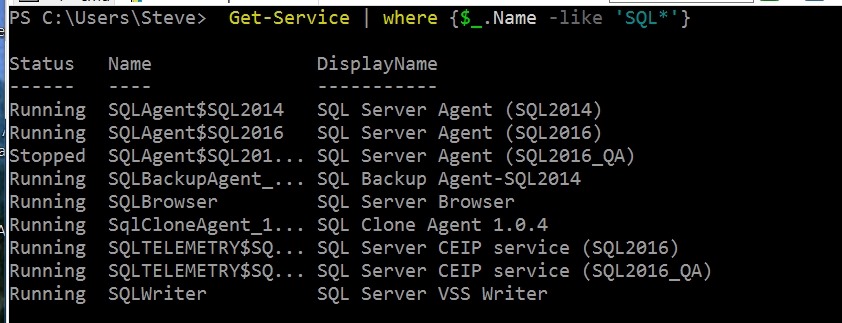
    I recently needed the service name to kill it for a test. I was using the sc.exe command line and couldn’t get it to give me the SQL Agent service name. I could have hit Windows, typed services, scrolled down, found the Agent, right clicked it, selected properties, and gotten the name.

    Or I could do this:

    Get-Service | Where {$_.Name –Like ‘SQL*’}

    That worked and I could quickly see all the names.

    2017-04-18 11_19_49-cmd - powershell (Admin)

    The only thing that threw me was I forgot the hyphen before “like”. One of these days I’ll actually remember that.

  • Limiting the Max–#SQLNewBlogger

    Another post for me that is simple and hopefully serves as an example for people trying to get blogging as #SQLNewBloggers.

    I was chatting with someone the other day about MAX() and how it can work within a set of rows, rather than across an entire result set. That’s a good query skill to have, so I mocked up a short demo. This will show the window functions in T-SQL, using the OVER() clause with MAX.

    Let’s build a table and add some data.

    CREATE TABLE counters
    ( countid INT IDENTITY(1,1)
    , countername VARCHAR(20)
    , counteryear INT
    , mycounter INT
    )
    GO
    INSERT dbo.counters
            ( countername
            , counteryear
            , mycounter
            )
        VALUES
            ( 'Test1', 2012, 1 ),
            ( 'Test1', 2013, 2 ),
            ( 'Test1', 2014, 3 ),
            ( 'Test1', 2015, 4 ),
            ( 'Test1', 2016, 5 ),
            ( 'Test1', 2017, 6 )
    GO

    If I now query, I will just use and ORDER BY clause in the OVER() clause. This will order all the rows from the result set by the year, and then apply a MAX to them.

    SELECT
        countid,
        countername,
        counteryear,
        mycounter,
        sumofallvalues = SUM(mycounter) OVER (ORDER BY counteryear),
        maxcounter = MAX(mycounter) OVER (ORDER BY counteryear)
    FROM dbo.counters
    ORDER BY
        countername,
        counteryear;
    

    The partial results are shown below. The important parts are the year and the sum/max values.
    2017-04-18 06_47_36-SQLQuery3.sql - (local)_SQL2016.NBA (PLATO_Steve (71))_ - Microsoft SQL Server M

    We see here that the counter increases by one until the last row. This is the data set, the year and counter increment. The max should be six, but it’s not six until the last row. Why?

    The answer comes from the framing of the rows. The OVER() clause, by default use a range of unbounded preceeding and current row as it’s set of values. In this case, with an order by on the counteryear, this means that when the query engine processes the first row, the entire set of values in the window is just the row with 2012. The next row has two rows, with unbounded preceeding being 2012 and the current row of 2013. This means for each set of rows, the range consists of previous values. I’ll show here what the counteryear values are for each row and the result of the max:

    • 2012 uses the 2012 row only – max 1
    • 2013 uses the 2012 and 2013 rows – max 2
    • 2014 uses the 2012, 2013, and 2014 rows – max 3
    • 2015 uses the 2012, 2013, 2014, 2015 rows – max 4
    • 2016 uses the 2012, 2013, 2014, 2015, 2016 rows – max 5
    • 2017 uses the 2012, 2013, 2014, 2015, 2016 rows – max 6

    This is a window that moves with the data, and is defined as being from the beginning of the result set to the current row.

    Let’s change things. I’ll add a second set of rows, and we can see here how this might differ.

    INSERT dbo.counters
     ( countername
     , counteryear
     , mycounter
     )
     VALUES
     ( 'Test2', 2012, 1 ),
     ( 'Test2', 2013, 4 ),
     ( 'Test2', 2014, 2 ),
     ( 'Test2', 2015, 8 ),
     ( 'Test2', 2016, 5 ),
     ( 'Test1', 2017, 11 )
     GO

    Now, let’s query again, but we’ll change our window. First, we’ll order by name for the MAX(), since that’s what we want to show. I’ll leave SUM alone. Next, I’ll change the window to be only the previous row and the current row.

    SELECT
     countid,
     countername,
     counteryear,
     mycounter,
     sumofallvalues = SUM(mycounter) OVER (ORDER BY counteryear),
     maxcounter = MAX(mycounter) OVER (PARTITION BY countername
     ORDER BY counteryear
     ROWS BETWEEN 1 PRECEDING AND CURRENT ROW
     )
     FROM dbo.counters
     ORDER BY
     countername,
     counteryear;

    Now the results are a bit different. My final ORDER BY ensures I have the tests separated. The first one looks similar in the max columns. I’ll explain the SUM in a different post.

    2017-04-18 06_55_24-SQLQuery3.sql - (local)_SQL2016.NBA (PLATO_Steve (71))_ - Microsoft SQL Server M

    The MAX() for test2 is different. Let’s see what happens here. Since my window is a ROWS clause, and it’s set for 1 preceeding and the current row, I get these values.

    Test2, 2012 row

    • Preceeding  – no values
    • Current – 1
    • Max – 1

    Test2, 2013 row

    • Preceeding  – 1 (2012 value)
    • Current – 4
    • Max – 4

    Test2, 2013 row

    • Preceeding  – 4 (2013 row)
    • Current – 2
    • Max – 4

    Test2, 2014 row

    • Preceeding  – 2
    • Current – 8
    • Max – 8

    Test2, 2015 row

    • Preceeding  – 8
    • Current – 5
    • Max – 8

    This shows that MAX  is limited to the frame I’ve applied to the window. The window is the OVER() clause, which in this case is the set of rows with the same counteryear value (the partition).

    Window functions get confusing and are strange, especially if you’ve spent most of your career without them and finding tricks to use COUNT(), SUM(), and other aggregates on subsets of rows. Things get easier in SQL Server 2012+, and you should spend time playing with small sets of data and understanding windows.

    SQLNewBlogger

    This was about a 15-20 exercise, but it was good since I needed to stop and think about how to use and show a window function and the ranges. Good skills practice.

    I’d like to see others explain this with a data set that they find interesting.

    References

    OVER() – https://docs.microsoft.com/en-us/sql/t-sql/queries/select-over-clause-transact-sql

    MAX() – https://docs.microsoft.com/en-us/sql/t-sql/functions/max-transact-sql

  • DevOps Basics– git Cloning Repos

    Another post for me that is simple and hopefully serves as an example for people trying to get blogging as #SQLNewBloggers.

    This continues my series on git, because I think it’s good to know what the command line is and how to use it.

    Once you have git running, the thing I’ve often wanted to do is go get code from somewhere. Certainly the creation of a repo and new code is something you might do, but often you’ll be looking to get code from somewhere else, so let’s look at how we can do this.

    Find a Repo

    Most of the time I find a repo somewhere in the company or on the Internet. Fro example, I have a simple database structure that I’ve used for demos at Github. This is my ASimpleTalkDB Repo, which is at: https://github.com/way0utwest/ASimpleTalkDB. You can see it here:

    2017-04-06 13_54_32-way0utwest_ASimpleTalkDB_ Demo repo for Presentations

    Off to the right is a “clone” button, which is what we want to do. We want to perform a git clone. If you click the button, a URL is in an edit box. The URL is: https://github.com/way0utwest/ASimpleTalkDB, the same as the repo above.

    Let’s clone this. First, get a folder to store code in. I started with a Documents\Github folder on my various machines. I’ll use that, and as you can see, this is a place I have a number of folders, each one a repo. I don’t have this repo set up yet.

    2017-04-06 13_58_06-C__Users_way0u_Documents_GitHub

    I’ll clone this from the command line. The various tools do this, but now you’ll understand how this works. First, open a command line in this folder and then type “git clone https://github.com/way0utwest/ASimpleTalkDB”. This will clone the code, as shown below:

    2017-04-06 13_59_46-way0utwest_ASimpleTalkDB_ Demo repo for Presentations

    By default, the name of the repo becomes a folder name, with all the code below that. If I look in Explorer, I can see this.

    2017-04-06 13_59_58-C__Users_way0u_Documents_GitHub_ASimpleTalkDB

    However, I can control this. I’ll delete the folder and do this again. That’s the power of a VCS. I don’t need to worry about this code, because I’ll go get it from another repo.

    Once I delete the folder, I’ll re-run the git clone command, but with the name of a folder added to the end.

    2017-04-06 14_01_55-cmd

    These objects, 264 of them, copy to my machine in a few seconds over hotel wi-fi. This is code, just text, and it’s quick. If I change to the folder and check the status, I see it is a real repo:

    2017-04-06 14_03_01-cmd

    Cloning Folders

    What if I have code inside the company, and not in Github, Gitlab, BitBucket, VSTS, etc. Can I clone things? Yep, you can, but don’t use this to get a copy of your own code. That’s what branches are for. We’ll talk branches later, but for now, we can assume you might have a repo in your company.

    For example, let’s assume for a moment that my C:\users\%username%\source\repos folder is on the network. I can clone one of these repos like this:

    2017-04-06 14_08_12-cmd

    Again, this isn’t the way to get a copy of my own code to work on. This is for getting a repo that I want to work on for myself, where I’ll then merge changes back to the original repo on another machine. On my own machine, I’d just use branches.

    2017-04-06 14_08_12-cmd

    This will help you get some code, and I’d encourage you to copy some code down and see how it works. Go get some code from my repo and build a db if you have SQL Source Control (point this to your cloned repo), or grab something from Microsoft and play.

    That’s it for this post. There are lots of places to go. I’ll talk about how to now push your code elsewhere once you’ve changed it in another post as well as how to branch and accomplish a few other things.

    A few resources (more boring, but will help you learn if you want):

    git clone (git)

    Create a Repo (Channel 9)