Tag: SQLNewBlogger

  • Administrative Native and ConEmu Command Prompts–#SQLNewBlogger

    Another post for me that is simple and hopefully serves as an example for people trying to get blogging as #SQLNewBloggers.

    I would think many people know how to do this, but I’ve run into a few, so here you go.

    There are times you need to run elevated commands on a machine as an administrator. I’ve had to run various apps, as well as command utilities in this way, so I’ve learned how. I’ll give you two ways to get admin command prompts running.

    Cmd.exe

    This is the command prompt most people on Windows use. You can hit the Windows key and type cmd, and you’ll see this:

    2016-12-09 12_53_21-Installation

    On Win 7 or earlier, you’d get something along these lines.

    2016-12-09 12_55_01-Win7x64 SQL 2012 Demo - VMware Workstation

    In either case, if you hit Enter, you’ll get this:

    2016-12-09 12_55_47-Win7x64 SQL 2012 Demo - VMware Workstation

    A command line where you can type DOS style commands. Many of you might not use this much, but you should. The more you know about doing things from the command line, the more efficient and effective you’ll be. Plus you’re well on your way to being comfortable in DevOps type environments.

    This isn’t a privileged command prompt, and certain things won’t work here. To get an administrative level prompt, do this. First, after typing “cmd” don’t hit enter. Instead, right click the icon. You’ll see this:

    cmd_a

    Or this:

    2016-12-09 12_57_30-Win7x64 SQL 2012 Demo - VMware Workstation

    In both of these, there is a “Run as administrator” option. You want that. Once you do, you’ll need to accept the UAC prompt to allow an administrative level command prompt to open.

    ConEmu

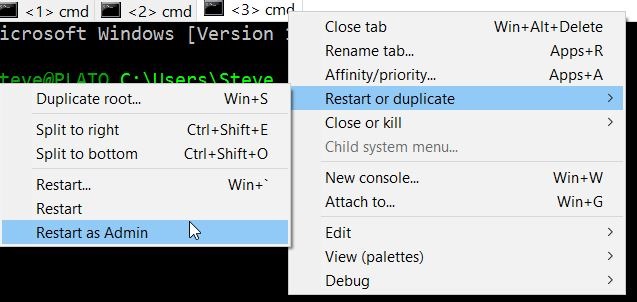
    I have switched to ConEmu. I think it’s a much better console, and it’s handy. I get it with Chocolatey, and then it’s just a hot key away. What’s more, I can easily open multiple command windows. For example, I’ve got two open, but I can open a third, administrative level one, but right clicking allows me to restart my prompt.

    2016-12-09 13_02_09-cmd

    When I do that, I need to acknowledge the UAC prompt, but then I’ll have an admin level prompt.

    SQLNewBlogger

    These quick, handy tips showcase your continuous learning and improvement. As well as help you remember cool things like this.

  • Quick Command Shells–#SQLNewBlogger

    Another post for me that is simple and hopefully serves as an example for people trying to get blogging as #SQLNewBloggers.

    This isn’t a SQL post, per se, but since I’ve been using lots of PowerShell for SQL stuff at times, this is a handy trick I picked up.

    I was reading the announcement on the Windows Insider build 14971, which will have a few new things. One of these is the default command shell won’t be cmd.exe any longer. It will be PowerShell.

    Buried in the announcement was a tip I’d never heard. I don’t have any real cmd additions to my Windows machines, so to get to a particular folder in a command shell, I usually do lots of “cd”s or I right click in the address bar, and copy the path. Thankfully Windows 10 lets me paste this easily into a command prompt.

    2016-11-21 16_21_20-EndtoEndEncryptionwithSQL2016

    There’s another way.

    I can click the address bar and type “cmd”.

    2016-11-21 16_21_47-EndtoEndEncryptionwithSQL2016

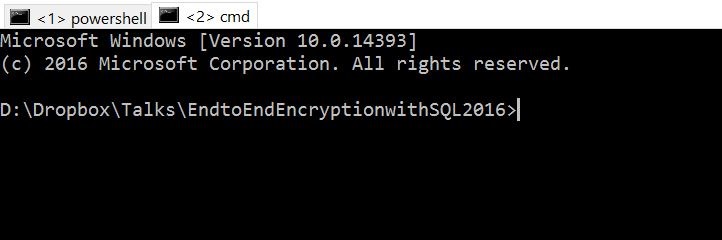
    When I do this, I get a new command prompt at that location, as shown here. I do install ConEmu on my machines, so that’s where the prompt opens.

    2016-11-21 16_21_55-cmd

    That’s super handy.

    We’ll see how may workflow changes when PoSh is the default shell, but I’m looking forward to it.

    #SQLNewBlogger

    The quick tips that help me work more efficiently are what I’m writing in these posts. Here’s one that took my 5 minutes, and you can write this kind of post as well. Show off what you know, do, and have learned.

  • Connecting to a Specific Port–#SQLNewBlogger

    Another post for me that is simple and hopefully serves as an example for people trying to get blogging as #SQLNewBloggers.

    I recently blogged about finding the port your SQL Server uses. At the end of that post I showed a connection to a server using a port. This is something I’ve used rarely, but it’s been very helpful.

    The specification for specifying a port can vary. For example, my build server at home runs TeamCity on port 8077. In my case, the URL to connect is:

    http://192.168.1.201:8077/overview.html

    If I had an FQDN, I might have this instead:

    http://Atlas.dkranch.net:8077/overview.html

    When I connect to SQL Server, I get this dialog:

    2016-11-15 15_28_10-Connect to Database Engine

    Some of you might note there is a “Connection Properties” tab, but there’s no port setting there, even if you choose TCP/IP.

    2016-11-15 15_28_27-Connect to Database Engine

    When I connect, I give a server name. In the example above, I used “.\SQL2016”. The default is that my client will try to connect on 1433 or use the SQLBrowser to get the port. However, I could specify the instance name like this:

    .\SQL2016, 1433

    For this instance, that wouldn’t work as the port is 6077. I’d have to write this:

    .\SQL2016, 60087

    But since I’m choosing a port, I don’t need that. I can use

    .,60087

    and I’ll connect.

    Learn to use the port in your connection string. At some point, this will help you to troubleshoot connection issues.

    #SQLNewBlogger

    This is a quick, easy post to write. It’s five minutes work for most of you. Maybe 10 if you have to Google/Bing.

  • What Port Should I Use?–#SQLNewBlogger

    Another post for me that is simple and hopefully serves as an example for people trying to get blogging as #SQLNewBloggers.

    This is a quick post on checking the port for your SQL Server instance. It’s in line with Tim Ford’s request for simple, beginning blog posts this year.

    How do you know what port your instance is listening on? Many of you might not know, depending on the SQLBrowser to be running. That’s not necessarily a good idea, as some security protocols insist this be disabled.

    There are ways to check. First, you could use a the Configuration Manager. On my desktop, this is in the Manage tool for the computer. Once inside, I can select the Server Network Utility.

    2016-11-15 15_06_51-Computer Management

    Notice that I have multiple instances here, so I need to choose one. Once I do, I see the protocols on the right. In this case, I want to look at the properties of TCP/IP, which is where I’ll get the port.

    If I look at properties, I’ll start with the Protocol tab, but I want to switch to the IP Addresses tab. In here, you can see I’ll see an entry for each of the IPs my instance is listening on. I can see which ones are Active as well as the port. In my case, I have these set to dynamic ports.

    2016-11-15 15_07_38-TCP_IP Properties

    This doesn’t help. If I had specific ports, I’d see them listed for each IP.

    The way I tend to check the specific port is that I will go to the SQL Server Error log.

    2016-11-15 15_12_28-SQLQuery1.sql - localhost_SQL2016.sandbox (PLATO_Steve (65)) - Microsoft SQL Ser

    When I open this up, I see my error log entries. I want to look at the startup of my current session and scroll up slightly. At some point you will see an entry like “Server is listening on…”

    2016-11-15 15_16_37-Log File Viewer - localhost_SQL2016

    In my case, you can see above that I am listening for this instance on 60087. I can verify this with a connection in SSMS.

    2016-11-15 15_17_49-Connect to Database Engine

    Note that this is a named instance, and I normally connect to “.\SQL2016”. The SQLBrowser determines the port, since I send the name in, and then get a port back to where I will then connect. However, here the name doesn’t matter. I just send in the port and I can connect.

    #SQLNewBlogger

    Everyone working with SQL Server should know this. It’s a simple item, like checking the printer is plugged in. Know how to check this.

    And blog about it.