Tag: SQLNewBlogger

  • Disabling SQL Server Network Protocols

    Another post for me that is simple and hopefully serves as an example for people trying to get blogging as #SQLNewBloggers.

    I ran across a question on network protocols recently, which is something I rarely deal with. Often the default setup for SQL Server is fine, but there are certainly times you should add or remove network connectivity according to your environment.

    Here’s a short post on turning off (or on) a network protocol for SQL Sever.

    What’s Enabled?

    The easiest way to verify what’s enabled is to use the SQL Server Configuration Manager. You’ll need administrative permissions on the host to run this, but it’s easy to find.

    2016-01-13 14_59_40-Start

    Once you open it, typically you’ll have a list of the items that can be configured.

    2016-01-13 15_02_09-Photos

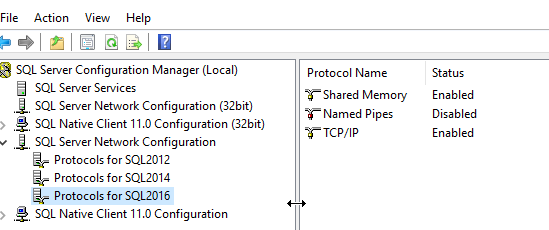
    We want the SQL Server Network Configuration, which is the server level configuration for this host. The Client configurations are for the host being used a client to connect to a SQL Server.

    2016-01-13 15_02_31-Photos

    As you can see here, I have Shared Memory and TCP/IP enabled for this instance, but Named Pipes disabled.

    Disabling a Protocol

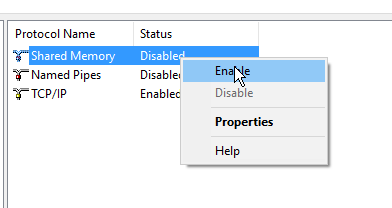
    As you might expect, this is easy. I right click on a protocol, and I can change the status. In this case, I’ll disable Shared Memory

    2016-01-13 15_03_50-Photos

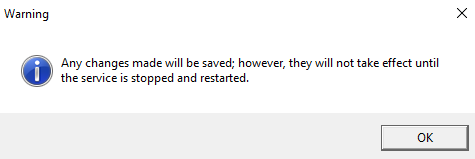
    Once I do that, the protocol is disabled. However not on the instance. I’ll get this message.

    2016-01-13 15_04_56-Photos

    I need to restart the server. Once that’s done, no one will be able to use Shared Memory on the host.

    I can fix this

    2016-01-13 15_04_49-Photos

    Of course, I need to restart my instance again.

    Checking the Log

    When SQL Server starts, quite a bit of configuration information is written into the log. This is useful for troubleshooting in many cases. One of the things you’ll find is the network listeners, as shown here.

    2016-01-13 15_08_14-Log File Viewer - JollyGreenGiant_SQL2016

    This is usually after the database startup information, so if you look, you can see I have some local pipes and some TCP/IP settings here.

    SQLNewBlogger

    After reading a question, this was less than 10 minutes to write, with making screenshots. However I’ve done this before. If this was your first time, then it might take you longer to research and write, but I bet most DBAs could do this in 30-45 minutes.

  • Multiple CTEs – #SQLNewBlogger

    Another post for me that is simple and hopefully serves as an example for people trying to get blogging as#SQLNewBloggers.

    One of the techniques that I find very handy in solving SQL problems is the CTE. This is much easier to read, for me, than embedding code into a derived table. For example, which of these is easier to decode, or perhaps more importantly, debug?

    WITH calendarquarters (qtr, yr, dt)
    AS
    ( SELECT qty = ‘Quarter ‘ + CAST(c.QtrNum AS VARCHAR(3))
           , yr = ‘Our year ‘ + CAST(YEAR(c.CalDate) AS VARCHAR(4))
           , c.CalDate
       FROM dbo.Calendar AS c
    )
    SELECT *
    FROM calendarquarters cq
    INNER JOIN dbo.CustomerSales AS s
      ON cq.dt = s.LastSale

    Or this:

    SELECT *
    FROM (  SELECT qty = ‘Quarter ‘ + CAST(c.QtrNum AS VARCHAR(3))
           , yr = ‘Our year ‘ + CAST(YEAR(c.CalDate) AS VARCHAR(4))
           , dt = c.CalDate
       FROM dbo.Calendar AS c
    ) cq
    INNER JOIN dbo.CustomerSales AS s
      ON cq.dt = s.LastSale

    I’d argue the first becomes easier, especially when I have multiple tables in the join. In this way I can more easily see in the first example I’m joining two tables/views/CTEs together. If I want to know more about the details of one of those items, I can easily look up and see the CTE at the beginning.

    However when I want multiple CTEs, how does this work?

    That’s pretty easy. It’s actually just listing each CTE, separated by commas. In my case, I wanted to do this:

    with upcte

    as

    (select uplen = len(replace(floorstring,’)’,’’)

    from Day1

    )

    , downcte

    as

    (select downlen = len(replace(floorstring,’(’,’’)

    from Day1

    )

    select uplen – downlen

    from upcte, downcte

    That’s it. I use the WITH once, and then each CTE stands along. I could add the column names if I wanted, but here I can easily see I’m querying two numbers from two “tables”, CTEs in this case, and performing subtraction. If I want the details, I get that from the previous definitions.

    SQLNewBlogger

    A quick post as I used this technique in solving Day 1 of the Advent of Code. This took about 5 minutes to write, and I got to add my own twist to the concept.

    References

    A quick one from my first Google result. While I knew how to do this, I double checked myself with a search.

    Multiple CTE in One Select Statement Query – http://blog.sqlauthority.com/2009/08/08/sql-server-multiple-cte-in-one-select-statement-query/

  • Getting all Yesterday’s Sales, or Finding Midnight Yesterday

    Another post for me that is simple and hopefully serves as an example for people trying to get blogging as#SQLNewBloggers.

    I see questions like this regularly. How do I get all the sales from yesterday? I tried using DATEADD(day, –1, getdate()), but I only get some of the sales.

    Many people working with T-SQL know this is an issue. They know that getdate() returns the date and time of this instant (roughly). At the time of this writing, that’s 3:11 pm.

    2015-11-25 15_11_29-Photos

    However if I want sales from yesterday, I really want all timestamps from midnight on. So I probably want code that looks like this:

    SELECT SUM(ordertotal)
     FROM sales
     WHERE SalesDate > '20151124 00:00:00'
     AND SalesDate < '20151125 00:00:00'


    How do I get the time to be midnight?

    The easy answer is one I’ve been using quite a bit lately to answer questions, and I’ve refreshed my knowledge of the datetime trick. I use a combination of DATEADD and DATEDIFF to get to a 0 based datetime.

    SELECT DateAdd(Day, Datediff(Day,0, GetDate()), 0)


    In this case, I’ll get midnight yesterday, or 2015-11-24 00:00:00. This is because I’m using 0 as my base date and looking for the days (in DATEDIFF) since that 0 based date. When I add those days with DATEADD to the same zero based date, I get the correct date, but with a 0 based time.

    This same technique works to find the first of this month.

    SELECT DateAdd(Month, Datediff(Month,0, GetDate()), 0)


    You can also use other datetime values to normalize those times.

    SQLNewBlogger

    This was a quick post. I had answered the question and spent less than ten minutes putting this together.

  • Tracking Logins with Extended Events

    Another post for me that is simple and hopefully serves as an example for people trying to get blogging as#SQLNewBloggers.

    I was building a question the other day on Extended Events and needed to build a new session. One of the easier sessions to build is with the logins, so I decided to use that, and then wrote this post on how to build the session.

    The first thing is to to to the Management tab in SSMS and then the Extended Events folder. I right click the Sessions folder and select New Session.

    2015-11-18 10_40_06-Cortana

    This gives you a dialog. Like many in SSMS, we start with a name. You could select run at server startup, which I’d do in the case of this being a production system.

    2015-11-18 10_40_55-Photos

    When I click next, I get to the "Events" tab, which lists all events. I’ll scroll down to login and select that. I need to click the arrow to the right.

    2015-11-18 10_41_12-Photos

    Once I do that, my event is in the session.

    2015-11-18 10_41_19-Photos

    After I pick the events, I choose the fields I’m going to capture. There is a "Configure" button in the upper right that you click. This scrolls the dialog over.

    2015-11-18 10_41_38-Photos

    I can select any number of fields for capture. You can see I’ve picked the client_hostname. I would also add the NT_Username and Username from the list. You could add more, but in this case, I’m more concerned with seeing who’s logged in.

    I could add filters, but I choose not to. I click on Data Storage to determine where to store this data.

    2015-11-18 10_45_59-Photos

    For auditing, I might want a file. In this case, for testing, I’ll use the ring buffer, in memory storage.

    2015-11-18 10_46_15-Photos

    That’s it for getting the session set up. However it’s not started. To do that, I need to right click the session and select Start.

    2015-11-18 10_47_34-Start

    This will allow the server to start collecting data. Is it working? Let’s see. We’ll watch the data. Right click the session again and select Watch Live Data

    2015-11-18 10_47_43-Cortana

    This pops open a window. I usually make this a separate vertical tab group. Once that’s open, I’ll click "New Query" in SSMS, which will log me in again

    2015-11-18 10_48_05-Photos

    As you can see, a few events popped up here. I am capturing data. Don’t forget to stop the session after this if you don’t need it.

    SQLNewBlogger

    This post came out of work I was doing, and which I’d likely do as a DBA. However as soon as I got things working and tested, I knew this was a good post. In fact, I got a couple posts from the process. The setup and testing took about 20 minutes, including a little research. However the writing for this was about 10 minutes.

    References

    A few things I used.